Is Excel Workbook the Same as XLSX? A Practical Guide
Explore whether an Excel workbook and the .xlsx format are the same. This guide covers definitions, saving choices, and practical tips for sharing and cross-tool compatibility.


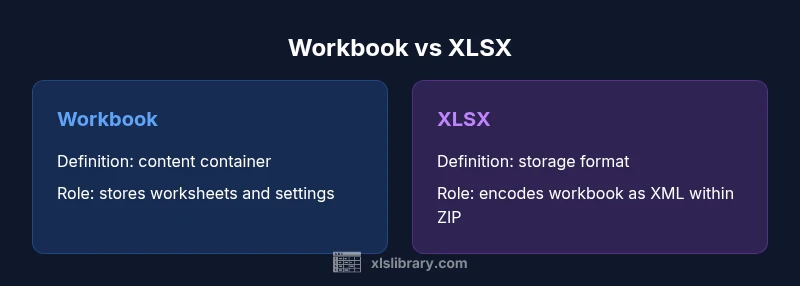
Short answer: A workbook is the broader container that holds worksheets, while .xlsx is a specific file format used to store that content. The two are related but not identical: you save a workbook as .xlsx, or choose another format (like .xlsm) for macros. Understanding this helps with compatibility and sharing.
Is Excel workbook the same as XLSX? Clarifying the terms
In everyday Excel use, people often swap the words workbook and file extension in casual conversation. Technically, a workbook is the logical container that includes one or more worksheets, along with workbook-level settings such as named ranges, defined names, and formatting rules. The .xlsx extension, by contrast, is the standardized file format that stores that workbook’s data and structure. So, is the workbook the same as .xlsx? Not exactly—the workbook is the content, while .xlsx is the storage format used to save that content. This distinction matters when you share files, exchange data with other tools, or ensure cross-platform compatibility. For most users, saving as .xlsx is the default choice, but there are macro-enabled and legacy formats to consider when your workflow requires them.
The core concepts: workbook, worksheet, and structure
To master Excel terminology, you’ll want to keep these terms straight. A workbook is the entire Excel file that contains all worksheets and the workbook-level settings. A worksheet is a single tab within that workbook where you place data, formulas, and formatting. The structure encompasses the layout, styles, data validation rules, named ranges, and metadata that give the workbook its behavior. The file extension (.xlsx) describes how the content is stored rather than what content exists. When you save, Excel serializes the active workbook into a ZIP package containing XML files that represent each worksheet and the workbook’s metadata. That separation—content versus storage—explains why you can have the same workbook saved in multiple formats with different capabilities.
How the .xlsx file format works
The .xlsx format is part of the Office Open XML family and is designed for interoperability and compact storage. It saves data as structured XML files inside a ZIP archive. Each worksheet becomes an individual XML part; other parts describe styles, data validations, and workbook properties. The XML-based architecture makes it easier for other programs to read and manipulate the content, and it allows developers to automate tasks by parsing the XML. In practice, a single .xlsx file can carry complex formulas, charts, conditional formatting, and rich metadata, while remaining portable across platforms and software that support the OOXML standard.
Saving and naming: what to expect when you save
When you click Save in Excel, the default is to store your work as an .xlsx file. This ensures broad compatibility across Windows, macOS, and many third-party apps. If macros are part of your workflow, you’ll typically save as .xlsm to preserve that code. Other formats exist for special needs: .xls for very old Excel versions, and .xlsb for binary storage that can offer performance benefits for very large datasets. Each choice affects compatibility, features, and file size. Understanding these implications helps you make an informed decision about how to save your work for sharing, archiving, or automation.
Macros and legacy formats: XLSX vs XLSM vs XLS
Macros add automation but also complicate format compatibility. The .xlsx format deliberately excludes macro code to improve security and portability. If your workbook contains VBA macros, saving as .xlsm preserves the macro functionality. The older binary format (.xlsb) can be faster for very large workbooks but may not be as widely supported in all environments. Similarly, the legacy Excel binary format (.xls) is mainly used for backward compatibility with very old systems. When choosing a format, consider whether you need macro support, performance for large data, and the target audience’s software ecosystem.
Compatibility and cross-platform sharing considerations
Cross-platform sharing is a common real-world need. While .xlsx is broadly supported, some advanced features—especially those tied to macros or external data connections—may not translate perfectly across tools like Google Sheets, Apple Numbers, or mobile Excel apps. In practice, save in the simplest broadly compatible form when sharing with non-Excel users: keep formulas simple, minimize data connections, and avoid features that rely on macros. Before sending, test the file in the recipient’s environment to catch issues early.
Practical scenarios and decision guidelines
For routine work that you expect to share widely and open in various tools, choose .xlsx by default. If your workflow depends on macros, save as .xlsm and share with collaborators who can enable macros. For archival storage of very large datasets, you might consider .xlsb, but be mindful of potential compatibility gaps. If you must export data for others who don’t need the Excel UI, consider CSV for pure data or a separate summary tab to preserve context. These decisions help minimize surprises and improve collaboration.
Common misconceptions and clarifications
A frequent misconception is that the workbook and the file extension are the same thing. In reality, the workbook is the content and organization, while the format (.xlsx, .xlsm, or others) describes how that content is encoded and stored. Features such as macros, data validation, and certain advanced formulas may not exist in all formats or tools. By understanding the separation between content and storage, Excel users can make more informed choices about saving, sharing, and interoperability across platforms.
Authority and sources
For readers who want deeper dives, consult authoritative sources on file formats and XML storage. In particular, explore official Microsoft guidance on Excel file formats, the XML specification from W3C for XML-based storage concepts, and academic or government resources discussing data formats and interoperability. These references provide foundational context for why Excel uses a structured, XML-based approach and how that design affects compatibility across tools and versions.
Comparison
| Feature | Workbook | XLSX format |
|---|---|---|
| Nature | A workbook is the logical container that holds worksheets and workbook-level settings | XLSX is the XML-based, ZIP-compressed storage format used to save that content |
| Contents | Holds worksheets, formulas, charts, and metadata within the workbook | Stores the same content as XML parts inside a ZIP package (worksheets, styles, properties) |
| File extension | N/A as a concept, represents the container when saved | .xlsx is the common extension for the default modern workbook format |
| Macros | Workbooks can contain macros; macros live in the format that supports them | xlsx by itself does not store VBA macros; use XLSM for macro-enabled workbooks |
| Default format | A workbook is saved in a given format; the default for modern Excel is .xlsx | .xlsx is the standard format for modern workbooks without macros |
| Best for | General data storage, sharing, and collaboration in modern environments | Macro-enabled workflows or legacy feature sets may require other formats |
Benefits
- Widely supported across platforms and tools
- XML-based structure enables data recovery and interoperability
- Typically smaller file sizes due to ZIP compression and XML efficiency
What's Bad
- Some legacy features rely on older formats and may not fully translate
- xlsx format excludes macros; macros require XLSM or other formats
- Non-Microsoft tools may have partial feature parity or rendering differences
xlsx is the preferred default for modern workbooks; use macros or legacy needs to guide alternative formats
For everyday sharing and cross-tool compatibility, the .xlsx format offers the best balance of accessibility and feature support. Reserve .xlsm for automation needs and .xls/.xlsb only when required by older workflows.
People Also Ask
Is a workbook always saved as .xlsx by default?
In modern Excel installations, the default is usually an .xlsx file for workbooks. You can choose a different format from the Save As dialog if macros or legacy compatibility are required.
Usually yes, but you can change it if your workflow needs macros or older compatibility.
Can I open an Excel workbook in Google Sheets if it’s saved as .xlsx?
Yes, Google Sheets can open .xlsx files in most cases. Some advanced features, especially macros or complex data connections, may not translate perfectly.
Yes, but some advanced features might not transfer exactly.
What is the difference between a workbook and a worksheet?
A workbook is the entire Excel file that contains all worksheets and settings. A worksheet is a single tab within that workbook where you place data. The terms describe different levels of the same project.
A workbook holds all sheets; a worksheet is one sheet inside it.
Do all Excel features save in .xlsx?
Most core Excel features save in .xlsx, but macros, ActiveX controls, and some legacy features require other formats or are not supported.
Mostly yes, but macros and some advanced features need other formats.
When would I choose .xlsb or .xls?
Choose .xlsb for large datasets and faster performance; choose .xls if you must maintain compatibility with very old Excel versions.
Use .xlsb for speed with big files, or .xls for very old apps.
The Essentials
- Save most workbooks as .xlsx for broad compatibility
- Use .xlsm only if macros are necessary
- Workbook = content; XLSX = storage format
- Test files in recipient environments when sharing across tools
- Understand format trade-offs before sending files