Free Excel Budget Template: A Practical Step-by-Step Guide
Learn how to create and customize a free Excel budget template for personal or small-business finances. This guide covers structure, formulas, dashboards, and where to download reliable free templates.


You can create a free, reusable Excel budget template that tracks income, expenses, and savings. Start from a ready-made layout or build your own, then customize categories, dates, and formulas to auto-calculate totals and variances. Save as a template to reuse monthly or yearly, and tailor dashboards to your goals.
What is an Excel budget template and why it matters
An Excel budget template free is a structured workbook that helps you plan income, track expenses, and monitor savings. It provides a consistent layout, formulas, and visual summaries to keep your finances transparent. According to XLS Library, a well-designed budget template reduces manual data entry and improves consistency across months. It also serves as a practical learning tool for both aspiring and professional Excel users, reinforcing best practices like currency formatting, data validation, and version control. When used correctly, a template becomes a living document you modify as your goals evolve, rather than a static file you update once a year. This foundation supports better decisions, clearer forecasting, and easier collaboration with family or coworkers. The XLS Library team found that starting with a solid budget template accelerates mastery of core Excel skills and reinforces disciplined financial habits.
Free templates vs paid options: what you get and what you pay for
Free Excel budget templates come in many shapes: simple, feature-light sheets, or moderately advanced workbooks with built-in formulas. Paid templates often include enhanced dashboards, priority support, and additional industry-specific sheets. The choice depends on your needs, budget, and willingness to customize. XLS Library analysis shows that most users benefit from starting with a solid, free template and progressively adding features as their budget grows. The key is to look for a template with clear categories, consistent formatting, and transferability across months. If you anticipate needing professional-sounding dashboards, a paid option may be worthwhile, but a well-structured free template often suffices for personal budgeting or small projects.
Core components of a robust budget template
A strong budget template typically includes:
- Income sources with expected vs. actuals
- Fixed expenses (rent, loans, subscriptions)
- Variable expenses (groceries, entertainment, travel)
- Savings, investments, and debt payments
- A summary dashboard that highlights totals, variances, and trends
- An assumptions section (rates, growth, seasonality)
- Data validation to constrain categories and input formats
- Formulas for automatic totals, variances, and reconciliation
- Version control or a simple changelog to track edits
This structure ensures you can quickly see where money comes from, where it goes, and how your financial picture evolves over time. According to XLS Library, organizing data in clearly labeled tables and sheets makes budgeting error-resistant and scalable across months and years.
Data structure and organization tips
Organize your workbook with separate sheets for Setup, Monthly Data, and Dashboard. Use a consistent naming convention like 2026_January or Jan_2026 to keep months in order. Store categories in drop-down lists via data validation to minimize spelling inconsistencies, and keep the master category list on its own sheet. Use structured tables (Ctrl+T) for incomes and expenses so formulas automatically adjust as you add rows. Protect cells that contain formulas or category lists to prevent accidental changes. A well-structured workbook reduces errors and makes sharing with partners or teammates painless.
Formulas and automation basics
Core formulas to master include SUM for totals, SUMIF/SUMIFS for category totals, and AVERAGE for trends. Use IFERROR to handle missing data gracefully, and TODAY or EOMONTH for automatic monthly rollovers. XLOOKUP or VLOOKUP can pull category budgets or prior month data into the current view. Build a dynamic dashboard by linking charts and sparklines to your data tables, so updates happen with a simple refresh. Data validation paired with conditional formatting helps you spot overspending at a glance and keeps the template clean and usable across months.
Step-by-step blueprint to build your template from scratch
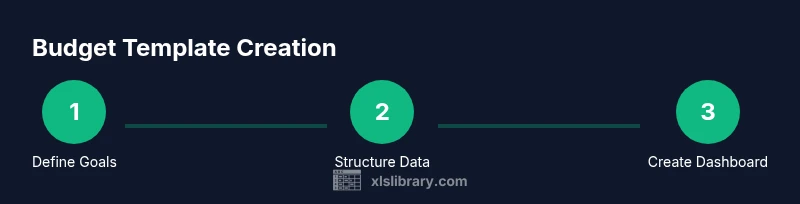
Begin with a simple data model: create an Income table and an Expenses table, each with columns for Date, Category, Amount, and Notes. Add a Monthly Summary sheet that aggregates these tables by month using SUMIFS. Create a Dashboard that visualizes totals, variances, and trends using charts. Set up a Savings/Goals section with progress indicators and a small “what-if” section to model changes in income or expenses. Finally, lock essential cells, save as a template, and test with mock data before real use. The process is iterative—start simple, then gradually add automation and dashboards as you gain confidence.
Personal budget vs. small business budgeting considerations
A personal budget template can stay compact, with fewer categories and a focus on cash flow. For small businesses, you’ll want to separate revenue streams, track taxes, payroll, and operating expenses, and implement more robust reconciliation with bank statements. Consider adding a separate “Projects” or “Departments” tab to allocate costs and measure profitability. Regardless of scope, keep key metrics consistent across months so you can compare performance over time without reconfiguring your template.
Dashboards and visual summaries: making data actionable
A good dashboard translates numbers into insight. Use bar charts to compare income vs. expenses by category, line charts to show month-over-month trends, and a waterfall chart to illustrate the composition of expenses. Add sparklines within the monthly rows to provide quick visual cues, and ensure the dashboard refreshes automatically as data changes. Color-code variances (green for favorable, red for unfavorable) to draw attention to what needs action. These visuals enable faster decisions and clearer communication with collaborators or family members.
Common pitfalls and how to avoid them
Pitfalls to watch for include overcomplicating the template with too many categories, neglecting data validation, and failing to back up files regularly. Avoid static ranges that require manual updates; instead, use dynamic ranges and tables so formulas resize automatically. Don’t skip documenting assumptions and sources—clear notes help you stay honest about budgeting plans and changes over time. Finally, test the template with representative data and validate results against a bank statement or receipts to catch discrepancies early.
Excel Online vs. Desktop: what to consider
Excel Online is convenient for collaboration and basic budget work, but some advanced features (like certain types of macros or highly customized dashboards) may perform better on the desktop app. If you frequently work offline or need robust data modeling, a desktop setup provides more power and flexibility. For most personal budgets, Excel Online plus a well-structured template offers ample capabilities with the advantage of easy sharing and version history.
Free resources and templates to jump-start your budget
There are many reputable sources for free Excel budget templates. Look for templates that use clean structures, clear category naming, and well-documented formulas. Start with official Microsoft templates or widely cited budgeting guides from trusted publications, and customize them to your situation. If you want to explore further, you can compare options side-by-side, then select one that aligns with your goals and Excel comfort level. The key is to choose a template you will actually use consistently across months, ensuring long-term value and learning.
The XLS Library conclusion and next steps
The XLS Library team recommends starting with a free Excel budget template as your foundation, then progressively adding features that match your needs. Consistency, clear categories, and reliable formulas trump feature creep. The XLS Library’s verdict is that a well-maintained, free budget template is an excellent launchpad for financial clarity and Excel mastery.
Tools & Materials
- Laptop or desktop computer with Excel or Excel Online(Ensure you have internet access or a licensed copy for offline work.)
- Stable internet connection(Needed to download templates and access cloud-based tools.)
- Blank notebook or data dictionary(Use for planning categories and definitions before you line them up in the sheet.)
- Printer (optional)(Useful for printing monthly statements or reports.)
Steps
Estimated time: 60-90 minutes
- 1
Define budgeting goals
Identify whether the template will cover personal, family, or small business budgeting and set clear goals for income, savings, and debt reduction. This helps shape categories and dashboard priorities.
Tip: Write down 2–3 concrete goals before modeling categories. - 2
Set up the workbook structure
Create separate sheets for Setup (categories), Monthly Data, and Dashboard. Use a consistent naming convention to keep months in order and make formulas easy to copy across months.
Tip: Name sheets with a simple format like 2026_January for automatic sorting. - 3
Create income and expense tables
Build two structured tables: Income with sources and amounts; Expenses with category, amount, date, and notes. Use data validation for category lists to avoid typos.
Tip: Convert tables to allow dynamic ranges and automatic formula expansion. - 4
Add core formulas
Implement SUM totals for each category and month, SUMIFS for category totals, and IFERROR to handle blank cells. Set up variance columns to compare actuals against planned budgets.
Tip: Keep a separate Variance row identical to your Plan row for clarity. - 5
Create a monthly rollover
Set dates so each month automatically pulls in the previous month’s ending balance and starts a fresh row for new data. This ensures continuity and easier trend analysis.
Tip: Use EOMONTH to determine month boundaries. - 6
Build a basic dashboard
Create charts for income vs. expenses, a variance gauge, and a trend line. Link visuals to your data tables so updating data refreshes the visuals automatically.
Tip: Limit dashboard widgets to avoid clutter and focus on the most important metrics. - 7
Incorporate data validation and protection
Lock critical formulas, use dropdowns for categories, and protect the sheet to prevent accidental edits while keeping data entry open where needed.
Tip: Use sheet-level protection with a password you store securely. - 8
Test and save as a template
Enter representative data to test calculations and dashboards. Save the workbook as an Excel Template (.xltx) so you can reuse it without overwriting the original file.
Tip: Create a review checklist to verify formulas before sharing.
People Also Ask
What is a budget template in Excel?
A budget template in Excel is a pre-structured workbook that helps you plan income, track expenses, and monitor savings. It includes predefined categories, formulas, and a dashboard to summarize financial activity. Templates save time and improve accuracy by standardizing data entry across months.
A budget template in Excel is a ready-made workbook that helps you plan and track money, with built-in formulas and charts.
Can I download a free Excel budget template?
Yes. There are free templates available from Microsoft and reputable budgeting sites. Look for clear category lists, proper formatting, and a dated monthly structure to ensure you can reuse it easily.
Yes, you can download free templates that include prebuilt sections and formulas.
What formulas are essential in a budget template?
Key formulas include SUM for totals, SUMIF/SUMIFS for category totals, AVERAGE for trends, and IFERROR to handle blank cells. XLOOKUP can pull data from a master list, and conditional formatting helps flag variances.
Important formulas include sums, category sums, and trend calculations, plus error handling and lookups.
How do I protect budget data in Excel?
Protect sensitive cells and formulas by locking them and protecting the workbook or worksheet. Use password protection where appropriate and keep backups in a secure location.
Protect critical cells and back up your data regularly.
Should I use Excel Online or Desktop for budgeting?
Excel Online is great for collaboration and light budgeting tasks, while Desktop offers more advanced features and faster processing for large datasets. Choose based on your needs and internet access.
Online is good for sharing; desktop gives you more power for complex budgets.
How often should I update my budget template?
Update monthly to reflect new income, expenses, and goals. Regular reviews help you spot trends and adjust plans promptly.
Update every month so your budget stays accurate and useful.
Watch Video
The Essentials
- Use a free Excel budget template as a scalable foundation
- Keep categories simple and consistent for reliable reporting
- Automate totals, variances, and dashboards to reduce manual work
- Regularly test, back up, and update your template for ongoing value