Excel Checklist Format: Build a Practical Template
Learn how to design an Excel checklist format that standardizes task data, improves collaboration, and tracks progress with reusable templates and best practices.


Goal: create an effective excel checklist format that standardizes task tracking, data capture, and progress visibility. You’ll learn a practical template structure, essential columns, data validation, and formatting tips you can apply to any project. The result is a reusable template that saves time and reduces errors for teams and individuals today.
What is an Excel checklist format and when to use it
An Excel checklist format is a structured template that guides you through a series of tasks, data points, and validation checks in a single workbook. By using a consistent layout, you can capture what needs doing, who is responsible, due dates, current status, and evidence of completion. According to XLS Library, adopting a formal checklist format helps teams align on expectations and reduces the risk of missed steps in complex workflows. The format shines in project management, quality assurance, onboarding, and recurring data-gathering tasks because it creates a clear, auditable trail. When designed well, a checklist becomes a living document that grows with your project, rather than a static list you start once and forget.
Core components of a checklist template
An effective checklist template should include several core components that keep it usable and scalable. Essential columns commonly include Task/Item, Owner, Due Date, Status, Priority, Completion Date, and Notes. You may also add an Evidence/Attachment column to store screenshots or links, a Source field to track origin, and a Version/Revision column for audit purposes. Use consistent data types (text for names, dates for due dates, dropdowns for status) to reduce errors. Keep formatting simple: a clean header, readable font, and subtle color coding for status categories. According to XLS Library, a well-structured header and a defined table style make filtering, sorting, and sharing much easier. When you design, think about how templates will be filled by teammates across devices and time zones.
Designing a scalable template
A scalable Excel checklist template starts with a named, tabular data range rather than ad-hoc cells. Build the layout as an Excel Table (Insert > Table) so formulas and formatting migrate automatically as rows grow. Use clear headers, freeze panes for easy navigation, and apply consistent column widths. Implement data validation for fields like Status (Not Started, In Progress, Completed) and Due Date, plus optional constraints for numeric fields. Consider adding progress tracking using a dynamic progress bar or a percent complete column driven by countifs. By using named ranges (ChecklistTable, StatusOptions), you simplify formulas and make the template portable across projects. The goal is a template that new users can adopt without training.
Practical examples: templates for different tasks
Example 1: Data Cleaning QA Checklist
- Objective: Ensure data quality before analysis. Columns include Task, DataSource, ValidationRule, Status, Notes, and Evidence. Use conditional formatting to highlight items needing attention and data validation to limit invalid inputs. This template helps data teams standardize checks like duplicates, missing values, and format consistency.
Example 2: Financial Model Review Checklist
- Objective: Validate model inputs, formulas, and outputs. Columns include Item, Owner, Due Date, ReviewStage, Status, Comment, and Sign-off. A separate sheet links to versioned snapshots and a summary dashboard tracks overall progress. This promotes governance and reduces audit risk.
Common pitfalls and how to audit your checklist
Even a well-designed checklist can drift if it isn’t regularly audited. Common issues include inconsistent status labels, ignored due dates, orphaned tasks, and missing evidence. To audit effectively, implement a quarterly checklist review, enforce a standard status taxonomy, and require evidence fields for key steps. Periodic reviews prevent scope creep and keep the template aligned with evolving processes. According to XLS Library, establishing governance around a shared template helps teams stay aligned and accountable.
Advanced techniques: data validation, drop-downs, and progress tracking
Leverage data validation to constrain entries (e.g., a Status dropdown with Not Started, In Progress, Completed). Use conditional formatting to visualize progress bars or color-code overdue items. Add a Progress column that computes completion percentage using counts of completed tasks divided by total tasks. For larger teams, separate tasks by project or owner using filters and named ranges (ChecklistTable). This keeps the template fast, scalable, and easy to audit across multiple projects.
Tools & Materials
- A computer with Excel installed(Office 365, or Excel 2019+; ensure access to table features)
- Blank Excel workbook(Used to build the checklist template from scratch)
- Sample dataset(Optional; helps test validations and formatting)
- Template design guide(A quick reference for headers, dropdown options, and rules)
- Color palette(For consistent visual cues (e.g., status colors))
Steps
Estimated time: 45-90 minutes
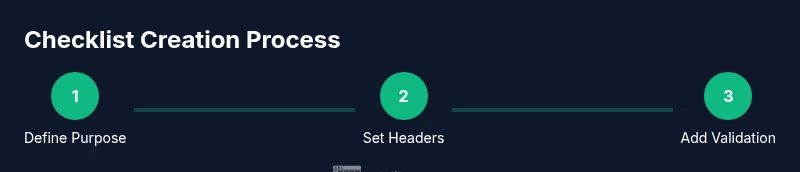
- 1
Define purpose and scope
Clarify what the checklist will cover (tasks, data points, approvals) and who will use it. Align on success criteria and how progress will be measured.
Tip: Write a one-sentence objective to anchor the template design. - 2
Choose structure and headers
Decide on core columns (Task, Owner, Due Date, Status, Notes, Evidence). Add optional columns like Priority or Version for governance.
Tip: Use consistent header naming to simplify data validation and filters. - 3
Create the template in Excel
Build the layout as a proper Excel Table and freeze header rows for easy scrolling. Apply a clean, readable font and alignment.
Tip: Convert to a table (Insert > Table) to enable automatic expansion. - 4
Add data validation and visuals
Add dropdowns for Status, a due-date validator, and conditional formatting for overdue items. Consider a simple progress indicator.
Tip: Keep dropdown lists centralized to avoid duplicates. - 5
Test with sample data
Fill a dozen tasks with varied statuses to ensure filters, sorts, and formulas work as intended.
Tip: Check edge cases like empty statuses or missing dates. - 6
Distribute and maintain
Share the template with teammates, set versioning rules, and schedule periodic reviews.
Tip: Document changes and maintain a changelog for accountability.
People Also Ask
What is an Excel checklist format?
An Excel checklist format is a structured template that organizes tasks, owners, due dates, and statuses in a consistent layout. It helps teams track progress, capture evidence, and maintain an auditable record.
An Excel checklist format is a standard template for organizing tasks and tracking progress across a project.
How do I start a checklist in Excel?
Start by defining the purpose, choose essential headers, convert the data range into a table, and add data validation for status and dates. This creates a scalable, easy-to-use template.
Begin by outlining your purpose, set up headers, convert to a table, and add validations.
Can I reuse a checklist across projects?
Yes. Design the template with optional columns and project-specific sheets or filters. Use named ranges and a consistent status taxonomy to adapt quickly while preserving structure.
Yes; design it to be flexible with project-specific sections and consistent rules.
How do I track progress effectively?
Include a status column with a dropdown and a compact progress indicator (percent complete or a visual bar). Filter by owner or due date to monitor workflow.
Use a status dropdown and a progress indicator to monitor advancement at a glance.
What are common mistakes to avoid?
Overcomplicating the template with too many columns, inconsistent status values, or missing proof of completion. Regular audits help keep the checklist clean and trustworthy.
Avoid overcomplicating it and keep status values consistent; audit regularly.
Watch Video
The Essentials
- Define a clear purpose before designing.
- Use a table structure for scalability and consistency.
- Validate inputs and visualize progress.
- Audit templates regularly to prevent drift.