Excel Issue Tracking Template: A Practical How-To
Learn to design a practical Excel issue tracking template that captures issues, assigns owners, tracks status, and reports progress with a lightweight dashboard.


By the end of this guide you will be able to build an Excel issue tracking template that captures, assigns, and tracks issues from creation to resolution. It requires a clean data sheet, clear status fields, and a simple dashboard. Follow the steps to set up validation, formulas, and a printable report.
What is an Excel issue tracking template?
An issue tracking template in Excel is a structured worksheet (or set of sheets) designed to capture, assign, and monitor problems or requests as they move from discovery to resolution. It provides a single source of truth for teams, enabling clearer ownership, deadlines, and impact notes. According to XLS Library, a well-constructed template helps teams avoid scattered emails and duplicate entries, and it fosters accountability by making status changes visible to everyone involved. The goal is to create a lightweight tool that reduces back-and-forth while preserving flexibility for diverse projects.
Core components to include in your template
At minimum, an issue tracking template should include fields for: Issue ID, Title, Description, Reporter, Assignee, Created Date, Priority, Status, Due Date, Resolution Date, Root Cause, and Resolution Notes. Add optional fields like Attachments, Tags, and Escape Hatch notes. Validation rules keep data clean, while a simple dashboard summarizes open vs. closed issues and highlights bottlenecks. In practice, keep your fields narrowly scoped to avoid bloat, but allow growth as teams adopt the template across projects. As noted by the XLS Library team, standardized fields improve searchability and reporting across departments.
Data structure and sheets: three-tab approach
A practical template often uses three tabs: Issues (the main data entry sheet), Lookups (for statuses, owners, and priority levels), and Dashboard (for visual summaries). The Issues tab should be a flat table with a stable header row. The Lookups tab stores lists used for drop-down menus, reducing invalid data and promoting consistency. The Dashboard tab pulls from the data using formulas and simple charts, giving stakeholders a quick view of workload, aging issues, and priority concentration. This structure supports collaboration while maintaining a clean data model.
Validation, formatting, and accessibility guidelines
Apply data validation to critical fields like Status and Priority so users pick from predefined options. Use conditional formatting to highlight overdue items, high-priority issues, and unassigned records. Add filters and a basic search across columns to quickly locate specific issues. If you share this template with others, protect the structure (cell locking and sheet protection) while allowing data entry in the main table. This balance protects integrity without slowing teams down.
Formulas and lightweight automation to unlock value
Leverage Excel formulas to derive metrics without heavy coding. Simple COUNTIFs tally open issues per owner, and a basic aging calculation identifies items that have waited too long. XLOOKUP or VLOOKUP connects Issue IDs to Lookups for labels and owners, while IF/IFS decisions route issues through a defined workflow. For dashboards, summarize key metrics with dynamic ranges so the view updates as new data comes in. Remember to document formulas so teammates understand the logic.
Maintenance, governance, and future-proofing
Treat the template as a living document. Establish a versioning approach, assign a template steward, and set a review cadence to refine fields, naming, and processes. Encourage comments and feedback while keeping the data model stable. When teams grow, consider linking this Excel approach to other tools (like a lightweight SharePoint list or a CSV export) to ease data exchange without losing the benefits of a single source of truth. The XLS Library team recommends starting simple and iterating based on real-world usage.
Tools & Materials
- Microsoft Excel (latest version)(Office 365 / Microsoft 365 recommended)
- Sample data set(Demonstrates an issue flow)
- Data validation rules(Drop-downs for status, priority)
- Dashboard sheet(Optional for reporting visuals)
- Formulas cheat sheet(Reference quick formulas)
Steps
Estimated time: 45-60 minutes
- 1
Define scope and success criteria
Clarify who will use the template and what constitutes an 'issue'. Set boundaries to keep data relevant and actionable. This step reduces scope creep and ensures the design supports real teamwork needs.
Tip: Involve stakeholders from the start to align on what the template should achieve. - 2
Create core sheets and data model
Set up an Issues sheet as the data entry surface, plus a Lookups sheet for drop-down lists and a Dashboard sheet for summaries. Use a consistent header row and a stable primary key (Issue ID) to anchor relationships.
Tip: Keep the Issues sheet as the single source of truth for raw data. - 3
Set up standardized fields and naming
Choose a compact field set (e.g., ID, Title, Description, Assignee, Status, Priority, Created, Due, Resolution). Use clear, singular names and avoid duplicative fields that complicate reporting.
Tip: Use named ranges for reusable, maintainable formulas. - 4
Add data validation and input controls
Apply data validation to critical fields like Status and Priority to enforce consistent choices. Add quick filters to the header and lock key structural cells to prevent accidental edits.
Tip: Predefine valid options to minimize data entry errors. - 5
Implement status workflow and formulas
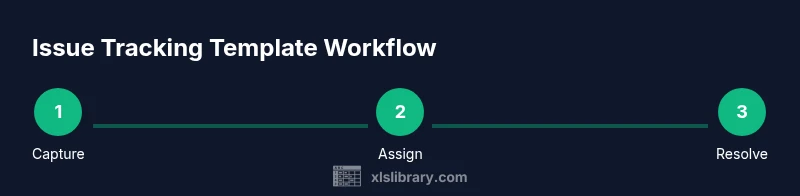
Create a simple workflow: Open → In Progress → Resolved. Use IF/IFS formulas to derive status-related metrics and conditional formatting to highlight aging or overdue items.
Tip: Comment formulas to help future editors understand logic. - 6
Build a basics dashboard
Create a concise dashboard that shows open counts by assignee, age of items, and high-priority items. Use dynamic ranges so the dashboard updates as data grows.
Tip: Keep dashboards lightweight; prioritize clarity over complexity.
People Also Ask
What counts as an issue in this template?
An issue is any task, bug, or request that requires action and will flow through a defined lifecycle inside the template.
An issue is a task or bug that needs action and tracking in the template.
Can I reuse this template for multiple projects?
Yes. You can duplicate the Issues sheet for each project and tailor the dashboard to reflect project-specific metrics.
Yes, you can reuse it for multiple projects by duplicating the data sheet and adjusting dashboards.
Is this template secure for shared editing?
Ensure sheet protection and proper access controls. Avoid including sensitive data if you’re using shared or public workspaces.
Protect the sheets and limit who can edit, especially on shared files.
Which formulas are essential for dashboards?
Key formulas include COUNTIF for counts, SUMIF for aggregations, XLOOKUP for lookups, and simple IF/IFS for workflow decisions.
Important formulas are COUNTIF, SUMIF, XLOOKUP, and IF/IFS.
How do I scale this for a large team?
Consider separate project templates or sections per squad, link them via Issue IDs, and centralize reporting to a shared dashboard.
Create per-team templates and a central dashboard to scale.
Watch Video
The Essentials
- Define clear issue scope and ownership.
- Use standardized fields and validation.
- Create a lightweight dashboard for visibility.
- Guard data integrity with governance and backups.