Excel Job Tracker Template: A Practical Guide to Task Management
Learn how to build and customize an Excel job tracker template to manage tasks, owners, due dates, and progress. This XLS Library guide covers layout, formulas, validation, dashboards, and practical tips for teams of any size.


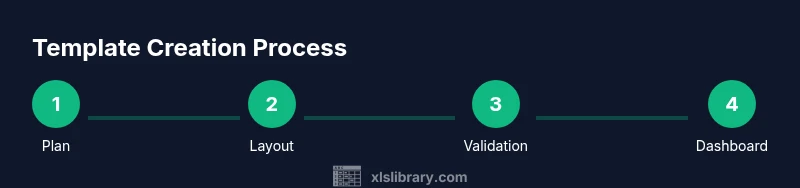
By following this guide, you will build and customize an Excel job tracker template that helps you monitor tasks, deadlines, assignees, and progress. You'll learn layout, essential formulas, and best practices for keeping projects on schedule. This approach suits freelancers, small teams, and managers who rely on Excel for task visibility.
Why an Excel Job Tracker Template Helps You Stay on Top of Projects
A well-structured template centralizes tasks, owners, due dates, priorities, statuses, and progress in one place. It reduces scattered notes and duplicated data while enabling quick reporting to stakeholders. According to XLS Library, templates like this standardize data capture and improve visibility across teams, making onboarding faster and decisions clearer. You’ll see how a template handles tasks from ideation to completion, and how dashboards pull a concise snapshot from a busy project. This approach works for freelancers juggling multiple gigs, small teams coordinating a launch, or managers overseeing cross-functional initiatives. Key benefits include consistent data collection, repeatable workflows, and the ability to build dashboards that timelines and stakeholders can trust. In practice, a job tracker template grows with your process: you can start with essential fields and progressively add automation, constraints, and visuals as needs evolve. The goal is to capture the right information without creating paperwork overhead, so you can focus on delivering real results.
Core Elements of a Job Tracker Template
A robust Excel job tracker template includes several core elements that keep work organized and transparent. At minimum, you should have a tasks table with columns for Task, Owner, Due Date, Status, Priority, and Progress. Add a Description or Notes field for context, and consider a separate sheet or section for a quick overview (a dashboard) that aggregates status counts, overdue items, and upcoming milestones. Data validation lists prevent inconsistent entries (only allow statuses like Not Started, In Progress, Blocked, Completed). Conditional formatting highlights overdue due dates or high-priority tasks. A well-designed template also supports filters and search, so you can drill into a specific owner, date range, or project. Finally, plan for a lightweight dashboard that summarizes critical metrics: number of tasks, completion percentage, and trend indicators. This combination keeps the day-to-day work simple while providing executives and teammates with a trustworthy view of progress.
Designing a Clean Layout: Sheets, Columns, and Dashboards
Layout choices matter as much as content. Use a primary sheet called Tasks to store the data, a second sheet called Dashboard for visuals, and a third sheet for documentation or setup notes. Choose clear column headers, align date formats, and apply consistent data types across all fields. For example, use a text field for Task, a person for Owner, a date for Due Date, a short list for Status, and a numeric scale for Progress. Build a simple, responsive Dashboard that uses PivotTables or COUNTIF-based summaries, and connect charts to a stable data range so the visuals update automatically as you add tasks. Keep the design clean with neutral fonts, adequate spacing, and color coding that matches your brand or team conventions. A calm layout reduces cognitive load and makes the tracker easier to maintain over time.
Setup: Step-by-Step Layout Blueprint
This blueprint outlines the essential wiring of your workbook so you can implement quickly and scale later. Start with a dedicated Tasks sheet that defines the core fields (Task, Owner, Due Date, Status, Priority, Progress). Then create a Dashboard sheet that aggregates these fields into digestible visuals. Use a consistent date format across all date columns and set up data validation to prevent invalid statuses or priorities. Designate a few key KPI cells (e.g., total tasks, overdue count, completion rate) and ensure formulas reference a stable named range rather than hard-coded cell addresses. Finally, document assumptions in a separate sheet, and store a clean starter version of the workbook so teammates can reuse or tailor it for new projects.
Essential Formulas and Validation to Keep Data Accurate
To keep data accurate and actionable, you need reliable formulas and guards. Use data validation to constrain Status to a fixed list (Not Started, In Progress, Blocked, Completed) and Priority to a defined scale (Low, Medium, High). Implement a Days Remaining column with a formula like =DueDate - TODAY() to surface urgency, and a simple status flag like =IF(DueDate < TODAY() + 0, "Overdue", Status) to highlight late items. A progress gauge can be calculated with =AVERAGE(Progress) or a per-task calculation like Progress% = Progress/100. For quick filtering, convert your data range into a Table object to enable automatic expansion and reliable structured references. Finally, create a dashboard using PivotTables or SUMIF/COUNTIF formulas to summarize by Owner, Priority, or Status. These techniques keep the tracker both flexible and dependable as projects evolve.
Automation Tips: Conditional Formatting and Small Macros
Conditional formatting is your first line of defense against missed deadlines. Set rules to highlight overdue dates in red, high-priority tasks in amber, and near-due items as yellow. For a lightweight automation boost, pair simple macros with a single button: one macro could copy the last 7 days of completed tasks into a “Log” sheet, another could refresh a dashboard’s PivotTables. If you’re comfortable with basic VBA, you can add a small macro to auto-fill the next due date based on a recurring schedule, or to reset the Progress column at project milestones. Keep macros minimal and well-documented to avoid confusion or accidental data loss.
Customization for Different Teams and Projects
Every team has its own rhythm. Create a shared template that supports multiple projects by adding a Project column and a Project Leader column, or by maintaining separate sheets per project with a master dashboard aggregating across sheets. You can also segment data by department, client, or sprint, making it easier to pin dashboards to relevant stakeholders. Custom color schemas and filters help users find what matters most quickly. If you use fixed work patterns, consider templates for recurring projects and pre-populated status transitions to speed up setup. The key is to keep the core structure stable while exposing optional fields that teams can enable as needed.
Real-World Example: A Minimal Working Template
Imagine a starter workbook with two sheets: Tasks and Dashboard. Tasks contains headers for Task, Owner, Due Date, Status, Priority, Progress, and Notes. Dashboard shows a stacked bar of status counts, a donut chart for priority, and a line graph for completion over time. Start by inputting a handful of tasks with realistic deadlines, assign owners, and set statuses. As you add tasks, the Dashboard auto-updates, giving you a live view of workload, bottlenecks, and risk. This template serves as a practical blueprint for onboarding new teammates and can scale to larger teams. The XLS Library team recommends customizing it to fit your workflow and project types, then iterating based on real-world use and feedback.
References and Best Practices
For further guidance on best practices, consult authoritative sources on Excel analytics and project tracking. Authoritative sources include Microsoft Support for Excel fundamentals, Microsoft Learn for advanced functions and data validation, and Harvard Business Review for management-focused insights on tracking and dashboards. These references provide foundational concepts to extend your template with more advanced features if needed.
Tools & Materials
- Microsoft Excel (or equivalent spreadsheet tool)(Windows or macOS; prefer the latest version for best features and formula support.)
- Blank workbook or starter template(Use a dedicated folder to store this template for easy reuse.)
- Sample data set(Create a small, realistic dataset to test layouts and formulas.)
- Data validation lists (Statuses, Priorities)(Define allowed values to prevent inconsistent entries.)
- Documentation sheet (assumptions, definitions)(Helpful for onboarding and future updates.)
Steps
Estimated time: 90-120 minutes
- 1
Define scope and objectives
Clarify what the tracker should achieve for your team. Identify key roles, typical tasks, and the cadence of updates. This ensures the template targets real needs and avoids feature creep.
Tip: List 3-5 success criteria you’ll verify after using the tracker for a week. - 2
Create workbook and initial sheets
Open a new workbook and add at least two sheets: Tasks for data and Dashboard for visuals. Establish a naming convention you’ll reuse across projects.
Tip: Keep sheet names short and descriptive to avoid confusion in formulas. - 3
Set up the Tasks table with core columns
Create columns for Task, Owner, Due Date, Status, Priority, Progress, and Notes. Use consistent data types (text, date, list, number).
Tip: Format as a table to auto-expand when you add new rows. - 4
Add data validation for key fields
Implement lists for Status and Priority to avoid free-text errors. This improves filtering and automation later.
Tip: Place validation lists on a separate hidden sheet to keep data tidy. - 5
Apply conditional formatting for urgency
Highlight overdue items in red, high-priority tasks in amber, and approaching deadlines in yellow to draw attention quickly.
Tip: Use a rule like DueDate < TODAY() to flag overdue items. - 6
Build essential formulas
Add Days Remaining, a simple Completion % per task, and a dashboard-friendly aggregate column. Use structured references if you converted your data to a table.
Tip: Test formulas with edge cases (overdue, due today, not started). - 7
Create a lightweight dashboard
Summarize status counts, overdue items, and completion rate using PivotTables or COUNTIF-based summaries. Include at least two charts for quick visuals.
Tip: Link charts to the data table range to keep visuals in sync. - 8
Test, refine, and share
Enter realistic data, check calculations, and solicit feedback from teammates. Save as a reusable template and set permissions as needed.
Tip: Create a version history so you can revert if needed.
People Also Ask
What is an Excel job tracker template?
An Excel job tracker template is a structured spreadsheet that records tasks, owners, due dates, statuses, and progress. It provides a single source of truth for project work and enables quick reporting.
An Excel job tracker template is a structured sheet that lists tasks, owners, due dates, and statuses to keep projects on track.
Can I use Google Sheets instead of Excel?
Yes. You can implement a similar tracker in Google Sheets with equivalent functions and data validation. Some advanced features may differ, but core tracking remains the same.
Yes. Google Sheets can do a similar tracker with the same basics, though some advanced features vary.
How do I share the tracker with teammates?
Store the workbook in a shared drive (OneDrive, SharePoint, or Google Drive) and give collaborators edit access. Regularly communicate updates and maintain version control.
Use a shared drive so teammates can edit and view the tracker, and keep track of updates.
How can I customize the template for multiple projects?
Add a Project column to group tasks by project, or create separate sheets per project with a master dashboard that aggregates across projects.
Add a project field or separate sheets to manage multiple projects with a single dashboard.
What if I need time tracking?
Add a Time Spent or Duration column and consider a timer or entry-based log. This helps measure effort and capacity.
If you need time tracking, add a Time Spent column and log hours per task.
How do I protect sensitive data in the tracker?
Use sheet protections, hide sensitive columns, and restrict editing to authorized users. Keep backups to prevent data loss.
Protect sensitive parts of the sheet and keep backups.
Watch Video
The Essentials
- Define clear goals before building the tracker
- Keep data types consistent to prevent errors
- Leverage data validation and conditional formatting
- Build a lightweight dashboard for at-a-glance status
- Test with real data and solicit team feedback