Excel Like Programs: A Practical Comparison
An analytical comparison of Excel-like programs (Excel, Google Sheets, LibreOffice Calc, Numbers) focusing on collaboration, scripting, offline use, and data handling to help you pick the right tool.


Choosing an Excel-like program hinges on power needs, collaboration, offline access, and cost. Based on XLS Library analysis, Microsoft Excel remains the strongest option for complex data tasks, while Google Sheets excels in real-time collaboration and accessibility. LibreOffice Calc and Apple Numbers offer cost-effective or offline-focused alternatives. This quick guide helps you narrow to two to three top choices quickly.
Why Excel-like Programs Matter in Modern Data Workflows
In today’s data-driven environments, spreadsheets remain a foundational tool for collecting, modeling, and sharing information. The term excel like programs captures a broad ecosystem that goes beyond the classic Microsoft Excel desktop app, spanning cloud-native editors, open-source desktops, and platform-specific favorites. When evaluating these tools, it’s essential to assess how well they support real-world workflows—from data import and cleansing to pivot tables, automation, and cross-team collaboration. The phrase excel like programs emphasizes a practical reality: the best tool keeps data accurate, accessible, and actionable for your team. According to XLS Library, the right choice depends on your role, budget, and need for compatibility with legacy files. In this section, we explore how different programs align with common tasks such as budgeting, forecasting, and scenario analysis, and why selecting the right program matters for productivity and decision making.
From finance analysts who rely on complex formulas to marketing teams who share live dashboards, the landscape has shifted toward cloud-first options and automation-enabled workflows. Evaluation should consider not just feature lists but real outcomes: error rates, time to complete a model, and ease of sharing. This sets the stage for a rigorous, data-driven comparison that helps you avoid overpaying for features you won’t use.
Note: This guide uses the term excel like programs to reference the broader ecosystem of spreadsheet tools that rival or complement traditional Excel. Keywords such as data modeling, scripting, and collaboration run through every section to help you map needs to capabilities.
Core Evaluation Criteria for Excel-like Programs
When comparing excel like programs, four pillars usually drive decision making: capability, collaboration, compatibility, and cost. First, capability covers advanced data modeling, complex formulas, pivot tables, charts, and the ability to handle large datasets without slowing down. Collaboration looks at real-time editing, sharing controls, and version history. Compatibility examines how smoothly files move between tools and how faithfully formulas and features translate. Finally, cost contemplates licensing models, deployment options (cloud vs. on-premises), and total cost of ownership over time.
Beyond these four pillars, consider offline behavior (can team members work without internet?), platform support (Windows, macOS, Linux, mobile), and automation possibilities (macros, scripts, API integrations). For teams working across departments, interoperability matters: you want a tool that lowers friction when exchanging templates, reports, and dashboards. The evaluation framework below will help you compare options consistently across these dimensions, with practical scenarios that reflect real-world workloads.
To set expectations, remember that no single tool checks every box perfectly. The goal is to balance strengths and weaknesses against your specific use case. For some teams, real-time collaboration will trump vertical depth in formulas, while for others, macro automation will be the decisive factor. The rest of the article provides concrete comparisons and decision aids to help you choose wisely.
Microsoft Excel vs Google Sheets: A Feature-by-Feature Look
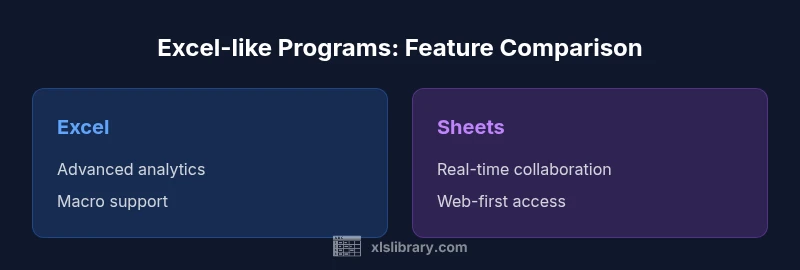
Microsoft Excel and Google Sheets sit at the heart of many organizations, yet they serve different user needs. Excel is renowned for depth—supporting advanced analytics, extensive formulas, and robust macros. Sheets leans into accessibility and collaboration, with real-time co-authoring and straightforward sharing. XLS Library analysis shows that the choice often comes down to workload type: if your models require intricate array formulas, heavy VBA-based automation, or complex data connections, Excel tends to be the safer bet; if your team values instant collaboration, low upfront cost, and browser-based access, Sheets shines.
Feature parity exists in core spreadsheet tasks, but there are notable gaps in automation and offline capabilities. Excel’s local desktop apps deliver rich macro functionality and faster processing on large datasets, while Sheets offers simpler, script-based automation via Apps Script and seamless multi-user editing. File compatibility generally remains strong in both ecosystems, but edge cases can arise when moving complex workbooks with advanced features. For many teams, a blended approach—core work in Excel and lighter collaboration in Sheets—delivers the best of both worlds. According to XLS Library analysis, organizations show a spectrum of adoption patterns based on file provenance, IT policy, and reliance on cloud services.
Practical tip: If you frequently exchange workbooks with external partners, maintain a core Excel workbook with clear version controls and a Sheets-backed companion for live collaboration. This hybrid approach minimizes surprises when files pass between environments.
LibreOffice Calc and Open-Source Options: Pros and Trade-offs
LibreOffice Calc, part of the open-source LibreOffice suite, offers a compelling cost-effective alternative for teams prioritizing freedom from vendor lock-in. Calc provides strong formula support, a familiar interface for Excel users, and the ability to work offline without subscriptions. However, Calc can diverge from Excel in areas like advanced VBA support, some pivot capabilities, and compatibility with intricate Excel-only features. For budget-conscious projects or organizations that prefer open standards, Calc presents a practical option with a lower total cost of ownership, provided the team can accommodate occasional interoperability quirks.
Other open-source or lesser-known options share Calc’s advantages in price but may trade off on polish, mobile experience, or enterprise-grade support. When evaluating these tools, assess how well they handle critical tasks—data cleansing, charting, and basic automation—and whether your IT context can sustain necessary updates and security patches. In many cases, Calc users also rely on conversion workflows to bridge gaps when sharing files with Excel users, adding an extra step but preserving access to core data.
If your team operates within a Linux-heavy environment or requires open formats, Calc is hard to ignore. However, for teams who count on macro support and heavy Excel compatibility, you may prefer to pair Calc with Excel as part of a broader toolset rather than rely on Calc alone.
Pro tip: Test parity on a representative workbook containing formulas, charts, and pivot tables before committing to Calc as a primary tool. This reduces surprises during migration and ensures data integrity across environments.
Apple Numbers and Other Niche Alternatives: When to Consider Them
Apple Numbers offers a user-friendly, visually polished experience on macOS and iOS, with tight integration into the Apple ecosystem and iCloud-based collaboration. Numbers trades some depth in advanced analytics for accessibility and strong presentation capabilities. For individuals deeply embedded in Apple devices, Numbers can be an appealing choice for light-to-moderate data tasks, templates, and cross-device work. Other niche options—such as Zoho Sheet, WPS Office, or OnlyOffice—appeal to specific deployment preferences and organizational policies, especially when cloud-storage integration or cross-platform support is a priority.
From a practical standpoint, Numbers and similar alternatives are typically best suited for teams handling straightforward data models, collaborative reports, or offline work on Apple hardware. For heavy data modeling, complex formulas, or enterprise-grade automation, Excel or Sheets generally provide more robust capabilities. The takeaway is to map your user base to the right platform: macOS/iOS users with moderate needs may thrive in Numbers, while multi-OS teams requiring advanced analytics may prefer Excel or Sheets.
Note: When adopting niche tools, ensure a clear migration plan for critical files and establish a policy for interoperability with colleagues using other platforms. This reduces friction in day-to-day operations and keeps data accessible across the organization.
Collaboration, Cloud Storage, and Real-Time Co-Authoring
In modern teams, collaboration quality often determines the practical value of a spreadsheet tool. Google Sheets excels in real-time co-authoring, comments, and low-friction sharing, making it ideal for cross-functional projects and rapid iteration. Excel’s cloud-enabled capabilities—via OneDrive and SharePoint—enable co-authoring with version history and robust permissions, which is essential for enterprise-grade workflows. Calc and Numbers provide real-time collaboration in their own ecosystems, but with varying levels of polish and compatibility.
In practice, the best solution balances live collaboration with data governance. For teams with strict change control, Excel’s centralized workbook model paired with well-defined access permissions can reduce accidental edits. For fast-moving teams, Sheets’ live editing reduces bottlenecks but requires discipline to prevent conflicts. When evaluating cloud storage, consider security, compliance, and backup strategies as integral parts of your tool choice.
From the XLS Library perspective, the mix of cloud features, offline capabilities, and platform reach often drives a blended approach: use a cloud-first editor for collaboration, keep a staple desktop tool for heavy modeling, and maintain a shared data dictionary to ensure consistent definitions across tools.
Automation and Scripting Across Platforms
Automation is a core differentiator among excel like programs. Excel offers VBA (and increasingly Office Scripts in the web version), which provides a deep, mature automation layer for complex workflows. Google Sheets emphasizes Apps Script, a JavaScript-based environment that is approachable and well-suited for web-based automation and integrations with other Google Workspace apps. LibreOffice Calc supports macros in LibreOffice Basic, which appeals to users who value open-source ecosystems and customizable automation. Numbers has automation pathways via AppleScript and short automation workflows, but these options are more niche and less commonly used for large-scale enterprise tasks.
When choosing a tool, map your automation needs to the scripting platform that best aligns with your team’s coding comfort and integration requirements. If you already run a heavily Microsoft-centric stack, Excel automation can be the most seamless route. If your organization relies on cloud apps and inter-team data flows, Apps Script or a cross-tool macro strategy might be more effective. Testing automation against sample end-to-end tasks is critical to avoid brittle processes that break on platform updates.
Practical tip: Prioritize tools with active communities and robust documentation for scripting, as this reduces the learning curve and accelerates rollout during adoption.
Performance, Data Limits, and Advanced Formulas
Performance matters as workbook complexity grows. Excel and Sheets both handle large datasets well, but practical limits depend on formula complexity, array operations, and available system resources. Advanced users will push for powerful array formulas, dynamic arrays, and multi-criteria lookups. Excel’s capacity for deep data modeling and extensive formula sets remains a competitive advantage for analysts and finance teams. Sheets is continually expanding its formula capability and data connectivity, albeit with occasional feature gaps for the most advanced scenarios. Calc and Numbers present more modest performance profiles but remain viable for smaller teams and lighter workloads.
In addition to raw performance, consider data management features—data cleaning tools, validation, conditional formatting, and error tracing. A tool that supports robust data validation and a clear audit trail will reduce errors in models that propagate through dashboards and reports. Across all tools, maintain clear documentation for formulas, macros, and data sources to preserve reproducibility and avoid “shadow logic” in calculations.
As you evaluate, simulate real-world tasks: large pivot tables, nested conditional formulas, cross-sheet references, and multi-user edits. Observing how each tool handles these tasks will reveal practical strengths and weaknesses that aren’t obvious from feature lists alone.
Practical Migration and Interoperability Tips
Migrating between excel like programs requires careful planning to maintain data integrity. Start with a representative workbook that includes formulas, charts, macros, and external data connections. Validate that key outputs—pivot tables, conditional formatting, and data validations—behave as expected after the transfer. Establish a standard file naming convention and a shared data dictionary to minimize translation errors between tools. Use open file formats where possible and set expectations about feature parity upfront to avoid post-migration surprises.
Create two parallel workstreams during migration: a pilot workbook for validation and a live workbook for ongoing work. Document any feature gaps you encounter and develop workarounds that preserve critical calculations. Finally, invest in templates and training that emphasize best practices for cross-tool workflows, such as how to refactor macros for cross-platform compatibility and how to structure data so it remains consistent across environments.
How to Choose the Right Tool for Your Role
Role-based selection helps narrow the field without sacrificing essential capabilities. Financial analysts and data scientists who rely on advanced modeling and macro automation typically prefer Excel for its depth and ecosystem. Teams prioritizing collaboration, accessibility, and low upfront costs may gravitate toward Google Sheets. Open-source advocates and budget-constrained groups often start with Calc, while Apple-focused teams may gravitate to Numbers for day-to-day planning and reporting on macOS/iOS.
To decide, create a matrix that maps your most common tasks (data import, cleaning, modeling, reporting, automation) to tool capabilities. Weigh factors like offline access, cross-team collaboration, and version control. Also consider interoperability: how easily can you share critical assets with external partners who may use different tools? In many organizations, a hybrid approach—Excel for core analytics and Sheets for collaborative editing—delivers the best balance between power and agility.
Training Resources and Adoption Strategies
Adoption success hinges on accessible training and practical templates. Start with a core library of examples that reflect real work—budget templates, forecasting models, and dashboard-ready charts. Provide hands-on workshops and quick-reference guides that focus on common pain points, such as data import quirks, pivot table refresh, and macro debugging. Encourage a culture of documenting formulas and maintaining a data dictionary so newcomers can quickly understand the logic behind complex workbooks.
Leverage official documentation and community resources, but tailor training to your environment. Create internal champions who can assist peers, run regular “show-and-tell” sessions, and reward teams that demonstrate improved accuracy, faster turnaround times, and better collaboration. Finally, designate a migration timeline with milestones, risk assessments, and contingency plans to ensure a smooth transition between tools while preserving data integrity and user productivity.
Real-World Scenarios: Case Studies and Takeaways
In practice, organizations often adopt a mixed-tool strategy to maximize strengths. A marketing team might use Sheets for campaign planning and collaboration, while finance codifies complex models in Excel with macro automation. A dev team on Linux may lean on Calc for offline data exploration, exporting results to Excel for stakeholders who require broader compatibility. The key takeaway is to identify your most frequent workflows, test cross-tool transfer with representative datasets, and establish governance to prevent data fragmentation.
As you implement a multi-tool approach, keep a vigilant eye on data lineage and version control. Maintain a single source of truth for critical dashboards and ensure all team members understand which workbook to edit for a given task. The XLS Library, drawing from 2026 analyses, emphasizes that the right mix of tools is less about chasing the most features and more about aligning capabilities with everyday work and team dynamics.
Feature Comparison
| Feature | Microsoft Excel | Google Sheets | LibreOffice Calc | Apple Numbers |
|---|---|---|---|---|
| Cost | License/subscription | Free with Google account | Free/open-source | Paid app with macOS/iCloud |
| Offline access | Strong offline desktop app | Limited offline capability in web app | Fully offline desktop | Offline via macOS app |
| Scripting/macros | VBA/Office Scripts | Apps Script | LibreOffice Basic/macros | AppleScript |
| Collaboration | Real-time co-authoring via cloud | Real-time collaboration in browser | Limited collaboration | iCloud-based collaboration |
| File compatibility | Best .xlsx/.xls parity | Good with possible feature gaps | OpenDocument focus with some gaps | Proprietary formats with iCloud |
| Platform availability | Windows/macOS/web | Web, Android, iOS | Windows/macOS/Linux via Calc | macOS/iOS |
| Best for | Power users and enterprise workflows | Teams needing collaboration | Open-source fans and cost-conscious contexts | Mac/mobile-centric workflows |
Benefits
- Broad feature set for advanced data tasks
- Strong ecosystem and compatibility with enterprise workflows
- Extensive community and learning resources
- Powerful scripting and automation options
What's Bad
- Steeper learning curve for new users
- Higher total cost for premium features
- Occasional compatibility quirks with complex macros
- License management and updates
Excel-like programs dominate in deep data modeling and automation, but Google Sheets or open-source options can win on collaboration and cost.
Excel remains the default for power users. Sheets shines in teamwork and accessibility, Calc appeals to budget-minded or open-source-oriented teams, and Numbers suits macOS/iOS ecosystems. Your choice should hinge on collaboration needs, offline access, and automation requirements.
People Also Ask
What qualifies as an Excel-like program?
Excel-like programs are spreadsheet tools that offer core spreadsheet functionality (cells, formulas, charts, and data organization) and, often, additional features like macros, scripting, and cloud collaboration. They should support common file formats (like .xlsx) and enable you to perform typical tasks such as data cleaning, modeling, and reporting.
Excel-like programs are spreadsheet tools with core features plus optional automation and collaboration. They handle formulas, charts, and data like Excel, and vary in automation and cloud capabilities.
Which is best for collaboration?
Google Sheets is widely regarded as the strongest for real-time collaboration due to its browser-native interface and seamless multi-user editing. Excel’s online version also supports co-authoring, but Sheets generally delivers smoother simultaneous editing and comment workflows.
Sheets leads in real-time collaboration; Excel Online also offers co-authoring, but Sheets tends to be more fluid for teams working together.
Can macros work across Excel and Sheets?
Macros are tool-specific. Excel uses VBA (and Office Scripts in the web version), while Google Sheets uses Apps Script. You cannot rely on a single macro to run identically in both environments without modification.
Macros are platform-specific; expect edits when moving between Excel and Sheets.
Are there free Excel-like programs that are still powerful?
Yes. Google Sheets is free with a Google account, LibreOffice Calc is open-source and free, and Apple Numbers comes free with Apple devices. Each offers a solid set of features for everyday tasks, though advanced users may prefer paid options for depth.
There are free options with strong capabilities, though they may lack some advanced features found in paid tools.
How do I migrate data between these tools effectively?
Plan a staged migration: start with a representative workbook, validate formulas and charts, and maintain a data dictionary. Use open formats when possible and keep backups during the transition to prevent data loss.
Migrate in stages, verify accuracy, and document data definitions to ensure a smooth handoff.
What about data visualization capabilities across tools?
All four tools offer robust charting options, but the depth and customization vary. Excel often provides the richest set of chart types and formatting, Sheets offers strong but simpler visuals, Calc covers core graphs, and Numbers focuses on clean, presentation-ready visuals.
Excel leads in chart depth; others are strong for standard visuals and clean output.
The Essentials
- Identify your top tasks and map them to tool strengths
- Prefer Excel for complex analytics; Sheets for cross-team collaboration
- Consider open-source Calc when budget or openness matters
- Test interoperability and migration plans before committing
- Adopt a blended approach to balance power and accessibility