Excel Online vs Excel Desktop: Which Should You Use?
A thorough, analyst-friendly comparison of Excel Online and Excel Desktop. Learn when to use cloud collaboration, offline power, macros, and data modeling to choose the right tool for your workflow.


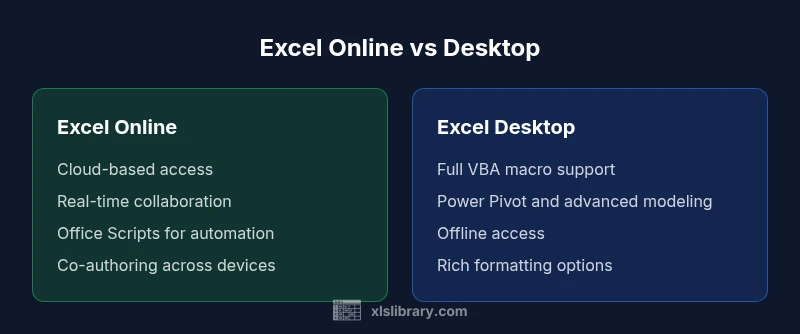
Excel Online and Excel Desktop serve different workflows. If you primarily collaborate in real time and work from a browser, Excel Online is your best bet. For advanced data modeling, macro automation, and robust offline work, Excel Desktop remains the stronger choice. This guide compares the two side by side to help you choose the right tool for your tasks.
What the comparison means for your daily tasks
In practical terms, the choice between Excel Online and Excel Desktop boils down to the tasks you perform, where you work, and how you collaborate. For many everyday spreadsheet duties—data entry, simple budgets, lists, and straightforward calculations—the browser-based Excel Online can be enough. It provides a familiar ribbon, most common functions, and the advantage of instant access from any device with an internet connection. The keyword is accessibility: you can start a workbook in a cafe on a tablet, then continue on a coworker's laptop without installing anything. However, when your daily routine includes heavy data processing, nuanced data modeling, or automation, the desktop app often shines with deeper capabilities and more reliable performance. The split is not about right or wrong; it is about fit for purpose. The XLS Library team emphasizes that many teams truly benefit from using both tools—Online for collaboration and quick sharing, Desktop for in-depth analytics and offline work.
Core capabilities and limitations
The two flavors of Excel share a core set of formulas and functions, but the breadth and depth of features differ. Excel Desktop delivers a larger feature footprint including advanced data modeling (Power Pivot), more sophisticated pivot table capabilities, and granular formatting options. It also supports VBA macros and a broader set of add-ins. Excel Online, by contrast, prioritizes accessibility and speed for common tasks; it supports many core functions, co-authoring, autosave, and a more streamlined interface designed for quick tasks. Some advanced features are mirrored in the web version, but not all are fully implemented, and some actions require saving to the cloud to access updates. When you evaluate capabilities, map your typical workflows to the feature set. If your tasks rely on large datasets, complex pivot tables, or macros, desktop usually wins. If your emphasis is on sharing work, collecting inputs, or running light analyses across devices, Online may be the better match. The difference is not a limitation of the software per se, but a design choice to optimize for different work styles.
Real-Time Collaboration and Sharing
Real-time collaboration is one of the strongest selling points for Excel Online. Multiple people can edit a workbook simultaneously, with changes saved to the cloud and visible to everyone in near real time. This makes Online ideal for cross-functional teams, client reviews, and schools. Desktop can support collaboration as well, especially when files are stored on OneDrive or SharePoint, but heavy simultaneous editing can occasionally lead to conflicts or latency. The practical takeaway is to set expectations: for fast-paced collaboration with remote colleagues, Online is the go-to; for teams that prefer a single-user flow with occasional sharing, Desktop can be used effectively. According to XLS Library, many teams adopt a blended approach: start a project in Online to gather inputs, then switch to Desktop for deeper analysis and finalization.
Offline Access and Synchronization
Offline access is a critical consideration for teams that travel or work in environments with intermittent connectivity. Excel Online requires internet connectivity to operate at full capacity; you can store files in the cloud, but editing in the web app offline is not supported. If you must work without internet, the desktop app provides robust offline mode and automatic synchronization when you reconnect. For distributed teams, the recommended pattern is to keep the master workbook in a cloud location (OneDrive or SharePoint) and switch between Online and Desktop as connectivity allows. Always enable version history and create regular checkpoints to avoid conflicts when changes are re-synced after disconnections.
Automation, Macros, and Extensions
Automation is a critical area where Desktop shines. Excel Desktop supports VBA macros, the Visual Basic for Applications editor, and a wide ecosystem of macro-enabled templates and add-ins. Office Scripts are available in Excel Online; they provide a modern automation approach but are not a direct replacement for VBA in all scenarios. Cloud automation is great for repeating tasks, but some complex scripts or add-ins rely on desktop-only APIs. If automation is central to your workflow, plan for a hybrid approach: design and test in Desktop, then automate in Online where possible and share scripts via cloud storage.
Data Connectivity, Power Query, and Data Modeling
Power Query and Power Pivot are widely recognized as core strengths for Excel, especially in data-intensive roles. The desktop version offers the most complete experience for data shaping, cleaning, and modeling. Excel Online supports many data-connectivity features but still lags on certain advanced data modeling tasks and newer modeling capabilities. If your work revolves around data consolidation from multiple sources, building robust data models, or performing heavy ETL-like operations, Desktop will support deeper analytics. For lighter data wrangling, validation, and standard dashboards, Online can be perfectly adequate, particularly when teams collaborate on the same workbook in real time.
Mobility, platforms, and accessibility
Excel Online is accessible from nearly any device with a modern browser, making it ideal for teams distributed across locations or working on tablets and Chromebooks. Desktop apps run on Windows and macOS, offering a native experience, richer menus, and generally faster performance on supported hardware. Mobile apps exist for both platforms, but feature sets are pared down. The takeaway: align your device strategy with workflow demands—Online for cloud-first collaboration; Desktop for full fidelity, heavy analytics, and offline work.
Practical decision framework: Task-based recommendations
To decide which tool to use, start with your primary task and work environment. If your task requires real-time collaboration and easy access from varied devices, Excel Online is the best choice. If your task demands advanced data modeling, VBA automation, or offline work, Excel Desktop is the more capable option. For many teams, a hybrid workflow works best: begin in Online to gather inputs and share with stakeholders, then switch to Desktop for deep analysis, complex modeling, and reporting. Use cloud storage (OneDrive or SharePoint) to keep files in sync, and create clear procedures for when to switch tools to minimize version conflicts. The optimal setup leverages the strengths of both platforms rather than forcing a single-tool approach.
Transitioning between Online and Desktop: practical tips
Start with a cloud-backed file to ensure seamless access across devices. When you anticipate needing macros for automation, keep a copy of the file in a local workspace on Desktop to develop and test scripts. Document which features are used where, and establish a central policy for versioning and backups. Regularly review your organization's licensing to ensure the right mix of Online and Desktop access for your teams. The aim is to preserve data integrity, maximize collaboration, and maintain the ability to work offline when necessary.
Comparison
| Feature | Excel Online | Excel Desktop |
|---|---|---|
| Real-time collaboration | Best-in-class co-authoring in the cloud | Co-authoring supported but less fluid during heavy edits |
| Offline access | Internet required for Online; offline editing not supported in web app | Full offline access via installed desktop app |
| Automation and macros | Office Scripts available; VBA not supported in Online | Full VBA/macros via desktop + Visual Basic Editor |
| Power Query and data modeling | Limited data modeling; some queries available | Full Power Query/Data Model support |
| Add-ins and extensions | Supports Office Add-ins; limited COM add-ins | Broad add-in support including VBA-related tools |
| File formats and compatibility | Cloud-first formats; best with modern formats | Wide format support including legacy files |
| Performance with large datasets | Browser-based performance may lag on large files | Desktop handles large datasets more robustly |
| Platform and access | Browser-based; accessible anywhere | Desktop apps on Windows/macOS; native performance |
| Pricing/licensing | Subscription-based with online access included in plans | Desktop license varies by plan; included with some Office suites |
Benefits
- Real-time collaboration and autosave improve team productivity
- Browser-based access reduces hardware requirements
- Always up-to-date features through cloud updates
- Strong integration with OneDrive and SharePoint
- Cross-platform accessibility across devices
What's Bad
- Advanced features and macros are limited or absent
- Offline work is restricted in the Online version
- Performance can slow with very large workbooks
- Add-in support varies between Online and Desktop
- Setup requires reliable internet for Online
Excel Desktop is the stronger choice for power users, while Excel Online excels for team collaboration and cloud-first workflows.
For heavy analytics, VBA, and offline work, Desktop takes precedence. For real-time collaboration and browser-based access, Online is ideal. Most teams benefit from a blended approach that uses both tools according to the task at hand.
People Also Ask
Can Excel Online fully replace Excel Desktop for power users?
Not fully. Excel Online covers core tasks and collaboration, but it lacks some advanced features and full VBA macro support found in Desktop. For analysts who rely on deep modeling or automation, Desktop remains essential.
Not fully. Online covers core tasks and collaboration, but Desktop is needed for deep modeling and VBA-based automation.
Is VBA available in Excel Online?
VBA is not supported in Excel Online. Automation in the web app is primarily through Office Scripts, which have different capabilities and language constructs.
No, VBA isn't available in Online; use Office Scripts for automation instead.
Can I work offline with Excel Online?
Excel Online requires internet connectivity to function in its web form. For offline work, use Excel Desktop, which provides full offline access and automatic syncing when back online.
Online needs internet; for offline work, use Desktop.
How do I move a workbook between Online and Desktop?
Save the workbook to OneDrive or SharePoint, then open it from the other app. Changes sync across platforms, allowing you to switch contexts as needed.
Save to cloud storage and reopen in the other app to switch between Online and Desktop.
Are there performance differences with large datasets?
Desktop generally handles large datasets more robustly due to native performance and less browser overhead. Online may feel slower on complex models or very large workbooks.
Desktop handles large datasets more robustly; Online can slow with complex work.
What about pricing and licensing differences?
Both tools are tied to Microsoft 365 or Office licensing structures. Online access is included with many plans, while Desktop licenses vary by plan and may require separate provisioning.
Pricing depends on your plan; Online is often included with subscriptions, Desktop licenses vary.
Can Excel Online use Power Query features?
Power Query features exist in Online but are more limited than the full Desktop experience. Desktop remains the preferred environment for advanced data shaping.
Online supports some Power Query features, but Desktop has fuller support.
The Essentials
- Prioritize task type: collaboration vs advanced analytics
- Use Online for input gathering and sharing
- Use Desktop for VBA, Power Pivot, and offline work
- Leverage cloud storage to sync across devices
- Adopt a hybrid workflow to maximize strengths