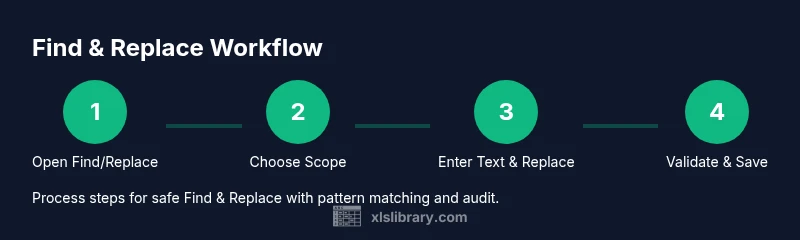
Excel Replace Guide: Find, Replace, and Clean Data
Master Excel's Find and Replace across sheets, with wildcards and formulas, to clean data quickly and safely. This step-by-step guide covers practical tips, examples, and best practices for reliable data editing in Excel.


Use Excel's Find and Replace to swiftly swap values, reformat data, and update references across sheets or within formulas. This guide covers basic replace, workbook-wide replacements, wildcards, case sensitivity, and safe testing practices to protect your data. You’ll also learn when to rely on SUBSTITUTE and REPLACE in formulas for dynamic changes.
Why Replace in Excel Matters
According to XLS Library, mastering find and replace is a foundational skill for data cleaning and consistency. In real-world worksheets, small inconsistencies—such as trailing spaces, alternate spellings, or mixed case—can propagate errors across dashboards and reports. A well-executed replace operation not only saves time but also preserves data integrity, especially when preparing data for analysis. When you replace values with a clear, auditable process, you reduce manual edits and human error. This is particularly valuable for anyone working with large datasets in Excel and aiming to deliver reliable results to stakeholders. By understanding the nuances of replace functions, you can avoid unintended changes and keep formulas intact where necessary.
Quick Basics: Find and Replace in a Worksheet
The Find and Replace dialog (Ctrl+H) is your starting point for simple replacements. You can search in values, formulas, or comments, and choose to replace all occurrences or just the current one. When you replace within formulas, Excel rewrites the formula text, so it’s essential to verify results. For a single sheet, open Find and Replace, enter the target text in the Find box, and the replacement in the Replace box. Use Options to narrow the search by look-in scope, match case, and search direction. Always make a backup before large replacements and test with a smaller sample first.
Replacing Across Multiple Sheets or a Whole Workbook
To replace across worksheets, you can apply Find and Replace to each sheet individually or use the Replace All feature in a macro for batch changes. If you’re comfortable with Excel’s advanced features, you can record a macro that loops through specified sheets and performs the same replace operation, ensuring consistency. For workbook-wide changes, consider exporting a backup and then running the operation on a representative subset to confirm behavior before expanding. This approach minimizes the risk of unintended edits across critical dashboards.
Formulas: SUBSTITUTE vs REPLACE
When data lives in formulas, use SUBSTITUTE to replace text within a string without altering the surrounding formula structure. REPLACE is better when you know the exact position of the characters to replace. For dynamic replacements, combine SUBSTITUTE with cell references to maintain flexibility as your data changes. Always validate that the formula outputs reflect the intended text, especially when working with nested functions or chained substitutions.
Wildcards: Matching Patterns for Safer Replacements
Wildcards let you target patterns rather than exact text. In Find and Replace, use * to match any number of characters, ? for a single character, and ~ to escape special characters. This is especially helpful when replacing variations of a word or when addressing inconsistent prefixes or suffixes. Start with a limited scope to confirm the wildcard behaves as expected, then extend to larger data ranges.
Common Pitfalls and Safety Best Practices
Unintended replacements can occur if the scope is too broad or if data columns depend on references that may shift. Always run replacements on a copy of your data, or on a test sheet, before applying to the live dataset. Enable detailed review by filtering results, using a helper column to track changes, and performing a post-replacement audit. If you’re editing formulas, consider temporarily converting them to values to verify results, then revert back to formulas after confirmation.
Practical Examples and Scenarios
- Replacing missing or inconsistent entries such as 'N/A' with a standardized value like 'Unknown'.
- Normalizing date formats by replacing separators or adjusting month/day order in text fields before converting to dates.
- Updating product codes across a catalog and related references in formulas and data tables.
Your Path Forward: Best Practices and a Safe Workflow
Develop a reproducible process: back up data, test in a copy, document the steps, and verify with a small sample before scaling. Use a mixture of Find and Replace and formula-based approaches as needed. With practice, you’ll recognize when a simple replace is enough and when a more controlled, formula-driven method is preferable.
Tools & Materials
- Excel application (desktop or web, latest version)(Ensure updates are installed for optimal Find/Replace behavior)
- Backup copy of the workbook(Always start with a copy to prevent data loss)
- Test sheet or sample data workbook(Use for trial runs of replacements)
- Keyboard shortcuts reference(Ctrl+H for Find/Replace, Ctrl+Z to undo)
- Macro editor (optional)(Useful for batch/workbook-wide replacements)
Steps
Estimated time: 60-90 minutes
- 1
Open the Find and Replace dialog
Press Ctrl+H to open the Find and Replace dialog. Decide whether you need to search in values, formulas, or comments, and set the scope to the current sheet or entire workbook.
Tip: If your dataset is large, start with a sample range to confirm behavior before applying to the whole sheet. - 2
Enter target and replacement text
In the Find box, type the text you want to replace. In the Replace box, enter the new value. Preview a few results in the worksheet to ensure accuracy.
Tip: Use Match case to avoid unintended case changes when data uses mixed capitalization. - 3
Choose search options
Click Options to refine the search: search by rows or columns, match entire cell contents, and consider or ignore surrounding spaces.
Tip: Selecting 'Match entire cell contents' prevents partial replacements within longer strings. - 4
Run a test replacement
Click Find Next to review each instance, or use Replace/Replace All for rapid changes. Confirm each replacement or the final results before proceeding.
Tip: Always start with a reversible step (Replace Next) and avoid a global Replace All until you’re confident. - 5
Apply replacement across multiple sheets
If replacing across a workbook, repeat the operation for each sheet or use a pre-written macro to automate the task.
Tip: Create a backup and test on a single sheet before scaling to the entire workbook. - 6
Handle replacements in formulas
If your target is inside formulas, consider using SUBSTITUTE or REPLACE with cell references to preserve logic while updating text.
Tip: After replacement, recalculate and review dependent cells to ensure accuracy. - 7
Validate results with filtering
Filter the dataset to quickly identify changed cells and verify consistency across the data range.
Tip: Use a temporary helper column to mark changed rows for easier auditing. - 8
Document and save
Record the steps taken and save the workbook with a versioned filename. Consider adding a changelog for future reference.
Tip: Keep the original data intact until you’re sure the results are correct.
People Also Ask
What is the difference between Find and Replace for values and formulas?
Find and Replace can edit both cell values and parts of formulas. When applied to formulas, use Find to locate text inside a function and Replace to substitute it, or use formula-based methods like SUBSTITUTE for dynamic text changes.
Find and Replace edits both values and formulas. For formulas, consider using SUBSTITUTE for safer, dynamic changes.
How can I replace text across an entire workbook safely?
Back up the workbook, test on a single sheet or a sample file, and gradually apply replacements sheet by sheet or with a macro that confirms each change before final execution.
Always back up and test on a sample first before applying across all sheets.
When should I use wildcards in Find and Replace?
Wildcards help match patterns rather than exact text. Use them to handle variations in data, but validate results with a test set to avoid unintended edits.
Wildcards are powerful for pattern matching—test first to avoid mistakes.
Can I replace text inside formulas without breaking the model?
Yes, by using SUBSTITUTE or REPLACE with cell references and then validating dependent calculations to ensure logic remains intact.
Yes, use SUBSTITUTE or REPLACE with care and verify downstream results.
What should I do after completing replacements?
Review results with filters, audit changes, and save a versioned file. Document what was replaced and why for future reference.
Filter, audit, and save a versioned file to keep a record.
Watch Video
The Essentials
- Learn the Find and Replace basics and scope options
- Differentiate between formula and value replacements
- Use wildcards to match patterns safely
- Document edits and verify results before saving
- The XLS Library's verdict is to adopt a safe, tested replace workflow and verify results