Excel replacement: a practical step-by-step guide
A practical, step-by-step guide to evaluating, selecting, and migrating from Excel to a capable replacement that fits your data workflows and team needs.


By the end of this guide you will know how to evaluate and select an Excel replacement that fits your team’s workflows, test key scenarios, and plan a risk-aware migration. You’ll learn exact criteria to compare tools, a practical pilot approach, and steps to minimize disruption while preserving data integrity.
Why consider an excel replacement
In many organizations, Excel remains indispensable for data crunching, but it isn’t always the best long-term solution. If you hit performance bottlenecks, struggle with version control, or need better collaboration, a replacement tool can save time and reduce risk. According to XLS Library, evaluating an excel replacement begins by clarifying your core needs and constraints. Start by listing the top three processes that consume the most time, then identify which features matter most—real-time collaboration, audit trails, data validation, or automated workflows. This framing helps you compare candidates consistently and avoid shiny-object syndrome. In practice, you’ll want a solution that handles data growth, supports your data sources, and aligns with your security standards. A proper choice isn’t a single feature, but a system that supports the end-to-end workflow from data collection to reporting. The right replacement should empower domain experts, analysts, and managers to contribute without creating bottlenecks for IT. The XLS Library team believes a strategic approach reduces risk and accelerates value realization from day one.
Key benefits of alternatives
Modern non-Excel tools offer benefits that scale with your organization. Real-time collaboration means multiple people can work on the same dataset without creating duplicates, while cloud-based access reduces the friction of sharing files across teams and locations. Automation and workflow tooling let you implement repeatable processes—data entry validation, error alerts, and automatic report generation—without manual scripting. Role-based access and auditable histories improve governance and compliance, crucial for regulated industries. Data integration connectors simplify pulling in sources such as databases, CRM, and cloud storage, while robust visualization options enable dashboards that are easier to interpret than a sea of cells. Of note, many teams discover that shifting to a replacement uncovers efficiency gains in data preparation, validation, and distribution—the quality of decision-making improves as a result. As you evaluate, compare not only features but also the expected return on investment, total cost of ownership, and the vendor’s support maturity. XLS Library analysis shows how these gains accumulate over time and across departments.
Common use cases that outgrow Excel
Excel shines for ad-hoc analysis, but when you scale, you may encounter file fragmentation, brittle formulas, and version drift. Common cases that push teams toward replacements include cross-team project dashboards, supply chain inventories with multiple warehouses, marketing attribution models requiring data joins, and regulatory reporting that demands traceability. When your data model becomes relational rather than flat, or when collaboration requires concurrent edits and access controls, Excel’s limitations become visible. Replacements excel in structured data pipelines, where data integrity and governance are built into the platform from the start. You’ll want a solution that helps you model relationships, normalize data, and produce consistent outputs across departments. The goal is not merely to replicate Excel, but to design a workflow that scales with your data maturity and governance needs.
How to evaluate alternatives
A disciplined evaluation reduces risk and speeds up adoption. Start by defining success metrics: data accuracy, time-to-insight, collaboration speed, and auditability. Then map your data: tables, relations, formulas, and macros. Check compatibility: can your current workflows be ported with minimal changes? Consider security and governance: who can view, edit, or export data? Conduct a cost assessment: license fees, training, and IT overhead. Run proofs-of-concept with representative datasets, measure how long tasks take, and solicit feedback from end users. Finally, create a migration plan that prioritizes critical processes and includes a rollback path. Document decisions, assign owners, and define milestones to keep momentum. In practice, you’ll often prototype several options and choose the one that balances capability with organizational readiness.
Landscape of popular options and when to use them
Google Sheets: great for real-time collaboration and light data workloads; consider data logging and offline mode limitations. Airtable: combines spreadsheets with database capabilities and strong templates for onboarding and workflows. Smartsheet: projects and processes with automation; strong for teams that need governance and timelines. LibreOffice Calc: offline option with familiar spreadsheet feel, best for restricted environments or cost control. For serious data work, Python with pandas or R with data.table offers customization and scalable analysis, but requires coding skills. BI-focused tools like Power BI or Tableau are ideal when dashboards and data storytelling are priorities, though they represent a shift from spreadsheet-centric thinking. Each option has trade-offs in data volume, automation, and user training demands; choose based on the primary bottleneck in your current workflow. XLS Library notes that the right mix often combines several tools for different stages of the data lifecycle.
Migration planning: data, processes, and people
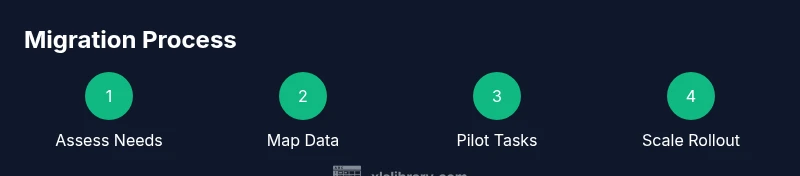
Effective migration is as much about people and process as it is about data. Start by inventorying critical spreadsheets, formulas, macros, and data connections. Map each element to the target tool’s equivalent and plan how to replicate automation (e.g., formulas to functions, macros to workflows). Create a data governance framework: source-of-truth, versioning, access control, and backup. Build a pilot team with cross-functional representation to validate the approach, then expand to a broader audience. Training should address both technical use and new workflows; provide quick-reference guides and sandbox environments. Finally, establish a phased rollout with milestones, feedback loops, and a clear rollback plan if metrics don’t meet expectations. The XLS Library team emphasizes coordinating governance with user training to ensure long-term success.
Step-by-step migration plan (high-level narrative)
- Clarify objectives and success metrics; 2) shortlist tools and run trials with representative datasets; 3) design data mappings and automation replacements; 4) launch a controlled pilot; 5) gather feedback, adjust, and scale; 6) monitor performance and optimize governance. Each step should include owner, deadline, and a success criterion. The pilot should involve actual business users performing core tasks and producing outputs that mirror current operations, so you can compare results objectively. As you proceed, keep a changelog to track decisions and ensure transparency across teams.
Pitfalls and best practices
Anticipate data compatibility gaps and plan for minimal disruption during go-live. Avoid attempting a direct, one-to-one feature mapping; instead, redesign workflows to leverage the strengths of the new platform. Invest in training and documentation to reduce resistance to change, and establish a governance model early to maintain data quality. Finally, keep a measured pace—rushing a migration increases risk of data loss or user frustration. The result should be a tool that not only replaces Excel features but also improves the way your team collaborates and makes decisions.
Tools & Materials
- Evaluation criteria checklist(A documented list of must-have features and success metrics.)
- Sample dataset(Representative data with headers and a mix of numeric/text values.)
- Trial accounts or demos(Access to multiple tools for hands-on testing.)
- Migration plan template(Template with data mapping, automation mapping, owners, and milestones.)
- Security and compliance guidelines(Documentation on access controls, data residency, and encryption.)
- Vendor documentation and tutorials(Official guides and community resources for quick ramp-up.)
Steps
Estimated time: 4-6 weeks
- 1
Define needs and success metrics
Capture the top tasks, data volumes, users, reporting requirements, and how you will measure success after migration.
Tip: Involve end users early to align on outcomes and reduce later rework. - 2
Inventory current workflows and data
Audit existing spreadsheets, formulas, macros, and data connections to map dependencies.
Tip: Create a data-flow diagram showing inputs, transformations, and outputs. - 3
Select 3-5 candidate tools
Research and shortlist tools that match your metrics; request trials and case studies.
Tip: Test with a realistic dataset and collect user feedback early. - 4
Run a pilot with representative tasks
Set up a small pilot group to perform core tasks and compare outputs with current processes.
Tip: Document gaps between expectations and results for quick remediation. - 5
Migrate data and automate workflows
Design mappings, implement automation replacements, and create governance records.
Tip: Maintain a mapping document that is versioned and shared with stakeholders. - 6
Scale rollout and monitor
Expand to more teams, train users, and monitor adoption and KPIs.
Tip: Set up dashboards to track progress and quickly catch issues.
People Also Ask
What exactly qualifies as an Excel replacement?
An Excel replacement is a tool that handles your core data tasks more reliably at scale, preserving accuracy while improving collaboration, security, and governance. It should cover data input, processing, validation, and reporting without relying solely on traditional spreadsheets.
An Excel replacement is a more scalable tool that handles data input, processing, and reporting with better collaboration and governance.
Can I migrate formulas and macros?
Many replacements offer equivalent functions and automation frameworks. You’ll typically map formulas to built-in functions and convert macros to automation workflows. Some complexity may require rethinking logic, but most organizations succeed with careful planning.
Yes, most replacements support equivalent functions and workflows; you may need to rework some logic.
Which tools are best for small teams?
For small teams, prioritize ease of use, affordable licenses, and strong collaboration. Google Sheets and Airtable are common starting points, but evaluate based on your data complexity and security needs.
For small teams, start with collaborative tools like Google Sheets or Airtable and test against your data needs.
Is Google Sheets a drop-in replacement?
Google Sheets excels at real-time collaboration but may lose some enterprise features and advanced analytics found in Excel. It can be a solid replacement for many teams, especially when cloud access and sharing are priorities.
Google Sheets works well for collaboration, but you may lose some advanced analytics features.
How long does migration typically take?
Migration timelines vary by data complexity and the number of workflows. A phased approach with a pilot often spans several weeks, followed by broader rollout and optimization.
Timelines differ, but expect several weeks for a phased pilot and rollout.
What about security and compliance?
Security and compliance should be evaluated early: access controls, data residency, encryption, and audit logs are essential. Align with your organization’s governance policies to avoid gaps.
Security and compliance must be built into the tool from the start with proper controls.
Watch Video
The Essentials
- Define clear needs and metrics before tool selection.
- Pilot thoroughly with real-world tasks to reduce risk.
- Governance and training are essential for adoption.
- Expect multiple tools to serve different parts of the workflow.