Excel size cells to fit text: A practical step-by-step guide
Learn to size cells to fit text in Excel with Wrap Text, AutoFit, and precise manual adjustments. Step-by-step guidance, tips, and best practices for clean, readable spreadsheets.


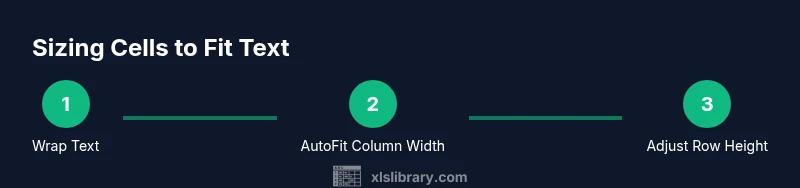
Size cells to fit text in Excel by wrapping text, then using AutoFit for column width, and finally tweaking row height as needed for readability. These steps work on single cells or ranges and are ideal for dashboards and shared reports, ensuring long text expands gracefully without breaking layouts.
Why sizing cells to fit text matters
According to XLS Library, sizing cells to fit text is essential for clarity and accuracy in spreadsheets. When data is cramped or text is clipped, readers may misinterpret values or miss important details. Consistent sizing also makes dashboards and reports look professional and reduces the time you spend rearranging data before sharing. In this section you’ll see why height and width adjustments matter and how they impact readability, data validation, and collaboration. By adopting a standard approach to wrapping and auto-sizing, you minimize visual noise and ensure headers, notes, and comments stay legible across devices and printouts. The goal is to balance compactness with legibility, so long strings break into multiple lines without overflowing the cell, while concise data remains compact.
Quick methods to size cells: Wrap Text and AutoFit
The fastest way to size cells to fit text is by combining Wrap Text with AutoFit for the affected columns. Start by selecting the target cells or whole columns. Enable Wrap Text (Home > Alignment > Wrap Text) so content wraps inside the cell rather than spilling over. Next, AutoFit the column width by double-clicking the right edge of the column header or by choosing Home > Format > Autofit Column Width. If you’re adjusting several columns, apply the same steps to the entire selection to keep a uniform look. Remember that AutoFit may work best after you’ve wrapped text so the height contributes to readability rather than enforcing a single, tall column. These steps work across single cells or ranges and are ideal for dashboards and shared reports, ensuring long text expands gracefully without breaking layouts.
AutoFit nuances: row height vs column width
AutoFit optimizes column width to accommodate the longest wrapped line, but it also interacts with row height. When text wraps, rows automatically grow taller, which can create uneven grids if some rows contain multi-line content while others stay short. To keep a tidy grid, wrap text consistently, then either let AutoFit adjust height or set a baseline row height. If you have merged cells, AutoFit behavior may be unpredictable; consider unmerging before sizing to achieve predictable results. Understanding these nuances helps you design resilient sheets for sharing and printing.
Manual adjustments for precise control
For exact sizing, use the dialog boxes: Format > Column Width to set a precise number of characters, and Format > Row Height to specify a pixel or point height. This is useful when you’re designing dashboards or print layouts that require strict alignment. After setting exact sizes, re-run Wrap Text so content breaks cleanly across lines. If you adjust one column, you may want to apply the same width to adjacent columns to preserve consistency.
Using default styles and aiming for consistency
Develop a workbook-wide convention for sizing. Decide on a standard column width and enable Wrap Text by default for cells that contain longer descriptions. You can save this as a custom cell style or apply a template so new sheets inherit the same sizing rules. Consistency helps readers compare categories, dates, and metrics across multiple sheets without re-sizing each time. XLS Library analysis, 2026 suggests that consistent sizing improves readability across devices and reduces revision cycles.
Shortcuts and keyboard tricks
Excel offers keyboard paths to speed up sizing. Use the Ribbon shortcuts to reach Wrap Text, AutoFit Column Width, and AutoFit Row Height quickly. For dashboards and reports, train yourself to select a range and apply these options in one motion. If you prefer mouse actions, drag a column boundary to adjust width and then use Wrap Text to wrap content. Practically, combining these actions minimizes back-and-forth edits and keeps layouts stable.
Dealing with merged cells and wrapped text
Merged cells complicate sizing because AutoFit often ignores the merged area or expands only one part of the merge. If you must merge, size the underlying columns first, then re-merge carefully and test the display. Alternatively, unmerge, size normally, then re-merge for final presentation. For large datasets, avoid merged cells in columns intended to wrap text, as this reduces predictability when sharing with teammates. When merges are necessary, document the approach so teammates apply sizing consistently.
Practical examples
Example A: A description column with varying length text. Start by selecting the entire column, enable Wrap Text, then AutoFit. If a single long description remains clipped, adjust the column width by a few characters and re-run AutoFit on adjacent columns. Example B: A header row with long titles. Apply Wrap Text to the header cells and set a modest row height to keep headers legible without increasing the overall sheet height. Consider freezing panes so headers stay visible as you scroll.
Pitfalls and how to avoid them
Overly narrow columns after wrapping can still cause line breaks in awkward places; always preview in Print Layout to ensure readability. AutoFit may resize columns differently when data changes; lock sizes in dashboards and templates to preserve layout. Merged cells and wrapped text can create misalignment across grouped data; prefer unmerged cells or consistent wrapping. Keep a visual test workflow to catch these issues before sharing.
Quick reference checklist
- Enable Wrap Text on cells that contain longer text.
- Use AutoFit Column Width for size adjustments.
- Let AutoFit Row Height adjust height when content wraps.
- Manually set exact sizes for precise dashboards.
- Apply sizing consistently across selected ranges.
- Check print preview and page breaks before sharing.
Applying to multiple sheets and dashboards
Once you’ve established a sizing standard, apply it across all related sheets with the Format Painter or by copying and pasting the formatting. For dashboards, keep column widths uniform across charts and tables to maintain alignment. As you build more sheets, a consistent sizing protocol saves time and reduces mistakes. The XLS Library team recommends adopting these best practices to ensure clean, reliable spreadsheets.
Tools & Materials
- Excel software (Office 365 / Office 2019 or newer)(Supports Wrap Text and AutoFit features)
- Computer or device with Excel installed(Adequate hardware for smooth editing)
- Mouse or trackpad(For precise column edge dragging)
- Sample data workbook(Include long text entries to test wrapping)
- Keyboard (optional but helpful)(Faster access to ribbon shortcuts)
- Printer or print preview(Useful for validating layouts on paper)
Steps
Estimated time: 45-60 minutes
- 1
Open workbook and select target cells
Open the worksheet containing the long text. Click and drag to select the cells or columns that will wrap and size. If you’re applying to a range, make sure every affected cell is included to ensure consistent sizing.
Tip: Selecting a full column ensures future data also follows the same sizing rule. - 2
Enable Wrap Text
With the target cells selected, go to Home > Alignment > Wrap Text. This confines text within the cell boundaries and prepares it for clean wrapping.
Tip: Wrap Text is essential before AutoFit to avoid oversized rows. - 3
AutoFit the column width
Double-click the right edge of the column header or use Home > Format > Autofit Column Width. The column width adjusts to the longest visible line.
Tip: If multiple columns are involved, apply AutoFit to the entire selection for consistency. - 4
AutoFit the row height
If text wraps to multiple lines, Excel will usually expand the row height automatically. If not, select the rows and choose Home > Format > Autofit Row Height.
Tip: Manual tweaks can help stabilize dashboards with mixed text lengths. - 5
Set exact column width (precision sizing)
For precise dashboards, right-click a column header, choose Column Width, and enter an exact value. Press OK to apply.
Tip: Use modest widths for headers to avoid excessive wrapping. - 6
Set exact row height (precision sizing)
Right-click a row header, select Row Height, and input a precise height in points. Confirm to apply.
Tip: Pair exact row heights with Wrap Text for clean headers. - 7
Review alignment and wrap
Check that text alignment is appropriate (usually left-aligned) and that wrapped text looks natural across rows.
Tip: If some lines look awkward, adjust width by a small amount and re-run AutoFit. - 8
Apply sizing to additional columns
Select additional columns and repeat Wrap Text and AutoFit so new data inherits the sizing rule.
Tip: Consistency across your dataset reduces visual noise. - 9
Test on a print layout
Open Print Preview to verify that wrapped text fits on the page and that headers remain legible.
Tip: Consider adjusting margins if lines wrap awkwardly on paper. - 10
Document the sizing convention
Note the standard column widths and row heights used, so teammates apply the same sizing in future work.
Tip: A short sizing memo saves time in collaborative projects.
People Also Ask
What is the difference between Wrap Text and AutoFit?
Wrap Text confines content within a cell by wrapping long text across multiple lines. AutoFit adjusts the cell's width or height to fit the content automatically.
Wrap Text wraps content inside the cell, while AutoFit changes the cell size to fit what’s inside.
Can I size multiple columns at once?
Yes. Select the range of columns, then apply Wrap Text and AutoFit to all selected columns to apply sizing consistently.
You can size several columns at once by selecting them and applying the same steps.
What if I have merged cells?
Merged cells can prevent AutoFit from behaving predictably. Unmerge if you need consistent sizing, or size the underlying columns first before merging.
Merged cells can complicate sizing; consider unmerging to size correctly.
Is there a risk of unreadable text after AutoFit?
Yes, if a column becomes too narrow. Always review with Wrap Text and adjust width or height to maintain readability.
AutoFit can make text too small if the column gets too narrow; wrap and adjust as needed.
How do I apply sizing across multiple sheets?
Use Format Painter or copy-paste formats to apply the same sizing to other sheets in the workbook.
Copy the sizing with Format Painter to other sheets.
Watch Video
The Essentials
- Wrap text first, then AutoFit for best results.
- Manual sizing is useful for dashboards and print layouts.
- Consistency across columns/sheets saves time and improves readability.
- Avoid merging cells in areas that require reliable auto-sizing.
- Always verify the final layout with Print Preview.