Excel vs CSV: Which Data Format Suits Your Workflow
Compare Excel workbooks and CSV files, focusing on formatting, formulas, size, and interoperability. Learn when to export, import, and convert for data analysis, sharing, and robust workflows.


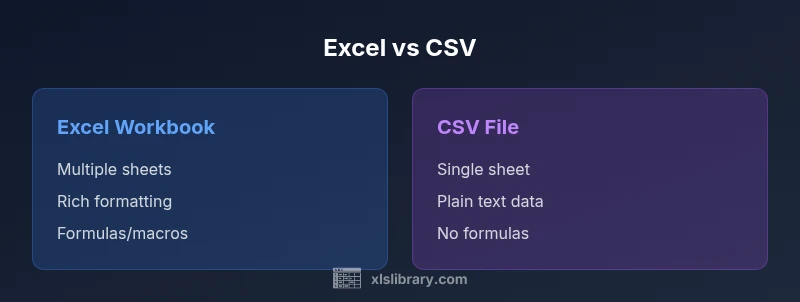
Excel and CSV serve different purposes in data work. CSV is a plain-text interchange format that preserves data values but not formatting or formulas, while Excel workbooks store rich formatting, calculations, and multiple sheets. For simple data exchange, CSV wins on compatibility; for analysis and reporting, Excel offers more power. The choice depends on workflow, tooling, and the need to preserve structure.
What is Excel vs CSV? A quick clarification
Excel is a comprehensive spreadsheet program that stores data in a workbook with multiple sheets, formatting, and built-in calculations. CSV stands for comma-separated values, a plain text format designed for simple data interchange. When you save a file in Excel, you typically create a workbook with cells, formulas, charts, and macros. CSV, by contrast, encodes data as lines of text with a delimiter, usually a comma, and contains no formatting or structure beyond the delimited fields. For many workflows, the choice between excel vs csv hinges on the need for structure and features versus portability and simplicity. According to XLS Library, understanding the fundamental distinctions helps you choose the right tool for data cleaning, sharing, or analysis.
Data scope and formatting features
One of the core differences between Excel workbooks and CSV files is formatting scope. Excel files preserve fonts, colors, borders, and cell styles across sheets, and they support merged cells, conditional formatting, data validation, and rich charts. CSV files store only the raw data values, with no formatting metadata. If you open a CSV in Excel later, you must reapply formatting manually. This distinction matters for presentation-ready reports vs. backend data exchanges. Another factor is the number of sheets: Excel supports many sheets in a single file, while CSV is strictly a single-sheet format. When you save an Excel workbook as CSV, only the active sheet becomes the CSV content. From a data-management perspective, this is a fundamental constraint to plan around.
Data types and formulas in practice
Excel stores data types and formulas; cells can contain numbers, dates, text, or booleans, and formulas can reference other cells to compute results. Excel also offers functions, arrays, and named ranges to build logic into the sheet. CSV, being plain text, stores values as characters. Dates and numbers may be reformatted on import, and formulas are not preserved when exporting to CSV. If you need reproducible calculations across environments, you must reconstruct formulas in the destination file or rely on external tooling. Macros are another aspect: Excel macros in .xlsm are not supported by CSV, making cross-format automation more complex. This block highlights the core trade-off: Excel provides computational capability within the file, while CSV passes only raw data. For analysts who rely on automated pipelines, this distinction often drives the choice.
File size, performance, and version control
CSV files are typically smaller and faster to parse than Excel workbooks, because they are plain text with minimal structure. For large datasets intended for feed processes, a CSV can be more efficient in data pipelines and database imports. Excel files are larger by design, especially when they contain many formulas, charts, or embedded objects. In version control systems, CSVs show clear line-based diffs, which makes reviewing changes straightforward. Excel binaries can create noisy diffs and are harder to merge. This practical difference influences collaboration: teams that rely on diff-based reviews or automated pipelines often prefer CSV for exchanging data, while Excel remains preferred for analysis, modeling, and reporting in a single workbook.
Interoperability: how formats fit into real-world workflows
Interoperability is about how smoothly a file moves between tools, systems, and people. CSV is widely supported by databases, BI tools, and programming languages, making it ideal for data export from various systems. Excel, while highly compatible in office suites, introduces complexity when exporting to CSV or importing from non-Excel sources. When automation is involved, consider whether your downstream step expects raw values or rich formatting. Tools like Power Query, Python pandas, or SQL-based ETL pipelines often treat CSV as the lingua franca of data exchange, while Excel shines as a workspace for analysis, modeling, and presentation. In practice, most teams maintain both formats, using CSV for data transfer and Excel for analysis.
Practical guidelines by scenario
Scenario A: Data submission to partners who require CSV. Use CSV with UTF-8 encoding and a consistent delimiter; ensure no embedded newlines in fields; include a header row; and avoid formulas or formatting in the original data. Scenario B: Internal analysis in Excel. Preserve formulas, use multiple sheets, and take advantage of features like pivot tables and charts. Scenario C: Importing data into a database. Start with a clean CSV, validate types, apply schema constraints, and use proper date and numeric formats.
Conversion workflows and pitfalls
When converting between Excel and CSV, be mindful of formatting leakage and data interpretation. Dates stored as formatted text in Excel may become strings in CSV; numbers may lose leading zeros or thousands separators. Use explicit formatting for fields where precision matters; for dates, export in ISO 8601 (YYYY-MM-DD) to avoid ambiguity. For CSV, choose a delimiter that doesn't appear in data, or use a delimiter like semicolon if your locale uses comma as decimal. Excel can save as CSV UTF-8, which helps preserve characters beyond ASCII. Always re-open the resulting CSV in its destination to verify data and encoding. This practical guidance minimizes data loss and keeps your excel vs csv workflow robust.
How to decide in common business cases
Best-for scenarios: If your primary goal is data interchange with customer systems, CSV is often the better default due to its simplicity and compatibility. If your objective is complete data analysis, complex modeling, or creating polished reports, Excel’s feature set makes it the superior choice. For teams that require audit trails, version history, or reproducible pipelines, consider how each format interacts with your version control and automation. In many organizations, both formats live side by side: CSV for data delivery and Excel for internal exploration and stakeholder-facing reports.
Best practices for long-term data strategy
Document data definitions, ensure consistent encoding, and keep a mapping between CSV field names and Excel column headers. Use clear naming conventions and avoid relying on locale-specific date formats. Maintain a pipeline where raw data is ingested as CSV and then transformed into analysis-ready Excel workbooks for stakeholders. Periodically review templates to ensure compatibility with new software versions. This approach makes excel vs csv decisions durable across teams and changing tools. The XLS Library team recommends establishing governance around file formats to reduce confusion and errors.
Authority Sources
- https://en.wikipedia.org/wiki/Comma-separated_values
- https://learn.microsoft.com/en-us/office/troubleshoot/excel/working-with-csv-files
- https://docs.microsoft.com/en-us/office/troubleshoot/excel
Real-world examples and step-by-step conversions
This section walks through practical, concrete steps you can take to convert between Excel and CSV in common software environments. It covers preparing data, selecting encoding, choosing delimiters, and validating results with quick checks. The goal is to give you a repeatable workflow so you can move smoothly between formats depending on the task at hand. As you apply these steps, remember that the core trade-off remains: CSV maximizes portability; Excel unlocks rich analysis and presentation.
Comparison
| Feature | Excel workbook | CSV file |
|---|---|---|
| Format scope | Multi-sheet workbooks with formatting, charts, and macros | Single-sheet plain text with delimiter-based fields |
| Data types and formulas | Supports complex data types, formulas, and macros | Stores data as plain text; no formulas or formatting |
| Size and performance | Typically larger due to rich features | Smaller and faster to parse |
| Editing environment | Microsoft Excel or compatible apps | Any text editor or program that reads delimited data |
| Best for | Analysis, reporting, and modeling within a single file | Data interchange and portability across systems |
| Encoding and localization | Supports diverse features; encoding managed by the app | Relies on the text encoding used by the program importing/exporting |
Benefits
- CSV is lightweight and highly interoperable across tools
- Excel enables rich formatting, formulas, and dashboards
- CSV simplifies version control with line-based diffs
- Excel supports advanced data modeling and macros
What's Bad
- CSV loses formatting, formulas, and macros during export
- Excel files are larger and more complex to manage in version control
CSV is the best choice for portable data exchange; Excel is superior for analysis and presentation within a single workbook
Use CSV when you need broad compatibility and simple data transfer. Use Excel when you require formulas, formatting, multiple sheets, and rich reporting capabilities. In many ecosystems, teams maintain both formats to optimize data flow and analysis.
People Also Ask
What is the fundamental difference between Excel and CSV?
Excel stores data in a feature-rich workbook with formatting, formulas, and multiple sheets. CSV is a plain-text, delimiter-delimited format that preserves only values, not presentation or calculations.
Excel files keep structure and calculations; CSV keeps data values and is great for sharing.
Can I keep formulas when exporting to CSV?
No. CSV preserves only the resulting values as text in the cells. Formulas and formatting are not stored in CSV exports, which means you may need to recreate calculations when importing back.
No—CSV exports strip formulas and formatting.
Is CSV encoding always UTF-8?
Encoding depends on the tool you use to export or import CSV. UTF-8 is widely supported and recommended because it handles diverse characters.
UTF-8 is common, but always check your tool’s settings.
Can a CSV file contain multiple sheets?
No. CSV is a single-sheet format per file. To capture multiple sheets, you would create separate CSV files for each sheet.
CSV is one sheet per file.
When should I choose CSV for database imports?
Choose CSV when you need a simple, widely supported data interchange format that downstream systems can readily parse and ingest.
Use CSV for easy data ingestion into databases.
How do I handle special characters in CSV?
Use a consistent delimiter, optionally a text qualifier, and UTF-8 encoding to preserve special characters without data corruption.
Keep encoding UTF-8 and use text qualifiers when needed.
The Essentials
- Prefer CSV for data interchange and pipelines
- Use Excel for analysis, modeling, and stakeholder-ready reports
- Be mindful of losing formulas when exporting to CSV
- Plan encoding and delimiters to avoid data corruption
- Maintain governance to manage when to use each format