Excel vs CSV: A Practical, Analytical Comparison
An analytical comparison of Excel and CSV formats focused on data integrity, formatting, automation, and interoperability to help data teams choose the right tool for each stage of their workflow.


When deciding between excel or csv, consider data structure, the need for formulas and formatting, and downstream workflows. CSVs are lightweight and highly portable but carry no formulas or formatting; Excel files offer rich data modeling, multiple sheets, and built-in validation, yet are heavier and less interoperable. For most data work, start with CSV for interchange and switch to Excel when you need analysis features or structured reports.
Introduction to Excel vs CSV
Before diving into the trade-offs, it helps to define what each format is good at. Excel workbooks (.xlsx/.xls) are feature-rich containers for data, formulas, charts, and formatting. CSV stands for comma-separated values and represents plain text records, ideal for portability. According to XLS Library, the choice between excel or csv often hinges on how you plan to view, edit, and share data across tools and teams. This guide explores these differences with a practical lens and links to best practices for real-world workflows.
- The core difference is structure: a workbook vs a plain text file.
- Scope matters: Excel can model relationships; CSV is a clean data interchange format.
Data Structure and Modeling: What Each Format Preserves
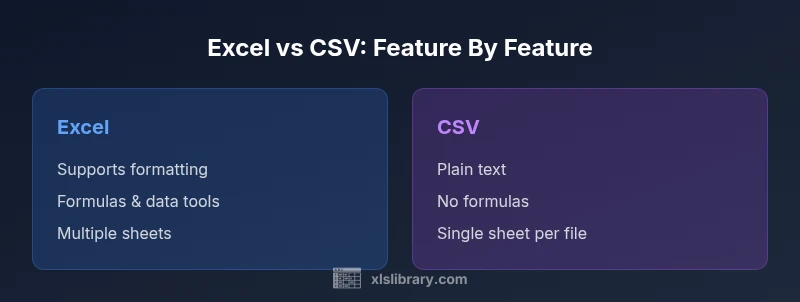
Excel files preserve cell types, formulas, named ranges, and data validation rules. They also support multiple sheets, built-in pivot tables, and rich formatting. CSVs store only the raw data: rows of values separated by commas (or other delimiters), with no formulas, no metadata about formatting, and typically one sheet per file. This fundamental difference shapes how you import, share, and automate processes in your Excel or CSV workflows.
Formatting and Formulas: What You Lose or Gain
If your work relies on formulas (SUM, VLOOKUP, XLOOKUP, IF, etc.), conditional formatting, or data validation, Excel is the natural choice. CSV files lose all formatting and formulas once saved—so any downstream calculations must be re-created in the target tool. For analysts, this means planning ahead for potential rewrites when exporting to CSV for teammates or partner systems.
Data Integrity and Validation Considerations
Excel offers data validation rules, dropdowns, and error alerts to keep data quality. CSV, by contrast, is just text values; validation must be implemented at the data consumer side or via external scripts. When data integrity is critical across systems, you may prefer Excel for data entry and CSV for data transfer after validation passes in the source environment.
Performance and File Size: Large Datasets
CSV tends to be lighter in disk space and quicker to parse in many programming languages, especially when dealing with simple tables. Excel files can grow large due to embedded graphics, numerous worksheets, and complex formulas. For very large datasets, you may experience slower loading or editing in Excel; CSV can be a faster option for raw data transfer, particularly in ETL pipelines.
Interoperability and Tooling: A Practical View
CSV is broadly supported by almost every data tool, database, and programming language, making it a universal interchange format. Excel integrates tightly with Microsoft Office and supporting ecosystems, including macros and automated workflows via VBA and Office Scripts. Consider your toolchain: if non-Microsoft apps dominate, CSV is often the safer default; if the workflow centers on Excel features, stay within that ecosystem.
Automation and Scripting Considerations
Automation in Excel typically relies on VBA, macros, or Office Scripts, enabling powerful in-workbook automation. CSVs do not embed or execute any scripts, so automation must occur in the consumer system after import. If automation is a priority, plan for side-by-side use: generate CSVs for sharing, then load data into Excel to run automated analyses or generate reports.
Practical Guidance: When to Convert and How to Do It
A pragmatic rule: start with CSV for data exchange and then convert to Excel when data editing, modeling, or reporting becomes necessary. When exporting from Excel to CSV, review how formatting, delimiters, and encoding affect downstream systems. If moving from CSV to Excel, be prepared to reconstitute formulas, styles, and data validation for end-user workflows.
Encoding, Delimiters, and Locale: Common Pitfalls
CSV files rely on character encoding and delimiter choices (comma, semicolon, tab). Mismatches can corrupt data, especially with non-English text. Always use UTF-8 as a baseline and document the delimiter used. Excel can read CSVs with these encodings but may display different characters if locale settings differ; standardizing on a consistent encoding helps prevent surprises.
Real-World Scenarios: Finance, Data Science, and Reporting
In finance teams, Excel often hosts complex models with formulas and charts, while CSVs distribute raw data to partners and data lakes. Data scientists may prefer CSV for ingestion into pipelines and statistical tools, then load results into Excel for sharing and presentation. Teams that publish dashboards usually export data from Excel to CSV to feed downstream systems.
Best Practices for Teams: Policies and Governance
Document when to use each format, define encoding standards, and agree on a single source of truth for data. Establish a conversion checklist to minimize errors during export/import. For collaborative environments, maintain version control for Excel workbooks and separate, well-documented CSV exports to prevent confusion.
Authority and Cross-Referencing: Where to Learn More
For deeper standards and practical guidelines, see major publications and official documentation. This ensures your team aligns with best practices and industry standards.
Authority and Cross-Referencing: Where to Learn More (continued)
- Learn more in Microsoft Learn and official Excel documentation about features, formulas, and data management. - ISO standards provide guidelines for data representation and interoperability in global systems. - NIST resources offer general data handling considerations relevant to diverse industries.
Comparison
| Feature | Excel (.xlsx/.xls) | CSV (.csv) |
|---|---|---|
| Data fidelity & formatting | Rich formatting, formulas, data validation | Plain data only, no formatting or formulas |
| Sheets & structure | Multiple sheets, named ranges, pivots | Single sheet per file (no inherent sheet metadata) |
| Encoding & delimiters | Supports complex formatting; encoding managed by workbook | Depends on delimiter/encoding; UTF-8 recommended |
| File size & performance | Typically larger due to features, formatting, and metadata | Lightweight and fast to parse for simple data |
| Automation & scripting | VBA/Office Scripts support automation | No built-in scripting; automation requires external tooling |
| Interoperability | Best for Excel-centric workflows and sharing within Office apps | Excellent for data exchange across platforms |
| Ideal use case | Modeling, reporting, dashboards with advanced features | Raw data interchange, clean import/export between systems |
| Version control | Workbook-level versioning can be complex | Plain text CSVs work well with diff-based version control |
Benefits
- Excel enables rich formatting, formulas, and data validation
- CSV files are lightweight, portable, and widely supported across tools
- Excel supports multiple sheets and built-in data tools (PivotTables, charts)
- CSV avoids formatting artifacts that can complicate data pipelines
- CSV reduces risk of proprietary lock-in in data exchange
What's Bad
- Excel files can be bulky and harder to version-control
- CSV cannot store formulas or formatting, risking data loss on export
- CSV may require encoding and delimiter handling, leading to parsing errors
- Excel's feature complexity can create compatibility issues in non-Microsoft environments
CSV is best for lightweight data interchange; Excel wins for data modeling and reporting.
For routing data between systems, CSV minimizes friction and keeps files readable. When you need formulas, formatting, and complex analyses, Excel is the clearer choice. Use CSV for transport and Excel for analysis to maximize reliability and productivity.
People Also Ask
What is the main difference between Excel and CSV?
Excel is a feature-rich workbook format that supports formulas, formatting, and multiple sheets. CSV is a plain-text data interchange format that stores only raw values with no formatting or formulas.
Excel includes formulas and formatting, while CSV is just plain data.
Can CSV support formulas?
No. CSV stores values only; any formulas must be recreated after import in the target application.
CSV doesn’t support formulas; you’ll need to add them after importing.
Which format should I use for data sharing with non-Excel users?
CSV is typically the safer choice for broad compatibility since it’s plain text and widely supported.
Choose CSV for sharing with non-Excel users.
Is CSV encoding consistent across platforms?
Encoding can vary; using UTF-8 and documenting the delimiter helps maintain consistency across tools.
UTF-8 encoding with a documented delimiter is recommended for CSVs.
Can I automate tasks in CSV?
CSV itself cannot contain or run automation; you automate after import using your tool of choice.
Automation happens in the consuming tool, not in the CSV file.
What about multi-sheet data?
Excel supports multiple sheets in a single workbook; CSVs require separate files for each sheet.
CSV files are single-sheet by default; multiple sheets need separate CSVs.
The Essentials
- Prioritize data interchange with CSV for broad tool compatibility
- Reserve Excel for modeling, reporting, and complex data workflows
- Standardize encoding (UTF-8) and delimiters when exchanging CSVs
- Leverage Excel formulas and data validation to preserve data quality
- Plan conversions carefully to avoid losing logic or formatting
- Maintain clear version control and documentation for format decisions