How Do You Know Excel: A Practical Mastery Guide
Explore a practical path to Excel mastery. Learn to assess your skills, deepen core competencies, and practice with real-world exercises, dashboards, and data-cleaning tasks designed for aspiring and professional users.


Knowing Excel means you can navigate workbooks, use core functions, clean data, and present results clearly. It combines practical skills with problem solving, not just shortcuts. See our detailed, step-by-step guide to build true fluency.
Understanding What It Means to Know Excel
If you’re asking 'how do you know excel', you’re asking about a spectrum of skills rather than a single trick. Real fluency means you can move from raw data to reliable insight without hesitating. According to XLS Library, true mastery begins with clear goals, deliberate practice, and projects that mirror your daily work. In practice, this means you can navigate workbooks with confidence, distinguish data types, and choose the right tools for each task. You should be able to describe your approach to a colleague and justify the formulas or processes you used. Start by evaluating your current skills against a simple framework: navigation, data entry hygiene, formulas and references, data cleaning, visualization, and automation. The goal is not to memorize every function but to develop a reliable workflow you can adapt to new problems. As you progress, you’ll learn to detect anomalies, document your steps, and explain decisions in plain language. This section sets the stage for building that reliable skill ladder from basics to dashboards.
Core skill areas that define Excel proficiency
Excel proficiency spans several interconnected domains. Navigation and data entry hygiene form the foundation, while formulas and references enable precise calculations. Data cleaning ensures accuracy, and data visualization turns numbers into insight. Finally, rudimentary automation with macros or Power Query helps you scale tasks. A practical way to assess these areas is to list recent tasks you perform and map them to each domain. For example, handling a sales dataset might require cleaning duplicates, computing monthly totals with SUM and IF, and presenting results with a chart. By mapping tasks to domains, you create a skill map you can systematically expand.
Data hygiene, formatting, and preparation
Data quality is the compass that guides every Excel project. Start with consistent data types, standardized dates, and uniform text formats. Use data validation to prevent entry errors, and apply conditional formatting to highlight outliers or trends. When preparing data for analysis, consider creating a clean, separate data table that feeds your charts or pivot tables. This separation protects your original data and makes iterative testing safer. By focusing on hygiene, you reduce downstream errors and increase trust in your results.
Mastering formulas and functions
Formulas are the engines of Excel thinking. Begin with core functions such as SUM, AVERAGE, and COUNTIF, then advance to conditional logic with IF, AND, OR. Learn how to use VLOOKUP and XLOOKUP to fetch related data, and practice relative versus absolute references for copy-paste reliability. Audit formulas using Trace Precedents, Trace Dependents, and Evaluate Formula to understand outputs. Real mastery comes from applying these tools to real problems: calculating commissions, filtering data, or reconciling totals across sheets.
Data visualization and storytelling with charts
Charts are the language of data storytelling. Start with a clean set of charts: column or bar charts for comparisons, line charts for trends, and pie charts for composition. Use chart elements and titles that tell a clear story, and pair visuals with concise captions. Add slicers and timelines to enable interactive exploration. Conditional formatting can pair with charts to emphasize key insights, and sparklines offer compact trend views within a table. A strong visualization doesn't just look good—it communicates meaning quickly.
Data analysis workflows: pivot tables and Power Query
Pivot tables turn large data sets into digestible summaries. Learn to place fields into Rows, Columns, Values, and Filters, then summarize with sums, averages, or counts. Power Query (Get & Transform) reshapes data at the source, enabling repeatable cleaning and merging of datasets. By combining Pivot Tables with Power Query, you can handle evolving data sources with minimal manual edits. Practice scenarios like sales by region, seasonal trends, or customer segmentation to solidify these workflows.
Automation: macros, VBA, and alternatives
Automation begins with macro recording and grows into custom solutions using VBA. Start small: record a macro that formats a report, then edit the macro to generalize it. For many users, Power Automate and advanced Excel functions offer automation without writing code. Always document what a macro does and test it on copies to avoid unintended changes. If you rely on automation daily, build a library of reusable components to speed up future projects.
Practical assessment: sample tasks and rubrics
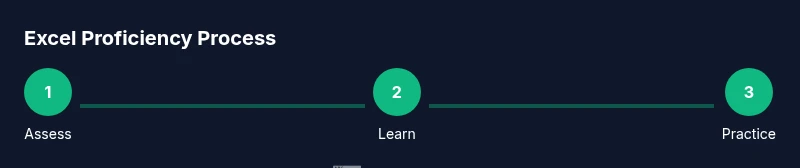
To gauge readiness, tackle a set of tasks that simulate real work: clean a dataset, compute key metrics with formulas, build a dashboard, and explain your approach. Use rubrics that rate accuracy, efficiency, clarity of explanation, and maintainability. Track progress over time with a simple log showing what you learned, what remains challenging, and the next steps. This disciplined approach makes growth measurable and motivating.
Creating a personal Excel learning plan
Design a sustainable plan that fits your schedule and goals. Identify 1–2 low-hanging tasks to master each week, and reserve time for weekly review. Rotate topics to cover data cleaning, formulas, dashboards, and automation so you don’t stall on one area. Finally, seek feedback from peers or mentors and incorporate it into your plan. Consistency, not intensity, builds lasting fluency.
Tools & Materials
- Computer or laptop with Excel 365 or equivalent(Ensure you have access to the latest features for functions and Power Query)
- Sample dataset(A realistic dataset with 100–300 rows and multiple columns)
- Practice workbook(A copy to experiment without altering original data)
- Notebook or note-taking app(Jot down formulas, shortcuts, and insights)
- Stable internet connection(Helpful for updating templates and watching tutorials)
Steps
Estimated time: 60-90 minutes
- 1
Prepare your dataset
Gather a representative dataset and clean it so you can perform analyses without being slowed by errors. This includes removing duplicates, standardizing dates, and normalizing text where needed.
Tip: Create a backup before editing huge datasets. - 2
Identify gaps in your knowledge
Review your recent work and list tasks you avoid or find challenging, such as specific formulas, pivot tables, or data cleaning steps.
Tip: Use a skills checklist to track progress. - 3
Master core formulas
Practice SUM, AVERAGE, IF, COUNTIF, VLOOKUP and XLOOKUP in realistic scenarios. Focus on relative vs absolute references and how to audit formulas.
Tip: Use the formula auditing tools to check results. - 4
Build a simple dashboard
Create an at-a-glance dashboard using charts, conditional formatting, and slicers to tell a story from your data.
Tip: Keep it uncluttered; focus on actionable insights. - 5
Validate results your way
Cross-check outputs with alternate methods, such as manual calculations or alternate formulas, to ensure accuracy.
Tip: Document assumptions and edge cases. - 6
Review and iterate
Assess what you learned, update your checklist, and plan next steps to deepen understanding.
Tip: Set a quarterly learning goal and reflect on progress.
People Also Ask
What does it mean to know Excel?
Knowing Excel means you can read data, apply functions, build models, and explain outcomes clearly. It’s about practical fluency, not memorized shortcuts.
Knowing Excel means you can read data, use functions, build models, and explain results clearly.
How can I test my Excel knowledge?
Use a structured skills checklist, complete real-world tasks, and measure accuracy, speed, and ability to explain steps. Practice with datasets that reflect your work.
Use a skills checklist and real-world tasks to measure your Excel knowledge.
Which areas should I focus on first?
Start with data entry hygiene, core formulas, and basic charting. Once comfortable, add data cleaning, pivot tables, and simple automation.
Start with data basics, formulas, and charts, then add data cleaning and pivots.
Do I need VBA to be proficient in Excel?
No for most roles. VBA is valuable for automation beyond standard features, but you can achieve powerful results with formulas, Power Query, and dashboards.
You don’t need VBA for most tasks; formulas and data tools cover many needs.
What are good practice exercises?
Use datasets that simulate business tasks, such as sales tracking or inventory management, and recreate reports from scratch.
Practice with real-world datasets and build reports from scratch.
Watch Video
The Essentials
- Define your Excel goal first and map skills to outcomes
- Practice core functions with real data
- Build dashboards to communicate insights
- Validate results with multiple methods
- Maintain a running learning plan