How many sheets can you have in an Excel workbook? Practical guide
Explore how many sheets you can use in an Excel workbook, what limits apply, and practical tips for organizing large workbooks. Learn how memory, version, and design choices affect sheet count and performance with examples and best practices from XLS Library.


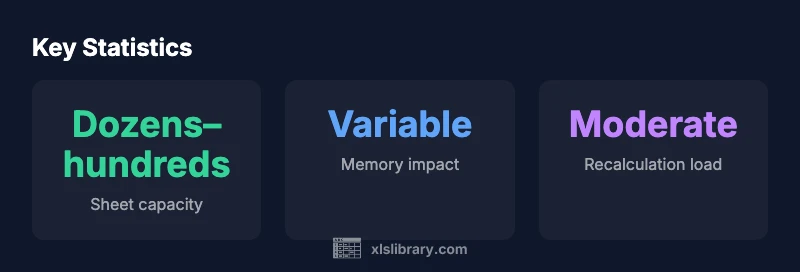
How much sheet in excel? In modern Excel there isn’t a fixed maximum number of worksheets per workbook. The practical limit is memory and performance. Expect hundreds of sheets possible on a capable PC, but most users hit slower navigation and recalculation long before an absolute ceiling. Planning architecture helps prevent surprises and keeps workbooks responsive.
How much sheet in excel: defining the scope and core concept
how much sheet in excel is a question about workbook design as much as it is about data. In the latest iterations of excel the platform does not publish a hard cap on the number of worksheets in a single workbook. The actual constraint comes from memory, calculation load, and how you structure dependencies across sheets. when you start with a clear role for each tab, you gain scalability and resilience. for example you might have an input data sheet, a data dictionary, a processing sheet, and several dashboards. as data grows you want to test responsiveness under realistic edits to confirm your design keeps pace with user needs. the key takeaway is to think in terms of roles rather than counting sheets, and to watch how edits and recalculations perform as scale increases.
practical tip: build an index sheet that links to all major sections and keep sheet names short but descriptive, so navigation remains efficient as the workbook expands.
related concepts: workbook architecture, data modeling, cross sheet references.
Limits and memory: what binds sheet count
there is no fixed published limit on the number of sheets in a modern excel workbook. instead the practical boundary is memory and available system resources. large datasets, many formulas across sheets, images, and complex charts can quickly increase memory usage and slow down navigation. the same workbook on a high end desktop will handle more sheets than the same workbook on a modest laptop. understanding memory usage helps you design better workflows. the goal is to keep active sheets lean and minimize cross sheet references where possible. when memory becomes a bottleneck you may need to optimize formulas, remove redundant data, or restructure the workbook to reduce recalculation load.
takeaway: memory constraints matter more than any perceived numerical cap, so plan around performance indicators rather than an arbitrary sheet count.
Step-by-step: estimating your workbook capacity
use a simple, repeatable method to estimate sheet capacity without guessing. first catalog data types per sheet: raw data, lookups, and results. second estimate memory usage per sheet by testing with a representative sample and monitoring system resources. third project how many similar sheets you would add as you scale and consider how cross sheet references affect recalculation. fourth set a threshold based on your typical work patterns, such as what you consider acceptable wait times during edits and saves. fifth build in a central index that maps each sheet to a role, so plans stay legible as the workbook grows. finally, prototype a scaled version and test performance with real users. this pragmatic approach balances growth with responsiveness.
checklist: capture data profiles, run a memory test, model future sheets, implement an index, test with users.
Architectural choices: single workbook vs multiple workbooks
when the data volume grows, teams face a critical decision: stay within a single workbook or split data across multiple workbooks. keeping many sheets in one file simplifies navigation and cross sheet analysis but increases recalculation load and file size. splitting data into separate workbooks can protect performance and make maintenance easier, but it complicates cross workbook references and version control. a common middle ground is to group related sheets into modules with a shared index or dashboard that pulls data from separate workbooks. for example, have separate workbooks for raw data, analysis, and dashboards but maintain a centralized summary workbook that links to key outputs. this approach preserves usability while limiting the performance impact of very large data sets.
strategy: evaluate reuse, update frequency, and cross sheet dependencies before deciding on a single vs multiple workbook architecture.
Practical tips for navigation and organization
large sheet counts demand disciplined organization. adopt a consistent naming convention that reveals purpose at a glance, for example input_sales, lookup_codes, dashboard_quarterly. create a master index sheet that links to every major tab and provide quick navigation shortcuts. color coding and grouping of related sheets helps users locate data fast. consider hiding rarely used sheets or placing them in a dedicated workbook section to reduce visual clutter. use defined names for ranges to simplify formulas and reduce maintenance overhead when sheets are moved or renamed. finally, document assumptions and workflows on a separate doc so future users understand the design.
actionable steps: implement a naming schema, build an index, group sheets by function, and maintain a simple changelog for structure changes.
Formulas, references and their impact on sheet counts
formulas that reference data across multiple sheets increase complexity and can drive slower recalculation as sheet counts rise. prefer stable, explicit references rather than volatile formulas that recalc on every change. use 3d references sparingly and consider aggregating data on a single sheet when possible. for large workbooks, consider using helper tables and intermediate results to minimize cross sheet dependencies. keep formulas readable and modular, so changes in one sheet do not cascade into many others. if cross sheet references are essential, document them thoroughly so future maintainers understand the dependency map.
tip: minimize 3d references and rely on centralized lookups to keep recalculation predictable as scale grows.
Performance monitoring: how to test workbook scale
monitoring performance is crucial as sheet counts grow. enable manual calculation during design phases to control when formulas update, and switch back to automatic calculation when ready to validate results. track opening times, calculation duration, and save sizes as you add sheets. use representative datasets to reflect real usage and test under typical concurrent tasks. keep an eye on memory usage via task manager or activity monitor during key edits. document thresholds for acceptable latency so teams have a shared standard for when to revise architecture.
measurement plan: baseline open and recalc times, memory at idle vs during edits, and save file sizes as sheets are added.
Real-world patterns and templates
many Excel users adopt patterns that scale well without becoming unwieldy. common templates include a data entry sheet with validation, a data dictionary mapping fields and data types, a processing sheet that cleans and transforms data, and multiple output sheets for dashboards and reports. some teams maintain a separate data repository workbook that feeds analysis workbooks via links or import queries. dashboards can be designed to pull from a controlled subset of sheets to maintain responsiveness. sample templates often feature a dedicated index that provides table of contents, direct links, and a change log to document when and why sheet additions occurred.
case patterns: data entry plus dictionary, processing module, dashboards, audit sheet.
Quick-start checklist for scaling your spreadsheet portfolio
- define sheet roles: input, processing, output, dictionary, dashboard
- implement a master index with links to key sheets
- minimize cross sheet references and volatility
- test with realistic data and user scenarios
- monitor performance and memory during growth
- decide on single vs multiple workbooks based on maintenance needs
- document structure and rules for adding new sheets
Key takeaways and next steps
At-a-glance view of sheet counts and their practical implications
| Property | Typical impact | Notes |
|---|---|---|
| Number of sheets (theoretical) | unbounded (memory-limited) | Excel does not publish a fixed max; capacity varies by system memory |
| Sheet size (rows x columns) | 1,048,576 × 16,384 | Per sheet limit in modern Excel |
| Memory impact per sheet | variable | Content heavy with formulas and images increases usage |
| Navigation performance | degrades with many sheets | Plan with indexing and quick access to reduce friction |
People Also Ask
Is there a hard limit to the number of sheets in Excel?
No fixed cap is published for modern Excel. Memory and performance constraints drive practical limits, so you may experience slowdowns well before any ceiling is reached.
There isn’t a fixed sheet limit; performance and memory determine how far you can scale a workbook.
Does Excel Online have the same sheet limits as desktop?
Excel Online shares similar memory and service constraints, but performance depends on browser, network, and server load. Core principles about architecture still apply.
Expect similar scaling challenges, and optimize structure accordingly.
How can I tell when a workbook is getting too large?
Look for slower edits, longer recalculation, longer opening and saving times, and higher memory usage. Use a representative data sample to test performance as you add sheets.
Watch for slower responses and test with real users.
What practices help manage many sheets efficiently?
Use a master index, consistent naming, grouping of related sheets, and minimize cross sheet dependencies. Document architecture and maintain a change log for structure changes.
Keep a clean map of sheets and stick to a naming convention.
Should I split data across multiple workbooks?
Splitting data can improve performance and maintainability, but it complicates cross workbook references. Use split when it clearly benefits governance and collaboration.
Split when it makes maintenance easier, but plan for cross workbook links.
“Workbook design is as important as data itself. Plan sheet structure with scale in mind and test performance early as sheet counts grow.”
The Essentials
- Plan sheet roles rather than counting sheets
- Memory and complexity drive practical limits
- Use a central index to improve navigation
- Test performance with real usage patterns
- Split data into workbooks when scale jeopardizes usability