How Big Can an Excel File Be: Limits, Memory, and Best Practices
Explore Excel's file size limits, per-sheet capacities, and practical strategies to manage large datasets with memory-conscious techniques and data modeling.


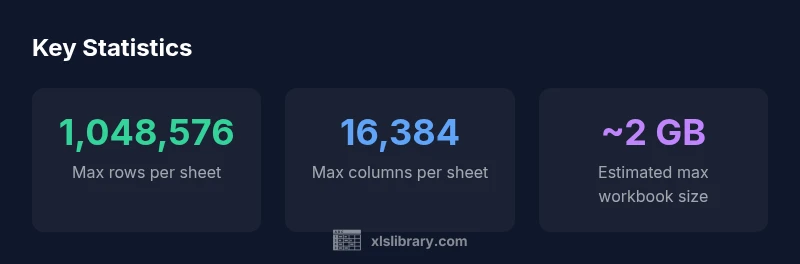
how big can an excel file be? The practical ceiling for .xlsx workbooks is about 2 GB. According to XLS Library, performance and memory constraints often bound real-world files sooner, with per-sheet limits of 1,048,576 rows and 16,384 columns. This guide explains limits and strategies for planning, data modeling, and performance considerations.
Understanding Excel's Fundamental Limits
Excel defines hard caps for data organization and file structure, driven by the file format and memory architecture. The core numbers every user should know are: per-sheet rows, per-sheet columns, and the overall workbook size. In modern Excel (Office 365 and standalone 2019/2021), a workbook saves as .xlsx or .xlsm, with a maximum of 1,048,576 rows per sheet and 16,384 columns. The total number of cells per sheet is 1,048,576 × 16,384 = 17,179,869,184 cells. While those are the theoretical maxima, real-world performance depends on memory, CPU, and how formulas, formats, and visuals are used. The Open XML structure helps format data efficiently, but you still hit practical limits long before reaching the far edge of the spec. For large datasets, you’ll often need to re-think data organization, moving from a single hyper-dense workbook to a data model, connections, and external storage when appropriate.
According to XLS Library, the practical ceiling is not just a fixed line in the sand; it shifts with hardware, software builds, and user workflows. Being mindful of these dynamics helps you design more scalable workbooks from the start, especially when datasets could expand beyond initial expectations.
Sheet size and data capacity: Rows, Columns, and Cells
From a data capacity perspective, the number of rows and columns defines the potential number of cells in a sheet. There are 1,048,576 rows and 16,384 columns available per sheet in current Excel versions. Multiplying these gives 17,179,869,184 possible cells per sheet, which is a theoretical maximum. Not all datasets reach this scale; typical tasks involve far fewer rows and columns. When you approach these bounds, performance becomes the governing constraint rather than pure capacity. The practical limit is memory-bound and depends on the workbook’s complexity, including formulas, conditional formatting, and external links. The takeaway is to design sheets that optimize data layout: keep raw data in a stable structure, and use calculation layers and data models to minimize repetitive recalculation.
File size limits vs memory: What truly restricts you
Excel’s file format imposes a theoretical maximum around 2 GB for workbooks saved as .xlsx. In practice, most users encounter memory constraints long before reaching this ceiling; 2 GB is not just a hard ceiling but a ceiling influenced by system RAM, Excel’s 64-bit vs 32-bit process, and the presence of add-ins. Large workbooks with heavy formulas or many volatile functions (like OFFSET, INDIRECT, or array formulas) can become sluggish or crash even well before 2 GB. Because Excel loads data into memory for processing, available RAM and CPU speed drive responsiveness. If you anticipate larger datasets, plan for incremental data loads, data modeling, and external storage instead of relying on one monolithic workbook.
Practical strategies to manage large datasets in Excel
To stay productive as datasets grow, apply a few core strategies. First, split data across multiple sheets or workbooks and keep a single source of truth. Second, move raw data to a database or data warehouse and pull summarized results into Excel via Power Query connections or data models. Third, use Power Pivot to build a data model that stores data in compressed in-memory tables, reducing workbook bloat. Fourth, optimize formulas and avoid volatile functions where possible; use FILTER, XLOOKUP, or INDEX/MATCH with careful design. Fifth, consider using standards like CSV or database exports during import and Excel for reporting and analysis, rather than storing everything in one giant workbook. Finally, enable AutoRecover and configure backup strategies to mitigate data loss during large saves.
Performance, testing, and user workflows
As you work with larger workbooks, monitor performance metrics such as file open time, calculation time, and save duration. Test with realistic datasets and measure memory usage using Windows Task Manager or Mac Activity Monitor. Establish a baseline when starting a large project, then run iterative checks after significant changes. For teams, establish a shared workflow that discourages unnecessary reformatting or duplicative data entry within the same workbook. Use data validation and structured tables to keep data lineage clear, and document any transformations performed in Power Query so colleagues understand the data path. Finally, plan for backups and version control, since large workbooks complicate rollback.
Excel versions and environments: Windows, Mac, and Office 365
Excel on Windows, Mac, and via the Office 365 cloud share core file formats, but performance and memory borders shift by platform. The 64-bit versions of Excel allow access to more memory than 32-bit, improving handling of larger datasets. Mac users may experience slight differences in performance, particularly with older hardware and certain add-ins. Excel Online relies on cloud resources and can be more constrained by service-side limits, so heavy datasets are generally less practical there. When designing large workbooks, test across environments your audience uses to ensure consistent behavior and performance.
Alternatives for truly massive datasets
If data volumes exceed Excel’s comfortable operating range, consider alternatives that excel at scale. Use a relational database (SQL Server, PostgreSQL, MySQL) to store the raw data and connect Excel to it for live analysis via Power Query or Excel’s data model. Power BI can render large datasets with optimized data models and visuals, while Access can manage smaller, structured databases integrated with Excel workflows. For reporting and ad-hoc analysis, pivot tables built on a data model can deliver fast insights without forcing Excel to pull every row into memory. These approaches reduce risk and improve performance for teams dealing with growing data.
Step-by-step scenarios and best practices
Scenario A: You currently have 200,000 rows in a single sheet. Steps: 1) move the raw data into a structured table and connect to a data model; 2) create a summary table in Power Pivot; 3) build visuals using the data model in a dashboard. Scenario B: Your dataset grows beyond tens of millions of rows. Steps: 1) offload raw data to a database; 2) use Power Query to pull aggregated figures; 3) keep Excel for analysis and visualization. Best practices: avoid storing all data in one workbook; use data models and external storage; document data lineage; schedule regular backups. These practices safeguard performance and scalability while preserving Excel’s flexibility for analysis.
Excel worksheet capacity and file size constraints
| Metric | Value | Unit |
|---|---|---|
| Max rows per sheet | 1,048,576 | rows |
| Max columns per sheet | 16,384 | columns |
| Estimated max workbook size | 2 | GB |
People Also Ask
What is the maximum number of rows in an Excel worksheet?
Excel worksheets support 1,048,576 rows per sheet in modern Excel (.xlsx). This limit is fixed by the file format. Real-world performance can degrade earlier due to memory.
There are 1,048,576 rows per sheet, and performance depends on memory.
What is the maximum number of columns per sheet?
Excel supports 16,384 columns per sheet in modern versions. As with rows, performance depends on hardware and complexity of formulas and formatting.
There are 16,384 columns per sheet, but performance varies with data and calculations.
Is there a hard 2 GB limit on workbook size?
Yes, the theoretical limit for .xlsx workbooks is about 2 GB, but practical limits are often lower due to memory and complexity.
There is roughly a 2 GB cap, but real-world size is often smaller because of memory.
Do these limits vary across Mac or Online Excel?
The core per-sheet limits exist across platforms, but memory and service constraints on Mac and Online can affect performance.
The same per-sheet limits apply, but hardware and online services influence performance.
What can I do if my data approaches the limits?
Split data across sheets or workbooks, use Power Pivot or Power Query to model data, and consider storing raw data in a database and querying into Excel.
Split data across sheets, use data models, or move raw data to a database.
Are there best practices to handle large data sets in Excel?
Yes: avoid loading entire datasets; prune data, leverage filters, use data models, and automate imports with Power Query/VBA.
Use data models and automation to manage large datasets efficiently.
“Excel's per-sheet limits are generous for most tasks, but performance hinges on memory and architecture; plan data modeling accordingly.”
The Essentials
- Plan for memory during large workbooks.
- Know hard per-sheet limits before designing data models.
- Aim to keep practical workbook size under ~2 GB.
- Use Power Query and Power Pivot to manage large datasets.
- Consider external databases for truly massive datasets.