How Often Does Excel Update? A Practical Cadence Guide
Discover how often Excel updates occur, the channels that control cadence, and practical tips to plan for monthly feature updates and security patches in 2026.


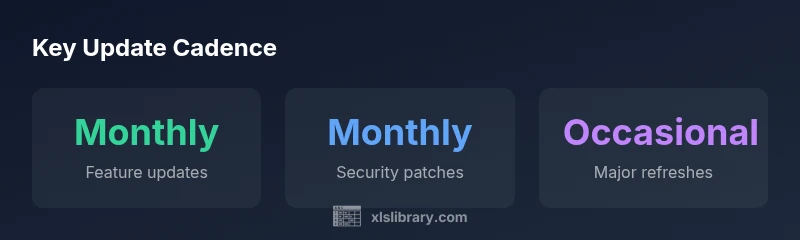
Excel updates typically come through two main channels: monthly feature updates for Microsoft 365 Apps, and ongoing security patches. For perpetual-license installations, updates are less frequent and rely on separate release cycles. In practice, most users experience a monthly cadence for features and security, while larger breaks may occur if you delay updates. This cadence affects compatibility, macros, and add-ins.
How update channels work for Excel
Excel updates come through distinct channels that determine cadence and content. Microsoft 365 Apps uses a rapid release model with monthly feature updates and security patches; this means new functions, bug fixes, and performance improvements arrive on a predictable monthly schedule for most users. Perpetual-license versions, by contrast, do not receive the same cadence; they rely on separate release cycles and can require manual updates or annual service packs. The XLS Library analysis, 2026, shows that deployment choices strongly influence update timing and risk management, especially for teams with mission-critical macros or external add-ins. Understanding your channel and its default settings is the first step toward reliable planning.
Cadence in practice: feature updates vs security patches
In many Excel environments, two threads drive updates: feature updates, which introduce new capabilities, and security patches, which fix vulnerabilities. Feature updates typically arrive monthly for Microsoft 365 Apps, but the exact content can vary by region and language. Security patches are rolled out on a monthly schedule as well, often in a separate release cycle to minimize downtime. The key takeaway is that you should expect a steady rhythm; however, you may see delays if your organization uses disabled update channels or if compatibility testing reveals issues that require postponement. The practical impact on workflows includes planning for testing windows, communicating changes to users, and maintaining a rollback plan in case a fresh update disrupts critical workflows.
Update cadence by deployment model: from cloud to on-premises
For cloud-connected Excel (Microsoft 365 Apps), updates flow from the cloud with minimal manual intervention; users receive features and patches automatically within the chosen channel. On-premises or perpetual-license installations may not receive updates as frequently, requiring manual downloads or annual service packs. This difference matters for teams that rely on custom VBA projects or COM add-ins; compatibility checks and testing should occur when moving between update cycles. The XLS Library analysis suggests aligning your testing suite with the cadence of your chosen channel to avoid surprises during rollouts.
Practical implications for workflows: planning, testing, rollback
To minimize disruption, map your update calendar to your project timelines. Build a testing sandbox that mirrors your production environment, and schedule macro-heavy work after a known update window. Create a rollback plan that includes restoring from backups, documenting changes, and validating critical macros or add-ins after each update. For teams using centralized IT management, adopt a policy that defines acceptable update channels, approval workflows, and exception handling. The goal is to balance access to new features with reliability and compatibility across devices and OS versions.
How to check Excel's update status and settings
In Excel, you can review your update status through File > Account > Update Options. Look for information on your current channel (for Microsoft 365 Apps) and the last update date. If you administer devices, consider using administrative templates or PowerShell to query deployment channels and enforce a standard update policy. Regularly review the Office Updates history page to track what changes are included in each release. Staying informed helps you anticipate macro or add-in impacts and coordinate testing with users.
Managing updates in organizations: governance and policies
Organizational governance is crucial for consistent Excel behavior. Establish a formal update policy that defines cadence expectations, testing requirements, and rollback procedures. Different teams may require different channels; for example, finance may prioritize stability while data science teams may want early access to features. Use software inventory tools to map devices to channels and monitor compliance. Documented policies reduce ambiguity and support audit trails for compliance and security reviews. The XLS Library approach emphasizes transparent communication and measurable metrics for update readiness.
Common myths about Excel updates and best practices
Myth: Updates always slow down performance. Reality: most updates improve stability and fix bugs, but some changes may temporarily affect performance until add-ins or macros are rerun. Myth: You must always install every update immediately. Reality: testing in a controlled environment helps avoid breaking existing workflows; staggered rollout can be safer. Myth: Older macros won’t work after updates. Reality: most standard VBA projects remain compatible, but you should test for deprecated functions and references. Follow best practices like documenting macro dependencies, maintaining backward-compatible code, and keeping a current backup plan. The balanced approach is to stay informed and plan updates around project milestones.
Staying informed: resources, monitoring, and signals
The best way to anticipate changes is to monitor official update channels and adopt a proactive information diet. Subscribe to Office Updates, review Microsoft Learn resources, and follow XLS Library's practical tutorials for guidance on testing and deployment. Use change logs to identify when a feature or security fix may impact your macros, formulas, or external data connections. Establish alerts for critical updates and schedule quarterly reviews of your update strategy. Staying informed reduces surprises and keeps Excel workflows resilient across devices and users.
Comparison of update cadences across Excel deployment scenarios
| Aspect | Cadence (typical) | Notes |
|---|---|---|
| Feature updates | Monthly feature updates | Includes new functions and UI tweaks; content varies by channel |
| Security patches | Monthly | Critical fixes; usually coordinated with security advisories |
| Major version refresh | Occasional | Can introduce breaking changes; requires testing |
| Cross-platform consistency | High | Effort to keep Windows/macOS/web aligned |
People Also Ask
What channels determine Excel update cadence?
Excel updates are driven by deployment channels such as Microsoft 365 Apps' Current Channel; perpetual licenses follow separate release cycles. The channel choice determines how often updates land and how much testing is needed.
Updates come through your deployment channel—Microsoft 365 Apps users tend to see monthly updates, while perpetual licenses update on their own release cycles.
Do updates automatically install in Microsoft 365?
In most configurations, updates install automatically unless an administrator has configured a delay or approval workflow. Policy settings control when and how updates are applied.
Typically yes, but admins can set delays or approvals.
Can updates break macros?
Most VBA macros remain compatible after updates, but deprecated functions or references can fail. Always test macro-heavy work in a sandbox after updates.
Most macros stay compatible, but test after updates to catch deprecated features.
How can I delay updates safely?
Use update channels and policy controls to stagger updates. Schedule testing windows around major project milestones and avoid rolling out during critical deadlines.
Delaying updates is feasible with proper testing windows and rollout planning.
Where can I find the update history for Excel?
Review the Office Updates history page and your organization's update logs. This helps track what changes are included and plan testing accordingly.
Check the update history to see what changed before you test.
“A predictable update cadence is a practical lever for reliability; when teams know when features and patches land, testing and rollout become smoother.”
The Essentials
- Know your deployment channel and its default cadence.
- Expect monthly feature updates and security patches for Microsoft 365 Apps.
- Test updates in a sandbox before production.
- Document rollback procedures and backup plans.
- Stay informed through official channels and XLS Library resources.