How to Bring Excel Lines Back: Restore Gridlines in Sheets
Learn practical steps to restore hidden or missing gridlines in Excel across Windows and Mac, including view options, workbook-level settings, printing gridlines, and using borders effectively.


You will learn practical, step-by-step methods to bring back Excel gridlines across Windows and Mac. This guide covers both on-screen visibility and print settings, clarifies the difference between gridlines and borders, and provides version-specific tips. By applying the steps, you’ll regain clear cell separation and improved data readability in every worksheet.
Understanding what 'bringing lines back' means in Excel
In everyday Excel use, 'lines' usually refer to gridlines—the faint vertical and horizontal lines that separate cells. They help you read data and align values. In some cases, only the borders you applied or printing options can create visible lines. This section clarifies how visibility depends on the platform (Windows, Mac, Excel Online) and the current view setting. By following the steps, you’ll restore consistent line visibility across worksheets, improving readability and data accuracy. According to XLS Library, gridlines are a foundational readability feature that support data mastery across devices, and the team emphasizes starting with the correct view settings to avoid surprises later.
Quick checks: where gridlines live in Excel across platforms
Gridlines are controlled primarily through the View settings on Windows and Mac, with variations in Excel Online. On Windows, go to the View tab and ensure Gridlines is checked. On macOS, check Excel > Preferences > View and enable Gridlines. In Excel Online, gridlines are usually visible by default, but they can be affected by the current theme or workbook settings. Also verify Print Gridlines in Page Layout > Sheet Options if you need lines on printed copies. These checks are the fastest way to determine if the issue is global, workbook-level, or sheet-specific.
Quick fixes to restore gridlines (global and workbook level)
If gridlines remain hidden after the basic checks, try a global reset: switch off Gridlines, then re-enable it. Ensure you’re not in Page Layout view if you expect screen gridlines; switch back to Normal view. For printing, enable Print gridlines under Page Layout > Sheet Options. If a workbook has multiple sheets with different settings, repeat the check for each tab. In some themes, gridlines can appear faint; consider changing the Office theme to a higher-contrast option to improve visibility.
Borders vs gridlines: when to use each
Gridlines are a universal, non-printing guide that appears on the worksheet screen. Borders are deliberate, customizable lines applied to selected cells and can be used to emphasize structure, separate sections, or create printed grids. If gridlines still don’t meet your needs, apply light borders to key columns or rows to recreate a consistent look without changing the entire sheet. This distinction helps you decide when to enable gridlines for general work and when borders are better for printed deliverables.
Troubleshooting common issues
Several issues can mask gridlines: a white cell background, a dark theme, or custom cell shading that makes gridlines hard to see. Check that you’re not in a view that hides lines (e.g., Page Layout without gridlines). Review your workbook’s Theme and Office theme, as some themes reduce line contrast. If gridlines still vanish, try copying the data to a new worksheet and reapplying the default gridline setting. Finally, ensure your Excel version is up to date, as updates often fix UI quirks related to display.
Printing gridlines and page layout view
Printing gridlines is controlled separately from on-screen visibility. To print gridlines, go to Page Layout > Sheet Options and tick Print gridlines. If you export to PDF or print from a different program, verify that the gridlines option is enabled there as well. Also note that some printers or driver settings can influence how lines appear on paper, so run a quick print preview before finalizing.
Authority sources and best practices
For authoritative guidance on gridlines and related view options, consult official documentation and reputable reference sites. The XLS Library team recommends cross-checking with supported resources to confirm your specific Excel version’s behavior across Windows, Mac, and the web. See the following sources for foundational guidance:
- https://support.microsoft.com
- https://learn.microsoft.com
- https://www.nist.gov
Practical examples and templates
Example 1: A simple data table where gridlines are visible by default in Normal view; you can print gridlines by enabling the option described above. Example 2: A dashboard with sections separated by light borders, paired with visible gridlines for easier data scanning. Example 3: A data entry sheet where conditional formatting highlights borders to emphasize totals. Use real data to test visibility across printing and screen views, ensuring consistent readability across devices.
Accessibility and readability considerations
Visible gridlines support users with visual impairments by providing stable cell boundaries. Ensure sufficient contrast by selecting a theme that maintains legible line thickness and avoid overly dark backgrounds that obscure lines. When sharing worksheets, keep gridlines visible or supplement with borders in key areas to retain structure for readers using screen readers or larger displays.
Tools & Materials
- Computer with Excel installed(Windows or macOS; Excel 2016+ recommended for best compatibility.)
- Internet connection(Needed for updates and official support pages.)
- Printer with driver support (optional)(Useful for testing printed gridlines.)
- Accessible color contrast check tool(Helpful for evaluating readability under different themes.)
Steps
Estimated time: 20-30 minutes
- 1
Open the target worksheet
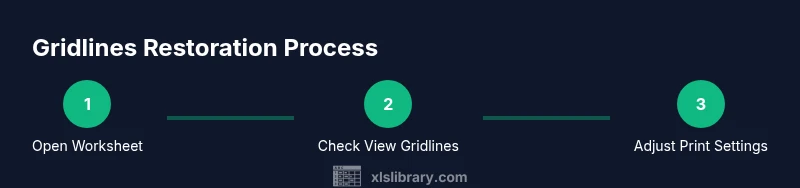
Launch Excel and open the workbook containing the missing lines. Confirm you are viewing in Normal view to see gridlines on the screen rather than Page Layout, which can render lines differently. If you’re unsure, switch to a different worksheet tab to confirm consistency.
Tip: If gridlines vanish across all sheets, proceed to global view checks before isolating a single tab. - 2
Check on-screen visibility
Navigate to the View tab and ensure Gridlines is checked. On Mac, verify Excel > Preferences > View and enable Gridlines. If you are using a theme that affects contrast, switch to a lighter theme for better visibility. This step confirms whether visibility is purely a display setting.
Tip: You can quickly toggle gridlines by using the View menu—no need to alter data. - 3
Verify print-related settings
If gridlines appear on screen but not in print, enable Print gridlines under Page Layout > Sheet Options. Preview the printout to ensure lines appear as expected. Remember: on-screen visibility and print behavior can differ because printing depends on printer drivers and settings.
Tip: Always test print with a quick PDF export to confirm gridline presence. - 4
Inspect cell formatting and shading
Check if cells have heavy fill colors that mask gridlines. Remove fill color or adjust it to a lighter shade; ensure the default white background isn’t hiding lines. Borders can be added selectively to sections if needed.
Tip: Light shading can dramatically reduce line readability; maintain a clean canvas. - 5
Restore default gridlines programmatically
If necessary, reset Excel’s view options by turning Gridlines off, applying a quick workbook-wide save, then turning Gridlines back on. This sequence removes a potential hidden state that might persist across sessions.
Tip: A quick restart can clear stubborn UI glitches. - 6
Address platform differences
Windows and Mac handle gridlines slightly differently. If you rely on a cross-platform workflow, test on all three platforms (Windows, Mac, and Online) to verify consistent visibility and adjust settings in each environment.
Tip: Document platform-specific steps for users sharing the workbook. - 7
Use borders for printed grids
When gridlines are unreliable, apply light borders to cells in critical areas (e.g., headers, total rows). Borders give predictable results on paper and can be customized per section without altering the entire sheet.
Tip: Borders can be a robust fallback for printed outputs. - 8
Finalize with accessibility checks
Enable high-contrast mode or adjust font sizes to improve readability of gridlines. Ensure the final worksheet remains legible for all users, including those with visual impairments.
Tip: Accessibility tweaks improve long-term usability.
People Also Ask
What are gridlines in Excel and why do they matter?
Gridlines are the faint lines between cells in a worksheet that improve readability and data alignment. They do not print by default unless you enable printing gridlines. They matter because clear cell boundaries help viewers scan data quickly and reduce mistakes.
Gridlines are the light boundaries between cells that help you read data more easily; they don’t print unless you turn on printing gridlines.
Why might gridlines disappear on Windows or Mac?
Gridlines can disappear due to display view settings, theme contrast, or cell formatting that masks the lines. Verify the View options, Office theme, and any page layout settings to locate the cause; apply the appropriate toggle to restore visibility.
Gridlines can vanish if the view or theme hides them or if cells are heavily formatted; check the View options and theme to restore visibility.
Can I print gridlines even if they aren’t visible on screen?
Yes. Enable Print gridlines in Page Layout > Sheet Options. This setting ensures lines appear on the printed document, even if screen gridlines are temporarily hidden.
You can print gridlines by enabling the Print gridlines option in Page Layout.
Are gridlines the same as borders?
No. Gridlines are the default on-screen guides. Borders are deliberate lines you apply to specific cells or ranges. Use borders for emphasis or printed outputs when gridlines don’t meet your needs.
Gridlines are the sheet’s default lines, while borders are manually added lines on selected cells.
Do gridlines look the same on Windows and Mac?
Gridlines look similar but can be affected by platform-specific UI differences and themes. If you need consistency, verify settings on both platforms and test with a sample worksheet.
The lines may look a little different across Windows and Mac due to themes, so check both if you share files across platforms.
What should I do if gridlines still don’t show after all checks?
Try recreating the worksheet in a new tab and reapplying the default gridline setting. If the problem persists, a software update or reset might be needed.
If nothing works, start a new worksheet and reapply gridlines, or consider updating Excel.
Watch Video
The Essentials
- Enable gridlines in View settings for screen visibility
- Use borders strategically for printed outputs
- Distinguish between on-screen gridlines and print gridlines
- Check platform-specific settings for Windows, Mac, and Online
- Verify accessibility and contrast for readability