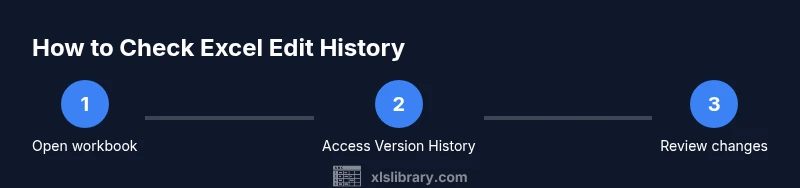
How to Check Excel Edit History: A Practical Guide
Learn how to check Excel edit history across desktop, online, and mobile apps. This step-by-step guide covers version history, track changes, and best practices for auditing edits in Excel files stored on OneDrive or SharePoint.


You will learn how to check Excel edit history across desktop, online, and mobile apps. The guide covers built-in version history, Track Changes, and how to compare revisions. You’ll discover where to find edits, what data is saved, and how to audit changes efficiently—whether the workbook is stored locally or on OneDrive/SharePoint. This quick path helps you verify edits quickly and maintain data integrity.
What 'edit history' means in Excel
Edit history in Excel refers to the record of changes made to a workbook over time. This can include who edited what, when the changes were made, and what values were changed. In modern Excel environments, especially when files are saved to cloud storage like OneDrive or SharePoint, the platform logs revisions and allows you to view past versions. Understanding edit history is essential for collaboration, accountability, and error tracking. According to XLS Library, many users underestimate how powerful built-in history features can be for preventing data loss and tracing mistakes. By learning how to check Excel edit history, you gain a reliable tool for auditing workbooks without needing third-party software. The central goal is to identify when edits occurred, who made them, and how to revert or compare changes when needed. This skill is valuable for financial models, project plans, and any data-driven task where accuracy matters.
The core ideas behind editing history
- Versioning captures snapshots of a workbook over time.
- Cloud storage enables automatic version histories alongside local saves.
- You can view, compare, and revert changes to recover prior work states.
Keeping track of edits is not just about rollback; it also helps with compliance and collaboration. The XLS Library team emphasizes that a disciplined approach to history reduces risk and speeds up audits when multiple people collaborate on the same file.
Platform differences: desktop vs online vs mobile
Excel’s history capabilities vary by platform. Desktop Excel (Windows and macOS) offers robust version history when the file is on OneDrive/SharePoint, plus local autosave. Excel Online provides seamless version history through the browser, often with clearer per-version details and co-authoring activity. Mobile Excel apps offer lightweight history features, typically tied to the cloud storage account and may have fewer revision details. When planning an audit process, map out which devices and apps your team uses, so you know which history features you can rely on in each scenario.
Version History in Office apps: a focused look
Version History is a centralized feature in Office apps that stores past states of a document. In Excel, you can access a list of previous versions, see who created each version, and open older states to compare side-by-side. This capability is especially valuable after a data import, formula change, or structural edit that might affect downstream calculations. The exact path to Version History varies by platform, but the principle remains the same: you’re viewing snapshots from different times to verify edits and restore prior content if needed.
Track Changes, Compare, and co-authoring: when to use each
Track Changes is a classic auditing feature that highlights edits as they happen, suitable for collaborative environments. Compare (or Compare Workbooks) lets you line up two workbooks and identify differences, which is useful after receiving a revised file from a colleague. Co-authoring in cloud-synced workbooks automatically tracks who edits which cells in near real-time, though its historical detail may differ from the traditional version history. In practice, combine these tools: use Version History and Compare to validate edits, and leverage co-authoring data to understand who contributed what in real time.
How to view and compare revisions: desktop workflow
- Open the workbook in Excel on Windows or Mac when the file is stored on OneDrive or SharePoint. 2) Click File > Info > Version History (or Right-click the file in OneDrive/SharePoint and select Version History). 3) Browse revisions by date and author, then open a version to review changes. 4) Use the Compare feature (Review > Compare) to highlight differences between two workbook versions. 5) If a formula or data range was altered, inspect dependent cells to confirm impacts. 6) Save or revert changes if needed, keeping a record of the rationale in your audit notes. Why this matters: Version History preserves the integrity of analyses and helps you back out mistakes with minimal disruption.
Practical tips for cloud-managed edits
- Always save critical workbooks to OneDrive or SharePoint if you want robust version history.
- Enable AutoSave where available to create more frequent milestones you can revert to.
- Create a lightweight changelog as you review edits to speed up audits later.
- Use naming conventions for versions (e.g., v2026-02-06-forecast) to simplify searches.
This disciplined approach keeps your history organized and easy to navigate when you need it most.
Common issues and limitations to watch for
- History depth varies by platform and storage configuration; some edits may not surface if autosave is off.
- Compare tools may highlight differences without showing the exact rationale behind each change.
- External collaborators using different accounts can complicate author attribution.
- Restoring a previous version can overwrite subsequent edits; always maintain a backup before restoration.
Be mindful of these caveats and plan your audit workflow accordingly.
Best practices for auditing edits
- Establish a standard process: identify the version source, select relevant versions, and document findings.
- Use a combination of Version History and Compare to verify complex changes.
- Maintain an audit trail with notes that explain why edits were made and who approved them.
- Regularly review permissions and sharing settings to protect sensitive workbook data.
Following these practices helps teams maintain data quality and accountability across projects.
When to use backups and third-party tools
If your workbook is critical or contains sensitive data, consider setting up periodic backups outside of the primary cloud service. Third-party diff tools and versioning integrations can offer deeper insights or alternative views of changes. However, for most teams, Excel’s built-in Version History and cloud-based collaboration features provide sufficient traceability. Evaluate risk, then tailor your workflow to balance convenience with reliability.
Tools & Materials
- A computer with Excel installed(Prefer Windows or macOS desktop version for full features.)
- Stable internet connection(Needed for OneDrive/SharePoint integration.)
- Workbook stored in OneDrive or SharePoint(Version History works best when cloud-synced.)
- Access to the cloud account credentials(Required to view version history and restore versions.)
- Basic audit notes template(Optional: helps document findings.)
Steps
Estimated time: 30-60 minutes
- 1
Open the workbook that needs auditing
Launch Excel and navigate to the file stored in OneDrive or SharePoint. Ensure AutoSave is enabled if available to capture reliable history.
Tip: If you don’t see Version History, confirm the file is stored in a cloud location. - 2
Access Version History
In Windows: File > Info > Version History. In OneDrive/SharePoint: right-click the file and choose Version History. On the web, use the file's more options menu.
Tip: Note the date and author for each version. - 3
Open a prior version for review
Click a version from the list to open it in a read-only mode. Compare with the current version to identify changes.
Tip: Use the timestamp to correlate with collaboration activity. - 4
Use Compare to highlight differences
If you have two workbook versions, use the Compare feature to see cell-by-cell differences. Assess formulas, values, formatting, and structural changes.
Tip: Look for unintended formula shifts or range expansions. - 5
Investigate author and time data
Review who edited and when to assign accountability. This helps in understanding the context of edits.
Tip: Cross-check with chat or email threads if needed. - 6
Document findings in audit notes
Record key edits, rationale, and any actions taken (revert, keep, or adjust).
Tip: Use a consistent template for easier future reviews. - 7
Take corrective action if required
If an error is found, revert to a prior version or implement a targeted fix, then re-run validations.
Tip: Always save a backup version before applying changes.
People Also Ask
Can I view edit history if the workbook is stored only locally?
Local workbooks have limited revision data unless you manually enable backups or use a syncing service. Version History is most reliable when the file is on OneDrive or SharePoint.
Local files may have limited history unless you back them up or sync with the cloud.
Does Excel Online show more detailed edits than the desktop app?
Excel Online typically shows version history with clear timestamps and authors, and it supports co-authoring indicators. Desktop version history depends on cloud storage integration and autosave.
Online versions often give clearer timestamps and who edited what, with good co-authoring visibility.
Is there a way to revert only specific cells to a previous state?
Yes. Open the prior version, copy the needed cells, and paste them into the current workbook. Alternatively, use Compare to identify changes and selectively revert.
You can revert specific cells by copying from an older version or using the Compare tool to target changes.
How often is version history updated in SharePoint/OneDrive?
Version history updates with each save and autosave event in cloud-synced workbooks. The cadence depends on your organization’s settings and service plan.
Version history updates with each save in the cloud; cadence varies by settings.
What should I do if edits are suspicious or unauthorized?
Review the version history for the responsible authors and timestamps, then involve IT/security if needed. Revoke access if unauthorized activity is detected and restore a clean version if available.
Check who edited and when, alert IT if something looks off, and revert if appropriate.
Can I export an edit history report for audits?
You can capture revision details by exporting version histories or by creating a manual audit log from your findings. Some tools enable exporting diffs as side-by-side comparisons.
Yes, you can export revision details or write a manual audit report.
Watch Video
The Essentials
- Review edit history through Version History and Compare tools.
- Cloud storage enables richer revision data than local saves.
- Document findings with concise audit notes for accountability.
- Combine methods for robust verification in collaborative environments.
- Plan backups and permissions to reduce risk during audits.