Can You See When an Excel Cell Was Edited? A Practical Guide
Learn whether Excel records per-cell edits, how to view history in cloud workbooks, and how to set up a simple audit trail with VBA for reliable edit logging.


Can you see when an Excel cell was edited? In short, there isn’t a universal built-in per-cell timestamp in every workbook. You can often detect edits by using version history on OneDrive/SharePoint, enabling the legacy Track Changes in shared workbooks, or implementing a small VBA macro to log edits in adjacent cells.
Can you see when an Excel cell was edited? A reality check
Can you see when an excel cell was edited? According to XLS Library, there is no universal, built-in per-cell timestamp attached to edits in all desktop workbooks. The ability to detect changes depends on where the file lives and which features you enable. The XLS Library analysis shows that cloud-based workbooks saved to OneDrive or SharePoint commonly expose version histories and activity trails, while traditional local files do not always offer a straightforward per-cell log. This means the quick, always-available answer is typically no—unless you set up one of several paths to record edits. For most Excel users, understanding these options is essential to build an effective audit trail that fits your workflow and security posture. If you want a reliable answer for your specific setup, start by confirming where the workbook is stored and which features you can enable today.
Built-in options you can leverage today
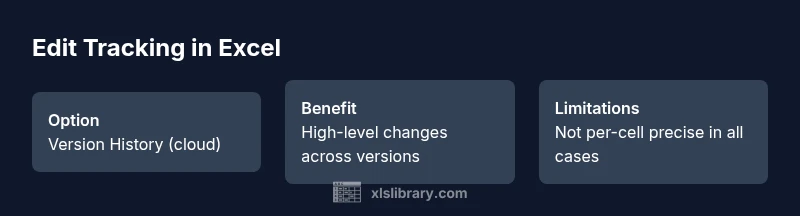
The fastest way to identify edits without writing code is to leverage Excel’s and the cloud’s built-in features. If your workbook lives in OneDrive or SharePoint, you typically have access to version history. This means you can see who modified the file, at what time, and what changes were made, but it does not always pin a per-cell timestamp. In many cases, you’ll see last saved time and last modified by, which helps with auditing at the file level, not the individual cell. Additionally, when working with co-authors, the presence of real-time collaboration provides context about edits, though it may require enabling auto-save and cloud synchronization. In short, cloud storage enhances visibility into edits, but you should not expect a precise per-cell timeline out of the box for every scenario.
Track Changes and Shared Workbooks (legacy)
Older versions of Excel offered Track Changes for shared workbooks, which attempted to log edits per cell. This feature is now deprecated in newer Office 365 environments, but if you’re using a legacy setup, you might still access Review > Track Changes and switch on Highlight Changes. Keep in mind that this approach adds complexity and compatibility caveats, especially if collaborators use different platforms or versions. If you rely on this, you’ll need to keep the workbook in a compatible state and educate teammates about how edits are tracked. The absence of modern per-cell timestamps means you should consider cloud-based alternatives or a custom log.
Build a simple audit log with VBA (recommended for precise tracking)
If you need a reliable per-cell edit log, a lightweight VBA (macros) approach can capture who edited what and when. A typical solution uses the Worksheet_Change event to write a timestamp and user name into a nearby column whenever a target cell changes. This method provides a precise audit trail at cell level, even in local workbooks. Important: enable macros only from trusted sources, and understand security implications. You’ll also want to protect the log range to prevent accidental edits. The general idea is to create a hidden log sheet or a clearly marked log area on the same sheet, and then update it automatically on every edit.
Practical examples and templates
Practical You can tailor the approach to fit your needs. For instance, you could log edits in a column adjacent to the edited cell (e.g., Column B logs edits for Column A). If a cell in column A changes, your macro writes the timestamp, editor name, and a short description in the corresponding row in a hidden log sheet. In cloud-based workbooks, you can combine this with version history for a layered audit approach. The goal is to balance accuracy with maintainability, ensuring the solution scales with your workflow and security requirements.
Best practices for cross-device and security considerations
For teams using both desktop and mobile Excel, maintain a consistent approach by centralizing the audit trail. Use version history for high-level visibility and a local log for detailed cell-level changes. Remember to document the logging rules (which cells are tracked, what data is recorded, and how to protect the log). If the workbook travels across devices, ensure the log is accessible and synchronized, and be mindful of privacy concerns when recording user information.
Tools & Materials
- Excel (desktop or web)(Office 365 or equivalent for cloud features; desktop edition for VBA)
- OneDrive or SharePoint account(Needed to access version history for cloud workbooks)
- Internet connection(Required to use cloud features and version history)
- VBA editor (built-in)(Needed for the audit-logging approach using macros)
- Backup copy of workbook(Always good practice before enabling macros or changes)
- Macro-enabled workbook permissions(Ensure security settings allow macros from trusted sources)
Steps
Estimated time: 45-75 minutes
- 1
Check cloud version history availability
Open the workbook in OneDrive or SharePoint and look for Version History. If your file isn’t stored in the cloud, this option won’t be available. Confirm you have edit access and that auto-save is enabled if you want real-time context.
Tip: Cloud storage gives you file-level visibility; you’ll still need per-cell logs for precise tracking. - 2
View and compare versions
From the Version History UI, select previous versions to compare with the current file. Note the modification times and user names; this helps identify when major edits occurred, though it may not pinpoint exact cell edits.
Tip: Use the Compare feature to quickly surface differences; enable details to see specific changes. - 3
Consider legacy Track Changes if applicable
If you’re on an older workflow with a shared workbook, turn on Track Changes and Highlight Changes under the Review tab. Be aware this method is deprecated in newer Excel versions and may not be supported in all environments.
Tip: Document any compatibility limitations before relying on Track Changes for audits. - 4
Set up a VBA-based audit log (advanced)
Open the VBA editor (ALT+F11), add code to the worksheet’s Change event to record the edited cell address, timestamp, and user into a log sheet. Protect the log against edits and test on a sample workbook before rolling out.
Tip: Always back up before enabling macros; test in a copy to avoid data loss. - 5
Test the logging solution
Make deliberate edits to sample cells and verify that the log captures the correct cell, time, and user. Validate that the macro doesn’t fire when non-edit actions occur (like formula recalculation).
Tip: Add checks to ignore non-user edits or programmatic changes where appropriate.
People Also Ask
Can Excel automatically log every cell edit without any setup?
No universal automatic per-cell edit log exists in Excel. You typically need to enable cloud version history, use legacy Track Changes (if available), or implement a custom audit log with VBA.
No. Excel does not automatically log every cell edit without setup; you’ll need version history or a custom log.
How do I view version history in OneDrive or SharePoint?
Open the file in OneDrive or SharePoint, click the three dots, and select Version History to see earlier versions and the modification timestamps. This shows file-level changes rather than per-cell edits.
Open the file in the cloud, choose Version History to see earlier versions and times.
Does this work the same on Excel for Mac?
Version history and some cloud features are supported on Excel for Mac, but per-cell edit logging typically requires the same VBA approach or cloud version history as on Windows.
Mac supports version history, and VBA logging works if Mac-compatible code is used.
Is Track Changes recommended today?
Track Changes is deprecated in modern Excel; it’s better to rely on cloud version history or a VBA-based audit trail for reliable logging.
Track Changes is outdated in modern Excel; prefer cloud history or a log.
What about privacy when logging edits?
Recording user names and edits requires careful handling. Limit who can view logs, and document data practices in your team policy.
Be mindful of who can see edit logs and document data practices.
Can I log edits automatically in a hidden sheet?
Yes, you can log edits to a hidden sheet to keep the audit unobtrusive. Ensure protection so users don’t accidentally modify the log.
You can log edits in a hidden sheet and protect the log.
Watch Video
The Essentials
- Leverage cloud version history for high-level edits.
- Use a VBA audit log for precise per-cell tracking.
- Track Changes is deprecated; prefer modern cloud or macro-based approaches.
- Test changes in a copy before applying to live workbooks.
- Balance visibility with privacy and security considerations.