How to Expand an Excel Cell
Master how to expand an Excel cell with practical sizing tactics: AutoFit, manual adjustments, Wrap Text, and careful merging for cleaner, more readable spreadsheets. This XLS Library guide keeps your data legible and your sheets consistent.


By the end of this guide, you will know how to expand an Excel cell to fit content, without disrupting your layout. You’ll adjust column width and row height, enable wrap text, use AutoFit, and apply merge options when needed. This practical walkthrough from XLS Library covers common pitfalls and best practices for clear, presentable spreadsheets.
Why expanding a cell matters in everyday spreadsheets
Expanding a cell is essential for readability and data integrity. When you need long text, numbers with decimal places, or multicolumn labels, resizing prevents truncation and misalignment. In this introductory section we discuss practical reasons to resize cells as your data evolves. According to XLS Library, thoughtful cell expansion helps users quickly scan data, reduces eye strain, and supports effective reporting. You’ll set expectations and outline scenarios where resizing is the best first step.
Core techniques at a glance: AutoFit, manual sizing, wrap text
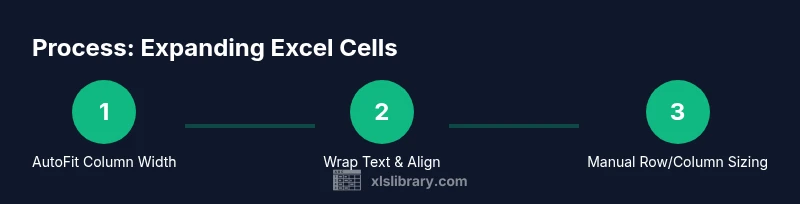
Excel offers several ways to expand a cell’s display area. AutoFit adjusts width or height automatically based on content. Manual sizing gives you precise control for consistent layouts across sheets. Wrap Text increases the visible area by placing content on multiple lines within the same cell. Understanding when and how to combine these methods is the foundation of clean, professional spreadsheets. This knowledge helps you tailor your approach to different data types and presentation goals.
Step-by-step: how to auto-fit column width
To auto-fit a column, select the column or columns, then double-click the boundary on the right edge of a column header. Excel will adjust the width to the longest entry in that column. For multiple columns, the same action expands all selected columns. If the content contains wrapped text, AutoFit may adjust height too in some cases. This method is fast and non-destructive. It works reliably for standard text and numbers, making it a go-to first step in formatting.
Step-by-step: how to manually set column width
Click the boundary of the column header, hold, and drag to the desired width. Release when the content fits comfortably. For precise sizing, right-click the header and choose Column Width, then enter a specific value. This approach is useful when you must match a design spec or align with adjacent columns, especially in reports with strict column proportions.
Step-by-step: how to auto-fit row height
Select the target row(s), then double-click the bottom boundary of the row header to auto-fit height based on content. If wrapped text increases height, AutoFit adapts to fit. In some cases with merged cells, AutoFit can be unreliable, so be prepared to adjust manually. Auto-fit is often faster than dragging each row, particularly in larger datasets.
Step-by-step: how to manually adjust row height
Drag the row boundary to set a specific height. For a precise height, right-click the row header, choose Row Height, and enter a number. This is helpful when you have consistent font sizes across a sheet or when you need uniform row spacing for printing.
When to use Wrap Text and alignment options
Wrap Text keeps content visible without widening the column. Pair Wrap Text with vertical alignment options (Top, Center, Bottom) to control how content sits within the cell. Consider text orientation for long labels or rotated headers. These choices can dramatically affect readability, so test multiple settings on a sample row before applying to a full sheet.
Merging cells: when and how to use it
Merging cells can create a broader label or title area, but it complicates data operations like sorting and filtering. If you must merge, limit it to header rows or key labels, then avoid merging adjacent data cells. When possible, use Center Across Selection as an alternative to merging to preserve data integrity while achieving a similar visual effect.
Working with fonts, zoom, and display differences
Font choice and zoom level affect how much space a cell needs. Larger fonts or higher zoom can make a previously perfect fit look cramped. Test your workbook at 100% zoom and on different screen sizes to ensure consistent display. Subtle font changes can dramatically impact how the expanded cells appear across devices and printouts.
Real-world scenarios: datasets with long text, numbers, dates
Long descriptions in a product catalog, notes in a customer list, or multi-part identifiers all benefit from strategic expansion. For dates and numbers, auto-fit might be less important, but aligning decimals and ensuring column width prevents truncation and misalignment. In practice, set a default width for columns that frequently contain long text, and reserve wrap text for fields like comments or descriptions.
Best practices for consistent formatting across sheets
Develop a standard approach for expanding cells: preferred column width, row height, and whether to wrap text. Use styles and alignment presets to keep a uniform look. Document your rules in a quick-start guide for teammates to follow, ensuring that every sheet in your workbook maintains the same visual language.
Data validation and integrity when resizing cells
Resizing cells shouldn’t affect underlying data or formulas. In protected sheets, ensure that resizing actions don’t trigger unintended edits. Regularly check that wrapped text doesn’t overflow into adjacent cells, and use conditional formatting to highlight any out-of-bounds content. Proper planning minimizes layout errors and preserves data accuracy.
Tools & Materials
- Excel software (any recent version)(Ensure you have a workbook open to resize cells)
- Ruler or screen grid for visual reference(Optional tool for precise width estimates)
- Mouse and keyboard(To resize columns/rows and navigate through the sheet)
- Font family and size reference(Affects row height calculation and readability)
- Sample data set (text/numbers)(Practice resizing on realistic data)
- Printer (optional)(Check print layout if you plan to print the sheet)
Steps
Estimated time: 15-20 minutes
- 1
Open the worksheet and locate target cells
Open your Excel workbook and review the data in the cells you plan to resize. Identify whether you need to expand a single column, multiple columns, or entire rows to accommodate content. This initial scan helps prevent unnecessary resizing and keeps layout decisions intentional.
Tip: Note the longest item in the column or the tallest row to guide your sizing. - 2
Auto-fit selected column width
Select the column(s) you want to adjust, then use AutoFit by double-clicking the right edge of a column header. Excel measures the longest content and sets the width automatically. For multiple columns, repeat on the selected range.
Tip: AutoFit saves time and reduces trial-and-error sizing. - 3
Manual column width adjustment
Click and drag the column boundary to your desired width, or right-click and choose Column Width to enter an exact value. This guarantees a consistent look across a sheet when precise dimensions are required.
Tip: Use consistent widths to align with printed layouts. - 4
Auto-fit row height for wrapped content
If content wraps, auto-fit row height adjusts to show all lines. Select rows and double-click the bottom boundary to apply the change. This helps prevent truncated text in wrapped cells.
Tip: Be aware that wrapped text may increase row height more than expected. - 5
Manual row height adjustment
For precise control, right-click a row and choose Row Height to set an exact number. This is useful when you need uniform row spacing across a section of the sheet.
Tip: Consistent row heights improve readability in dashboards. - 6
Apply Wrap Text and alignment
Enable Wrap Text for cells with long descriptions and set vertical alignment (Top/Center/Bottom) to improve readability. This combination keeps content visible without widening columns excessively.
Tip: Test a sample row at 100% zoom to confirm readability.
People Also Ask
What is the fastest way to expand a single column?
The quickest method is AutoFit: select the column and double-click the boundary to automatically adjust to the longest entry.
AutoFit quickly resizes a column to fit its content, saving time on manual dragging.
How do I expand multiple columns at once?
Select the range of columns and apply AutoFit, or drag the boundary on any selected column to resize all at once.
Select multiple columns and auto-fit to resize all in one action.
When should I merge cells to expand display?
Merge cells sparingly for decorative headers or labels only; merging can complicate sorting and data handling.
Merging can help visuals, but use it cautiously to avoid data problems.
Why does wrapping text change row height?
Wrapping text forces additional lines, increasing the row height so all content remains visible.
Wrapping makes text fit by using more lines, which grows row height.
Can I set an exact row height?
Yes: right-click the row, choose Row Height, and enter a precise value for consistent spacing.
You can fix row height to a specific number for uniform layouts.
Do font size and style affect how much you must expand?
Yes; larger fonts require more space. Standardize font choices to minimize surprises when resizing.
Font choices change space needs, so keep fonts consistent across the sheet.
Watch Video
The Essentials
- Expand columns with AutoFit for quick, efficient sizing
- Use Wrap Text to keep data readable without increasing width
- Be cautious with merged cells to preserve data operations
- Test across screen sizes and print layouts for consistent appearance