How to Make an Excel File Shared: A Practical Guide
Learn a practical, step-by-step approach to sharing Excel workbooks securely with OneDrive or SharePoint, including permissions, version history, and co-authoring tips for 2026.


If you're asking how to make excel file shared, the simplest path is to host the workbook in OneDrive or SharePoint and share with specific people or via a link. Enable edit permissions for collaborators, or set view-only access as needed. Use real-time co-authoring and version history to track changes, and revoke access when projects end. According to XLS Library, proper permission management is the key.
Why sharing Excel files matters
In modern teams, Excel workbooks are often living documents that evolve with input from multiple stakeholders. Sharing enables faster decisions, reduces version chaos, and supports audit trails when changes must be traced. Real-time co-authoring lets several people work on the same file at once, with Excel automatically merging edits and keeping a complete history. For professionals who rely on data, budgeting, or forecasting, learning how to share an Excel file securely is a foundational skill. According to XLS Library, planning access rules up front helps prevent unintended exposure and keeps data governance intact. This section explains why sharing is valuable and how it fits into day-to-day work.
Choosing the right sharing method
There are several ways to expose an Excel workbook to collaborators, and the best choice depends on who needs access and how sensitive the data is. If speed and collaboration are your priorities, hosting the file on OneDrive or SharePoint with co-authoring enabled is ideal. For external partners or limited audiences, a link with view-only or restricted permissions may be safer. If you’re unsure, start with specific people, then switch to link sharing only after validating the access controls. If you're curious about how to make excel file shared securely, the recommended path is to use cloud storage with granular permissions. The technical differences between Edit and View modes impact what collaborators can do and how changes propagate across devices. XLS Library analysis underscores the importance of aligning permissions with roles and project scope.
Prepare your file for sharing
A well-prepared workbook minimizes confusion and protects sensitive data. Remove any hidden sheets or personal data, review formulas for potential leakage of credentials, and ensure sensitive columns are masked or hidden if needed. Clean up sheet names, reorder tabs for clarity, and replace embedded data sources with stable references. Before you share, save a clean version to the appropriate cloud location and confirm that the file opens correctly in both desktop and web views. As the XLS Library team notes, starting from a clean slate reduces post-share edits and support tickets.
Sharing options: link vs specific people
Two primary sharing paradigms exist: link-based access and invitation-based access. With link sharing, you can set View or Edit permissions and optionally restrict the link to specific domains. Invitation-based sharing sends actionable invites to named individuals, giving you finer control over who can access the file. For sensitive data, choose ‘specific people’ and attach an expiration date if possible. In contrast, external recipients often benefit from view-only access to minimize unintended edits. If you’re aiming to explain how to make excel file shared across a team, prioritize precise audience targeting over broad distribution.
Managing permissions and protection
Permissions are the gatekeepers of shared workbooks. Decide who can edit, who can view, and whether you want participants to see version history. Enable co-authoring to support simultaneous work, and turn on version history so you can revert if needed. Consider protecting workbook structure to prevent accidental changes to tabs or formulas, and password-protect sensitive sheets only if appropriate. Regularly audit access lists and remove people who no longer require access. The goal is to balance collaboration with control, ensuring that your data remains accurate and secure.
Real-time collaboration and version history
Real-time co-authoring lets multiple people edit the same workbook at the same time, with changes reflected almost instantly across devices. Version history is a safety net—every save creates a new version you can restore if mistakes occur or if a contentious change needs review. When collaborating, communicate in a shared comments thread or use notes for context on edits. This combination reduces confusion and keeps the project moving forward smoothly. As you adopt these practices, you’ll notice fewer duplication errors and faster decision cycles. The ability to track edits is a critical component of responsible sharing.
Common mistakes and troubleshooting
Common errors include sharing with too broad an audience, failing to set appropriate permissions, or overlooking sensitive data in hidden sheets. If collaborators report missing features or access issues, verify that the workbook is saved to the correct cloud location and that links are not expired. If real-time co-authoring isn’t working, check browser compatibility, ensure everyone has the latest Excel Online, and confirm that the file isn’t locked by another user. A quick permissions audit can save hours of back-and-forth. Remember: misconfigured sharing is a frequent cause of data leaks and workflow friction.
Best practices for secure sharing
Adopt a policy of least privilege: give users only the access they need and revoke it when projects end. Prefer invitation-based sharing over public links, and enable expiration dates on shared links whenever possible. Review access lists on a regular cadence, especially for sensitive workbooks. Use data protection features—mask sensitive columns, remove personal identifiers, and keep backups. The XLS Library team recommends • documenting who has access, • monitoring changes, and • revoking access as projects finish to maintain governance and trust.
Quick start checklist
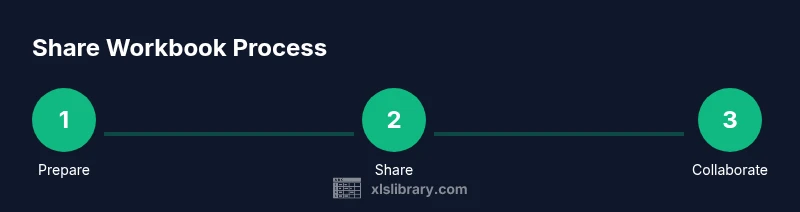
- Prepare the workbook: clean data, remove hidden personal info, and align sheet structure.
- Choose the sharing method: OneDrive/SharePoint with specific people when possible.
- Set permissions: decide Edit vs View, enable co-authoring if needed.
- Share and notify: send invitations or share a restricted link with expiration.
- Monitor and adjust: review access monthly and revoke as necessary.
- Verify on multiple devices to confirm consistency and access levels.
Tools & Materials
- Microsoft 365 account(Needed to access OneDrive/SharePoint and to share the workbook)
- OneDrive or SharePoint storage(Where the workbook will be stored and shared from)
- Excel app (desktop or web)(Required to set permissions and share; supports co-authoring)
- Device with internet(To upload, share, and manage permissions)
- Sensitive data review checklist(Optional to ensure privacy before sharing)
Steps
Estimated time: 15-20 minutes
- 1
Prepare your workbook
Scan the file for personal data, hidden sheets, and outdated links. Clean sheet names and tidy formulas so collaborators see a clear, accurate starting point. Save a clean version to your cloud location.
Tip: Do a quick data-sensitivity check before sharing to avoid leaks. - 2
Choose a sharing method
Decide between inviting specific people or generating a shareable link. For internal teams, use specific people with Edit or View permissions. For external recipients, prefer restricted links with expiration.
Tip: Match the method to the data sensitivity and audience size. - 3
Upload to cloud storage
Upload or move the workbook to OneDrive or SharePoint. Verify that the file opens correctly in both the web and desktop apps, and confirm the path is the intended location.
Tip: Use a folder with a clear naming convention to avoid confusion. - 4
Set permissions
Assign Edit or View permissions, decide if co-authoring is allowed, and consider adding an expiration date on the link. Review access for individuals or groups.
Tip: Use domain-restricted sharing for even tighter control. - 5
Monitor access and manage versions
Track who accessed the file, review recent changes, and use version history to revert if needed. Revoke access when the project ends.
Tip: Schedule a regular permission audit to maintain governance.
People Also Ask
What is the difference between sharing with 'edit' vs 'view' permissions?
Edit lets collaborators modify the workbook; view restricts changes. For sensitive data, use view-only access or restrict editing with a protected sheet. Co-authoring is enabled with Edit and works best in Excel Online.
Edit lets people change the file, while view-only prevents changes. Use view for sensitive data and reserve edit for trusted collaborators.
Can I revoke access after sharing?
Yes. Go back to the sharing settings and remove access or disable the link. You can also adjust permissions to restrict future edits or viewing.
Absolutely. You can revoke access or disable the link at any time.
Does co-authoring work for external users?
Co-authoring works best with Excel Online and Office 365. External users may have limited features depending on permissions and browser support.
Co-authoring works best with Excel Online; external users may have limited features.
How secure is sharing on OneDrive?
OneDrive provides built-in security controls. Ensure your organization’s sharing policies are applied and avoid public links for sensitive files.
OneDrive has strong security controls; use them and avoid public links for sensitive data.
Should I avoid including sensitive data in shared workbooks?
Yes. Use masking, separate files, or synthetic data for collaboration. Keep personally identifiable information out of shared workbooks when possible.
Avoid sharing sensitive data; use masking or separate files when possible.
The Essentials
- Start with clean data and a clear sharing plan.
- Prefer invitations over public links for security.
- Use version history to manage changes effectively.
- Regularly review and revoke access when projects end.
- Protect sensitive sheets and validate permissions before sharing.