How to Use an Excel Spreadsheet: A Practical Guide
Learn how to use an Excel spreadsheet with a practical, step-by-step guide. From data entry to charts, discover essential techniques for reliable workbooks and data mastery.


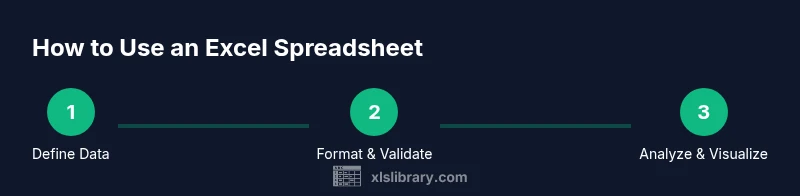
If you want to learn how to use an excel spreadsheet, this guide offers a practical path from setup to basic analysis. You’ll learn data entry, formatting, formulas, and visualization, with tips to avoid common mistakes. By following these steps, you’ll build reliable workbooks and reusable templates.
Why Excel matters for everyday tasks
If you want to learn how to use an excel spreadsheet, you start with a tool that helps you organize, calculate, and visualize data all in one place. The XLS Library team emphasizes that Excel remains a foundational skill for work, school, and personal projects because it combines accessible data entry with powerful analysis features. This section explains why mastering Excel pays off: you gain speed, accuracy, and the ability to turn raw numbers into actionable insights. Throughout this guide, you’ll encounter practical workflows you can adapt to your own tasks and industries. According to XLS Library, practical Excel use builds confidence, reduces errors, and improves decision-making. By learning to structure data clearly, you set the stage for scalable workbooks you can reuse across projects.
Key ideas you’ll encounter include clean layouts, consistent formatting, and modular templates. You’ll also see how small habits—like using tables, named ranges, and data validation—prevent mistakes later on. The goal is not just to perform a single task, but to build a flexible framework you can lean on when new data arrives. In short, learning how to use an excel spreadsheet is a career skill, not a one-off trick.
Getting set up: tools and versions
To begin, you need the right environment. Excel comes in desktop editions and online variants, each with strengths. For most users, the desktop app provides full feature parity and faster performance, while Excel Online offers easy sharing and real-time collaboration. If you’re just starting, you can use a free trial or a bundled Office 365 plan. After you’ve chosen your platform, verify that you have access to core features like worksheets, tables, basic formulas, and charting. The XLS Library team notes that aligning your setup with your typical tasks (data entry, reporting, budgeting) helps you choose the most relevant tools. Ensure you’re on a supported browser or the latest desktop release for best results.
Before you begin data entry, consider setting up a dedicated folder structure and a consistent file-naming convention. This small upfront step saves time and prevents confusion as your workbook grows. A clean starting point also makes it easier to reuse templates in future projects. If you’re working with others, enable basic sharing permissions and set version history. These steps reduce the risk of accidental overwrites and data loss.
Understanding the interface: ribbons, sheets, and cells
Excel’s interface can feel overwhelming at first, but breaking it into habits makes it manageable. The ribbon organizes features into tabs like Home, Insert, Formulas, Data, and View. Each tab groups related actions, such as formatting, data validation, and chart creation. A workbook contains sheets, and each sheet holds a grid of cells identified by letters (columns) and numbers (rows). Cells can hold text, numbers, dates, or formulas. Learning to navigate quickly—using keyboard shortcuts for common actions like Ctrl+C (copy) and Ctrl+V (paste)—speeds up your workflow.
A practical starting point is naming a critical range and converting data lists into a table (Format as Table). Tables automatically apply consistent formatting, fill down formulas, and offer filtering. As you gain fluency, you’ll rely less on manual formatting and more on reproducible structures. The XLS Library approach recommends building your work in clearly labeled sheets with consistent data types and a simple header row to improve readability and future analysis.
Basic data entry and formatting
Data entry is the foundation of any usable spreadsheet. Start with a clean header row that describes each column, followed by rows of data with consistent data types (text, numbers, dates). Use formatting to improve readability: bold headers, left-aligned text, and right-aligned numbers; apply a subtle background color to alternate rows for easier scanning. When working with large datasets, freeze the header row so you can always see column names. The goal is to create a readable, predictable layout that supports quick scanning and accurate data entry. The XLS Library guidance emphasizes keeping input clean and avoiding merged cells in the main data region, which can complicate analysis later on.
Practical tip: use cell styles for headings and data cells to maintain consistency across the workbook. A well-formatted sheet reduces errors when you later reference data in formulas or charts.
Working with formulas and basic functions
Formulas are the core of Excel’s power. Start with simple calculations like addition, subtraction, multiplication, and division, then expand to built-in functions such as SUM, AVERAGE, MIN, and MAX. Learn to reference cells relative to your current position (relative references) and anchor specific cells (absolute references) when needed. A typical workflow involves creating a total column that sums values from each row, then using basic statistics to summarize results. The XLS Library guidance notes that consistent data types in a column are crucial for accurate results when formulas automatically fill down.
As you grow more comfortable, explore conditional logic with IF, comparing data with logical operators, and using simple text functions to clean or format strings. The aim is to develop a set of reliable, reusable formulas that you can adapt as your data evolves. Remember to test formulas on a small sample to validate results before applying them across an entire dataset.
Sorting, filtering, and data validation
Sorting and filtering help you explore data and uncover patterns quickly. Start by sorting a key column to arrange records logically, then apply filters to reveal subsets of interest. Data validation adds a safety net by restricting the type of data that can be entered into a cell (for example, limiting a date column to valid dates or a dropdown list for category fields). This combination keeps your data clean and consistent, which in turn makes analysis more trustworthy. The XLS Library approach recommends keeping validation rules simple and documenting them in a dedicated sheet so teammates understand the constraints.
A practical practice is to create a small set of drop-down options for commonly used categories and display helpful input messages if users attempt invalid entries. This minimizes errors without slowing data entry.
Creating charts and dashboards
Visualization is how you communicate insights. Start with a simple chart that matches your data: a column chart for comparisons, a line chart for trends, or a pie chart for composition. Place charts near the data they summarize and keep titles clear so viewers grasp the message at a glance. Dashboards combine multiple charts and key metrics on a single sheet, guided by a clean layout and consistent color themes. The XLS Library team highlights that dashboards should emphasize the most important outcomes and be designed for quick comprehension rather than exhaustive detail.
When you build charts, ensure data ranges update automatically as you add new rows. This can be achieved by using tables as data sources, which automatically extend chart ranges. Finally, consider exporting your visuals for reports or presentations so stakeholders can access them without opening the workbook.
Best practices and common pitfalls
As you become proficient with Excel, adopt best practices that scale with your work. Name key ranges to simplify formulas and reduce errors. Keep a separate sheet for data dictionary: list every column header with its data type and any special rules. Regularly save backups and use version control if collaborating with others. Avoid overusing merged cells in your core data tables, as they complicate data operations like sorting or filtering. The XLS Library recommendations emphasize modular design: separate data, calculations, and presentation layers so changes in one area don’t ripple unpredictably to others.
Common pitfalls include inconsistent data types, hard-coded values in formulas, and buried errors that go unnoticed. By addressing these issues early, you build robust workbooks that stand up to updates and changes in data sources.
Putting it into practice: a starter workbook blueprint
A practical approach is to create a starter workbook that mirrors a real-world task, such as tracking project expenses or monitoring sales. Start with a data entry sheet that captures date, category, amount, and notes. Add a summary sheet with a few essential formulas to compute totals, averages, and a simple trend indicator. Create a chart that visualizes performance over time, and include a small dashboard section with key metrics and a legend. Finally, set up data validation, a clean header, and a clear naming convention for each sheet. By following this blueprint, you’ll have a solid foundation you can adapt for many scenarios. The XLS Library team’s guidance reinforces building repeatable templates to save time on future work.
Tools & Materials
- Computer or device with Excel installed or access to Excel Online(Desktop app for full features; Online for easy sharing)
- Internet connection(Needed for online features and updates)
- Mouse or trackpad(Precise selection and navigation)
- Notebook or digital notes(Jot down formulas, headers, and data definitions)
- Sample workbook template(A starter template to customize)
- Backup plan (external drive or cloud)(Protects against data loss)
Steps
Estimated time: 90 minutes
- 1
Create a new workbook
Open Excel and create a new, blank workbook. Name the file clearly and decide a simple folder structure for saving it. This step sets a clean foundation for your data and formulas.
Tip: Use a descriptive file name and enable auto-save if available. - 2
Enter your data cleanly
Define headers for each column, then enter data row by row. Keep data types consistent within each column to ensure reliable calculations and filtering.
Tip: Avoid merged cells in the main data region; they complicate analysis. - 3
Format for readability
Apply bold headers, adjust column widths, and use a light color to distinguish header rows. Convert the data range into a table to gain built-in sorting and filtering.
Tip: Format as Table to enable automatic range expansion as you add data. - 4
Add basic formulas
Create a total column using SUM and add a few basic calculations like averages or percentages. Use relative references for rows and absolute references for fixed cells when needed.
Tip: Test formulas on a small subset before applying to the whole dataset. - 5
Sort, filter, and validate
Sort by a key column to organize data and apply filters to inspect subsets. Add data validation to restrict entries (e.g., a date column or a dropdown list).
Tip: Use a data validation list to minimize entry errors. - 6
Create visuals
Insert a chart that matches your data (column, line, or pie). Keep titles clear and labels visible. Start with a simple chart and iterate.
Tip: Link the chart to the table so it updates automatically as data changes. - 7
Build a simple dashboard
Place a few key metrics and the chart on a dedicated sheet. Use consistent colors and a clean layout to communicate findings quickly.
Tip: Limit the dashboard to essential visuals for clarity. - 8
Save, share, and maintain
Save a versioned copy and share with teammates if needed. Document assumptions, data sources, and any transformations for future reference.
Tip: Include a data dictionary sheet to explain headers and data types.
People Also Ask
Do I need to own Excel to follow this guide?
No. You can follow along using Excel Online or other compatible spreadsheet tools. The concepts transfer across platforms, though some features may differ.
You can use Excel Online or desktop Excel; the steps translate across platforms.
Is it necessary to learn all formulas at once?
Start with the essentials like SUM, AVERAGE, and simple IF logic. Build confidence by applying one new formula per project, then expand gradually.
Begin with a few core formulas and add more as you need them.
How can I keep data clean as the workbook grows?
Use tables, data validation, and consistent data types. Document rules in a data dictionary and avoid mixing data types in a single column.
Use tables and validation to keep data tidy as it grows.
What’s the difference between a formula and a function?
A formula is a user-defined calculation, while a function is a built-in operation like SUM or IF that you call within a formula.
Functions are built-in operations inside formulas.
How do I share a workbook securely?
Use platform sharing controls, set permissions for viewing or editing, and maintain version history to track changes.
Share with proper permissions and track versions.
Can I reuse this starter workbook for future projects?
Yes. Save it as a template and customize headers and data types while keeping the structure consistent.
Yes—turn it into a reusable template.
The Essentials
- Enter data with clean headers and consistent types.
- Apply formulas and basic functions to automate calculations.
- Format and structure workbooks for readability and reuse.
- Visualize insights with charts and simple dashboards.