Is QuickBooks Harder Than Excel? A Practical Comparison
A detailed, analytical comparison of QuickBooks vs Excel for bookkeeping and data work. Learn where each tool excels, where they struggle, and how to choose the right fit for your tasks.


According to XLS Library, the question of whether QuickBooks is harder than Excel depends on the tasks you need to accomplish. QuickBooks is built for standardized bookkeeping and payroll, often making routine tasks easier to perform with fewer manual steps. Excel, by contrast, offers unmatched flexibility for custom data modeling and ad-hoc analyses, but can be harder to master for complex workflows. The practical takeaway is to match your workflow, not just the perceived ease of use.
Is the question of difficulty a fair framing? A practical starting point is to redefine the problem: is QuickBooks harder than Excel? The short answer is that the difficulty is task-dependent. QuickBooks targets accounting workflows—receipts, invoices, payroll, tax-ready reports—within a guided, ledger-based framework. Excel, on the other hand, is a general-purpose spreadsheet tool that enables a broad spectrum of data manipulation, modeling, and reporting, but requires higher custom setup for bookkeeping tasks. According to XLS Library, the core issue is not the interface but how well the tool models your real-world processes. For a small business with straightforward invoicing and payroll, QuickBooks often feels easier to adopt. For organizations that demand bespoke dashboards, scenario planning, or advanced financial modeling, Excel’s flexibility beats QuickBooks in capability, yet demands greater discipline and skill. The central question becomes: which tool best supports your day-to-day tasks with fewer errors and less duplication of effort?
Core differences in purpose, data structure, and workflows
Excel and QuickBooks live in different problem spaces. QuickBooks is purpose-built for accounting—double-entry bookkeeping, chart of accounts, bank feeds, and built-in reports that align with tax requirements. Excel is a canvas for data—rows and columns, formulas, pivot tables, and charts that enable you to model almost anything. The data structures reflect those purposes: QuickBooks stores transactions in a ledger-centric model with audit trails and user permissions; Excel stores tabular data that you define and transform. Workflows diverge accordingly: QuickBooks guides you through routine financial processes with templates and checks, while Excel empowers you to design custom processes, build bespoke dashboards, and run ad-hoc analyses that may pull from multiple sources. This fundamental divergence is why people often ask, “Is QuickBooks harder than Excel?”—the answer hinges on which workflow you value more: strict, auditable processes or flexible, bespoke analysis. When you recognize the gap between these models, the comparison becomes less about a single metric of difficulty and more about fit for your tasks. You’ll be better prepared to evaluate trade-offs when you frame your needs as a set of concrete requirements (data integrity, reporting cadence, collaboration, and automation).
Learning curves and user experience
Learning curves are shaped by prior experience and the nature of tasks. QuickBooks tends to be approachable for people with basic accounting knowledge because it imposes a structure that mirrors standard bookkeeping. Even so, mastering the setup for inventory, payroll, or multi-entity entities can require time and practice. Excel’s learning curve is more variable: you can start with templates and basic formulas, but advanced users quickly encounter the complexity of nested functions, data validation, array formulas, VBA, and data modeling with Power Query. From a learner’s perspective, the path often starts with essential templates in Excel and building comfort with core functions, then layering in more advanced features. For many users, QuickBooks remains easier for everyday bookkeeping, while Excel delivers greater long-term capability for modeling and analysis. As highlighted by the XLS Library analysis, users who invest in foundational skills in both tools report the strongest outcomes: QuickBooks for transactional accuracy and Excel for strategic insight.
Use cases: when Excel shines vs when QuickBooks shines
Each tool shines in different scenarios. Excel excels at ad-hoc analyses, custom dashboards, and financial modeling that requires what-if scenarios and scenario planning. It’s the go-to for bespoke data manipulation, complex calculations, and cross-system data consolidation when you have the expertise to manage data integrity. QuickBooks excels at standard bookkeeping: capturing transactions, reconciling accounts, managing payroll, and generating tax-ready reports. It provides built-in workflows, audit trails, and role-based access controls that reduce accidental misentries. For a small business with routine invoicing, expense tracking, and payroll, QuickBooks often offers a smoother, more auditable path. If you need to demonstrate scenarios, compare forecasts with historical data, or craft custom analytics across multiple data sources, Excel becomes indispensable. The decision often boils down to whether your priority is reliable day-to-day accounting or flexible data exploration that transcends standard financial records.
Costs, licensing, and access considerations
Cost structures differ significantly. QuickBooks typically operates on a subscription model with tiers based on features, users, and payroll options. Excel, as part of the Microsoft 365 ecosystem, blends software access with cloud collaboration and ongoing updates. In practice, planning for both tools means considering total cost of ownership: how many users require access, whether payroll integration is essential, and how often you need advanced Excel features like Power Query or macros. DDG-style budgeting should focus on long-term value rather than upfront price. The XLS Library perspective emphasizes choosing the tool based on the tasks you perform, not only the price tag. If your business needs evolve, you may find value in hybrid workflows that leverage Excel for modeling and QuickBooks for routine accounting, rather than forcing a single-tool solution.
Data integrity, auditing, and compliance
Audit trails and data integrity are fundamental in accounting software. QuickBooks provides built-in audit trails, change logs, and permission models that support compliance requirements. Excel offers powerful capabilities but relies on disciplined practices: version control, validation rules, and controlled templates to minimize errors. Excel’s flexibility is a double-edged sword—great for experimentation, risky if used for critical financial records without safeguards. The decision hinges on how you balance control with flexibility; for many businesses, QuickBooks acts as the backbone of transactional integrity, while Excel serves as the analytic layer that extracts insights from the ledger. This balance often determines whether “is QuickBooks harder than Excel” becomes a false dichotomy or a practical choice rooted in governance.
Integration and workflows: connecting Excel with QuickBooks and beyond
Integrations matter for end-to-end workflows. Excel can import and export CSV or Excel files from QuickBooks, enabling hybrid processes where the ledger feeds custom models or dashboards. QuickBooks integrates with banking feeds, payroll services, and tax reporting modules, but its customization is more constrained when compared to Excel’s expansive formula-driven capabilities. A practical approach is to link QuickBooks for core accounting outputs while using Excel as a companion tool for scenario planning and advanced reporting. The key is to maintain data integrity during transfers, establish clear templates, and document where data originates. The XLS Library guidance suggests creating a small, repeatable pipeline: export data from QuickBooks, validate it in Excel, and push back only curated insights into reports and dashboards. This keeps you from duplicating effort and helps maintain consistency across tools.
Getting started: a practical, staged path
A pragmatic starting path emphasizes learning by use-case. Step 1: map your core tasks (invoicing, reconciliation, payroll) and identify which tasks Excel can add value (ad-hoc analysis, dashboards, what-if scenarios). Step 2: establish a baseline in Excel with essential templates (P&L, cash flow, balance sheets) and build confidence with core functions (SUM, VLOOKUP/XLOOKUP, pivot tables). Step 3: set up QuickBooks for routine transactions, ensure bank feeds are connected, and configure tax-related reports. Step 4: pilot a hybrid workflow: import QuickBooks data into Excel for modeling, then feed insights back into your standard reports. Step 5: document processes and create a living playbook to reduce errors over time. The XLS Library team recommends starting with tasks that offer immediate value and progressively integrating both tools to avoid over-engineering early on.
Common pitfalls and misconceptions
A common misconception is that Excel can fully replace accounting software for all uses. The reality is that Excel’s flexibility comes with elevated risk of data integrity issues if governance is lax. Another pitfall is underestimating the learning curve for advanced Excel features, which can slow progress if not matched with steady practice. Conversely, assuming that QuickBooks covers every possible analytics need can lead to a false sense of data completeness; for deeper analyses, you’ll likely need Excel skill and external data sources. Finally, avoid over-reliance on manual exports between systems—establish a repeatable data flow and invest in templates that enforce consistency. By recognizing these realities, you can design a more robust, scalable approach that reduces friction and supports better decision-making.
Comparison
| Feature | Excel | QuickBooks |
|---|---|---|
| Primary use | General purpose spreadsheet, data modeling, analysis | Accounting and bookkeeping for small to mid-size businesses |
| Data structure | Cells with formulas and data tables | Ledger-based records with predefined chart of accounts |
| Learning curve | Moderate to advanced for formulas and features | Designed for standard accounting tasks; simpler for basic bookkeeping, steeper for setup |
| Automation & customization | Powerful formulas, macros, pivot tables | Workflow automation within accounting tasks; limited customization |
| Collaboration & multi-user | Simultaneous editing possible with careful version control | Multi-user access with user permissions in QuickBooks |
| Reporting & analytics | Custom dashboards and analytics via Excel; requires skill | Built-in reports; customizable to a degree |
| Cost & licensing (high-level) | Low to moderate up-front (templates, training) | Recurring subscription with per-user cost |
| Integration options | Broad ecosystem and connectors to databases/BI tools | Integrates with banking feeds, payroll, and tax forms |
Benefits
- Excel offers unmatched flexibility for custom models and data analysis
- QuickBooks streamlines standard accounting workflows and reporting
- Large community support, templates, and integrations
- No heavy up-front configuration for basic use
What's Bad
- Excel requires manual data integrity checks and can introduce errors
- QuickBooks may not handle non-standard analyses or complex financial modeling
- Learning curve for QuickBooks setup can be non-trivial
QuickBooks is best for standardized bookkeeping; Excel is best for flexible data modeling and bespoke analysis.
If you need routine accounting with auditable workflows, QuickBooks is the sensible default. For advanced analyses, forecasting, and custom dashboards, Excel delivers the most power, though with more learning and governance requirements. The decision should be guided by your task mix and team skills, as highlighted by XLS Library.
People Also Ask
Is QuickBooks harder to learn than Excel?
Not universally. QuickBooks tends to be easier for basic bookkeeping tasks because of its guided workflows, but Excel can be more difficult for someone without spreadsheet fundamentals, especially at advanced levels. The learning curve depends on your prior accounting or Excel experience and the complexity of your needs.
It depends on your tasks and your background. QuickBooks is simpler for routine accounting, while Excel gets tricky as you dive into advanced modeling.
Can I integrate Excel with QuickBooks?
Yes. You can export data from QuickBooks to Excel for analysis or reporting, and in many setups, you can bring back insights or templates created in Excel to streamline reporting in QuickBooks. The key is to maintain clean data transfers and consistent templates.
You can use Excel alongside QuickBooks by importing/exporting data and building dashboards that reference QB data.
Which is better for freelancers?
For freelancers with simple bookkeeping, QuickBooks often offers faster setup and compliance-ready reports. If you frequently analyze client profitability or project-based data, Excel can add value. A hybrid approach is common.
Freelancers usually benefit from QuickBooks for basics, with Excel used for deeper client or project analysis.
How should a small business decide between them?
Start with your core tasks: if routine bookkeeping and tax reports dominate, QuickBooks is typically the better starting point. If you need custom dashboards, multi-source data analysis, or advanced modeling, adds Excel as a companion tool after you’ve stabilized the basics.
Evaluate tasks first: routine bookkeeping goes to QB, advanced analysis to Excel, often in a hybrid setup.
Can Excel replace QuickBooks entirely?
In most cases, Excel cannot fully replace QuickBooks for ongoing accounting responsibilities such as payroll, tax reporting, and automated reconciliation. It can, however, replicate many analyses and forecasting tasks once data is cleanly modeled.
Excel isn’t a complete replacement for core accounting tasks, but it can handle advanced analyses when paired with QB data.
What are the key strengths of each tool?
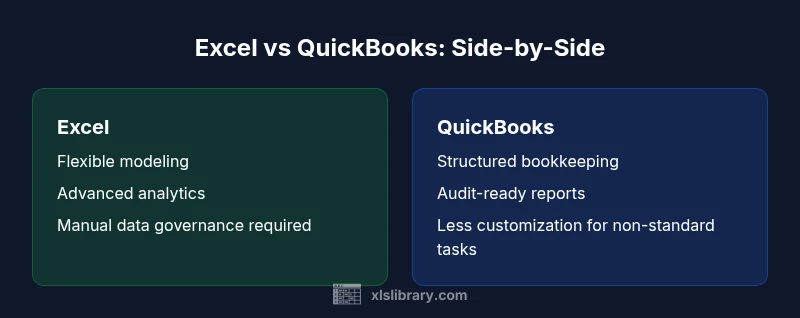
Excel’s strengths are flexibility, powerful analytics, and custom modeling. QuickBooks’ strengths are structured bookkeeping, audit trails, payroll support, and streamlined tax-ready reporting.
Excel excels at modeling; QuickBooks excels at routine accounting and audits.
The Essentials
- Match tools to tasks, not ease of use
- Use QuickBooks for routine bookkeeping and audits
- Leverage Excel for modeling and bespoke analytics
- Adopt a hybrid workflow to combine strengths of both
- Document processes to sustain data integrity