Is Excel Harder Than Word? A Practical Comparison
Explore whether Excel is harder to learn than Word, with a practical, task-based comparison. This XLS Library analysis helps aspiring and professional Excel users decide where to focus their mastery first.


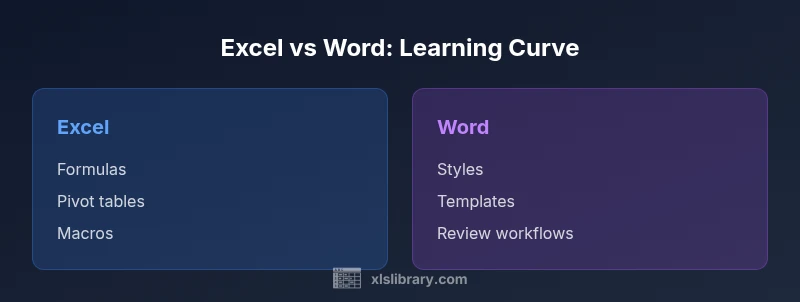
In general, Excel presents a steeper learning curve than Word because of formulas, data modeling, and features like pivot tables and macros. Word emphasizes writing, formatting, and document layout, which beginners typically grasp more quickly. The difficulty depends on your goals and tasks.
is excel harder than word
According to XLS Library, the central question of whether is excel harder than word hinges on the types of tasks you plan to perform, your background with numbers, and your willingness to learn new concepts. For someone focused on data analysis, Excel will feel more demanding at the outset due to grids, cell references, and a growing toolbox of functions. For a writer or editor, Word’s core features—document creation, formatting, and review workflows—often feel more approachable. Throughout this analysis you’ll notice that the perceived difficulty is task-driven, not an inherent flaw in the software. By framing learning around concrete goals, you reduce mystery and accelerate progress.
Core differences in initial learning curves
The first exposure to Excel typically introduces worksheets, cells, and simple formulas, while Word introduces basic text entry, formatting, and page layout. New users often find Word’s interface more intuitive for quick wins—typing, saving, and printing—whereas Excel requires understanding relative references, named ranges, and basic data structures. The keyword is practice: you’ll improve faster if you start with small, meaningful tasks (like budgeting in Excel or a report outline in Word) and gradually layer complexity. The XLS Library team emphasizes setting achievable milestones to build confidence while you expand from 1-2 functions to 10+.
Formulas, functions, and data modeling as core differentiators
Excel’s power lies in formulas and data modeling. Learning to write correct formulas, understand references (relative vs absolute), and use functions (SUM, AVERAGE, IF, XLOOKUP) marks the major turning point from beginner to capable. Word lacks this computational layer, focusing instead on text manipulation, styles, and template-driven documents. When your tasks involve crunching numbers, validating data, or creating dynamic dashboards, you will encounter the most significant learning curve in Excel. The keyword here is precision: small error in a formula can cascade into large miscalculations.
Document structure vs data tables: two cognitive journeys
Word organizes content around paragraphs, chapters, and styles, with intuitive visual cues for formatting and layout. Excel organizes data around tables, columns, and worksheets, requiring mental models for data integrity and relationships. This structural difference affects how quickly beginners feel productive. If your goal is clear, publish-ready documents, Word provides quick wins. If your goal is scalable data analysis and reproducible workflows, Excel’s structure demands more upfront planning but pays off with powerful results.
Automation, macros, and advanced features
Advanced Excel skills, including macros (VBA), Power Query, and pivot tables, unlock automation and sophisticated analyses. These features dramatically extend what you can do with data, but they also add layers of learning. Word offers automation less broadly, typically through mail merge or template-driven features, which are valuable yet distinct from Excel’s data-centric automation. For many professionals, mastering Excel’s automation is the defining step for moving from basic spreadsheets to repeatable, error-resistant processes.
Task-centric perspectives: when one tool outshines the other
If your daily tasks center on drafting, editing, and formatting long-form text, Word is often the more productive choice with a gentler learning curve. If you routinely manage numbers, perform data analysis, build dashboards, or automate repetitive calculations, Excel is the more appropriate tool—even though it takes longer to master. The is excel harder than word question becomes a question of whether your tasks demand data operations or text creation; for many roles, both tools are essential, but Excel tends to require more structured learning.
Learning paths that accelerate mastery
A practical learning path starts with clear goals: for Excel, begin with basic arithmetic, simple formulas, and a small data set; then progress to filtering, sorting, and basic charts. For Word, start with basic formatting, styles, and document templates, then move to long documents, referencing, and collaboration features. The XLS Library recommends toggling between projects that require real-world tasks and guided tutorials. This approach helps you see immediate value while building a solid foundation for more complex topics such as macros or mail merges.
Cross-platform and version considerations
Windows remains the most feature-complete environment for Excel and Word, with occasional differences on macOS. Features like VBA availability can vary by platform and version, which influences how quickly you can progress. When learning, verify you’re using the same version as your peers or colleagues to minimize friction. This cross-platform awareness adds a practical dimension to the perceived difficulty and helps you set realistic timelines for skill development.
Common pitfalls and how to avoid them
A frequent Excel pitfall is building formulas without testing edge cases or handling blank cells, which leads to inaccurate results. In Word, inconsistent styles or missing references can undermine document quality. A systematic approach—start small, test frequently, and document your assumptions—reduces risk. The most effective learners treat both tools as skills under construction: practice, reflect, and iterate. By adopting a task-first mindset, you’ll route your energy to the areas that yield the most value and reduce overwhelm.
Is is excel harder than word really a fair comparison for professionals?
For professionals, the learning curve is justified by impact. Excel’s advanced features support data-driven decision-making, forecasting, and automation that Word cannot replicate at scale. However, Word remains indispensable for producing readable, polished documents. The comparison is not about which is harder overall, but about which tool provides the best ROI for your particular work. When in doubt, map your tasks to the tool that accelerates outcomes most reliably.
A balanced view: planning your mastery journey
The key to mastering either tool lies in setting concrete goals, choosing a bite-sized learning plan, and iterating with real tasks. If your work involves frequent data checks, modeling, or reporting, prioritize Excel and allocate time for formulas, pivot tables, and automation. If your focus is content creation, editing, and collaboration, start with Word’s formatting and styles, then add more advanced features as needed. The underlying principle is intentional practice aligned with your job requirements.
Comparison
| Feature | Excel | Word |
|---|---|---|
| Learning curve (basics) | moderate | low |
| Primary tasks | data analysis, modeling, automation | document creation, formatting, drafting |
| Key tools to learn first | formulas and pivot tables | styles and formatting |
| Best for | data-centric work and large datasets | text-heavy documents and collaboration |
| Common beginner pitfalls | formula errors, circular references | formatting inconsistencies, long documents |
Benefits
- Clarifies when to use each tool based on task type
- Highlights the distinct skill requirements for office productivity
- Encourages targeted, task-focused learning paths
- Promotes structured practice with real tasks
What's Bad
- Doesn't capture specialized cross-tool workflows or niche use cases
- May understate the value of complementary skills in each program
- Could oversimplify version differences across platforms
Excel is generally the more demanding tool for data-centric work; Word is easier for drafting and formatting.
Choose Excel if your priority is data analysis and automation. Choose Word for efficient document creation and formatting; use both as required for professional versatility.
People Also Ask
Why is Excel harder to learn than Word?
Excel introduces formulas, data modeling, and automation, which require a conceptual shift beyond basic typing and formatting. Word focuses on text layout, which tends to be more intuitive at the start. The difference often comes down to task complexity rather than inherent tool quality.
Excel is harder to learn because of formulas and data modeling, while Word focuses on text layout which is simpler for beginners.
Is Word easier for beginners than Excel?
For most beginners, Word is easier to pick up because it emphasizes writing and formatting rather than data operations. You can produce a basic document quickly, whereas building a reliable spreadsheet with formulas takes more steps and planning.
Yes, Word generally feels easier for beginners due to its focus on writing and formatting.
What should I learn first in Excel or Word?
In Excel, start with data entry, simple formulas, and basic charts. In Word, begin with basic document creation, styles, and formatting. Building a solid foundation in the core features makes advanced topics more approachable later.
Start with basics: formulas and charts in Excel; formatting and styles in Word.
Can I learn both tools at the same time?
Yes, you can. Structure your practice around real tasks—draft a report in Word and extract data into Excel to build a brief analysis. Short, focused sessions help you reinforce skills without cognitive overload.
Absolutely. Use small, real tasks to practice both tools together.
Do versions or platforms affect difficulty?
Yes. Windows versions generally have the most complete feature set, while Mac versions may have some limitations. Always align learning with the version you’ll use most to avoid feature gaps and frustration.
Yes—different versions/platforms impact feature availability and learning pace.
The Essentials
- Identify your primary task to choose the tool
- Invest in structured training for formulas if choosing Excel
- Master a core set of features (formulas, charts, styles)
- Leverage keyboard shortcuts to accelerate workflow
- Practice with real datasets and documents