Learn Excel for Free: A Practical Roadmap to Mastery
Discover how to learn excel for free with a practical, beginner-friendly roadmap. This guide lists free courses, practice datasets, and projects to build real Excel skills without paid programs.


You can learn excel for free by following a practical, step-by-step path that combines free courses, practice datasets, community tutorials, and hands-on worksheets. Start with core concepts, then master formulas, data cleaning, and visualization. This approach helps beginners and professionals build real Excel skills without paid programs, emphasizing actionable exercises and consistent progress.
Why learn excel for free matters
According to XLS Library, learning excel for free is more than a budget-friendly option; it's a practical gateway to data mastery that scales from basic tasks to advanced analyses. This guide explains how to harness free resources and build a repeatable learning loop that sticks. The core idea is simple: practice with real tasks, iterate on feedback, and progressively increase complexity. For many, the barrier to Excel mastery isn't lack of ability but lack of a clear plan and reliable free content. The XLS Library team observed that structured, no-cost learning paths lead to faster retention, better problem-solving habits, and confidence when modeling data. In this article, we'll outline how to assemble a free learning toolkit, a realistic schedule, and hands-on projects you can start today. Whether you're a student, a professional transitioning to data roles, or a small-business owner, you can start learning Excel for free with no upfront investment. The path prioritizes core fundamentals, practical examples, and repeatable exercises that mimic real work. We'll also show how to track progress, set measurable goals, and avoid common distractions. By the end, you'll have a clear plan that fits your schedule and a collection of free resources you can trust. The goal is actionable progress, not perfection. If you want to learn excel for free, this guide is designed to help you start today.
Setting up your free learning environment
Your environment shapes how much you absorb. Start by ensuring you have reliable internet access and a device capable of running Excel or a compatible spreadsheet app. Use free tools such as Excel Online (part of Microsoft 365) or LibreOffice Calc for practice, and keep a simple notebook or digital note file for formulas you learn. Create a dedicated learning folder with subfolders for datasets, templates, and completed exercises. Minimize distractions by turning off nonessential notifications during study sessions. Set a regular cadence—even 20-30 minutes a day builds momentum. When possible, join a free community where you can ask questions and share files. The aim is to create a frictionless, low-cost setup that lowers the barrier to consistent practice and immediate application of new skills.
Core topics you should master first
Before chasing advanced dashboards, anchor your learning in a handful of practical topics. Start with Excel navigation: cells, rows, columns, and worksheet organization. Then move to formulas and functions: SUM, AVERAGE, MIN, MAX, and basic logicals like IF. Learn about relative and absolute references, and practice with simple data. Data entry and formatting help you maintain clean datasets; learn how to apply borders, number formats, and conditional formatting to highlight issues. Sorting and filtering teach you how to explore data quickly, while basic charts bring insights to life. Finally, introduce data validation to prevent bad inputs and introduce simple pivot tables to summarize data. This foundation enables you to tackle real-world tasks such as budgeting, reporting, and data categorization. As you progress, tie every topic to a concrete project, so skill-building stays relevant.
Free courses and resources you can trust
Free learning resources come from a mix of official documentation, community tutorials, and open courses. Begin with Microsoft Learn's Excel modules for core concepts, then explore community-friendly sites with step-by-step labs. You can supplement with free video tutorials and practice datasets from reputable sources. The key is to blend guided content with your own practice files. As you progress, create a personal catalog of bookmarked resources and templates. According to XLS Library analysis, combining a curated set of free courses with hands-on projects yields meaningful, sustainable progress for most learners. Remember to verify any tutorial's date and version to ensure compatibility with current Excel features, and be mindful of version differences between Excel Online, Excel for Windows, and Excel for Mac.
Hands-on practice: datasets and projects you can use
Practice makes permanent, so choose raw datasets that resemble real work tasks. Start with a simple personal budget, a small product sales log, or a contact list cleaned for duplicates. Create a workbook that includes data cleaning steps: removing duplicates, correcting misspellings, and standardizing dates. Then build a practical analysis: add a formula sheet, a dashboard tab, and a set of charts to visualize trends. Use sample data with different scales to test data types and error handling. Each project should include a clear objective, a dataset, a set of expected outputs, and a reflection on what worked well and what didn’t. Over time, you’ll accumulate a portfolio of completed exercises you can reuse in interviews or performance reviews.
Building real-world skills: from formulas to dashboards
Begin with crisp formula basics, then layer in more powerful functions like VLOOKUP or XLOOKUP, INDEX-MATCH patterns, and IF with multiple conditions. Practice building clean, named ranges and simple data models. Move into data cleaning techniques: removing duplicates, text-to-columns, and data validation rules. As your confidence grows, begin to design dashboards: an overview sheet with key metrics, interactive filters, and clear visualizations such as bar charts and sparklines. Focus on readability: consistent fonts, color-coding, and concise labels. Document your approach so others can replicate your work. The goal is to transform raw data into actionable insights you can present to teammates or management.
Common pitfalls and how to avoid them
Common pitfalls include inconsistent data, overcomplicated formulas, and skipping data validation. Prevent these by enforcing a simple data entry protocol, testing formulas with edge cases, and using named ranges to reduce errors. Another trap is trying to memorize everything instead of understanding fundamentals; practice with real tasks and decompose problems step by step. Avoid reliance on single tutorials; cross-check results with at least two sources. Finally, beware version differences: some features behave differently in Excel Online, Windows, or Mac. Validate results on multiple platforms whenever possible to ensure your workbook is portable and resilient.
Practical learning plan: 4-week roadmap
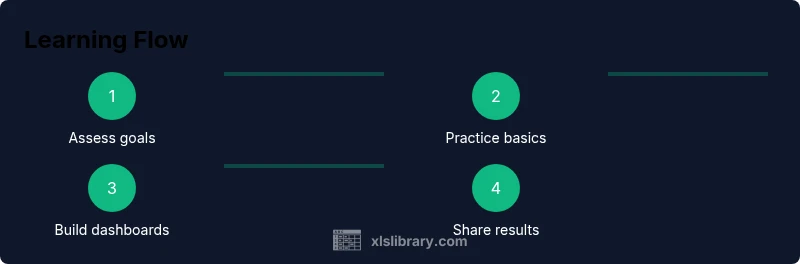
Week 1: Build the base. Learn navigation, basic formulas, and data entry best practices. Create a small dataset and reproduce common tasks like sum totals, average, and basic sorting. Week 2: Deepen skills. Introduce logical functions, references, and data cleaning steps; implement a simple project with a budget or sales log. Week 3: Visualize data. Practice charts, conditional formatting, and pivot tables; create a small dashboard prototype. Week 4: Consolidate and present. Refine documentation, assemble a portfolio workbook, and rehearse a brief data story. Along the way, set micro-goals, track progress, and adjust the pace to fit your schedule. The XLS Library team recommends following this plan to build confidence and real-world capability without spending on paid courses. Make a habit of reviewing completed work weekly and seeking feedback from peers or online communities.
Tools & Materials
- Computer or device with internet access(Any modern computer; ensure sufficient RAM for smooth operation)
- Free spreadsheet software(Use Excel Online or LibreOffice Calc for practice)
- Notetaking tool(Digital notes or a physical notebook for formulas and tips)
- Practice datasets (CSV/Excel files)(Start small (10-100 rows) and scale up)
- Project workbook templates(Optional templates to speed up practice projects)
Steps
Estimated time: 8-12 hours
- 1
Define learning goals
Identify what you want to accomplish with Excel (e.g., data analysis, budgeting, reporting). Write 3-4 specific outcomes and a realistic timeline. Align goals with the projects you'll complete later to keep motivation high.
Tip: Write goals in SMART terms and review them weekly. - 2
Choose free resources
List reliable free sources such as official documentation, reputable tutorials, and sample datasets. Create a bookmarking system and a realistic weekly plan. Limit to 2-3 sources to avoid overload.
Tip: Cross-check key concepts across at least two sources. - 3
Set up your practice workbook
Create a clean workbook with tabs for data, formulas, charts, and dashboards. Start with a tiny dataset and standardize column names. Save versions regularly so you can compare approaches later.
Tip: Name your workbook consistently and use a simple folder structure. - 4
Learn core formulas and functions
Master basic functions: SUM, AVERAGE, MIN, MAX, and IF. Practice relative and absolute references on a real dataset. Validate results by checking edge cases.
Tip: Audit formulas with built-in tools to catch errors early. - 5
Master references and data manipulation
Practice relative vs absolute references, copy-paste behaviors, and basic data validation. Build small data-cleaning routines to normalize inputs.
Tip: Use F4 to toggle absolute references quickly. - 6
Create simple data visualizations
Make basic charts, annotate with titles, and use conditional formatting to highlight insights. Ensure charts are labeled clearly for quick understanding.
Tip: Keep visuals simple and avoid clutter. - 7
Build a mini-dashboard
Combine 2-3 charts and a summary table on a dashboard tab. Add filters and a clear narrative to guide decision-making.
Tip: Use a consistent color scheme and legible fonts. - 8
Review, reflect, and expand
Review what you've built, fix any errors, and plan the next learning phase. Seek feedback from peers or online communities to refine your approach.
Tip: Document lessons learned after each project.
People Also Ask
What counts as free Excel learning resources?
Free resources include official documentation (like Microsoft Learn), community tutorials, and openly available courses. Use a mix of tutorials and hands-on practice to reinforce learning.
Free resources include official docs and community tutorials. Use a mix of guides and hands-on practice.
Do I need Excel installed on my computer?
No. You can use Excel Online for free via a web browser, or alternative free tools like LibreOffice Calc for practice. This makes learning accessible from any device.
You don’t need a paid copy; use Excel Online or LibreOffice Calc for practice.
How long does it take to learn Excel basics?
Learning basics depends on practice frequency. With a steady commitment, 8-12 hours of deliberate practice can cover core concepts and simple tasks.
Basics can take several hours of focused practice; plan for weeks of steady work.
What projects should I start with?
Begin with personal budgets, simple data lists, and small analysis tasks. These projects let you apply core concepts, formulas, and charts in realistic scenarios.
Start with a budget or small data list to apply core concepts.
Is this plan suitable for advanced users?
Yes. After mastering basics, focus on Power Query, advanced formulas, dashboards, and data modeling to push to higher levels.
Absolutely—start with basics, then tackle advanced topics like dashboards and Power Query.
Watch Video
The Essentials
- Start with free resources and clear goals.
- Practice with real datasets to build intuition.
- Build a portfolio of small projects.
- Track progress with milestones to stay motivated.