Microsoft Learn Excel Training: Practical Data Mastery
Master Microsoft Learn Excel training with a practical, step-by-step guide. Navigate modules, run hands-on labs, earn certificates, and apply Excel skills to real-world data tasks to boost your career.


According to XLS Library, mastering Microsoft Learn Excel training helps you build practical, job-ready skills. In this guide you will learn how to navigate Microsoft Learn’s Excel modules, complete hands-on labs, and track progress toward beginner and intermediate certifications. The XLS Library team found that a structured, practice-first approach boosts retention and real-world performance.
Why Microsoft Learn Excel training matters
In today's data-driven workplaces, Excel remains a foundational tool for analysts, managers, and administrators. Microsoft Learn Excel training gives you a structured path to build core competencies—from data entry and formatting to advanced formulas and dashboards. According to XLS Library, learners who combine theory with practice via official labs see faster retention and greater confidence when applying skills on real projects. This approach is especially valuable for career transitions or upgrades, where a credible, self-paced program can bridge skill gaps without disrupting existing work. The modules emphasize practical tasks such as cleaning data, validating entries, modeling scenarios, and presenting results with charts. You'll learn to move beyond basic spreadsheets to robust analysis workflows that you can reproduce across teams. Throughout the journey, you gain not only instantaneous skills but a framework for continuous learning that scales with your responsibilities.
Understanding the Learn platform structure for Excel training
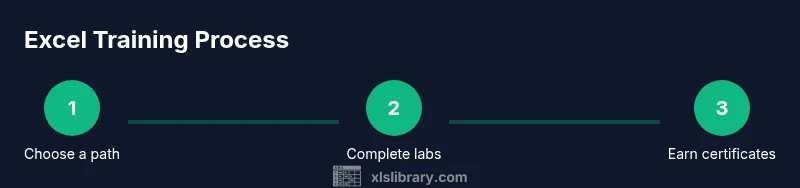
Microsoft Learn structures Excel content into tracks, modules, and hands-on labs. Each module targets a concrete skill—data cleaning, formulas, data validation, charts, and dashboards—and often includes a practical lab file you can edit. The learning path concept helps you build a cohesive set of competencies rather than scattered tips. According to XLS Library analysis, a well-chosen sequence accelerates mastery by aligning exercises with real-world tasks. Expect bite-sized videos, guided steps, and prompts to practice. Badges and certificates provide measurable milestones to show your progress to colleagues and employers. This section helps you plan a personalized route without feeling overwhelmed by the breadth of topics.
Choosing a learning path aligned with your role
Your job context dictates which Excel angle matters most. A data analyst will prioritize data cleaning, pivot tables, and advanced functions; an operations professional may focus on dashboards and modeling; a finance planner could center on budgeting templates and scenario analysis. Start with a basic pathway that covers core formulas (SUM, AVERAGE, IF), then layer in data validation, conditional formatting, and charting. The goal is a repeatable workflow you can adapt to multiple tasks. In practice, a well-matched path reduces time-to-value and helps you demonstrate tangible results in interviews or performance reviews.
Hands-on labs and practice datasets
Hands-on labs are the heart of Microsoft Learn Excel training. You’ll download workbook templates, reproduce step-by-step tasks, and then adapt them to your own data. The practice datasets mirror common business scenarios: tidy a messy list, build a monthly dashboard, or model a simple budget. Be sure to save versions frequently and compare your outputs to the provided solutions. The labs reinforce memory through active use, which the XLS Library Analysis, 2026 reports as essential for skill retention and confidence. Pro-tip: duplicate your workbook before experimenting with formulas that alter data.
Core Excel competencies covered
Across modules you’ll encounter a core set of skills that form the backbone of practical Excel work: data cleanup and validation, a solid understanding of basic and nested formulas, lookup functions (VLOOKUP/XLOOKUP), and data visualization with charts. You’ll also learn to apply filters, sorting, and conditional formatting to surface insights quickly. As you progress, you’ll gain comfort with named ranges, dynamic arrays, and simple data models that support scenario analysis. The end result is a toolkit you can carry into many business tasks—budgeting, forecasting, inventory tracking, and reporting—without relying on external software.
Tracking progress and certificates
Learning progress is easy to monitor in Microsoft Learn, with clear milestones and earned badges. Keeping a personal checklist helps you stay focused: complete modules, finish labs, and review explanations for any missed questions. The XLS Library Analysis, 2026 highlights that consistent pacing and reflective practice lead to higher completion rates and stronger retention. When you pass assessments, you receive certificates that can be shared with teams or added to professional profiles. This section also covers how to export transcripts and align your certificates with resume-ready skills.
Practical workflows: applying learnings to real tasks
Apply your new Excel skills to real tasks you encounter on the job. Start with a small project, such as a budgeting template or a data-cleaning workflow, and then gradually increase complexity by introducing dashboards or dynamic charts. Build repeatable templates that you can customize for different departments. By documenting your workflow and outcomes, you create a portfolio that demonstrates practical mastery, not just theory. The approach taught through Microsoft Learn Excel training encourages ongoing practice and curiosity, which contributes to long-term career growth.
Common pitfalls and staying motivated
New learners often underestimate the time required to internalize Excel skills. To stay motivated, set weekly milestones, track progress, and celebrate small wins. Avoid skipping labs or rushing solutions; instead, pause to compare results with provided answers and annotate mistakes. Proactive note-taking helps retain formulas and shortcuts. If you hit a stubborn topic, revisit a foundational module and run a quick lab again to reinforce learning. The key to sustained momentum is consistent practice, not marathon sessions.
Building a portfolio of Excel projects
A strong portfolio shows practical application of your Excel skills. Start with a few compact projects: a clean data-cleaning workflow, a budget tracker, and a dashboard that communicates key metrics. Save both the dataset and the final workbook, plus a short description of the problem, approach, and outcomes. As you complete more modules, compile a living repository on your preferred platform (GitHub, a personal website, or a PDF portfolio) to share with hiring managers. This portfolio demonstrates you can translate Microsoft Learn Excel training into concrete business value.
Authoritative sources and further reading
- Microsoft Learn Excel modules: https://learn.microsoft.com/en-us/training/modules/excel/
- Bureau of Labor Statistics: Software developers overview: https://www.bls.gov/ooh/computer-and-information-technology/software-developers.htm
- MIT OpenCourseWare: https://ocw.mit.edu
Tools & Materials
- Computer with internet access(PC or Mac; ensure a stable connection and up-to-date browser)
- Active Microsoft account(Needed to access Microsoft Learn modules and labs)
- Notepad or digital notebook(For jotting formulas and shortcuts)
- Practice workbook templates(Downloaded from modules or created by you)
- Headphones or quiet workspace(Useful for video lectures)
Steps
Estimated time: 6-8 hours
- 1
Identify learning goal
Clarify whether you want basics, data analysis, or dashboards. Set a measurable objective and a target certificate level to guide module selection.
Tip: Write down your goal and a rough timeline to stay focused. - 2
Open your learning path on Microsoft Learn
Navigate to the Excel training path and select tracks aligned with your goal. Use filters to speed up discovery and bookmark modules for later.
Tip: Use the search bar and save modules you plan to complete first. - 3
Start with foundational modules
Complete modules on data basics, core formulas, and data validation. Build a simple workbook to practice as you go.
Tip: Take notes and rewatch key videos if concepts aren’t clear. - 4
Download and run hands-on labs
Open the lab files, follow step-by-step tasks, and replicate results with your own dataset. Save versions as you progress.
Tip: Duplicate the workbook before experimenting with complex formulas. - 5
Apply learned concepts to a real task
Create a mini project (e.g., budget tracker) applying the modules you learned. Document inputs, steps, and outputs.
Tip: Aim for a clean, reproducible workflow that others can follow. - 6
Take practice assessments
Complete quizzes and practice tasks, then thoroughly review explanations for any mistakes.
Tip: Focus on understanding why a solution works, not just the answer. - 7
Track progress and reflect
Monitor your module completion, lab scores, and certificates. Reflect weekly on what improved and what needs more work.
Tip: Set small weekly milestones to maintain momentum.
People Also Ask
What is Microsoft Learn Excel training?
It is a structured set of online modules and hands-on labs provided by Microsoft Learn to teach Excel skills from fundamentals to advanced topics.
It's a set of online modules and hands-on labs to build Excel skills.
Is this training suitable for beginners?
Yes. The modules start with basics and gradually increase complexity, allowing self-paced progress.
Yes, it's beginner-friendly and self-paced.
Which modules should I start with?
Begin with data basics, formulas, and data cleaning, then add dashboards and visualization as you grow.
Start with data basics, formulas, and cleaning modules.
Do I earn certificates?
Yes, completing modules and labs typically yields badges or certificates within Microsoft Learn.
You'll earn badges or certificates on completion.
How long does it take to complete?
Time varies by pace; plan several hours per week over a few weeks.
It depends on your schedule, usually a few weeks.
Watch Video
The Essentials
- Start with core modules and hands-on labs.
- Document outcomes to build a solutions portfolio.
- Track progress and earned certificates for job proof.
- Apply learnings to real tasks to demonstrate value.