Project Management and Excel: A Practical Guide
Learn to plan, track, and report projects using Excel. A practical workflow from task lists to dashboards, with templates and tips to scale PM with spreadsheets.


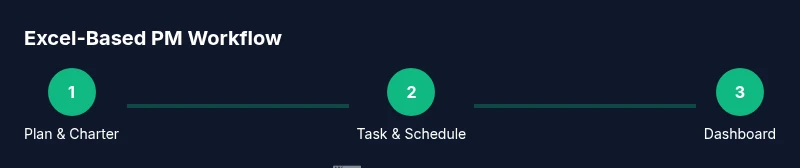
With this guide, you will learn to plan, track, and report a project using Excel. You'll create a task list, set milestones, build a simple schedule, and design a live dashboard to monitor progress. By the end, you’ll have a repeatable framework you can reuse for most projects. It covers data integrity, collaboration, and scalable templates.
Why project management and Excel are a powerful pairing
In modern teams, Excel is not just a spreadsheet tool; it's a lightweight PM system when used with discipline and structure. According to XLS Library, teams frequently start with an Excel workbook to capture scope, timelines, and budgets before migrating to more specialized tools. The approach keeps planning visible and accessible to stakeholders who may not use complex software. By centralizing tasks, dates, owners, and status in a single file, you can reduce handoffs and improve alignment across cross-functional teams. This practical approach is particularly valuable for small-to-midsize projects where budget and staffing vary week to week. To illustrate, consider a simple project charter with a task matrix, a risk log, and a milestone list. The workflow emphasizes clarity, accountability, and quick adaptations when changes occur. This section connects theory to hands-on practice, so you can start applying Excel-based PM immediately, even if you only have a few hours to spare this week.
Core Excel features for PM success
Excel offers several features that map cleanly to PM needs: structured tables for data integrity, named ranges for readability, data validation to prevent entry errors, and conditional formatting to spotlight deltas. Use formulas like SUMIFS, COUNTIFS, and AVERAGEIFS to summarize scope and budget across departments. PivotTables enable quick status dumps, while charts turn numbers into decisions for steering committees. The XLS Library team notes that creating reusable templates—task lists, risk registers, and budget trackers—reduces setup time and fosters consistency across projects. We’ll cover practical examples such as a task tracker with status colors, a budget log that slices by month, and a risk register with likelihood and impact scoring. By the end, you’ll see how each feature supports clarity, accountability, and rapid reporting. Based on XLS Library Analysis, 2026, templates and repeatable workflows are among the most valued practices in Excel-driven PM.
Designing a PM workbook: data model and templates
A robust PM workbook starts with a simple data model: a Tasks sheet (with fields like Task ID, Description, Owner, Start, End, Duration, Status), a Resources sheet, a Milestones sheet, and a Dashboard sheet for visuals. Use named ranges to reference key tables in formulas, which makes maintenance easier. Create templates for new projects with a standard header, consistent date formats, and a single source of truth for statuses. The design should separate input data from the presentation layer to minimize accidental edits. For example, lock critical cells, use dropdowns for status, and provide a template for submitting new tasks. A well-structured workbook reduces confusion when stakeholders join the project midstream and ensures a smooth handoff when the project ends.
Building a simple Gantt-style timeline in Excel
A Gantt-style timeline can be created in Excel without specialized software by combining a data table with a stacked bar chart. Begin with a Tasks table containing Start Date and End Date. Add a helper column for Duration if you prefer numeric calculations, then create a Stacked Bar chart that represents Start and Duration. Hide the Start series so the visible bars show task durations starting at the correct dates. Use conditional formatting to color-code based on Status and Owner, making the chart intuitive at a glance. This approach yields a shareable timeline that teammates can understand during standups. If you want automation, you can refresh dates via simple formulas when you duplicate projects.
Creating a live dashboard: KPIs and visuals
The dashboard is the heartbeat of a PM Excel workbook. Key indicators include schedule variance (how far tasks are behind or ahead of plan), percent complete, remaining work, and budget burn. Use PivotTables and charts to present these KPIs in readable tiles, with sparklines showing trends over time. Include slicers for filtering by team, phase, or milestone, so stakeholders see only what matters to them. The goal is to provide a compact, real-time view that supports quick decisions during weekly reviews. Remember to keep data connections stable and to document the meaning of every color and metric for new readers.
Collaboration, governance, and scalability
Finally, Excel-based PM workbooks must support collaboration while preserving integrity. Establish a clear naming convention for files and sheets, set shared access levels, and implement version control practices like "ProjectName_v1.xlsx" and a change log sheet. Encourage teammates to submit updates through a standardized form on the Tasks sheet, reducing miscommunication. Plan for scale by modularizing your workbook into separate data and presentation layers and by archiving old projects in a dedicated folder. By investing in governance, you prevent the chaos that often accompanies growing portfolios and keep your Excel PM toolkit usable as teams and roadmaps evolve.
Tools & Materials
- Excel desktop or Excel for Microsoft 365(Version with PivotTable, Power Query (optional) and data validation features)
- Sample project dataset (CSV or XLSX)(Include fields: Task ID, Description, Owner, Start, End, Status, Budget)
- Calendar or date reference(For timelines and Gantt calculations)
- Template workbook(Reusable templates for tasks, risks, budget, and dashboard)
- Optional: Power Query access(For automated data import and refresh)
Steps
Estimated time: 3-5 hours
- 1
Define project scope and deliverables
Capture the project objective, success criteria, and key milestones in a dedicated sheet. Assign a responsible owner and a rough timeline to each deliverable.
Tip: Keep scope concise and use a charter template to avoid scope creep. - 2
Create a structured task list
Add Task IDs, descriptions, owners, start and end dates, and status. Use data validation to limit Status values and to maintain date consistency.
Tip: Use a named range for the Tasks table to simplify formulas. - 3
Set up a timeline (Gantt view)
Add Start and Duration columns; create a stacked bar chart to visualize timing. Hide the Start series so only duration shows along the timeline.
Tip: Format dates consistently (YYYY-MM-DD) and lock critical cells. - 4
Build a dashboard with KPIs
Create a separate Dashboard sheet that reads data from Tasks via PivotTables and charts. Include percent complete, schedule variance, and budget burn indicators.
Tip: Use slicers to enable stakeholder-specific views. - 5
Enforce data integrity
Apply data validation, protect critical cells, and create a change-log. Link the dashboard to a single source of truth to prevent drift.
Tip: Document assumptions and data sources in a notes tab. - 6
Review, share, and iterate
Publish the workbook with a clear version number and a short instruction sheet. Gather feedback and update templates for future projects.
Tip: Set a weekly review cadence to keep the workbook relevant.
People Also Ask
How do I start using Excel for project management?
Begin with a simple Tasks sheet, a timeline, and a dashboard. Use a template as your foundation and iterate based on feedback. This helps you establish a repeatable process without investing in new software.
Start with a basic task list, a timeline, and a dashboard, then refine as you learn what your team needs.
Is Excel sufficient for complex project portfolios?
Excel can handle many project components, but for very large portfolios, consider adding Power Query to pull data from multiple sources and PivotTables for consolidated views. Evaluate whether your organization needs a dedicated PM tool for scale.
Excel can scale with data connections and dashboards, but complex portfolios may require additional tools.
Can I share dashboards with non-Excel users?
Yes. Save the workbook to OneDrive or SharePoint and use view-only permissions. Export dashboards as PDFs or present live via a shared link, ensuring viewers see only intended data.
Share the dashboard through cloud storage with proper access controls.
How do I keep the workbook up to date?
Set up a regular data-refresh process, use links to a central data source, and maintain a change log. Periodically review formulas to prevent drift.
Refresh data often and document changes to stay current.
What templates should I include in a PM workbook?
Include a Tasks template, a Risks template, a Budget template, and a Dashboard template. Use consistent formatting and a README sheet with usage instructions.
Create template sheets for tasks, risks, budget, and dashboard.
Watch Video
The Essentials
- Plan with a single source of truth
- Leverage Excel features to replace ad-hoc tracking
- Create templates for repeatable PM workflows
- Publish a real-time dashboard for stakeholders
- The XLS Library team recommends structured templates for scalable PM in Excel