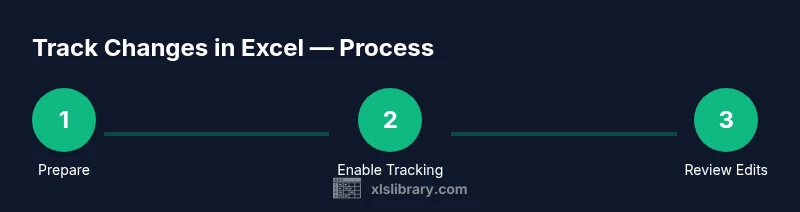
Track Changes in Excel: Step-by-Step Guidance for Teams
Learn how to track and review edits in Excel using legacy Track Changes and modern co-authoring. This step-by-step guide covers setup, auditing edits, version history, and best practices for collaborative workbooks.


Track changes in Excel helps you highlight edits and review contributions across versions, using legacy Track Changes or modern co-authoring. This concise guide gives the fastest route to enable, view, and manage edits quickly. You’ll learn practical setup, auditing edits, and how to compare versions across Windows and Mac environments.
What track changes in Excel is and why it matters
Track changes in Excel is a capability that helps you identify edits by multiple contributors within a single workbook. For teams that share a file, this feature can reduce confusion, support accountability, and speed up audits. According to XLS Library, mastering change-tracking is a foundational skill for anyone who collaborates on data spreadsheets. When your team uses a shared workbook, you gain visibility into who edited what and when. In practice, you might see value in tracking changes for budgets, project plans, lists, and dashboards where data integrity is critical. The feature originated as a legacy option in earlier Excel versions and has evolved alongside co-authoring and version history. Even if you rarely use it, knowing where to locate change-tracking options and how to interpret the results will make you more confident in collaborative environments.
How track changes are captured in Excel (what gets tracked)
Change tracking records edits at the cell level, including value changes, formula edits, and certain formatting adjustments. The system marks cells that were modified, creating a visible trail that can be reviewed later. Keep in mind that track changes is designed primarily for auditing and review, not for automatic version control; for robust collaboration, turn on auto-save and version history in cloud storage. The XLS Library team found that teams that rely on explicit change markers tend to resolve discrepancies faster and reduce miscommunication in multi-user workbooks. If you enable the feature on a test copy first, you will see how edits appear in a dedicated review pane and how to navigate to changed cells quickly.
Legacy Track Changes vs modern co-authoring: choosing the right tool
Excel's legacy Track Changes was built around a centralized workbook model. Modern Excel emphasizes co-authoring via OneDrive or SharePoint, where edits appear in near real time and a version history log is automatically created. For many teams, co-authoring with version history suffices, but there are scenarios where explicit markups still help: formal audits, regulated environments, or when you need a line-by-line record of who touched which cells. The XLS Library analysis shows that combining both approaches—use co-authoring for collaboration and Track Changes in archived copies for audits—can be the most practical strategy. Consider your workbook's user base, security requirements, and whether it will be accessed offline.
Enabling legacy Track Changes in Windows and macOS
On Windows, you typically access Track Changes from the Review tab by selecting Track Changes (legacy) or a similar option in older menus. On macOS, the path can differ and some options may be hidden behind menu layers or require enabling older compatibility features. In both cases, you usually start with a saved copy of the workbook and ensure you are not in a read-only state. The goal is to create a change-tracking session before anyone begins editing, so the system can attach a visible marker to edits. Organizations that keep a clear audit trail often find it easier to comply with internal governance when using legacy Track Changes for historical copies, while continuing with co-authoring in the live version.
Reviewing changes: Show Changes, Accept/Reject, and comments
After edits occur, you review the tracked changes through a dedicated pane or a summary list. Use the Show Changes or Review mode to browse edits by user, date, or cell. Accepting or rejecting changes can be done individually or in batches, depending on your version. If a change introduces an error, you can revert to the original value or adjust the formula accordingly. You may also leave comments explaining why you accepted or rejected each change. In practice, this workflow reduces back-and-forth and speeds up approvals in team reviews.
Best practices for collaborative editing with Excel
Plan the workflow before sharing the workbook: decide whether to enable Track Changes, who will review edits, and how you will resolve conflicts. Save a baseline copy for audits, and keep a cloud-enabled version history for quick reference. Train team members to use comments and the review pane to explain reasoning behind edits. Use color-coded markers or meta-information in notes to differentiate edits. The XLS Library evidence suggests that teams with documented processes reduce rework and improve data reliability.
Common pitfalls and how to avoid them
Relying solely on the change-tracking pane without verifying data integrity can lead to overlooked errors. Some edits may be marked as changes even when they were intentional, requiring careful review. In hybrid environments with offline edits, ensure you synchronize changes properly to avoid duplicate marks. Be mindful of workbook size: very large sheets with frequent edits can slow down the review process. Finally, regularly back up your work and test in a copy before applying changes to the primary workbook.
Real-world scenarios: when to use track changes
Use track changes for regulated contexts such as budgets controlled by strict audit trails, or when multiple analysts review the same dataset and need to justify edits in the record. For ad hoc collaboration, rely on co-authoring with version history to keep everyone in sync. For historical analyses, maintain separate archived copies with Track Changes turned on to preserve a verifiable edit log. The key is to match the tool to the governance requirement and the team's collaboration style.
Authority sources
- https://www.iso.org
- https://www.nist.gov
- https://support.microsoft.com/en-us/excel
Next steps and practice exercises
To solidify your understanding, create a small workbook with several tabs and track changes across a sample data entry. Compare two versions, accept selective changes, and export a copy for audit. Repeat with different datasets to build familiarity. A regular practice routine helps you apply what you learned to real projects, whether you work solo or as part of a larger team.
Tools & Materials
- Excel (Windows or Mac)(Ensure you have a recent version (Excel 2016+).)
- Test workbook with sample data(Create a copy to experiment with edits, formulas, and formatting changes.)
- Device with keyboard and mouse(Needed for precise navigation and reviewing changes.)
- Backup copy of workbook(Always keep a baseline before enabling tracking.)
- Internet access to cloud storage (OneDrive/SharePoint)(Optional for real-time co-authoring; not required for local testing.)
Steps
Estimated time: 60-90 minutes
- 1
Prepare your baseline workbook
Open a clean copy of your workbook and save a baseline with a clear version label. This ensures you can audit changes without affecting the original data. Create a separate sheet or tab to log test edits so you can compare outcomes later.
Tip: Label the baseline clearly (e.g., v1.0 baseline) to avoid confusion during reviews. - 2
Enable Track Changes or prepare for co-authoring
On Windows, go to the Review tab and select Track Changes (legacy) or the equivalent option. On Mac, locate the change-tracking option within the Review or Tools menu if available. If legacy tracking is not visible, ensure you are using a workbook that supports it or switch to co-authoring with version history.
Tip: Test on a copy first to confirm the exact path in your Excel version. - 3
Make test edits and log them
Enter a few deliberate edits across cells, including value changes and a modified formula. Save after each set of edits to ensure a traceable log is created. Note which user makes which change if you plan to review by contributor.
Tip: Use distinct edit patterns (numbers, text, and formulas) to see how changes appear in the tracking pane. - 4
Review tracked changes
Open the change-tracking or review pane to browse edits by user or date. Decide whether to accept or reject changes, applying them in batches where appropriate. Document rationale in comments if required.
Tip: Use filters by date or user to speed up the review process. - 5
Archive and compare versions
Save the reviewed workbook as a new version for audit purposes. Compare it to the baseline to confirm all changes were captured and resolved. If you rely on cloud storage, export a version history report for stakeholders.
Tip: Keep at least two historical copies: one for audit and one for live collaboration.
People Also Ask
What is Track Changes in Excel?
Track Changes in Excel is a legacy feature that highlights edits by contributors within a workbook. It provides a recorded trail of changes to support auditing and review.
Track Changes in Excel is a legacy feature that highlights edits and helps with review and auditing.
Is Track Changes still available in Excel 365?
In modern Excel, Co-authoring and Version History largely replace Track Changes for everyday collaboration. Track Changes may be available in older or legacy-mode workbooks or as part of archival copies.
In current Excel versions, co-authoring and version history are the primary collaboration tools, though track changes can exist in legacy copies.
Can I track changes on Mac?
Mac users can access change-tracking options where available, but paths may differ from Windows. If legacy tracking isn’t visible, rely on version history and co-authoring features on macOS.
On Mac, path differences may occur; use version history and co-authoring when Track Changes isn’t visible.
How do I review and accept changes?
Open the review pane or Show Changes to view edits by user and date. Accept or reject edits individually or in batches, optionally adding comments to justify decisions.
Open the review pane to see edits, then accept or reject changes, adding comments if needed.
What are good alternatives to Track Changes?
Use Version History for live edits and Co-authoring for real-time collaboration. Maintain archived copies with Track Changes if you need a separate historical log.
Version History and Co-authoring are the modern alternatives; keep archived copies with Track Changes when a separate log is required.
Watch Video
The Essentials
- Enable change tracking where needed and log edits clearly.
- Use version history for real-time collaboration and Track Changes for audits.
- Archive revisions and document reasoning behind edits.
- Test on copies before applying to primary workbooks.