Track Expenses in Excel: A Practical How-To Guide
Learn how to track expenses in Excel with a practical, step-by-step approach. Build a data-entry ledger, define categories, and create a dashboard to visualize spending. This guide covers templates, formulas, data validation, and best practices to master expense tracking in Excel.


Goal: build a reusable expense tracker in Excel with a data-entry sheet, category labels, and a dashboard that summarizes spending. Requirements: Excel (Microsoft 365 recommended), consistent date and currency formats, and basic formulas (SUM, SUMIF/SUMIFS). This guide walks you through templates, formulas, and best practices to track expenses effectively.
Why track expenses in Excel matters
According to XLS Library, keeping a clear expense record in Excel goes beyond tallying numbers. It provides a transparent view of where money goes, helps you forecast cash flow, and simplifies tax time. With a structured tracker, you can spot trends, identify waste, and make informed decisions about spending priorities. For professionals, an organized ledger supports budgeting cycles, project accounting, and client billbacks. The goal is not only to log receipts but to transform raw data into actionable insights. By standardizing entry fields and automating sums, you reduce manual reconciliation and free time for planning. An effective tracker also scales as your spending grows, accommodating new categories, months, and currencies without breaking formulas. As you implement the approach described here, remember that Excel’s strength lies in reproducible workflows, not one-off hacks. Consistency beats clever tricks when your data must travel across teams, tools, and reports.
Choosing a tracking approach: simple ledger vs categorized budget
There are two common paths: a lean ledger that records every expense and a categorized budget that groups spending into domains like housing, food, and transportation. A ledger is fast and flexible but may lack context. A categorized budget reveals patterns and supports forecasting. XLS Library recommends starting with a simple ledger, then layering categories and dashboards as you gain confidence. Decide your scope, then align your columns, naming, and formulas to that scope. If you work with multiple currencies or projects, consider adding a Currency and Project column, and plan a multi-month perspective for longer-term planning.
Setting up your workbook: sheets and naming conventions
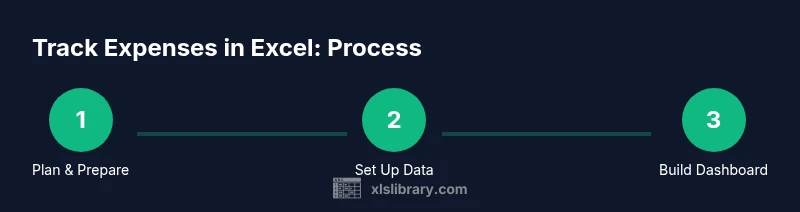
Create a clear workbook structure with at least three sheets: Data Entry, Categories_List, and Dashboard. Use consistent naming (Data_Entry, Categories_List, Dashboard) and turn your Data Entry into an Excel Table (Ctrl+T) so new rows auto-expand. Link drop-downs in the Data Entry sheet to the Categories_List to enforce consistency. Store the master category list in a separate sheet to simplify updates.
Core data structure: columns that matter
In Data Entry, include: Date, Description, Category, Amount, Payment Method, and Optional Notes. Use a date format of YYYY-MM-DD and a currency format matching your locale. Keep a separate column for Reconciliation Flag if you import bank data. A simple, well-structured schema makes downstream calculations reliable and scalable across months and years.
Formulas and functions you will rely on
SUM for totals, SUMIF / SUMIFS for category totals, and IFERROR to handle blank or erroneous rows. Use XLOOKUP to pull category data from a master list, and IF statements to flag unusual entries. A dynamic named range can adapt as you add categories. When forecasting, AVERAGE and TREND can project expense growth.
Automating with data validation and table features
Data validation ensures that categories stay consistent (avoid misspelled words). Convert the Data Entry range to a structured Table to simplify formula references and auto-fill. Use named ranges for recurring formulas and apply conditional formatting to highlight high spend days. A well-tuned setup reduces manual cleanup.
Visualizing expenses: dashboards and charts
A Dashboard should include a category breakdown (PIE or bar chart), a monthly trend line, and a summary KPI for total spend. Use slicers to filter by month or category, and ensure charts update automatically when new rows are added. Clean visuals help stakeholders grasp the story quickly.
Practical templates and examples
Start with a simple template: a Data Entry table of 12 months, a Categories_List with four to eight categories, and a Dashboard showing monthly spend and category totals. Example rows demonstrate consistent date formats and corrected spelling. Customize the template to fit personal or team budgeting needs while retaining a clean, repeatable structure.
Common pitfalls and how to avoid them
Pitfalls include inconsistent category naming, mixed date formats, and hard-coded ranges. Avoid these by using a fixed data table, using data validation for the Category field, and refraining from manual edits in the Dashboard. Regularly audit formulas for accuracy and test scenarios that simulate financial month ends.
Maintenance and review cadence
Schedule a monthly review to reconcile entries with bank statements, refresh category lists, and update the dashboard. Set up a quarterly audit of formulas and a yearly backup plan. Consistency is the backbone of a trustworthy expense tracker, ensuring long-term usefulness and reliability.
Advanced tips: budgeting and forecasting with Excel tools
Leverage Excel’s What-If Analysis, including Goal Seek and Scenario Manager, to test budget scenarios. Use data validation to lock critical cells, and build a simple forecasting model with TREND or FORECAST. For teams, share read-only dashboards and protect sensitive sheets with password protection that preserves data integrity.
Getting started: a quick 30-minute setup plan
Block out 30 minutes to create the workbook skeleton: three sheets, a data-entry table, and a dashboard placeholder. Enter a few sample transactions, validate with a few category choices, then set up your first dashboard charts. Save a backup, then iterate weekly as you collect receipts and refine categories.
Tools & Materials
- Microsoft Excel (Windows or macOS)(Office 365 / Microsoft 365 recommended for dynamic arrays and tables)
- Blank workbook or template(Start fresh to avoid legacy data)
- Master category list (Categories_List)(Keep in a separate sheet for easy updates)
- Date format set to YYYY-MM-DD(Consistency aids sorting and filtering)
- Currency format (e.g., USD)(Choose locale-specific currency)
- Data validation for categories(Prevents misspelled categories)
- Cloud storage or backup option(OneDrive/SharePoint for collaboration)
Steps
Estimated time: 1-2 hours
- 1
Create a new workbook and plan structure
Open a new Excel workbook, rename it Expense Tracker 2026, and create three sheets: Data Entry, Categories_List, Dashboard. Plan your columns and define a consistent data entry format.
Tip: Use a Table (Ctrl+T) for Data Entry to auto-expand with new rows. - 2
Set up master category list
List your expense categories in Categories_List and ensure the names are exactly spelled to avoid later mismatches.
Tip: Link drop-downs on Data Entry to this list for consistency. - 3
Create the Data Entry table
Enter column headers: Date, Description, Category, Amount, Payment Method, Notes. Format Date as YYYY-MM-DD and Amount as currency.
Tip: Convert the range into a Table to enable auto-expansion. - 4
Add basic totals and category calculations
In a separate area, use SUMIF to calculate totals by category and SUM to show grand total. Handle blanks with IFERROR.
Tip: Test with blank rows to ensure formulas don’t break. - 5
Create a simple dashboard
Add charts for category breakdown and monthly spend. Use slicers to filter by month or category.
Tip: Link charts to the Data Entry Table for dynamic updates. - 6
Set up data validation and formatting rules
Apply data validation on Category, set currency and date formats, and configure conditional formatting for high spend days.
Tip: Keep a short README with data-entry rules. - 7
Protect critical formulas and share
Lock cells with essential formulas, protect dashboards, and store the workbook in a shared location if collaboration is needed.
Tip: Always keep a backup before making changes.
People Also Ask
Is Excel necessary to track expenses, or can I use a free tool?
Excel provides flexibility and powerful formulas, but free tools can work for simple needs. A basic spreadsheet can be sufficient, but Excel’s features speed up data consolidation and forecasting.
You can start with a simple spreadsheet, but Excel speeds things up with formulas and charts.
How often should I update the expense tracker?
Aim for daily or every time you incur a qualifying expense. Regular updates keep dashboards accurate and reduce end-of-month crunch.
Update daily to keep dashboards current.
Can I automate imports from my bank?
You can automate imports using Power Query or bank export formats, but setup requires care to maintain data integrity.
Power Query can pull data from bank exports, but set up carefully.
What if I forget to enter an expense?
If you miss entries, use a quick entry form or import receipts regularly. Reconcile monthly to catch gaps.
Enter missed expenses when you notice them and reconcile monthly.
How do I protect sensitive financial data?
Store the workbook in a secure location and use password protection for sheets that should not be edited.
Keep the file secure and password-protect critical sections.
Watch Video
The Essentials
- Track expenses in Excel with a three-sheet structure.
- Use tables for auto-expansion and data integrity.
- Leverage SUMIF/SUMIFS for category totals.
- Create a dashboard with charts and filters.
- Maintain discipline with data validation and backups.