Expense Report Sample Excel: A Practical Step-by-Step Guide
Learn to create a polished expense report in Excel using a sample template. This guide covers category setup, data entry, formulas, validation, and exporting for approvals.


You will learn to build an expense report using an Excel template, customize categories, and track reimbursements. You’ll need Excel or compatible spreadsheet software, a baseline expense template, and your receipts. This guide walks you through customizing headers, entering expenses, applying formulas, validating data, and exporting a polished report for approvals.
What is an expense report and why Excel matters\n\nAn expense report documents business costs for reimbursement and accounting. For aspiring and professional Excel users, understanding how to structure and populate this report is essential. According to XLS Library, expense report sample excel templates help you standardize fields, categories, and calculations, ensuring consistency across departments and making audits simpler. In practice, a well-built template reduces errors and saves time during monthly closes. The template should capture essential metadata (employee name, department, date, project or client codes) and provide a clear line of sight from receipt to reimbursement. By starting with a robust Excel-based template, you lay a foundation for scalable expense management that supports budgeting and financial reporting across teams.\n
Template anatomy: headers, categories, items, totals\n\nA solid expense report template organizes data into predictable sections: a header with metadata, a list of expense items, category mappings, and a totals area. Headers typically include fields like Employee, Department, Date Range, and Currency. The body lists each expense with date, vendor, description, category, amount, and tax if applicable. The totals area aggregates subtotals by category and a grand total, often with a separate reimbursement column. Sample templates—such as those from XLS Library—demonstrate consistent formatting and column order, which makes learning and adoption easier for new team members and helps auditors review the data without surprises.\n
Setting up headers and metadata\n\nStart by defining a stable header structure that you will reuse across periods. Include required fields (employee name, department, date, vendor) and optional ones (project code, client, receipt reference). Use a single currency column and consider a separate date column with a consistent format (YYYY-MM-DD). Lock header rows to keep them visible as you scroll. Having a well-defined header prevents misaligned data and makes filtering and sorting straightforward for monthly closes.\n
Customizing expense categories and accounts\n\nTemplates gain value when they reflect your organization’s chart of accounts. Create category columns such as Travel, Lodging, Meals, Supplies, and Other. Map each category to a general ledger account to simplify posting. If you work with a multinational team, consider currency-specific categories or a multi-currency column. Use drop-down lists for category fields to prevent typos and ensure consistency in reporting. XLS Library templates illustrate how to keep categories stable while allowing occasional additions for new line items.\n
Data entry best practices: dates, vendors, receipts\n\nAdopt a consistent data-entry routine: enter dates first, then vendor, amount, and category. Attach receipts or reference numbers in a dedicated column; if you’re using digital receipts, include a simple link or reference ID. Validate vendor names to avoid duplicate entries (e.g., Acme Inc. vs. ACME INC). Regularly reconcile the entries with bank statements or corporate card feeds. A disciplined data-entry approach reduces reconciliation time and improves audit readiness.\n
Formulas that matter: subtotals, totals, tax, and reimbursements\n\nCommon formulas you’ll rely on include SUM for grand totals, SUMIF/SUMIFS to subtotal by category, and AVERAGE for per-diem analyses. If you track tax, use tax_rate x amount or built-in tax functions where available. Implement a reimbursement column that automatically flags non-reimbursable items or caps. Consider dynamic named ranges for categories so you can edit the list without breaking formulas. Templates from XLS Library demonstrate clean, maintainable formula structures.\n
Validation, checks, and data integrity\n\nAdd data validation to prevent invalid entries (e.g., dates outside the reporting period, negative amounts, or unrecognized vendors). Use conditional formatting to highlight missing receipts or unusual totals. Build a quick audit view that shows counts of line items, totals by category, and a comparison to a budget or approved limit. Regularly save versions of the template to preserve a baseline and enable rollback if needed.\n
Exporting, sharing, and audit readiness\n\nFinalize the report by exporting to PDF for approvals or sharing the Excel workbook with the audit trail intact. Keep a versioned filename that includes the period and a version number. If your organization requires approvals via a workflow system, ensure that the file meets security and access controls (e.g., read-only for most users, edit access only for the preparer).\n
Practical example: end-to-end workflow with a sample dataset\n\nImagine a quarter’s worth of travel and office expenses. Start by opening the sample template, adjust the header to reflect the current period, and configure categories to match your chart of accounts. Enter a handful of expenses with dates, vendors, and descriptions. Apply the built-in formulas to verify totals, then export a PDF for management review. This example demonstrates how a disciplined template streamlines the entire process from capture to approval.\n
What to do next: customize and reuse\n\nAfter you have a working template, save a copy for each reporting period and keep a master version with all categories and formulas intact. Train teammates on the standard data-entry approach and periodically review the template for currency, category mappings, and tax rules. By reusing a well-structured expense report sample excel, you shorten ramp-up time for new staff and maintain consistency across reports.
Tools & Materials
- Excel or compatible spreadsheet software(Microsoft Excel 2019/2021 or Office 365, or equivalent)
- Expense report sample Excel template(Pre-downloaded from a trusted source such as XLS Library)
- Receipts and supporting documents(Digital copies or physical copies for validation)
- Scanner or camera (optional)(For digitizing receipts to attach to line items)
- External storage (optional)(Cloud drive or project folder for versioned backups)
Steps
Estimated time: 40-60 minutes
- 1
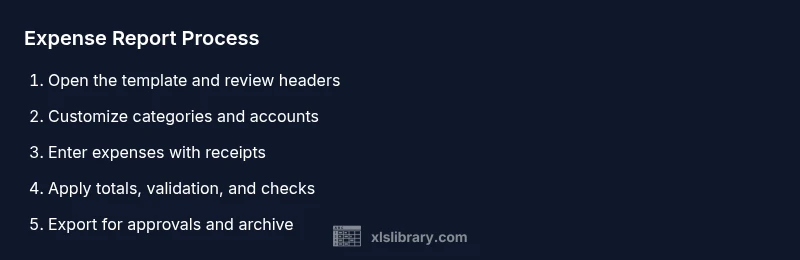
Open the template and review headers
Launch your expense report template and inspect the header fields. Confirm required metadata such as Employee, Department, Date Range, and Currency. If needed, adjust the header labels to match your organization’s terminology, ensuring consistency across reports.
Tip: Lock header rows to keep them visible during scrolling. - 2
Customize expense categories
Edit the category list to reflect your chart of accounts. Use drop-downs for category fields to minimize typos and ensure uniform reporting. Map each category to a general ledger account for straightforward posting.
Tip: Create a named range for categories to simplify future edits. - 3
Enter expenses and attach receipts
Record date, vendor, description, amount, and category for every expense. Attach a receipt reference or link per line item. Maintain a clean, chronological order to ease audits.
Tip: Date format: use YYYY-MM-DD to prevent mis-sorting. - 4
Apply formulas for totals
Use SUM to calculate grand totals and SUMIF/SUMIFS to subtotal by category. Add a separate reimbursement column and ensure totals align with source data.
Tip: Avoid hard-coding numbers; rely on formulas for consistency. - 5
Add validation and checks
Implement data-validation rules (dates, amounts, categories) and set conditional formatting to flag anomalies. Create an audit view to verify counts and totals before sharing.
Tip: Keep a running check that the number of line items matches receipts. - 6
Export and share for approval
Export the report to PDF for approvals or share the Excel workbook with appropriate permissions. Use versioned filenames and store in a shared, auditable location.
Tip: Save a baseline copy before sharing for traceability.
People Also Ask
What is an expense report Excel template?
An expense report template is a predefined layout in Excel that captures costs, categories, dates, vendors, and totals. It streamlines the reimbursement and accounting process by providing consistent fields and formulas.
An expense report template is a ready-made layout in Excel that captures costs and totals, helping reimbursements be faster and more consistent.
Why should I use a sample expense report in Excel?
A sample provides a proven structure, reducing setup time and common errors. It helps new users learn data entry, category mapping, and validation without starting from scratch.
A sample report gives you a proven structure and reduces setup time, so you can enter data correctly from the start.
Can I customize categories in the template?
Yes. You can tailor categories to your organization’s chart of accounts. Use drop-down lists to maintain consistency and simplify posting to the general ledger.
Absolutely. You can customize categories with drop-downs to keep entries consistent and easy to post.
How do I validate data in the expense report?
Implement data validation for dates, amounts, and categories, and use conditional formatting to flag anomalies. Regularly run audit checks to verify line counts and totals.
Use data validation and conditional formatting to catch errors, and run regular audit checks.
What export formats work best for approvals?
PDF is ideal for formal approvals, while keeping an editable Excel version supports post-approval edits. Ensure proper permissions and versioning in shared drives.
PDFs are great for approvals, while keeping the Excel file lets you edit later if needed.
Is it safe to store expense reports digitally?
Store reports in secure, access-controlled locations. Use encryption and routinely back up to a trusted cloud or on-premises repository with version history.
Store reports in secure locations with access controls and backups.
Watch Video
The Essentials
- Use a structured template to standardize expense data
- Customize categories to align with your chart of accounts
- Enter data consistently and attach receipts for validation
- Rely on formulas for accurate totals and audits
- Export with clear versioning for approvals