What If Excel Example: A Practical How-To for What-If Analysis in Excel
Learn how to perform what-if analysis in Excel with practical examples, from one- and two-variable data tables to Scenario Manager and Goal Seek. This comprehensive guide by XLS Library teaches you to test assumptions without altering your original data.


Looking for a what if excel example? This guide shows a practical workflow to perform what-if analysis in Excel, using simple data tables, scenarios, and Goal Seek. You’ll test revenue, costs, and other inputs without changing your original data, covering one-variable and two-variable tables plus Scenario Manager. By the end, you'll be able to build your own models quickly.
What is what-if analysis in Excel?
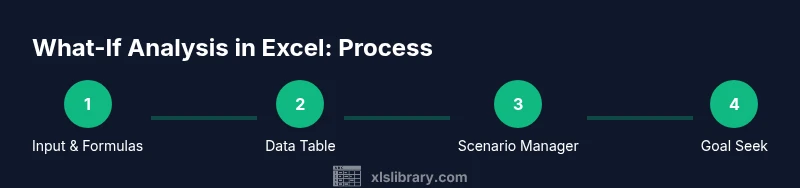
What-if analysis in Excel lets you test how changing inputs affects outcomes without altering your base data. It helps you explore best-case, worst-case, and most likely scenarios, quantify uncertainty, and support decision-making. According to XLS Library, mastering these techniques turns raw numbers into actionable insights. A common starting point is a simple what-if Excel example: you set up a formula and vary a single input to see how the result changes. The core tools are data tables, Scenario Manager, and Goal Seek. Data tables translate input variations into a grid of results, Scenario Manager lets you store multiple input combinations, and Goal Seek adjusts a value to hit a target. This section lays the conceptual groundwork before we dive into hands-on steps.
Why what-if analysis matters for decision making
In real-world planning, inputs such as demand, pricing, and variable costs are uncertain. What-if analysis helps stakeholders visualize how changes in these inputs ripple through the model. By exploring scenarios, you can identify thresholds, such as the price point needed for profitability or the minimum sales required to break even. The approach supports better communication with teammates and leaders, because decisions are grounded in transparent, repeatable tests instead of gut feeling. The XLS Library team emphasizes that building repeatable what-if models improves consistency across projects and teams.
One-variable data table: a practical what-if Excel example
A simple but powerful starting point is a one-variable data table. Suppose you forecast revenue as Price × Quantity. You can set Price as a single input and examine how Revenue changes as Quantity varies. Create a base formula (e.g., =A2*B2) where A2 is Price and B2 is Quantity, then use Data > What-If Analysis > Data Table, choosing the Quantity column as the Row input. The resulting grid shows Revenue across different quantities, helping you spot break-even points or optimal ranges without editing the original numbers.
Two-variable data table: expanding your what-if toolkit
When two inputs matter, a two-variable data table provides a compact view of outcomes. For example, you might vary Price and Cost per Unit to see impact on Profit. Arrange prices across the top row and costs down the left column, with a Profit formula in the intersecting cells. Use Data Table to fill the grid automatically. This method lets you quickly compare dozens of input combinations and understand sensitivities in a single view.
Scenario Manager: comparing multiple input combinations
Scenario Manager lets you define named sets of inputs and switch between them with a click. Create scenarios like Base Case, Best Case, and Worst Case by assigning values to cells that influence the model (e.g., price, demand, costs). After saving, you can switch scenarios to instantly view different outcomes. This is especially useful when you have several interdependent inputs and want to present clean comparisons to stakeholders.
Goal Seek: hitting a target outcome
Goal Seek automates the adjustment of a single input to reach a target result. For example, if you want Profit to hit a specific amount, set the target in the outcome cell and select the input cell to adjust. Excel then iterates to find a value that achieves the goal. Note that Goal Seek is best for simple, monotonic relationships and may require manual checks for robustness.
Best practices for robust what-if models
- Start with a clean, documented workbook: keep inputs separate from calculations and lock original data.
- Label every assumption clearly and store scenarios with meaningful names.
- Validate results with real data when possible and test edge cases.
- Use consistent units and formats to avoid misinterpretation.
- Save versions frequently to track changes and support rollbacks.
Common pitfalls to avoid
- Altering inputs in the wrong cells or overwriting original data.
- Relying on a single tool for all analyses; combine data tables with Scenario Manager and Goal Seek for flexibility.
- Not documenting assumptions, making it harder to audit or reuse models later.
- Overcomplicating the model by including too many inputs in a single data table. Simpler, focused models are easier to explain.
End-to-end example: building a compact what-if workbook
Start with a simple revenue model: Price, Quantity, and Revenue as =Price*Quantity. Add a one-variable data table for Quantity, then a two-variable grid for Price (columns) and Cost per Unit (rows) with Profit = Revenue − Costs. Create scenarios (Base, Optimistic, Pessimistic) and compare results. Finally, use Goal Seek to determine the price required to reach a target Revenue and validate against real data.
Putting it all together: next steps for Excel learners
Practice with your own datasets, document every assumption, and share your workbook with teammates for feedback. Challenge yourself with a slightly larger model, integrating charts to visualize scenarios. As you gain comfort, consider expanding with Solver for optimization problems and Power Query for data connectivity, which XLS Library users often explore to level up their skills.
Tools & Materials
- Excel (Microsoft 365 or Excel 2019+)(Ensure Data Table, Scenario Manager, and Goal Seek are available)
- Test dataset(Create a small workbook with inputs, formulas, and a results area)
- Computer with installed Excel(Prefer a device with keyboard and mouse for faster input)
- Backup copy(Save a version before running what-if experiments)
- Notes/documentation(Record assumptions and decisions for auditability)
- Optional: charts add-on(To visualize scenarios more clearly)
Steps
Estimated time: 60-90 minutes
- 1
Gather inputs and define the objective
Identify the decision variable and the outcome you want to influence (e.g., Revenue, Profit). Collect the assumed inputs in clearly labeled cells and separate them from calculations.
Tip: Write a one-sentence objective beside the inputs to keep focus. - 2
Create base calculations
Set up your core formulas referencing the inputs. Ensure the base case runs correctly before adding what-if components.
Tip: Double-check references to prevent cascading errors when you modify inputs. - 3
Add a one-variable data table
Choose a single input to vary (e.g., Quantity). Build a data table with the input values and link to the outcome cell via the Data Table feature.
Tip: Start with a small range (e.g., 10–100) to verify results quickly. - 4
Experiment with a two-variable data table
Expand to two inputs (e.g., Price and Cost). Create a grid with one axis for Price and the other for Cost, and place the outcome in the intersecting cells.
Tip: Limit the grid size to maintain readability in your worksheet. - 5
Set up Scenario Manager
Define named scenarios with different input values. Save and compare results to see how multiple inputs interact.
Tip: Give each scenario a descriptive name like 'Base', 'Upside', or 'Downside'. - 6
Apply Goal Seek for a target
Choose an outcome cell and set the target value. Let Excel adjust a single input to meet the goal, and verify the result.
Tip: Not all models converge; if so, try adjusting a different input or simplify the model. - 7
Validate and document
Compare results with historical data and document all assumptions, inputs, and calculations.
Tip: Include a short narrative in a separate sheet to aid future users. - 8
Share and iterate
Provide a review copy to teammates and collect feedback for refinements. Use version control and maintain a changelog.
Tip: Track changes to maintain model integrity across updates. - 9
Expand with visuals
Create charts (e.g., heatmaps, line charts) to illustrate how outcomes shift across scenarios.
Tip: Visuals help non-technical stakeholders grasp the analysis quickly.
People Also Ask
What is what-if analysis in Excel and why should I care?
What-if analysis explores how changing inputs affects outcomes in a model. It helps you test assumptions, identify sensitive inputs, and support decision making with transparent scenarios.
What-if analysis in Excel helps you test different assumptions so you can make smarter decisions with your data.
When should I use a data table vs Scenario Manager?
Use data tables for quick, grid-based views of how changing one or two inputs affects a result. Scenario Manager is better when you need to compare several named input combinations at once.
Choose a data table for quick input ranges or a Scenario Manager to compare several named scenarios.
Can I use Goal Seek for any type of model?
Goal Seek works best with simple, monotonic relationships where changing one input reliably moves the outcome toward the target. For complex models, consider Solver or a staged approach.
Goal Seek is great for simple cases; for complex models, use Solver or break the problem into parts.
Is what-if analysis possible in Excel Online or mobile apps?
Basic what-if features exist in Excel Online, but some advanced tools like Solver may be limited. Desktop Excel offers the fullest set of what-if capabilities.
You can do basic what-if analysis in Excel Online, but desktop Excel has more tools.
How do I document my assumptions for future review?
Keep a dedicated sheet listing each input, its source, and the rationale. Use version names and include a changelog with each model update.
Document inputs and reasons on a separate sheet, and use a changelog for updates.
What are common mistakes to avoid when building what-if models?
Overcomplicating the model, editing inputs in the wrong cells, and failing to validate results with real data are frequent issues. Start simple and build incrementally.
Avoid complexity, keep inputs separate, and validate with real data.
Watch Video
The Essentials
- Master one-variable and two-variable data tables
- Use Scenario Manager for multi-input comparisons
- Apply Goal Seek to hit specific targets
- Document assumptions for reproducibility
- Validate results with real data when possible