Where to Refresh in Excel: Practical Data Connections
Learn where to refresh in Excel, from the Data tab to Power Query and PivotTables. This practical XLS Library guide covers when to refresh, methods, automation, and common issues to keep dashboards current in 2026.


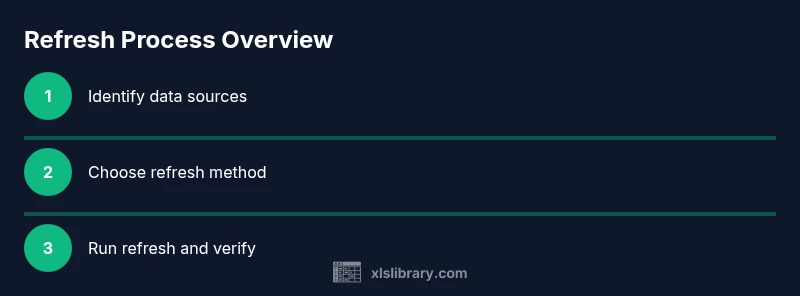
In Excel, you refresh data from the Data tab to update connections, queries, and PivotTables. Use Refresh All to update every linked source, or Refresh for a single connection, table, or PivotTable. For Power Query, open the Query Editor and click Refresh; you can also enable background refresh for smoother workflows.
Understanding when to refresh
In Excel, refreshing is not a one-time action; it’s a regular part of maintaining accurate workbooks. You refresh when sources change, when you open a workbook that pulls data from external systems, or when a report relies on a Data Model that aggregates multiple tables. Common triggers include updated sales data, revised inventory levels, and refreshed currency rates. By refreshing, you re-run queries, re-evaluate PivotTables, and re-sync any Power Query steps.
A well-structured refresh plan helps teams avoid stale numbers and inconsistent dashboards. Many users refresh manually only after noticing a discrepancy, which can lead to delays and missed insights. Set expectations up front: determine which sheets rely on external data, how often sources update, and which components should refresh automatically. If a workbook links to multiple sources, plan a single refresh action (like Refresh All) that updates everything in one go, reducing the risk of mismatches between tables and visuals.
Finally, consider data-source reliability. If a connection is offline or credentials have expired, refreshed data may not load. In these cases, a quick check of the connection status and authentication details can save hours of post-refresh debugging.
Refresh options in Excel
Excel provides a spectrum of refresh controls, from coarse-grained Refresh All to fine-grained per-connection refresh. At the top level, Refresh All re-runs every connection, query, and PivotTable that participates in the workbook. You can also refresh a single connection, table, or PivotTable by right-clicking its name in the sheet or using the Ribbon commands under the Data tab. If you work with the Data Model (Power Pivot), the refresh propagates through related tables to keep dependent calculations accurate.
Beyond the standard refresh, Excel offers background refresh for long-running queries, so you can continue working while results load. In workbooks with Power Query queries, you can choose to refresh either all queries at once or individual queries. For PivotTables, refreshing their cache is essential to reflect the latest source data. Connecting to external data sources (SQL Server, web services, Oracle, etc.) may require credentials, test connections, and sometimes gateway software. A well-planned refresh strategy reduces manual steps and avoids stale dashboards.
How to refresh using the Data tab
The Data tab is the central control hub for refreshing content in Excel. To refresh everything in the workbook, click Refresh All. This re-runs every connection and query, and updates PivotTables and the Data Model if present. If you want to refresh a specific item, select it first (or place the cursor inside the table or PivotTable) and choose Refresh. Keyboard fans can press Ctrl+Alt+F5 (Refresh All) or simply press F9 for calculation-level refresh in some contexts.
If your workbook uses Power Query, open the Query Editor via Data > Queries & Connections, select a query, and click Refresh. You can also enable Background refresh for Power Query so that you can continue editing other parts of the workbook while the query runs. Note that some sources require credentials each time you refresh; keep credentials up to date in the Connections properties.
Refresh Power Query and data connections
Power Query is Excel’s data transformation engine. Refreshing Power Query updates the source data and re-applies transformation steps. In the editor, click the Refresh Preview button to see the impact of changes before loading, or click Refresh to execute all steps against the source. For connected data sources, you can schedule background refresh or set a refresh interval in the Connection Properties dialog.
If a query depends on multiple sources, refreshing one query may cascade updates to dependent queries. Organize queries into meaningful groups and document dependencies so that refreshing remains predictable. Knowing when and how to refresh avoids partial updates that produce inconsistent results in charts and dashboards.
Refresh PivotTables and the Data Model
PivotTables cache data locally; when underlying data changes, you must refresh to reflect new values. To refresh a single PivotTable, click within it and choose PivotTable Analyze > Refresh. For multiple PivotTables, use Refresh All to update all caches in one pass. If your workbook uses the Data Model (Power Pivot), refreshing the model propagates through related tables and calculated fields.
Be mindful of calculated fields and measures; some formulas may rely on the most recent data to return correct results. If your model becomes large, consider staged refresh: refresh only the portions you’re actively analyzing to save time during business reviews.
Automating refresh with connection properties
For external data connections, you can configure automatic refresh settings. In the Connections dialog, select a connection and choose Properties. From there, you can set:
- Refresh every N minutes
- Refresh data when opening the file
- Background refresh (recommended for large datasets)
Additionally, you can specify a notification if refresh failures occur. This automation helps keep dashboards up to date with minimal manual effort. Remember to test automatic refresh after changing credentials or data sources to ensure continuous operation.
Troubleshooting refresh issues
Refresh problems often stem from credential changes, offline data sources, or network restrictions. Start by testing the connection: Data > Queries & Connections > right-click the connection > Properties > Test Connection. Check that the correct credentials are stored and that firewall rules permit access to the data source.
If a refresh fails, review error messages carefully—some indicate a specific row in a query or a blocked data source. In Power Query, use the Error pane to identify problematic steps, and consider reordering steps to isolate the faulty transformation. For PivotTables, ensure the source table is updated and that there are no data-type conflicts that break the cache. When in doubt, run a full Refresh All in a new, clean copy of the workbook to verify whether the issue is workbook-specific.
Best practices for reliable refresh
A robust refresh strategy combines planning, testing, and documentation. Schedule regular refresh times based on how often your data sources update, and always verify results after refreshing. Keep credentials current and restrict access to sensitive data by using proper connection authentication. As part of ongoing quality control, maintain a small test workbook to validate refresh outcomes before publishing to shared dashboards. Adopting a standardized refresh workflow reduces surprises during reporting cycles.
Common mistakes and quick fixes
- Refreshing without validating results can propagate errors; always spot-check critical measures after a refresh.
- Refreshing PivotTables without updating the underlying source tables may show stale numbers.
- Relying on automatic refresh for unstable connections can create interruptions; ensure backup data or offline mode is available.
- Forgetting to save credentials after updating passwords leads to repeated failures; re-authenticate and test.
- Neglecting to document dependencies can make future refreshes brittle; keep a simple dependency map and a changelog. The remaining steps will help you avoid these common pitfalls and keep your Excel refresh workflow robust.
Tools & Materials
- Computer or laptop with Excel installed (Office 365 / Excel 2021+)(Ensure Power Query and data connections are included in your Office plan)
- Active data sources (SQL Server, SharePoint, OData, web API)(Have credentials ready and network access)
- Power Query Editor access(Power Query features may require enabling in Excel)
- Knowledge of workbook names and connections(Helpful for large projects)
- Backup copy of workbook(Keep a baseline to compare results after refresh)
Steps
Estimated time: 15-25 minutes
- 1
Identify refresh targets
Open the workbook and map which sheets, tables, PivotTables, and data connections rely on external sources. Document dependencies to guide your refresh plan.
Tip: Create a simple dependency map before starting to refresh. - 2
Open the Data tab and choose a refresh action
Decide whether to Refresh All for a full update or refresh a single item if you know the source has not changed. Use the Data tab to access both options.
Tip: If unsure, start with Refresh All to ensure consistency. - 3
Refresh Power Query queries
Open the Power Query Editor or use Data > Queries & Connections to refresh specific queries. Assess the Preview and then load results.
Tip: Consider enabling Background refresh for long-running queries. - 4
Refresh PivotTables and Data Model
Refresh the PivotCaches or the entire Data Model as needed to propagate changes to visuals and measures.
Tip: If you have many PivotTables, start with a single target to verify behavior. - 5
Configure automatic refresh
Set Refresh every N minutes and/or Refresh on open in the connection Properties. Opt for Background refresh if available.
Tip: Test automatic refresh after credential changes. - 6
Validate results and revert if needed
Compare refreshed outputs to your baseline, check key metrics, and revert to the backup if discrepancies appear.
Tip: Keep a small test workbook for quick validation.
People Also Ask
Where should I refresh in Excel for most reliability?
Refresh All updates every connection and PivotTable; refresh individual items when you know a specific source changed.
Refresh All updates everything at once; refresh individual items when you know a specific source changed.
How can I refresh data automatically when opening a workbook?
Set connection properties to Refresh data when opening the file. This keeps dashboards up to date without manual clicks.
Set the data to refresh automatically when you open the file.
What’s the difference between Power Query refresh and workbook refresh?
Power Query refresh updates data transformations; a workbook refresh updates all connections in the file.
Power Query refresh updates the queries; workbook refresh updates everything.
Why is my refresh failing?
Check credentials, data-source accessibility, and error messages. Test connections to isolate issues.
Make sure credentials are current and the data source is reachable.
How often should I refresh dashboards?
Match the refresh cadence to how often your data updates and business needs. Avoid unnecessary refreshes.
Refresh as often as the data changes, not more.
Can I refresh PivotTables without refreshing the underlying data?
No. PivotTables rely on the underlying data; refresh the data first to update the PivotTable.
PivotTables need the underlying data refreshed to show new results.
Watch Video
The Essentials
- Know where to refresh: Data tab, Power Query, and PivotTables.
- Use Refresh All for complete workbook updates.
- Automate where possible, then test results.
- Check credentials and data-source accessibility before refreshing.
- Document dependencies to support reliable, repeatable workflows.