Excel Query vs Connection: A Practical Comparison for Power Query and Data Connections
A comprehensive, objective comparison of Excel queries and data connections, showing when to use Power Query for shaping data and when to rely on live connections for refreshable dashboards. Practical guidance from XLS Library.


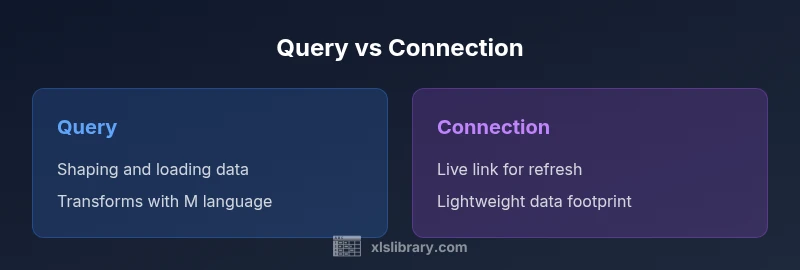
In Excel, a query (Power Query) fetches, shapes, and loads data through a repeatable ETL process, while a connection preserves a live link to the source for refreshing without loading data. Use a query when you need transformations, enrichment, or clean data sets; use a connection when the goal is to keep dashboards current with source data while minimizing loaded footprint. A thoughtful blend—query-driven shaping feeding an organized data model via connections—often yields robust, refreshable workbooks.
What Excel Query vs Connection Really Means
The phrase excel query vs connection often surfaces when discussing data workflows in Excel. At a high level, a query typically refers to a Power Query transformation pipeline that retrieves data, applies steps like filtering, merging, and enriching, and then loads the result into Excel (or the data model). A data connection, by contrast, is a linking mechanism that keeps a live tie to a source (database, file, or online service) so that refreshing fetches new data without necessarily reloading every row into a worksheet. The distinction matters because it shapes how you build, maintain, and refresh your reports. A well-chosen balance can reduce workbook size, accelerate refreshes, and improve data integrity, especially in collaboration settings where multiple users rely on up-to-date numbers. In short, excel query vs connection represents two complementary approaches to getting, shaping, and presenting data.
Core Definitions: Query vs Connection in Excel
A query is the set of steps defined in Power Query (M language) that describes how to obtain and transform data. It can source data from multiple origins, apply transformations, and then load the resulting table into a worksheet, a data model, or both. A connection is the metadata that tells Excel how to reach a data source and how to refresh that data. Connections can be configured to load or not load data directly, and they can be used standalone or as background feeds for reports and dashboards. Understanding the difference helps you design better workflows, avoid unnecessary data duplication, and streamline refresh operations.
When to Use a Power Query Query
Choose a Power Query query when your task involves data shaping. This includes cleaning messy data, merging multiple sources, performing calculated columns, filtering to relevant records, and enriching data with additional fields. Queries are ideal when the data you need does not map cleanly to a single source or when you want repeatable, auditable steps that you can reuse across multiple reports. In practice, a well-constructed query acts as a data prep pipeline that produces a clean dataset for downstream use in a data model or table.
When to Use a Data Connection
A data connection is your friend when the goal is to keep a live or near-real-time link to the source, with minimal data movement. Connections are lightweight and ideal for dashboards and reports that rely on current data but do not require local transformation. If you want to refresh a workbook without loading new data into memory, or if you are building pivot tables and dashboards that should reflect source changes quickly, a connection is often the right choice. You can pair connections with queries to strike a balance between freshness and performance.
How They Interact in Real-World Workflows
Real-world analytics often blends queries and connections. A typical pattern is to use Power Query to fetch and shape data from multiple sources, then load the curated dataset into the Excel data model. From there, you can maintain connections to source systems for refreshing the underlying data while leaving the transformed results intact in your model. This hybrid approach reduces repetitive transformations, minimizes workbook size, and preserves data lineage. In addition, scheduled refreshes can be set up in environments like Power BI or Excel workbooks opened by teams to ensure everyone sees consistent results.
Performance and Refresh Considerations
Performance hinges on three factors: data volume, transformation complexity, and refresh frequency. Queries that perform heavy transformations or join large tables can slow down the initial load, especially in constrained environments. However, once loaded, a well-structured query pipeline can maintain fast subsequent refreshes if incremental loading is enabled. Data connections are typically lighter on workbook memory, but excessive live refreshes from slow sources may bottleneck dashboards. The optimal approach often uses a lean connection for refresh and a batched Power Query pipeline for shaping, with careful attention to incremental refresh where possible.
Transformations, M Language, and Load Options
Power Query uses the M language to describe transformations. This gives you expressive capabilities for filtering, merging, grouping, adding calculated columns, and more. The loaded data can go to a worksheet or into the data model, enabling powerful analytics with PivotTables or Power Pivot. Connections, on the other hand, describe how to reach a source and how to refresh, without prescribing a specific data shape. You can convert a connection into a query later, or load the results of a query into a connection-only load for later use. This flexibility allows you to adapt as requirements evolve.
Practical Step-by-Step Scenarios: Scenario A and Scenario B
Scenario A: You have an external CSV feed and a separate SQL table that must be cleaned and joined. Create a Power Query query to import both data sources, perform merges, clean the data, and load the final table into the data model. Scenario B: You need a dashboard that shows up-to-date figures every hour. Create a data connection to the SQL source, refresh the dataset, and rely on the live data for the visuals while keeping current data as the source of truth. In both cases, you can link the refreshed data to charts and pivot tables for reporting.
Best Practices for Hybrid Workflows
- Prefer queries for data prep and modeling; use connections to maintain refresh links.
- Keep transformations contained within Power Query when possible to enable reusability.
- Use the data model for centralized analytics and consistent reporting across sheets.
- Document each step in your query and every connection you configure for auditability.
- Test refresh scenarios locally and in production-like environments to catch issues early.
Troubleshooting Common Issues
Common issues include broken source paths after file moves, authentication prompts, and mismatched data types after refreshes. Use step-by-step diagnostics in Power Query to trace transformations, verify source credentials, and ensure that data types align across merged tables. If a refresh fails, check the data source availability, network access, and whether the Excel workbook has appropriate permissions. Regularly review dependencies to prevent cascading refresh failures.
How to Audit and Manage Data Sources in Excel
Auditing data sources involves tracking the origin of data, the sequence of transformations, and the refresh schedule. Maintain a registry of each query and connection, including source type, refresh frequency, and load behavior. Use the Power Query Editor to inspect applied steps and confirm that the data model aligns with reporting requirements. Regular reviews help prevent drift between the source data and the reports that rely on it.
Do We Need Both? A Unified Workflow
A unified workflow often combines both approaches: use Power Query to shape data into a clean, consistent dataset, then utilize connections to keep the data refreshed in the workbook or data model. This approach delivers robust data integrity with responsive dashboards and scalable maintenance. As your data landscape evolves, you can adjust where to place transformations and how to refresh data, without refactoring the entire workflow.
Comparison
| Feature | Query (Power Query) | Connection (Data Connection) |
|---|---|---|
| Primary purpose | Transform, shape, and load data via M language | Maintain a live link to the source for refresh |
| Data shaping | Yes, via transformations (clean, merge, enrich) | No inherent shaping; depends on the linked data structure |
| Refresh behavior | Refreshes loaded data according to query results | Refreshes the linked source; can be load-on-demand or immediate |
| Load options | Load to worksheet, data model, or both | Typically not loaded; supports refresh without full load |
| Source types | Databases, files, web sources, many data sources | Similar sources accessed via a link; emphasis on connectivity |
| Performance impact | Depends on transformation complexity and data volume | Depends on source performance and refresh frequency |
| Best for | Complex shaping, data prep, and modeling | Dashboards and reports needing current data with lighter loads |
Benefits
- Queries centralize data shaping in a repeatable process
- Connections enable lightweight refresh links without loading data
- Hybrid workflows offer both data integrity and performance
- Power Query stores steps in an auditable M script
What's Bad
- Overuse of queries can complicate simple data loads
- Connections without transformations may require manual maintenance
- Refreshing many interdependent connections can slow dashboards
Adopt a hybrid approach: shape data with Power Query and maintain refreshable links with connections.
Power Query excels at data preparation, while connections keep dashboards current with minimal data movement. The strongest workflows combine both to balance transformation needs and refresh performance.
People Also Ask
What is the difference between a query and a connection in Excel?
A query (Power Query) defines data transformations and loads the result, while a connection defines how to reach a data source and refresh it without necessarily loading data. The two work together to deliver both clean data and current sources.
A query shapes and loads data; a connection links to the source and refreshes data. They work best when used together for clean, up-to-date reports.
When should I use a query vs a connection?
Use a query when you need to shape, clean, or merge data from multiple sources. Use a connection when the goal is to keep a live link to the source for refreshing dashboards with minimal data movement.
Use queries for data prep and connections for live data refreshing. Combine them for robust workflows.
Can I convert a connection to a query or vice versa?
Yes. You can create a query to load transformed results and maintain a connection to the source. Excel allows converting or reconfiguring data sources as needs evolve.
You can convert between connections and queries as requirements change, enabling flexible workflows.
Do queries slow down dashboards?
If queries perform heavy transformations on large datasets, initial loads can be slower. Properly designed queries with incremental loads and efficient data modeling help maintain responsiveness.
Heavy transformations can impact speed, but good design keeps dashboards snappy.
How do I refresh queries and connections in a workbook?
Refresh options are available per query and per connection. Use non-destructive refresh settings, verify credentials, and consider incremental refresh where supported to minimize load times.
Refresh per item, check credentials, and use incremental options when possible.
Are there licensing considerations for Power Query and connections?
Power Query is included in modern Excel versions; advanced data modeling features may depend on your edition. Ensure your environment supports scheduled or background refresh if needed.
Power Query is built-in in recent Excel versions; advanced features may depend on your edition.
The Essentials
- Prioritize data shaping with queries for repeatable pipelines
- Use connections to preserve live source links for refreshing
- Combine both for scalable, refreshable Excel workbooks
- Document steps and maintain data lineage for auditability
- Test refresh scenarios to prevent downstream issues