Excel Macros Pros and Cons: A Practical Comparison
Explore the excel macros pros and cons with a practical, analytical comparison. Learn governance, security, performance, and best practices to decide when macros fit your workflow.


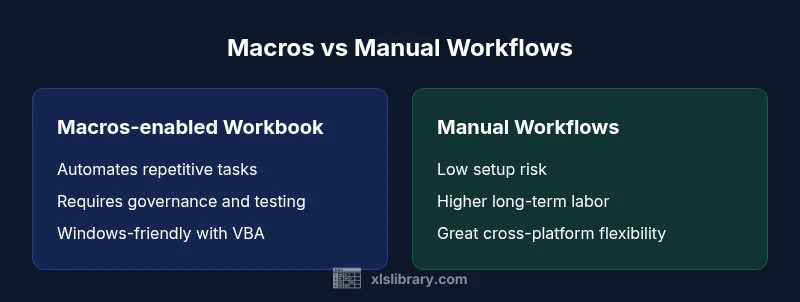
Here’s a quick take on the excel macros pros and cons: macros can automate repetitive tasks quickly, but raise governance and security questions. Setup, compatibility, and maintenance matter—especially across Excel versions. The XLS Library team notes that proper controls and documentation unlock reliable gains. This snapshot helps teams decide whether macros belong in their daily workflows.
Why Excel Macros Matter in Business Processes
According to XLS Library, macros have become a standard tool for automating repetitive data tasks inside Excel. A macro records or writes VBA code to perform sequences of actions, from formatting to data consolidation. For many teams, macros offer immediate productivity wins by eliminating manual clicks and reducing human error. At the same time, they introduce governance considerations: who can run them, how they are tested, and where the resulting workbooks are stored. This section explains when macros add value, and when they might complicate maintenance or compliance. It also clarifies the difference between recorded macros and custom VBA routines, and why that distinction matters for scalability.
The Core Trade-offs: Speed vs Control
The most fundamental trade-off with Excel macros is speed versus control. When used well, macros accelerate repetitive tasks far beyond manual execution, delivering consistent results across large datasets. However, this speed comes with a price: a higher burden of governance, testing, and documentation. Without clear ownership and auditing, macro-driven processes can propagate errors or become difficult to modify after initial deployment. The phrase excel macros pros and cons captures this dynamic: you gain throughput and repeatability, but you risk hidden bugs and drift if changes aren’t tracked. For teams adopting macros, balancing automation with control is essential.
Setup and Learning Curve
Two common pathways exist for getting value from macros. The first is recording macros via the built-in macro recorder, which is approachable for beginners but can produce inefficient or fragile code. The second is writing VBA procedures or Office Scripts for Excel on Windows or the web, which offers greater flexibility but requires programming skills and debugging discipline. The learning curve varies with the complexity of tasks: simple formatting and data entry rules can be mastered in days, while robust data pipelines demand weeks or months of practice. Across both paths, reusability and modular design pay dividends when you scale automation.
Governance and Security Considerations
Macro security is a central concern. Organizations often restrict running macros from unknown sources and require trusted locations or digitally signed code. Users must understand macro-enabled files (*.xlsm) and potential risks, including macro viruses and unintended automation. Clear policies on distribution, source control, and testing help reduce risk. The XLS Library analysis highlights that governance planning—ownership, review cycles, and change management—helps teams avoid security gaps while preserving automation benefits. Security considerations should guide both development and deployment choices for macro-based solutions.
Compatibility and Versioning
Excel’s macro support varies by platform and version. Windows Excel has the most mature VBA environment, while Mac versions can lag in feature parity and performance. Office 365 updates may alter object models, causing scripts to break without maintenance. Cross-version compatibility becomes a concern when macro libraries are shared across teams or when files move between desktop and online environments. Planning for compatibility—testing on target platforms and documenting version requirements—reduces breakage and ensures predictable results across the organization.
Maintenance and Debugging
Macros require ongoing maintenance, especially as business rules change. Debugging can be challenging, because a single macro might interact with many worksheets, workbooks, and data sources. Inline comments, modular design, and version control help track changes and facilitate collaboration. Establishing a bug-tracking workflow for macro issues, plus a sandbox area for testing, minimizes production incidents. The XLS Library guidance emphasizes documentation as a cornerstone of maintainability, enabling analysts to update logic with less risk.
Performance and Scalability
Performance scales with how well you structure code and data access. Simple loops over moderate datasets perform well, but large-scale automation demands efficient data handling—avoiding repeated reads from sheets, minimizing screen updates, and using arrays for bulk operations. Poorly written macros can become bottlenecks, especially when combined with volatile formulas or volatile data sources. When macros are designed with performance in mind, teams see meaningful throughput gains, making macro-enhanced workflows viable for recurring reporting and data cleansing tasks.
Use Cases: When Macros Shine
- Repetitive formatting and cleanup across large worksheets
- Automated data consolidation from multiple sources into a standardized layout
- Regular report generation with scheduled refreshes
- Rule-based data validation and transformation pipelines
- Workflow automation that interacts with other Office apps via VBA
- Custom user interfaces (forms) for data entry
These scenarios illustrate where macros offer tangible ROI, while reminding readers to pair automation with governance and testing to sustain reliability.
Alternatives to Macros
For teams seeking portability and lower risk, alternatives can provide safer automation routes. Power Query handles data extraction and transformation without VBA, especially for structured data pipelines. Office Scripts (for Excel on the web) offers a JavaScript-based approach that integrates with cloud automation tools like Power Automate. Depending on the environment—desktop, web, or mixed-OS—these options may reduce security concerns and cross-platform breakage while still delivering significant productivity gains.
Best Practices for Safe and Effective Macro Use
- Document every macro with purpose, inputs, outputs, and risks
- Use modular, reusable code blocks and meaningful function names
- Implement error handling and logging to capture failures
- Sign macros and use trusted locations to reduce security friction
- Maintain versioned macro libraries and perform regular audits
- Test thoroughly in a staging workbook before production use
Getting Started: A Step-by-Step Roadmap
- Define a small, high-value automation task and sketch its steps.
- Choose the path: macro recorder for quick wins or VBA/Office Script for robust logic.
- Build a modular macro, with clear input/output definitions.
- Create a testing workbook that simulates real data and edge cases.
- Establish governance: ownership, review cadence, and change-control for updates.
Real-World Scenarios: Case Studies (Hypothetical)
Case A: A finance team standardizes monthly reconciliations by recording a macro that imports data, applies formatting, and generates a summary dashboard. The macro reduces manual steps by 60-70% and frees analysts to focus on analysis. Case B: A marketing team automates data collection from multiple sources, but encounters drift when a data source changes schema. They transition to a more modular VBA approach with validation steps to prevent future breakage.
Pitfalls to Avoid
- Relying on a single, monolithic macro without error handling
- Failing to document inputs, outputs, and edge cases
- Distributing macros without testing in target environments
- Overlooking cross-platform compatibility when shared among Windows and Mac users
- Underestimating the maintenance burden of evolving business rules
Implementation Roadmap for Teams
Start small with a pilot project, establish governance policies, and gradually scale automation across departments. Create a centralized macro library with version control, implement signing and trusted locations, and train a small cohort of power users who can mentor others. Regular reviews ensure automation remains aligned with evolving data sources and compliance requirements.
Comparison
| Feature | Macros-enabled workbook | Manual workflows |
|---|---|---|
| Setup Time | Medium | Low |
| Automation Speed | Fast after setup | Moderate |
| Maintenance Burden | Medium-High | Low |
| Security Risk | Higher (macro viruses) | Lower |
| Cross-Version Compatibility | Better with consistent VBA modules | Less consistent across versions |
| Best For | Repetitive, rule-based tasks | Ad-hoc tasks or highly variable tasks |
Benefits
- Macros can save significant time on repetitive tasks
- They enable consistent data processing and formatting
- With proper governance, macros improve repeatability and auditability
- VBA/Office Script support allows deep customization
What's Bad
- Macro security and trust issues can hamper adoption
- Maintenance and debugging can be complex
- Macros may lock you into VBA and Windows-only features
- Sharing macros requires careful version control and documentation
Macros are powerful for automation but require governance and careful maintenance
Use macros when you need reliable, repeatable automation and can invest in governance. If portability and low maintenance are prioritized, consider alternatives like Power Query or Office Scripts.
People Also Ask
What are Excel macros?
Excel macros automate sequences of actions in Excel, either by recording user steps or by running VBA code. They help standardize repetitive tasks and can be extended with custom logic. Understanding the basics helps you decide when to use them.
Excel macros automate steps you repeat in Excel, either by recording or coding them. They save time but need care with testing and security.
Why use macros in Excel?
Macros improve consistency, speed up reporting, and reduce manual errors for repetitive processes. They are especially effective for standardized tasks that recur across multiple files or teams.
Macros save time by automating repeated tasks and keeping outputs consistent.
What are the main risks of macros?
Macros can introduce security risks if sourced from untrusted files. They also require governance to prevent outdated logic, debugging challenges, and maintenance overhead.
Security and maintenance are the main risks with macros; proper controls help mitigate them.
Are macros cross-platform?
Macro support is strongest on Windows with VBA. On Mac and the web, features vary, so cross-platform work requires extra testing and potentially different tooling.
Cross-platform macro behavior can vary; test on target platforms before deployment.
What alternatives exist to macros?
Alternatives include Power Query for data shaping, Office Scripts for web-based Excel, and Power Automate for cloud workflows. These options can reduce security concerns and improve portability.
If you need portable automation, consider Power Query, Office Scripts, or Power Automate.
The Essentials
- Automate high-volume, repetitive tasks to save time
- Prioritize governance to manage security and changes
- Choose between macro recorder and VBA for scalability
- Test thoroughly in a staging environment before deployment
- Consider alternatives when cross-platform compatibility is a priority