Pivot Table on Excel: A Practical Step-by-Step Guide
Learn how to build, customize, and analyze pivot tables in Excel. This practical XLS Library guide covers data prep, field layout, advanced calculations, and troubleshooting for real-world datasets.


A pivot table on Excel lets you summarize large data sets by dynamically reorganizing rows and columns to show sums, counts, averages, and other aggregations. It helps you slice data by category, filter results, and explore patterns without altering the source data. This guide walks you through creating, customizing, and analyzing pivot tables for practical decision-making.
What is a Pivot Table and Why It Matters
Pivot tables are Excel's fastest way to extract meaning from messy data. They let you collapse, sort, and summarize thousands of rows into a compact, readable view. Instead of writing formulas for every category, you drag fields into a grid and Excel computes the results for you. According to XLS Library, pivot tables turn raw numbers into actionable summaries with just a few clicks. The XLS Library team found that while many analysts know how to create a basic table, they often miss advanced layouts that reveal hidden trends. A well-constructed pivot table can show seasonality in sales, identify top customers, or flag inventory anomalies without changing the underlying data. Beyond sums and counts, you can apply different aggregations, group data, and create multi-level hierarchies that support executive dashboards. In practice, pivot tables save hours of manual analysis and enable faster decision-making across finance, operations, marketing, and customer support. If your data exists as rows and columns, a pivot table is your best shortcut to clarity.
Preparing Your Data for Pivot Tables
Clean, well-structured data is the foundation of a reliable pivot table. Start with a flat table: one header row, no blank rows inside the data, and every column containing a single data type. Ensure you have unique, descriptive column headers; avoid merged cells in the data range; pivot tables can't reliably summarize data split into inconsistent formats. If you have dates, convert them to proper Excel date values; if you have text that looks numeric, keep it as text for correct grouping. Put your data into an Excel table (Insert > Table) to enable dynamic ranges that grow as you add records. Before you create a pivot table, remove unnecessary columns and create a dedicated data sheet separate from calculations or charts. Finally, decide what you want to analyze: totals by product, regional sales, time periods, or customer segments. According to XLS Library, taking a few minutes to structure data correctly pays dividends when you drop fields into Rows, Columns, and Values later.
Creating Your First Pivot Table
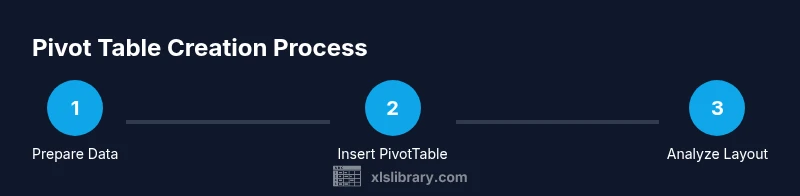
Creating a pivot table is a guided, repeatable process. Start by selecting any cell within your data, then go to Insert > PivotTable. In the Create PivotTable dialog, confirm the data range and choose whether to place the pivot table in a new worksheet or the existing one. The PivotTable Fields pane appears, showing your column headers as field names. Drag regions or categories into Rows, drag time or product into Columns, and place a numeric field into Values to see a Sum by your chosen axes. Excel immediately generates the table and a blank layout ready for refinement. As you manipulate fields, remember to check subtotals and grand totals, which you can toggle from the PivotTable Analyze tab. Finally, test the results by altering a few source data points and using Refresh to ensure the table stays current.
Pivot Table Field Layout: Rows, Columns, Values, Filters
The real power of pivot tables comes from how you arrange Fields in four areas: Rows, Columns, Values, and Filters. Rows define the horizontal groups (for example, Regions or Customers). Columns create vertical groups (like Years or Products). Values perform calculations (Sum of Sales, Average Discount, etc.). Filters let you include or exclude data on the fly (Region = West, Product = X). A practical starting point is Region in Rows, Product Category in Columns, and Total Sales in Values as Sum. You can then add a regional filter to slice the entire table. As you experiment, you’ll discover multi-level hierarchies (Year > Quarter > Month) that reveal seasonal patterns. Remember to adjust number formatting and to set a sensible default for missing values so your pivot table remains readable.
Calculations Beyond Sum: Averages, Counts, Distinct, and Calculated Fields
Pivot tables support more than just Sum. Use Count to tally records, Average to reveal typical values, and Max/Min to locate extremes. For data that requires distinct counting, enable Distinct Count when using the Data Model (available in newer Excel versions). Calculated Fields let you define custom formulas inside the pivot context, such as Profit = Revenue − Cost, computed on the fly. When you add calculated fields, ensure your formula references are correct and that the field names match exactly. If you need more advanced metrics, consider creating a data model with Power Pivot to join multiple tables and derive complex KPIs. The goal is to translate raw figures into meaningful, interpretable numbers you can share with stakeholders.
Slicers, Timelines, and Pivot Charts
Slicers offer a visual, clickable way to filter pivot tables, while Timelines provide date-based filtering with an intuitive interface. Add a PivotChart to accompany the table for a graphical view of trends and comparisons. When you combine slicers with charts, you create interactive dashboards that stakeholders can explore without touching the underlying data. For best results, align slicer choices with the primary decision questions: who, what, when, and where. Keep slicers narrow and relevant to avoid clutter, and use consistent colors and headers so audiences understand the chart language at a glance.
Real-World Scenarios: Sales, Inventory, and Survey Analysis
In sales, pivot tables quickly reveal which products drive revenue across regions and seasons. In inventory, you can monitor stock levels, turnover rates, and supplier performance. In survey data, pivot tables help summarize responses by demographics, track response rates over time, and identify patterns in open-ended comments when linked with secondary data. According to XLS Library analysis, practitioners who structure data carefully and complement pivot tables with slicers report faster insights and fewer misinterpretations. Practice with a dataset that mirrors your daily work, then gradually add complexity as you gain confidence. The goal is to build reusable templates you can reuse across projects.
Common Pitfalls and Best Practices
Pivot tables are powerful, but several pitfalls can derail your analysis. Blended data types, merged cells, and inconsistent headers produce unreliable results. Always refresh after data changes and avoid changing the source data while the pivot is in use. Name your worksheets clearly, and save a copy of the workbook before experimenting with new layouts. Use the Data Model for complex joins and multiple tables, and keep a separate sheet for derived metrics. Finally, document your pivot table design: the fields used, the logic of calculated fields, and the intended filter criteria, so teammates can reproduce or adjust your work.
Tools & Materials
- Microsoft Excel (Windows or macOS)(Excel 2010+; PivotTable feature must be available)
- Data set in Excel or CSV(Header row; no merged cells; clean column types)
- Backup copy of data(Always keep a safe copy before experimentation)
- A version-controlled workbook(Helpful for tracking changes to pivot designs)
- Optional: Slicer and Timeline accessories(To add interactive filters to your pivot view)
Steps
Estimated time: 60-90 minutes
- 1
Prepare your data
Ensure your dataset is in a flat table with one header row, no blank rows inside, and consistent data types. If needed, convert the range to an Excel table (Insert > Table) to enable dynamic ranges.
Tip: Fix headers first; clean up any inconsistent dates or numbers. - 2
Insert the PivotTable
Select a cell inside your data, then go to Insert > PivotTable and choose where to place it (new worksheet is typical).
Tip: Placing the pivot on a new sheet keeps your data and analysis separate. - 3
Configure the data range
Confirm the data range in the Create PivotTable dialog to ensure all records are included; enable 'Add this data to the Data Model' if you plan advanced calculations.
Tip: Use a named range for easier future updates. - 4
Add Rows
Drag a field (e.g., Region or Customer) to Rows to create horizontal groups; this defines how data is segmented.
Tip: Start simple; additional hierarchies (Region > City) can be added later. - 5
Add Columns
Drag a field (e.g., Year or Product Category) to Columns to create vertical groupings that interact with Rows.
Tip: Avoid too many columns; keep the layout readable. - 6
Add Values
Drag a numeric field (e.g., Sales) to Values and choose Sum as the default aggregation; you can switch to Count or Average as needed.
Tip: Use the Value Field Settings to adjust number formatting. - 7
Apply Filters
Drop a field into Filters to allow slicing the entire pivot by criteria such as Region or Product.
Tip: Include only the filters you will regularly compare. - 8
Format numbers
Format cells to currency or thousands separators to improve readability; adjust decimals as appropriate.
Tip: Consistency in formatting reduces cognitive load for readers. - 9
Add a slicer
Insert > Slicer to add a visual filter; connect it to the pivot table for quick, interactive filtering.
Tip: Label slicers clearly and align their style with the report theme. - 10
Add a PivotChart
Create a chart that reflects your pivot table, providing a visual complement for stakeholders.
Tip: Keep charts focused on a single insight per view. - 11
Refresh and maintain
When source data changes, refresh the pivot and verify results; if you use the Data Model, relationships propagate automatically.
Tip: Consider enabling background refresh for large datasets. - 12
Save templates
Save your layout as a template to reuse with new data; document assumptions and field choices for teammates.
Tip: Create a naming convention so templates are easy to locate.
People Also Ask
What is a pivot table in Excel?
A pivot table summarizes data by organizing it into rows and columns and performing aggregations such as sums and counts. It makes large datasets easier to analyze without writing formulas for every detail.
A pivot table in Excel sorts and summarizes data quickly, turning large datasets into clear totals and counts.
Can I analyze multiple data sources with a single pivot table?
Yes, by using the Data Model you can relate multiple tables and perform combined analyses within a single pivot table. This requires more setup but enables richer insights.
You can combine data sources using the Data Model to analyze them together in one pivot table.
How do I refresh a pivot table after updating the source data?
Click anywhere in the pivot table, then choose Refresh from the PivotTable Analyze tab. If you use a data model, refresh will propagate to related tables automatically.
Just click Refresh in the PivotTable Analyze tab to update results.
What is a calculated field and when should I use it?
A calculated field adds a custom formula inside the pivot table (e.g., Profit = Revenue − Cost). Use it to derive metrics not present in the source data.
A calculated field lets you create new metrics inside the pivot, like Profit.
Is a pivot chart necessary for every pivot table?
No, pivot charts are optional but helpful for visual storytelling. Use them when trends are central to your message and you need quick comparisons.
A pivot chart is optional; use it if you want a visual summary of trends.
How large can a pivot table be before performance suffers?
Performance depends on data size and hardware. Generally, work with clean data, consider filtering, and use the Data Model for very large datasets.
It depends on your hardware and data size; keep data manageable and use the Data Model for bigger jobs.
Watch Video
The Essentials
- Create a pivot table from clean data
- Organize Rows, Columns, and Values for clarity
- Use slicers to enable interactive filtering
- Refresh data after updates to preserve accuracy
- Save templates to reuse successful layouts