Pivot Tables Tutorial Excel: Master Pivot Tables
Master pivot tables in Excel with practical steps, from data prep to advanced analysis. This XLS Library guide covers field layout, slicers, and real-world examples for actionable insights.


Learn how to create, customize, and analyze pivot tables in Excel with a practical, step-by-step guide. You’ll understand data sources, field lists, filtering, slicers, and common pitfalls, plus tips for clean data and error-free insights. By the end, you’ll transform raw spreadsheets into actionable dashboards with confidence.
What is a Pivot Table and Why It Matters
Pivot tables are one of Excel's most powerful features for transforming large datasets into concise, actionable summaries. They let you summarize data by rows and columns, apply aggregations, and explore different perspectives without writing formulas. According to XLS Library, pivot tables are a powerful way to convert raw data into clear insights, making it easier to spot trends and anomalies. This practical technique is essential for anyone working with sales, inventory, or operations data, because it reduces manual calculations and speeds up reporting. As you gain fluency, you’ll discover that pivot tables are not just for analysts—they’re a universal tool for business users who need quick, reliable insights from everyday spreadsheets.
Preparing Your Data for Pivot Tables
Effectiveness starts with clean data. Ensure your dataset has a single header row, no blank rows inside the data, and consistent data types in each column. Remove merged cells that can break the pivot logic, and convert dates or numbers to proper Excel data types. The quality of your pivot results hinges on data integrity, so take a few minutes to standardize formats, verify totals, and remove duplicates. XLS Library analysis shows that well-prepared data reduces errors and makes your pivot summaries more trustworthy, especially when you refresh data after changes in the source.
Tips for prep:
- Use clear, unique headers (no duplicates).
- Keep a flat table (no nested tables).
- Store data in a named table (CTRL+T) for dynamic ranges.
Creating Your First Pivot Table
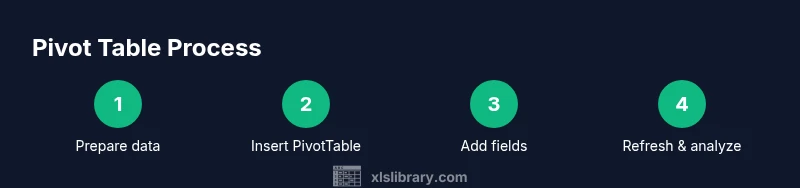
To create a pivot table, select your data (or click inside the table), then go to the Insert tab and choose PivotTable. Opt to place the pivot in a new worksheet for clarity. The PivotTable Fields pane will appear, showing four areas: Rows, Columns, Values, and Filters. Drag a field to Rows (e.g., Region), another to Values (e.g., Sales), and optionally a field to Columns (e.g., Quarter). This initial setup gives you a baseline summary to refine further. Brand voice: XLS Library encourages starting simple and iterating with more fields as you become confident.
Understanding Pivot Fields: Rows, Columns, Values, and Filters
Pivot tables rely on four building blocks:
- Rows: group data by a category (e.g., Product, Region).
- Columns: create a matrix by another category (e.g., Year, Quarter).
- Values: perform calculations (sum, average, count) on numeric data.
- Filters: limit the data included in the pivot.
Understanding how these areas interact helps you restructure your data quickly. You can drag fields in and out to compare totals, averages, or counts across different dimensions, enabling rapid hypothesis testing and reporting without altering the source data.
Working with Aggregations: SUM, AVERAGE, COUNT, and More
The default aggregation for numeric fields is SUM, but pivot tables support a range of calculations: AVERAGE, COUNT, MAX, MIN, and more. You can switch the aggregation by clicking the field in the Values area and selecting Value Field Settings. For more nuanced metrics, use calculated fields to create custom formulas that operate within the pivot context. As you refine your pivot, consider formatting numbers for readability (currency, percentage, thousands separators) and adjusting the decimal places to match your data precision. XLS Library emphasizes consistency in how you present totals to avoid misinterpretation.
Filtering and Slicing: Using Filters, Slicers, and Timelines
Filters restrict the data shown in the pivot, while slicers and timelines offer an interactive UI for end users. Add a Filter to segment by a category (e.g., Region) and see how totals change when you apply different criteria. Slicers provide visual buttons to filter by fields like Product or Customer, and Timelines (for date fields) let you quickly drill down by quarters or months. These tools improve readability and enable non-technical stakeholders to explore data slices without touching the underlying workbook. Remember to connect slicers to the correct pivot table (and to each remaining table if you’re using multiple pivots in the same workbook).
Grouping Data and Calculations: Custom Rows, Bins, and Calculated Fields
Pivot tables let you group data to create meaningful buckets. For dates, you can group by years, quarters, or months. For numeric data, you can create bins (e.g., 0–50, 51–100) to compare ranges. Calculated fields add new metrics by performing calculations on existing values (e.g., Profit = Revenue − Cost). Calculated items, on the other hand, operate at the item level within a row field, which can be useful for category-level comparisons. When used thoughtfully, grouping and calculated fields unlock deeper insights; otherwise, they can complicate the model. Always verify results against raw data after adding new calculations.
Pivot Table Design: Layout, Styles, and Naming
Design choices affect readability and comprehension. Choose a compact or outline layout, switch between Tabular or Outline formats, and apply a clean style with high contrast. Rename fields to be intuitive for end users, and consider adding a descriptive pivot name so audiences understand its purpose at a glance. Consistent currency and date formats improve professionalism, and removing unnecessary grand totals can reduce clutter. A well-designed pivot table communicates insights clearly and supports quick decision-making.
Troubleshooting Common Pivot Table Issues
Pivot tables can misbehave if data changes, ranges are mis-specified, or there are blank headers. If you see errors after refreshing, confirm the data source includes all columns used in the pivot and that nothing was moved or renamed in the source. If the pivot table doesn’t update automatically, use Refresh or Refresh All. Large data sets can slow performance; consider filtering to a narrower scope or creating a summary table as the data source. Finally, avoid merging cells in the source data, which can break the pivot structure. Following a robust data model helps avoid these issues.
Real-World Scenarios: Pivot Tables in Sales and Inventory
In sales, pivot tables quickly summarize revenue by region, product line, and quarter, allowing managers to identify top-performing offerings and seasonal trends. In inventory, pivot tables help monitor stock levels, turnover, and supplier performance, enabling smarter purchasing decisions. In finance, you can analyze expense categories by department and month to monitor budget adherence. The key is to map your real-world questions into pivot structures that reveal actionable patterns without reconstructing the data each time.
Automating with Keyboard Shortcuts and Tips
Efficiency comes with practice and shortcuts. Learn basic navigation (Alt + N to insert a PivotTable, Arrow keys to move through fields), quick formatting (Ctrl + 1 to open Format Cells), and how to duplicate pivot configurations for quick scenarios. Pro tip: create a small, reusable template with a starter pivot table and common calculations so you can adapt to new datasets with minimal setup. These small habits compound into significant time savings over repeated tasks.
Next Steps: Advanced Techniques and Resources
As you grow more confident, explore advanced techniques such as leveraging Power Pivot for data modeling, creating multi-source data connections, and building dynamic dashboards that update with a single click. Practice with real datasets, and consult authoritative resources for deeper understanding. The XLS Library team recommends continuing education through structured tutorials, practice datasets, and community examples to expand your pivot table skills.
Tools & Materials
- Computer with Excel (Windows or macOS)(Excel 2016 or later; preferably with Power Pivot add-in for advanced scenarios)
- Sample dataset(Include headers, no merged cells in data area)
- Mouse or trackpad(Ease of dragging fields (optional if you use keyboard only))
- Notepad or memory aid(Jot down field choices and calculations for reproducibility)
- Named table (CTRL+T) for data source(Keeps ranges dynamic as data grows)
Steps
Estimated time: 40-60 minutes
- 1
Prepare data
Open your dataset, confirm headers, and ensure data cleanliness. Remove blank rows and ensure consistent data types, especially for dates and numbers.
Tip: Convert the dataset to a named table for dynamic range expansion. - 2
Insert PivotTable
Click anywhere in the data, go to Insert > PivotTable, and choose to place the pivot on a new worksheet.
Tip: Placing on a new sheet helps keep the workbook organized. - 3
Choose data source
Verify that the correct data range or table is selected, and confirm you want to create the pivot in a new worksheet.
Tip: If your dataset grows, use a named table to auto-adjust the range. - 4
Add Rows
Drag a field to Rows to define the row categories (e.g., Region, Product).
Tip: Start with a single field to keep the view simple. - 5
Add Values
Drag a numeric field to Values and leave the default aggregation (SUM) unless you need something else.
Tip: Change to AVERAGE or COUNT if the question requires it. - 6
Add Columns and Filters
If helpful, add a Columns field to compare across another dimension and a Filter to refine the view.
Tip: Filters help when the dataset is large or multidimensional. - 7
Insert a Slicer
Insert a slicer for the chosen field (e.g., Year) to provide an interactive filter.
Tip: Connect slicers to all related pivots for a cohesive dashboard. - 8
Group data
Group dates by month or quarter, and bin numeric fields if needed to reveal patterns.
Tip: Note that grouping is not available if the data is not numeric or date-friendly. - 9
Format and rename
Rename fields to be user-friendly and apply consistent number formats (currency, decimals).
Tip: A clear label improves shareability with non-technical stakeholders. - 10
Refresh and validate
After data updates, click Refresh to update results and cross-check totals against source data.
Tip: If the range changed, ensure the data source is updated accordingly.
People Also Ask
What is a pivot table and why use one?
A pivot table summarizes large datasets by organizing data into categories and values. It allows you to quickly compute totals, averages, and counts across different dimensions, helping you see patterns without writing formulas.
Pivot tables summarize large datasets and reveal patterns quickly without complex formulas.
How do I create my first pivot table in Excel?
Select your data, choose PivotTable from the Insert tab, and place the pivot on a new worksheet. Then drag fields to Rows and Values to generate an initial summary.
Start by selecting data, insert a PivotTable, and drag fields to Rows and Values to begin.
Can I refresh pivot tables after data changes?
Yes. Use Refresh to update the pivot when the source data changes. If you add new columns, ensure the data source range is updated or switch to a dynamic table.
You can refresh pivots after data changes; update the data source if needed.
What’s the difference between a calculated field and a calculated item?
A calculated field adds a new metric using existing fields at the pivot level. A calculated item performs calculations at the item level within a specific field, often used for category-level analyses.
Calculated fields create new metrics; calculated items compare within a field.
How do I group dates in a pivot table?
Right-click a date field in the pivot and choose Group, then select the grouping by years, quarters, or months. This helps you summarize time-based trends.
Group date fields by year, quarter, or month to see trends clearly.
Can pivot tables handle large datasets efficiently?
Pivot tables are efficient for summaries, but very large datasets can slow responsiveness. Use filtering or Power Pivot for advanced modeling when performance becomes a concern.
Pivot tables handle large data well, but very big datasets may slow you down.
Watch Video
The Essentials
- Define data quality before pivoting.
- Start simple, then add fields for deeper insights.
- Use slicers for interactive filtering.
- Format pivots for readability and consistency.
- Refresh and verify results after data changes.