Excel Cost Comparison Template: A Practical, Data-Driven Guide
Learn how an Excel cost comparison template standardizes inputs, compares direct and indirect costs, and speeds budgeting decisions with scenario analysis.


An Excel cost comparison template is your best starting point for objective budgeting. It standardizes inputs, separates direct and indirect costs, and lets you compare scenarios side by side. By surfacing total cost of ownership, it supports procurement decisions and governance. According to XLS Library, using a well-structured template reduces errors and speeds up vendor evaluations.
Why a Well-Designed Excel Cost Comparison Template Matters
A well-crafted Excel cost comparison template matters because it forces a disciplined approach to cost data and decision making. When teams rely on inconsistent spreadsheets, they risk misinterpreting which costs matter most or overlooking hidden expenses that emerge over time. A robust template standardizes inputs across departments, aligns stakeholders on the same cost definitions, and provides a transparent basis for evaluating alternatives. For procurement, project planning, and vendor negotiations, the ability to see direct costs, indirect costs, and lifecycle expenses in one place is transformative. A clear, auditable template also supports governance and audits, helping leadership understand what drives costs and where savings can be realized as projects evolve. The result is faster decisions with less back-and-forth and greater confidence in the selections that move the business forward.
Key Features to Include in the Template
A high-quality Excel cost comparison template should cover core cost categories, data provenance, and clear outputs. Core cost categories include direct costs (purchase price, licensing), indirect costs (training, downtime, productivity impact), and ongoing maintenance (support, updates, cloud fees). You should also capture assumptions (currency, time horizon, discount rate), data sources, version history, and audit trails. Outputs can include summary tables, a cost of ownership (TCO) line, currency normalization, and scenario visuals. To help with governance, add an access log and change notes. As a practical guide, follow XLS Library guidance to maintain consistency across departments and projects.
Data Quality and Input Best Practices
Accurate inputs are the backbone of any cost comparison template. Begin with a documented data glossary so all users apply the same definitions. Use named ranges and consistent units (for example annual costs in USD) to minimize conversion errors. Validate inputs with data checks (non negative values, currency codes) and implement data validation rules for dropdowns. Remember to trace data back to its source, so stakeholders can verify numbers during reviews. As you scale, consider creating separate tabs for input, calculations, and outputs to reduce the risk of accidentally overwriting formulas.
Building a Cost Comparison Template: Step by Step
Step 1: Define decision criteria and time horizon (5 years, 3 years, etc.). Step 2: List all cost categories you will track (initial costs, recurring costs, indirect costs). Step 3: Create a standardized cost matrix with rows for categories and columns for scenarios (Base Case, With Discount, Alternative Vendor). Step 4: Add a dedicated TCO formula that aggregates direct and indirect costs, including any discounting. Step 5: Build dynamic visuals (pivot tables, charts) to illustrate differences across scenarios. Step 6: Set up data validation and named ranges to simplify maintenance. Step 7: Document assumptions and provide a version history for governance.
Common Pitfalls and How to Avoid Them
Common pitfalls include omitting indirect costs, mixing currencies, and failing to update inputs when plans change. Avoid these by creating a clear input tab with currency and horizon controls, enforcing consistent units, and scheduling regular template refreshes. Do not rely on a single static snapshot; use scenario analysis to capture different possibilities. Finally, test the template with a real-world dataset to reveal gaps before rollout.
Real-World Use Cases: Small Business vs Enterprise
In small businesses, a cost template helps non-finance teams participate in budgeting, improving transparency and buy-in. It can be lightweight and quick to update, focusing on the most material costs. In larger enterprises, templates must scale: multiple departments feed data, strict versioning is required, and governance processes demand auditable change trails. The same template can serve both worlds when designed with modular inputs, robust validation, and clear outputs.
Maintenance, Version Control, and Collaboration
Templates degrade when inputs drift or formulas become hard to trace. Establish a versioning policy (for example v1.0, v1.1), store templates in a shared repository, and require change notes for any modification. Use Excel's built-in data connections sparingly and document any external data dependencies. Regular reviews with finance and operations ensure the template remains aligned with evolving cost structures and business priorities.
Integrating a Cost Template with Other Tools
A cost template often becomes more powerful when connected to other planning tools. Link your Excel workbook to procurement systems via stable data connections, export results to dashboards, or feed outputs into project management templates. Maintain a clear separation between input, calculation, and output layers to simplify maintenance and auditing. When possible, standardize file naming, folder structure, and security settings to reduce friction across teams.
Case Study: Deployment in a Mid-Sized Company
A mid-sized company adopted an Excel cost comparison template to standardize vendor evaluations across three departments. The project required careful scoping of direct and indirect costs, including training and downtime. Over six months, the template facilitated quarterly reviews, improved cross-functional collaboration, and reduced the time spent on cost analysis by nearly half. The key was a well-documented set of assumptions and a governance review that kept data fresh and relevant.
Tailoring for Industries
Different industries have distinct cost drivers. For manufacturing, focus on material costs, depreciation, and downtime. For software and services, emphasize licensing, maintenance, and subscription churn. The core approach remains the same, but your template should expose industry-specific cost drivers and tailor visuals to the audience (for example executive dashboards for leadership, detailed line-item views for procurement).
Practical Tips for Implementation Across Teams
To roll out the template widely, start with a pilot in finance and procurement, collect feedback, and refine categories. Create a simple onboarding guide and a sample dataset for training. Ensure that the template lives in a shared repository with clear ownership. Establish a routine for quarterly refreshes and for archiving obsolete versions. Finally, set expectations for data quality and governance to sustain the template over time.
Data Governance and Security Considerations
When a template contains cost data, control access with role-based permissions, maintain an audit trail for changes, and avoid embedding sensitive information in comments or notes. Use protected sheets for formulas and hide input tabs from end users where appropriate. Document data sources and ensure that any external links are stable and secure. Regularly back up the workbook to prevent data loss.
Comparison
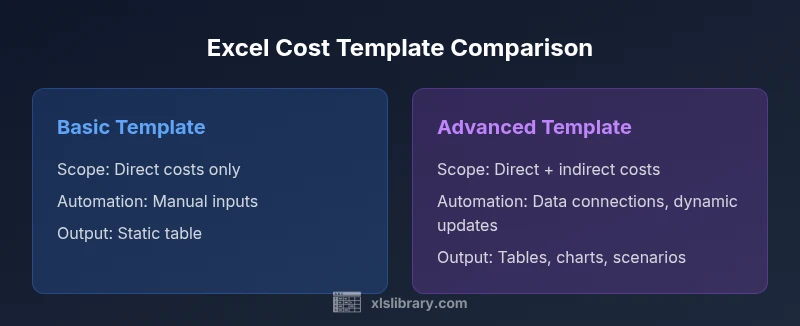
| Feature | Basic Cost-Only Template | Advanced Cost-Benefit Template |
|---|---|---|
| Scope | Direct costs only | Direct + indirect costs + savings opportunities |
| Automation | Manual entries | Data connections + dynamic calculations |
| Inputs | Static inputs | Dynamic links to live data |
| Outputs | Tables and simple charts | Dashboards with scenarios and sensitivity analyses |
| Maintenance | Low | Medium to high |
| Best For | Quick checks and benchmarking | Long-term planning and vendor comparisons |
Benefits
- Clarifies total cost of ownership across scenarios
- Standardizes inputs to reduce bias and errors
- Easy to update with new data and assumptions
- Support for scenario planning and governance
What's Bad
- Requires disciplined data input and maintenance
- Can become complex; may require Excel proficiency
- Maintenance overhead increases with data connections and automations
Advanced template offers deeper insights and automation; Basic template suits quick, low-effort decisions
Choose Advanced when you need scenario analysis and ongoing updates. Opt for Basic if speed and simplicity are paramount.
People Also Ask
What is an Excel cost comparison template?
An Excel cost comparison template is a structured spreadsheet that standardizes inputs for direct and indirect costs and compares scenarios to inform budgeting decisions. It typically includes a cost matrix, a total cost of ownership (TCO) calculation, and visuals. This makes it easier to evaluate options consistently.
An Excel cost comparison template standardizes costs and compares scenarios to support budgeting decisions.
Which costs should be included in the template?
Include direct costs (purchase price, licensing), indirect costs (training, downtime, productivity impact), and ongoing maintenance. Don’t forget one-time setup costs and potential savings from improved efficiency. Document all assumptions for auditability.
Include direct, indirect, and ongoing costs with clear assumptions.
How do I customize templates for my business?
Start with a baseline template and tailor cost categories to reflect your business. Use named ranges, consistent currencies, and versioning. Add organization-specific visuals and dashboards to match stakeholder needs.
Start with a baseline, then tailor categories and visuals to your business.
Can I automate updates from live data sources?
Yes. Use data connections, Power Query, or dynamic named ranges to pull fresh numbers. Validate data regularly and ensure data sources are stable and auditable.
Yes, via data connections and dynamic ranges. Keep sources auditable.
What are common mistakes to avoid?
Omitting indirect costs, mixing currencies, and not documenting assumptions. Avoid hard-coding numbers; use dynamic links and a clear input tab. Regularly review for changes in cost structure.
Avoid missing indirect costs and unclear assumptions.
Is an Excel template better than a manual method?
A template enforces consistency, repeatability, and audit trails, making analysis faster and less error-prone. For ad-hoc analyses, a manual approach can work, but it’s harder to reproduce.
Templates improve consistency and speed; manual methods are error-prone.
The Essentials
- Define decision criteria before building the template
- Capture all cost categories, including indirect costs
- Use consistent units and currencies
- Automate where feasible but document assumptions