Excel Price Comparison Template: Quick vs Custom
An objective guide comparing ready-made versus custom Excel price comparison templates. Learn setup, features, data sources, automation, and best practices to choose the right approach for your pricing analysis.


The best path for an excel price comparison template depends on your needs: a ready-made template delivers speed and consistency, while a custom template offers maximum flexibility for complex pricing. For most teams, start with a proven template and tailor it; if you manage diverse sources or currencies, a custom build can pay off in the long run.
What is an excel price comparison template and why it matters
An excel price comparison template is a structured workbook that consolidates price data from multiple sources into a single view. It standardizes items, currencies, units, and supplier terms to enable apples-to-apples comparisons. The XLS Library team emphasizes that using such a template improves transparency and speeds up decision-making by reducing manual data gathering. In practice, teams rely on these templates to compare prices across vendors, track changes over time, and justify procurement choices with auditable records. As businesses modernize procurement workflows, an effective excel price comparison template becomes a central asset for pricing decisions in 2026.
A well-designed template supports data integrity, repeatable workflows, and defensible decisions. It also makes it easier to report to stakeholders by providing consistent visuals and clear narratives around price trends. When you land on the right template, you can quickly refresh data, compare three or more suppliers, and surface insights that drive savings. For Excel users, this template is a practical bridge between raw price lists and formal purchasing decisions.
If you are evaluating options today, consider how the template will handle future updates, currency fluctuations, and new products. The goal is to establish a repeatable, auditable process that everyone on the team can trust. In short, an excel price comparison template is not just a spreadsheet—it's a decision-support tool that aligns price data with business goals.
Quick setup considerations: off-the-shelf vs custom
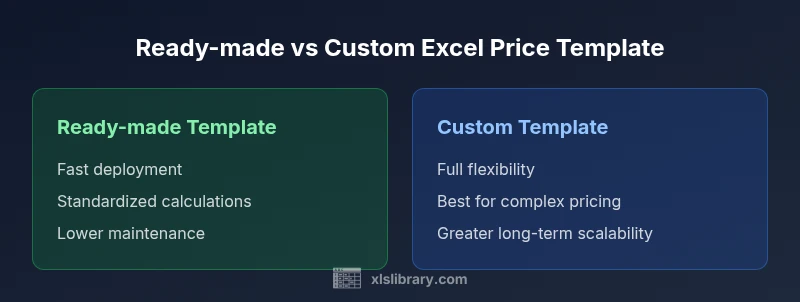
When you start with an excel price comparison template, you have two main pathways: use a ready-made template or build a custom version from scratch. Ready-made templates are designed to be plug-and-play, with pre-built formulas, data validation, and visualizations. They shine in scenarios where speed matters and the pricing model is fairly standard across products and vendors. A custom template, by contrast, gives you full control over layout, formulas, data sources, and automation, which is valuable when your pricing logic is complex or highly customized. A practical approach is to pilot a ready-made template and then expand or modify it to meet specific needs. The XLS Library team notes that most organizations benefit first from a solid template and then graduate to a tailored solution as requirements evolve.
Before choosing a path, list your essential features (currency handling, tax rules, multiple price points, volume discounts) and your data sources (web pulls, PDFs, ERP exports). Consider your team size and governance needs: a template that’s easy to train on and easy to audit will usually save more time than a highly customized setup that requires specialized skills. In addition, think about data refresh frequency—daily, weekly, or real-time. Your decision should balance speed, accuracy, and long-term maintenance obligations. A good rule of thumb is: start with a template that covers core scenarios and gradually layer in complexity as processes mature.
Core features to evaluate in any excel price comparison template
A robust excel price comparison template should cover a core set of features that enable accurate, fast, and auditable comparisons. Look for:
- Clear data schema: a consistent layout that maps price, unit, currency, supplier, and terms.
- Data validation: drop-downs, restricted inputs, and error checking to minimize manual mistakes.
- Currency handling: either fixed currency with a conversion table or dynamic conversion via a lookup table.
- Source tracking: identifiers for each price source and timestamps for when data was last updated.
- Calculations and aggregation: correct unit conversions, quantity breaks, and total cost calculations.
- Visuals and reporting: charts, sparklines, and pivot-ready data for quick storytelling.
- Audit trails: change history or versioning to support accountability.
- Refresh and automation: mechanisms to pull updates from sources and refresh analyses without breaking formulas.
In practice, the exact features you choose will reflect how you source prices, how often you need to compare, and how you report results. The keyword excel price comparison template should appear in your thinking about structure and workflow as you evaluate options.
Data architecture: building a reliable price comparison workbook
A solid data architecture for an excel price comparison template starts with a clean separation of raw data, calculated metrics, and presentation layers. Use separate sheets for:
- Source data: hold unmodified price lists from each vendor, including currency, unit, and date.
- Mappings: normalize product names, units, and categories so comparisons are apples-to-apples.
- Calculations: formulas that convert currencies, compute line-item totals, and aggregate into summary view.
- Dashboard: charts, slicers, and pivot tables that provide insights without altering the underlying data.
Name ranges or structured tables improve reliability and make it easier to reuse formulas across sheets. Adopting a consistent naming convention reduces confusion when multiple team members edit the workbook. Documentation within the workbook, such as a data dictionary or comments, supports governance and onboarding. When planning the architecture, consider how you will scale to additional products, vendors, or currencies, and ensure that your data model remains performant as data volume grows.
Finally, test your template with sample data representing realistic price scenarios. Validate results by cross-checking totals and unit conversions against a manual calculation. A well-architected workbook is easier to maintain and less prone to errors during updates.
Handling sources, currencies, and units
An excel price comparison template relies on consistent handling of sources, currencies, and units to deliver meaningful comparisons. Start by standardizing product naming and units so each line item maps to a single product.
Currency handling can be implemented in two common ways. The simplest method is to store prices in a single base currency with a conversion table. For more dynamic environments, introduce a currency conversion lookup that pulls current rates and applies them during refresh. If you adopt dynamic rates, ensure you capture a rate date so you can audit historical pricing decisions.
Units can vary across sources (e.g., per liter vs per liter equivalent, per kilogram vs per gram). Decide on a preferred unit for each product and implement a unit conversion rule set in the calculations sheet. This ensures that price-per-unit comparisons are valid and repeatable. Additionally, lock critical parameters (like currency conversion source) to protect the integrity of your calculations. In practice, a well-designed template will gracefully handle unit mismatches and provide clear error messages when data cannot be converted.
The overarching goal is to reduce manual reconciliations and keep the template robust across sources. A consistent approach to sources, currencies, and units supports reliable decisions and faster procurement cycles.
The ready-made template path: benefits and limitations
Ready-made templates offer fast time-to-value and consistent foundations for price comparisons. They come with validated formulas, built-in data validation, and a familiar structure that teams can adopt with minimal training. For organizations with standard pricing models and a stable vendor ecosystem, a ready-made excel price comparison template can deliver rapid wins and predictable results. However, templates may not align perfectly with every pricing nuance. If your business uses complex volume discounts, tiered pricing, or multi-currency setups, a ready-made template may require extensive customization or become insufficient over time.
From a governance perspective, a plug-and-play template can be easier to audit and share across teams, particularly when you implement protected sheets, a clear version history, and documented assumptions. The downside is limited flexibility. If you anticipate frequent changes to data structure or reporting needs, you might encounter friction when you need to push updates. In those cases, plan for a migration path to a custom version that better reflects your unique requirements.
The custom-build path: benefits and limitations
Choosing a custom excel price comparison template gives you full control over every column, formula, and data source. It is especially valuable when you manage diverse pricing sources, complex discount rules, or multi-vendor scenarios. A custom build can be designed to align with your organization’s terminology, data governance standards, and integration workflows. It also provides a path to scalability, such as adding new currencies or complicated tax calculations without compromising existing features.
The trade-off is higher upfront effort and ongoing maintenance. A custom solution requires more planning, skilled resources, and a governance plan to prevent drift over time. It may also take longer to onboard new team members. If your organization anticipates growth in pricing sources or evolving reporting needs, a staged approach—start with a ready-made template and move to a tailored build as you mature—can balance speed and long-term effectiveness.
Ultimately, the choice between ready-made and custom should reflect your strategic priorities: speed and consistency versus flexibility and scale.
Automation, validation, and refresh strategies
Automation is a key differentiator for excel price comparison templates. Use Power Query or dynamic array formulas where possible to pull data from sources and refresh calculations with a click or a scheduled process. Implement data validation rules to prevent invalid entries and use error highlighting to identify issues quickly. A robust template should include a refresh schedule, review checkpoints, and a log of changes.
To ensure data quality, add cross-checks such as totals that verify row-level and column-level sums, and implement an audit trail to track who updated data and when. If you operate in environments where data sources change, plan for versioned data mappings and modular formulas. Automation reduces manual workload and helps ensure that your excel price comparison template remains reliable even as data sources evolve over time.
Practical example: three price sources and how to set up
Consider a scenario with three price sources: Vendor A, Vendor B, and Vendor C. Start by listing items in a master catalog, with fields for product name, base unit, and quantity. Create separate price source sheets that include the same fields plus currency and date. Use a mapping sheet to align product names and units, then a calculations sheet to standardize currencies and per-unit prices. A summary sheet can then compute best price, total cost for given quantities, and a simple ranking.
From there, you can extend the template with conditional formatting to highlight the lowest price per item, or add a dashboard that compares total spend across scenarios. The result is a compact, auditable tool that helps decision-makers compare multiple sources side by side without manually reconciling data each time. This practical example demonstrates how a well-structured excel price comparison template streamlines procurement conversations.
Pitfalls and how to audit a price comparison workbook
Price comparison workbooks are powerful but can mislead if data governance is weak. Common pitfalls include inconsistent product naming, missing currency conversions, and stale data from infrequent refreshes. To audit a template effectively, implement a regular data refresh cadence, verify currency rates against a trusted source, and run a quick sanity check on totals and item counts.
Keep an eye on formula integrity: complex lookups can drift if ranges shift when new data is added. Use named ranges and structured tables to anchor formulas. Maintain a changelog for major edits and require peer review of critical updates. Finally, document assumptions such as the chosen base currency, tax treatment, and discount rules so stakeholders understand how results were derived. A disciplined auditing approach helps protect the credibility of your excel price comparison template.
Maintenance, versioning, and governance
Maintenance and governance are essential as your price comparison needs evolve. Establish a versioning scheme for templates so teams can track updates and revert if necessary. Create a centralized repository with clear access controls and documented troubleshooting steps. Periodic reviews should assess data sources, currency strategies, and reporting requirements to ensure the template remains aligned with business goals.
Develop a lightweight change-control process: describe the change, why it’s needed, who approved it, and how it was tested. This approach supports accountability and reduces the risk of unintended consequences when updating formulas or data mappings. Finally, plan for training and onboarding material so new users can adopt the template with confidence. With good governance, your excel price comparison template stays reliable long-term.
How to extend and scale over time
As your pricing landscape grows, your excel price comparison template should scale without becoming unwieldy. Consider modular sheet design where new vendors, currencies, or product categories can be added with minimal disruption. Use dynamic named ranges and table-based formulas to automatically incorporate new data. If you outgrow Excel’s capacity, plan a transition to a data model or Excel add-ins that facilitate large-scale analysis while preserving a familiar interface for users.
Another scaling strategy is to introduce scenario planning: create copies of the template to model different pricing strategies, supplier mix, or volume discounts. This enables rapid what-if analyses and supports strategic decision-making. Keeping the template adaptable reduces future migration costs and helps maintain accuracy as business needs evolve.
Next steps and decision framework
To move from analysis to action, establish a decision framework that weighs speed against customization. Start with a ready-made excel price comparison template to gain quick wins and ensure data integrity, then evaluate whether a custom build is warranted by your specific pricing landscape. Document your criteria, set a pilot timeline, and gather feedback from stakeholders to guide the next step. The framework should include evaluation of time-to-value, maintenance burden, alignment with governance, and potential impact on procurement outcomes. By following this approach, you’ll choose the path that best serves your organization and build a durable price comparison capability for the future.
Comparison
| Feature | Ready-made Template | Custom-Built Template |
|---|---|---|
| Ease of setup | Fast deployment with pre-built formulas | Requires design work and setup from scratch |
| Customization depth | Limited to its included design and rules | Full control over layout, formulas, and data sources |
| Data sources support | Predefined inputs and standard mappings | Flexible integration for diverse sources and mappings |
| Currency handling | Fixed currency or simple conversion table | Dynamic conversion with custom rules and sources |
| Automation/refresh | Manual or semi-automated refresh | Fully automated refresh via Power Query/Data Model |
| Error handling/validation | Basic checks built-in | Advanced validations and bespoke error logic |
| Maintenance cost/time | Lower ongoing effort | Higher initial and ongoing effort |
| Best for | Speed and consistency for common needs | Complex pricing and scalable setups |
Benefits
- Saves time with ready-made templates and standard formulas
- Ensures consistent pricing comparisons across vendors
- Easier collaboration with a common data model
- Reduces data-entry errors through built-in validations
- Scales well when kept simple and modular
What's Bad
- May not fit highly customized pricing models out of the box
- Custom builds require more upfront design and ongoing maintenance
- Template updates can require rework if data structures change
- Currency rules and taxes can add complexity to both paths
Ready-made templates are ideal for speed and consistency; custom templates excel when pricing is complex and global.
If your priority is rapid deployment and standardized comparisons, start with a ready-made excel price comparison template. If your pricing environment demands flexibility, customization, and scalability, invest in a tailored template that can evolve with business needs. The XLS Library team supports a staged approach: begin with a solid template, then migrate to a custom solution as requirements mature.
People Also Ask
What is an Excel price comparison template?
An Excel price comparison template is a structured workbook that consolidates price data from multiple sources for apples-to-apples comparisons. It standardizes product names, units, currencies, and terms so teams can assess value quickly.
An Excel price comparison template is a single workbook that puts prices from different sources side by side, making it easy to see the best deals at a glance.
When should I use a ready-made vs a custom template?
Choose a ready-made template for fast deployment and standard pricing scenarios. Opt for a custom template when your pricing rules are complex or you need deeper integration with data sources and governance.
Pick ready-made for speed; go custom if you have complex pricing or unique data needs.
How do I handle multiple currencies in the template?
Use a currency conversion table or a dynamic lookup to convert all prices to a base currency. Ensure you capture rate dates for auditability and consistency across updates.
Convert currencies with a lookup table and keep rate dates for auditability.
How often should price data be refreshed?
Refresh frequency depends on data sources and market dynamics. Typical cadences range from weekly to daily for highly dynamic pricing scenarios.
Refresh as often as your data sources require, commonly weekly or daily for fast-moving prices.
What are common pitfalls to avoid?
Common pitfalls include inconsistent data mappings, missing currency conversions, and outdated formulas. Regular audits and governance help prevent these issues.
Watch for mismatched data, missed currency conversions, and outdated formulas.
Can I share the template across teams?
Yes. Use protected sheets, clear versioning, and documentation to facilitate safe collaboration and consistent results across departments.
Yes—protect sensitive parts and document how to use it so everyone stays aligned.
The Essentials
- Start with a ready-made template for fast results
- Define data sources and standardize units early
- Use data validation to prevent entry errors
- Plan currency handling and update cadence
- Scale by migrating to a custom template when needs grow