Excel Template for Weekly Schedule: A Practical How-To
Learn to build a reusable Excel template for a weekly schedule. This step-by-step guide covers grid design, headers, formatting, and sharing to help you plan your week efficiently in Excel.


This guide shows you how to create an Excel template for a weekly schedule that you can reuse week after week. Set up a grid with days across the top and hourly blocks down the side, add headers for tasks, and apply simple formatting. You’ll need Excel, a printer-friendly layout, and optional color-coding.
Why use a weekly schedule template in Excel?
A weekly schedule template gives you a consistent canvas for planning personal, academic, or professional tasks. According to XLS Library, a well-designed template saves you time by standardizing layout and formatting so you don’t reinvent the wheel each week. A practical template should accommodate fixed commitments, recurring activities, and flexible tasks, while remaining printer-friendly for weekly planning sessions. The goal is clarity: days across the top, time blocks down the left, and a clean area for notes or priorities. When you start with a solid design, you can iterate with confidence rather than re-create from scratch every Monday. This principle carries over to teams and families who need a single source of truth for everyone’s week.
In this article, you’ll learn how to plan the layout, choose a formatting strategy, and implement features that make copying, updating, and sharing effortless. You’ll also see how a template can scale from a single user to a small team while maintaining readability and a professional appearance.
Getting started: prerequisites and planning
Before you touch a cell, outline the core requirements of your weekly schedule. Decide who will use the template (individual, team, or department), how many days you’ll cover (just weekdays or include weekends), and whether you want to track hours, tasks, or both. Gather the essentials: a computer with Excel installed, a rough sketch of the grid, and a decision on color-coding or categories. Knowing these choices in advance helps you avoid major refactoring later. As you begin, consider an initial testing period—use a sample week to reveal layout gaps, missed headers, or print issues. This prep work pays off by reducing rework when you share the template with others.
Layout and grid design: days, times, and headers
The backbone of a weekly template is a grid that aligns days with time blocks. A common approach places days (Mon–Sun) across the top row and time slots (e.g., 7:00–22:00) down the left column. Create a compact, printer-friendly width by grouping periods into hourly blocks or half-hour increments, depending on granularity. Label a header row with the week’s date range and add a task header column to capture task names, owners, and status. Use a neutral color for the gridlines and reserve bold headers for the day names and time blocks. For clarity, keep the first column narrow for times and allocate a wider central area for tasks and notes. This clean structure makes scanning at a glance fast and reduces eye fatigue during meetings.
Adding tasks, durations, and priorities
A functional weekly template includes columns for Task, Duration, and Priority. Add a Task column next to the time grid to describe the activity occupying that slot. If you track duration, you can either pre-fill expected hours or let Excel auto-calculate from start and end times. Priority levels (high/medium/low) help you surface critical items during reviews. To keep data consistent, consider data validation for Priority and a dropdown for Status (e.g., Planned, In Progress, Completed). Color-code priorities with conditional formatting so urgent tasks pop visually without slipping into the weekly clutter. Align your approach with real-world workflows—short tasks may fit multiple time slots, while longer activities justify a multi-block span.
Enhancing with formulas and formatting
Formulas bring automation to a weekly template without sacrificing readability. Use simple DATE and WEEKNUM functions to display the current week, and leverage TODAY() for dynamic week updates. Conditional formatting can highlight overdue tasks, overdue days, or gaps in the schedule. Use named ranges for key sections like the header row or the main grid to keep formulas readable and portable. If you publish the template to a team, protect critical cells (headers and grid boundaries) while leaving inputs editable in the Task and Status areas. A printer-friendly design benefits from a consistent print area, page breaks that align with your weekly grid, and a light grid line color that prints cleanly on standard paper.
Example: building a simple 7-day template
Start with a new workbook and create a grid that has seven columns for Mon–Sun and a leftmost column for Time. Enter time blocks in the first column and add a header row above the grid for the days of the week. In the adjacent columns, add Task, Duration, and Priority rows. Populate a few sample entries to confirm spacing and readability. Adjust column widths so that the most common tasks fit on a single line, and apply a subtle background shade to header cells for quick scanning. Test by printing a one-page version to verify margins and alignment across devices.
Customization and sharing: templates, protection, and distribution
Once your template feels stable, save it as an Excel Template (.xltx) so you can reuse it without overwriting the original. Name the file clearly (e.g., Weekly Schedule Template v1) and store it in a shared drive or cloud folder for team access. Protect headers and grid boundaries to prevent accidental edits while keeping Task and Status columns editable. If you share the template, include a short usage guide explaining the allowed edits and recommended conventions for color-coding and task entries. Consider creating a companion sheet with example tasks or a calendar import mechanism for easier population of recurring items.
Troubleshooting common issues
If your grid shifts when printing, verify the print area and page breaks align with the grid. Misaligned headers often result from mixed column widths—keep a separate, fixed-width area for Day headers. If colors don’t print as expected, switch to a printer-friendly palette with higher contrast and check the printer settings for color management. For shared templates, confirm that all users have compatible Excel versions and that any advanced features (e.g., dynamic date functions) render consistently across platforms.
Next steps: workflow tips and automation ideas
To extend the value of a weekly schedule template, pair it with simple automation like data validation-driven suggestions (e.g., automatically flagging conflicts or unavailable times) or a weekly import from a task tracker. You can also link the template to a calendar export (ICS) or to Outlook/Google Calendar via CSV. Finally, consider building a mini-dashboard that summarizes hours allocated per day or per category to help with workload balancing across the week.
Tools & Materials
- Microsoft Excel (Windows or Mac)(Latest or current version recommended for best compatibility with features like conditional formatting and named ranges)
- Computer or laptop with internet access(For downloading templates, updates, and cloud storage)
- Printer or PDF export capability(Optional for printing weekly views)
- Color/highlighting supplies or on-screen color coding(Useful for quick visual cues (digital or print))
- Sample data or reference weekly items(Optional but helpful for testing the layout)
Steps
Estimated time: 30-45 minutes
- 1
Create a new blank workbook
Open Excel and create a new blank workbook. Decide whether to start with a single sheet or a dedicated template sheet. This initial step establishes the canvas you’ll build on and helps prevent accidental edits to your original template.
Tip: Name the sheet something clear like Weekly Schedule Template and save frequently to avoid data loss. - 2
Plan the grid: days across, times down
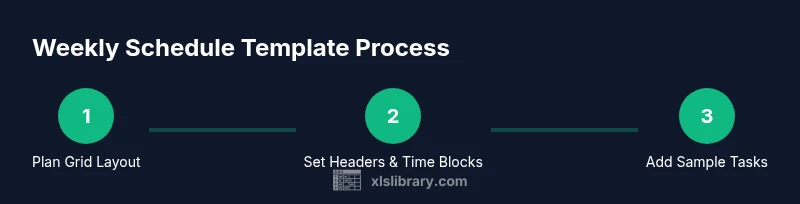
Draw the grid with seven columns for days of the week and a leftmost column for time blocks. Decide on the time granularity (hourly or half-hour blocks) and reserve space for Task, Duration, and Priority columns. Keeping a clean header area makes the template more maintainable.
Tip: Use a dedicated header row and freeze panes so headers stay visible while you scroll. - 3
Add headers and time labels
Enter the day labels across the top (Mon–Sun) and fill the time block labels down the first column (e.g., 7:00, 7:30, etc.). Include a row or column dedicated to the week date range for reference. This establishes the core navigational structure of your schedule.
Tip: Use bold formatting for headers to improve readability at a glance. - 4
Create Task, Duration, and Priority columns
Set up a Task column adjacent to the grid, plus Duration and Priority columns. Apply data validation to Priority (High, Medium, Low) and Status to standardize entries. This reduces ambiguity and makes filtering easier later.
Tip: Use a dropdown for Priority so color-coding aligns consistently. - 5
Apply formatting and conditional rules
Add conditional formatting to highlight high-priority tasks or overdue items. Use borders and alternating row colors to improve print readability. Keep font size legible and ensure print margins accommodate your page size.
Tip: Test color contrast by printing a sample page. - 6
Incorporate simple formulas for automation
Use TODAY() and WEEKNUM() to display current week information and enable auto-update. If you track hours, consider a formula to sum daily totals or automatically fill contiguous blocks when a task is extended.
Tip: Keep formulas readable with named ranges for key areas. - 7
Save as a reusable template
Save the file as an Excel Template (.xltx) to preserve the original formatting and structure. Provide a clear file name and store it in a shared location for easy access.
Tip: Document the intended use in a README sheet within the workbook. - 8
Protect and share your template
Protect header cells or grid boundaries to prevent accidental edits while leaving inputs open in the Task area. Share the template with teammates or family, and provide brief usage guidance for consistency.
Tip: If sharing, verify version compatibility and consider a quick training note.
People Also Ask
What is an Excel template for a weekly schedule?
An Excel template for a weekly schedule is a preformatted spreadsheet that organizes days, time blocks, and tasks into a reusable layout. It streamlines planning by providing a consistent structure each week and can be tailored with headers, formatting, and data validation to fit your needs.
An Excel weekly schedule template is a ready-made grid for planning your week, with days, times, and tasks that you can reuse every week.
Can I customize the template for a team or family?
Yes. You can add shared columns like Owner or Status, use data validation to standardize inputs, and protect core grid areas while keeping editable fields for everyone. Storing the template in a shared drive helps teams stay synchronized.
Absolutely. You can tailor the template for a team by adding common fields and protecting the grid so everyone can update their tasks.
How do I save and share the template?
Save the workbook as an Excel Template (.xltx) to preserve the layout. Share the template file or a link to the shared drive, along with usage instructions so others can create new weekly sheets quickly without altering the original design.
Save as a template, then share the file or link with simple usage notes for others.
Is it possible to print the weekly schedule cleanly?
Yes. Configure a single-page print area, set page breaks to align with the calendar grid, and choose a printer-friendly color palette. Preview the print before distributing to ensure margins and fonts are legible.
Print cleanly by setting the right print area and margins and checking a preview first.
Do I need Excel on Windows, Mac, or both?
Most features work on both Windows and Mac versions of Excel. If you rely on advanced features, check compatibility notes or save a version-specific template to ensure consistency across devices.
It works on Windows and Mac; just confirm features you plan to use are supported in your version.
Watch Video
The Essentials
- Plan the grid before formatting
- Use headers and freezing to improve navigation
- Protect critical cells to prevent mistakes
- Save as a template for repeat weekly use
- Color-code priorities for quick scanning