Excel Sports Analytics: A Practical How-To
Learn practical, step-by-step Excel techniques to analyze sports data, build dashboards, and share insights with coaches and players. This how-to guide covers data structure, essential formulas, data cleaning, and reproducible templates for sports analytics.


This guide shows how to use Excel for sports data analysis, from organizing player stats to building dashboards that reveal performance trends. You'll learn practical techniques, essential formulas, and visualization tips to turn raw game data into actionable insights. No specialized software required—only Excel and a well-structured workbook. This article is suited for beginners and seasoned users alike.
Why Excel for Sports Analytics matters
According to XLS Library, Excel sports analytics offers a practical path for teams and individuals to transform raw game data into actionable insights. In many amateur and professional settings, Excel remains the most accessible tool for organizing rosters, recording game-by-game stats, and plotting trends over a season. The reason is simple: Excel provides a familiar interface, a vast library of built-in formulas, and flexible visualization options that scale from small workouts to full-season analyses. For those pursuing both personal improvement and collaborative team reporting, Excel enables you to share dashboards, reproduce analyses, and iterate on metrics without learning a new software stack. When you start with a clean structural plan—tables with consistent headers, clearly defined data types, and named ranges—the learning curve drops dramatically and the payoff rises quickly. As you begin working with sports data in Excel, you’ll discover that even modest datasets can yield meaningful insights when organized effectively.
Throughout this guide, you’ll see how the same fundamentals apply whether you’re tracking a single player’s performance or comparing teams across a league. Excel sports workflows emphasize clarity, reproducibility, and speed—qualities that coaches, players, and analysts value. By focusing on practical steps and concrete examples, this article aims to get you from data entry to decision-ready visuals in a single, repeatable process.
Core data structures for sports datasets
Effective sports analytics in Excel starts with a robust data model. A clean workbook typically includes at least three core tables: Players, Games, and Stats. The Players table lists each athlete with a unique PlayerID, team, position, and demographics. The Games table captures each game’s date, opponent, venue, and outcomes. The Stats table stores per-game metrics tied to PlayerID and GameID, such as goals, assists, minutes played, shots on target, and defensive actions. These three tables should be linked through explicit keys, enabling relationships that Power Pivot or classic Excel formulas can navigate.
Normalization is critical. Avoid duplicating player or game data across sheets. Instead, use lookup relationships to pull metadata into your analysis views. For instance, you can create a separate Teams table and a separate Seasons table, then join these with your Stats data to answer questions like “Which players contribute most per game in a given season?” or “How does a player’s scoring rate change when playing at home versus away?” Consistency in naming, data types, and units reduces errors and makes dashboards trustworthy.
Additionally, consider a dedicated Metrics sheet where you define calculated fields (e.g., goals per 90 minutes, win shares, or efficiency ratings). These pre-defined metrics help you scale analyses as your dataset grows and ensure everyone uses the same formula definitions. When you design data structures with future growth in mind, you set the stage for more advanced analyses without reworking the workbook later.
Essential formulas and functions for performance analysis
The heart of Excel sports analytics lies in efficient formulas. Start with clear, repeatable calculations that you can audit quickly. Core functions include SUMIF/SUMIFS to aggregate per-player or per-game totals, AVERAGEIF/AVERAGEIFS for averages conditioned on team or opponent, and COUNTIF/COUNTIFS for event tallies. XLOOKUP simplifies linking players and teams to their metadata without the fragility of older references. CONCAT or TEXTJOIN helps create readable labels for dashboards.
A typical workflow might define a few key metrics: a player’s points per game (PPG) as total points divided by games played, a shooting efficiency as goals divided by shots, and a defensive impact score as a weighted sum of blocks, interceptions, and tackles. Use named ranges for critical columns to make formulas more readable and robust to changes in row order. When you build a dashboard, place these metrics in a Metrics table and reference them with structured formulas so updating the data automatically refreshes visuals.
For example, a simple formula to compute PPG for a given player could be =SUMIFS(Stats[Points], Stats[PlayerID], Players[PlayerID], Stats[GameStatus], "Completed") / COUNTIFS(Stats[PlayerID], Players[PlayerID], Stats[GameStatus], "Completed"). As you advance, swap in more sophisticated measures—like per-36-minute rates or pace-adjusted stats—while maintaining the same data structure. The key is to keep calculations transparent and auditable so teammates can verify results quickly.
Data cleaning and preparation for sports data
Raw sports data is rarely perfect. Start with a plan to clean and normalize before analysis. Remove duplicate rows that represent the same game or event, standardize team names, and fix date formats so all records align. Define a consistent blank-value policy (e.g., treat empty cells as zero for numeric stats or as nulls where appropriate) to prevent misinterpretation by formulas. If you pull data from multiple sources, create a centralized MasterData sheet and use Power Query or consistent import steps to ensure uniform field names and data types.
Validation is vital. Build simple checks such as “no negative minutes,” “points cannot exceed a reasonable cap,” and “dates must be within the season range.” Automate checks with data validation rules, and consider a separate QA sheet where you list discrepancies, their status, and resolution. Document any assumptions or data transformations so future analysts understand the lineage of every metric. A clean dataset not only reduces errors but also makes your dashboards more trustworthy.
Building dashboards: from stats to visuals
Dashboards turn tables of numbers into story-worthy insights. Start with a clean layout: a header with high-level KPIs, a row of small visualizations (sparklines or mini-charts) for quick glances, and a set of larger charts beneath for deeper analysis. Common sports dashboards include player performance over time, team win rates by venue, and a leaderboard of top contributors. Use consistent color palettes, clear axis labels, and descriptive titles to avoid confusion.
Slicers and filters are your friends. Add slicers for season, team, and position so stakeholders can slice the data without altering formulas. Combine charts with dynamic labels to show exact values on hover or click. If you’re sharing with non-technical users, consider a dashboard skeleton that uses pre-built charts and simple interactions, then gradually unlock more complex views as needed. Always test dashboards with real scenarios (e.g., a mid-season break or a key matchup) to ensure they communicate the right story.
Automating data import and refresh in Excel
Automation reduces manual work and keeps analyses current. Use Power Query to import data from CSVs or web sources and apply consistent transformations (trim whitespace, standardize case, map league identifiers). Create a refresh button or set up a scheduled refresh in Excel to update your data without rewriting formulas. If Power Query isn’t available, use a well-documented import routine with clear steps and a refresh checklist.
For scale, separate the import process from analytics by creating a dedicated Import sheet that feeds your MasterData. This separation supports reproducibility and makes it easier to troubleshoot if sources change. When you automate, include error handling (e.g., warnings if a data source is missing or a date format changes) so the workbook remains reliable under real-world conditions.
Reproducible workflows and templates
Reproducibility is the backbone of credible analysis. Start with a standard workbook template that includes: a data model, metric definitions, and a designed dashboard layout. Use consistent sheet names, a clear versioning scheme (e.g., v1.0, v1.1), and documented steps for data refresh and metric calculation. Save and share templates so teammates can build upon your work rather than starting from scratch. A well-documented workbook saves time and minimizes the risk of misinterpretation when multiple analysts work on the same project.
When you scale, consider branching workbooks for different leagues or seasons while retaining a common core structure. Centralize logic in named ranges and a dedicated Calculations sheet so edits propagate consistently across dashboards. Finally, include a short, readable readme file describing data sources, definitions, and how to reproduce results. This discipline makes Excel sports analysis approachable for new contributors and keeps your insights credible.
Starter workbook blueprint for excel sports
To get up and running quickly, create a starter workbook with the following sheets: 1) RawData (imports), 2) MasterData (cleaned and normalized), 3) Metrics (calculated fields like PPG, efficiency), 4) Dashboards (charts and slicers), 5) Validations (QA checks and data rules), 6) Documentation (readme and assumptions). Establish a naming convention for all columns (e.g., PlayerID, Team, GameDate, Minutes, Goals) and keep a data dictionary on the Documentation sheet. Add a simple macro to refresh data and a sample dashboard that shows top scorers and team performance by venue. This blueprint accelerates onboarding and ensures consistency across projects.
Tools & Materials
- Microsoft Excel (latest version)(Office 365/Excel 2021+ with data tools)
- Sample sports dataset (CSV/Excel)(Includes players, teams, dates, and per-game stats)
- Data cleaning tools (filters, sorts, and validation)(Essential for baselining quality)
- Power Query (optional)(For robust data import and transformation)
- Dashboard templates or chart skeleta(Speeds up visualization work)
Steps
Estimated time: 2-4 hours
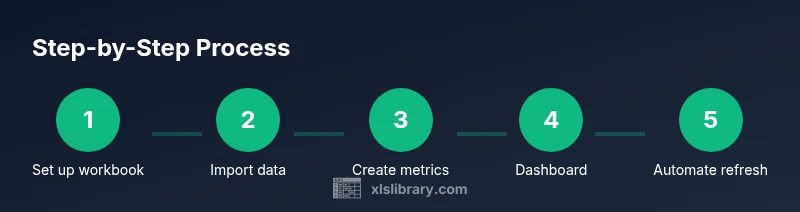
- 1
Set up your workbook structure
Create the core sheets (RawData, MasterData, Metrics, Dashboards, Documentation) and define the primary keys (PlayerID, GameID). Establish a naming convention and a simple data dictionary to ensure consistency from the start.
Tip: Document every column's data type and unit to prevent confusion later. - 2
Import and align data
Import your sports data into RawData, then normalize field names and formats. If available, use Power Query to apply clean-up steps (trim spaces, standardize case, convert dates).
Tip: Always keep a backup of the original data before transforming. - 3
Clean and normalize
Remove duplicates, fix missing values, and ensure consistent team naming. Populate MasterData with standardized metadata pulled via lookup to minimize repetitive work.
Tip: Add data validation rules to catch anomalies early. - 4
Define core metrics
Create calculated fields in Metrics (e.g., PointsPerGame, MinutesPerGoal). Use named ranges to keep formulas readable and robust to row shifts.
Tip: Document each metric’s formula in the Documentation sheet. - 5
Build key formulas
Implement SUMIFS, AVERAGEIFS, and XLOOKUP to aggregate stats and fetch metadata. Check recomputations by cross-checking a few results manually.
Tip: Prefer named ranges over hard-coded cell references for clarity. - 6
Assemble the dashboard
Design a clean dashboard layout with KPI tiles, trend charts, and slicers for season, team, and player. Link visuals to the Metrics table to keep everything synchronized.
Tip: Use consistent color coding to reduce cognitive load. - 7
Automate refresh
Set up data import/refresh (Power Query or manual steps) and a simple macro to refresh dashboards. Ensure error handling for missing sources.
Tip: Test refresh on a copy workbook before using the live file. - 8
Validate and share
Run QA checks, compare results with known benchmarks, and generate a readme for stakeholders. Save as a template for future seasons or leagues.
Tip: Include a short one-page summary for non-technical readers.
People Also Ask
What is the best way to structure sports data in Excel?
A three-table model (Players, Games, Stats) linked by keys provides a clean, scalable foundation. Normalize names, standardize units, and keep metadata in separate lookup tables to minimize duplication.
Use a simple three-table model with linked keys and clean metadata for scalable analysis.
Which formulas are essential for performance analysis in sports analytics?
Core formulas include SUMIFS, AVERAGEIFS, COUNTIFS, and XLOOKUP to aggregate data and join metadata. Start with per-game and per-player metrics before expanding to advanced measures.
Start with SUMIFS, AVERAGEIFS, and XLOOKUP to compute per-player metrics and build from there.
How do I create a beginner-friendly sports dashboard in Excel?
Begin with KPI tiles, add trend charts for players or teams, and include slicers for season, team, and position. Keep visuals simple and consistent, then gradually add interactivity as users gain comfort.
Start with simple KPI tiles and trend charts, then add slicers for interactivity.
Is Excel suitable for large sports datasets?
Excel handles moderately large datasets well with efficient data modeling, named ranges, and careful calculation design. For extremely large datasets, consider data modeling tools or external databases, then connect back to Excel.
Excel works for many sizes, but very large datasets may require a data model or external database.
Can I automate data imports into Excel for ongoing seasons?
Yes. Use Power Query to pull data from CSVs or web sources and refresh automatically. If Power Query isn’t available, create a repeatable import routine and document every step.
Power Query can automate imports; if unavailable, use a documented repeatable process.
Watch Video
The Essentials
- Plan data structure before entering numbers
- Use core formulas to keep metrics auditable
- Design dashboards for quick insights with slicers
- Automate data refresh to maintain consistency
- Document every step for reproducible analysis