MS Excel for Data Analysis: A Practical How-To Guide
Learn a practical, step-by-step approach to analyzing data in Excel. From data cleaning and formulas to pivot tables and dashboards, this guide by XLS Library builds a repeatable workflow for reliable insights.


In this guide, you will learn how to use MS Excel for data analysis to clean data, build models, and create insightful visuals. You'll follow a practical, step-by-step workflow that covers data import, cleaning, formulae, pivot tables, and dashboards. The XLS Library Team crafted this approach to be accessible for both beginners and professionals.
Why MS Excel for data analysis
In the modern data toolkit, MS Excel remains a foundational platform for turning raw numbers into meaningful insights. For many teams, ms excel for data analysis is the starting point due to its accessibility, familiar interface, and powerful built-in features. According to XLS Library, Excel supports a complete analysis cycle—from data import and cleaning to modeling and visualization—without requiring expensive software or complex pipelines. This practicality is especially valuable for small teams, freelancers, and students who need fast, reproducible results. In this section you'll discover why Excel stays relevant, where it fits in a broader data strategy, and how to leverage its strengths to deliver reliable analyses.
Core strengths include structured data organization with tables, a rich library of functions, and seamless integration with external data sources. Modern Excel versions also provide Power Query for data connection and cleaning, PivotTables for dynamic summarization, and Power Pivot for lightweight data modeling. When used judiciously, Excel can handle sizable datasets, build repeatable workflows, and produce shareable reports that teammates can audit. The goal is to establish a practical mindset: treat Excel as a living workbook that captures the steps, decisions, and assumptions behind every result. With this approach, you can scale your analyses over time while keeping processes transparent and auditable.
Core data analysis workflow in Excel
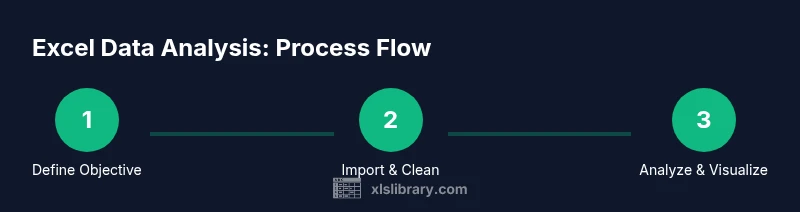
A robust data analysis in Excel starts with a clear objective and a plan for how success will be measured. In many teams, the objective is to translate raw numbers into actionable insights that support decisions. The workflow then follows a repeatable pattern: gather data from reliable sources, clean and shape it for analysis, compute key metrics using formulas, summarize with PivotTables, and finally present insights through charts or dashboards. This approach keeps analysis transparent and reproducible, aligning with best practices recommended by XLS Library. A well-documented workflow also makes it easier to onboard new analysts and defend results under scrutiny. By designing the process around concrete questions, you avoid spreadsheet drift and keep analyses focused on outcomes.
Next, you will connect data sources, define the data model, and establish a consistent naming scheme for columns, sheets, and metrics. Consistency reduces errors when formulas are copied across rows and when collaborators update datasets. The result is a dependable backbone for ongoing analysis—one that scales as data volume grows and as new questions arise.
Data cleaning and preparation techniques
Data cleaning is the foundation of trustworthy analysis. Start by removing duplicates and filtering out obviously invalid rows. Normalize text data (trim spaces, standardize case) to prevent subtle mismatches in lookups and aggregations. Convert dates to a consistent format and ensure numeric fields are truly numeric (not text). Use Excel’s built-in Tools > Data Cleaning features where available, and consider converting your data range to a table for automatic formula propagation. Handling missing values is crucial: decide whether to fill gaps with reasonable defaults, flag them for review, or exclude affected records from specific analyses. When you adopt a disciplined cleaning routine, you reduce downstream surprises and improve the reliability of your summaries and visuals.
Formulas, functions, and data modeling
Core Excel functions empower you to derive insights without leaving the worksheet. Essential families include SUMIFS and AVERAGEIFS for conditional totals, XLOOKUP for robust lookups, and COUNTIF/COUNTA for tallies. For more dynamic filtering, explore FILTER and SORT, then use UNIQUE to identify distinct values. Logical functions like IF, IFS, and SWITCH let you create simple decision rules directly in your tables. When modeling, consider building calculated columns to expose metrics such as customer lifetime value or cohort revenue. Always annotate formulas with comments or a separate documentation sheet so colleagues can understand assumptions and reproduce results.
Pivot tables and data analysis tools
PivotTables are your primary tool for exploratory analysis in Excel. Start by selecting your cleaned data and inserting a PivotTable. Place dimensions (e.g., date, category) in rows, measures (e.g., sales, quantity) in values, and add slicers for interactive filtering. Pivot Charts can visualize pivot results, while data slicers and timeline controls provide quick temporal exploration. If you need more advanced modeling, combine PivotTables with calculated fields and measures created in Power Pivot. Excel’s PivotTable ecosystem enables rapid scenario testing, drift detection, and segment-level insights, making it easier to answer “what happened?” and “why did it happen?” in a single workbook.
Power Query and Power Pivot for advanced analysis
Power Query streamlines data ingestion, cleaning, and reshaping from multiple sources. Use it to merge datasets, extract columns, and transform data types before loading into Excel tables or data models. Power Pivot extends Excel’s analytical capabilities by allowing you to create relationships between tables and build sophisticated data models with DAX measures. These features are especially valuable when multiple datasets must be analyzed together or when performance matters with large volumes. By separating data preparation from presentation, you reduce clutter and improve maintainability of your analyses.
Visualization: charts and dashboards in Excel
Effective visuals communicate findings clearly. Excel offers a spectrum of charts—from column and line charts to more specialized visuals like Pareto charts and heatmaps. Use conditional formatting to highlight key thresholds, and pair charts with succinct labels and titles. Dashboards should combine multiple charts, slicers, and KPIs into a single, interactive view. Keep color palettes consistent and accessible, ensuring adequate contrast for readability. When you design dashboards, prioritize the user’s questions and ensure the data behind each visual is auditable and refreshed with new data.
Building a robust Excel analysis workflow
A durable workflow combines templates, data governance, and version control. Start with a reusable workbook structure: a data import sheet, a cleaned-data table, a data model with defined relationships, and a dashboard sheet. Add documentation sections that describe data sources, steps taken, and any assumptions. Save workbooks with clear, time-stamped names and keep a changelog for major updates. Automate refreshes where possible using Power Query connections and workbook events, so analysts can reproduce results without redoing manual steps. Finally, schedule periodic reviews to catch drift and refine metrics as business questions evolve.
Common pitfalls and troubleshooting
Even skilled analysts encounter common traps. Avoid overreliance on hard-coded ranges that break when data grows. Be cautious with volatile functions like INDIRECT or OFFSET on large datasets, as they can slow workbooks dramatically. Always test formulas on a subset of data before applying to full datasets. Maintain a separate audit sheet that records formulas and data sources, so errors aren’t buried in calculations. Finally, keep in mind that Excel is powerful but not perfect for every scenario; recognize when to move to more specialized tools for very large datasets or complex analytics.
Tools & Materials
- Computer with up-to-date Excel(Include Office 365 or Microsoft 365 for Power Query/Power Pivot features)
- Sample dataset (CSV/Excel)(Representative data for practice and testing)
- Data cleaning checklist(Document steps like deduplication and normalization)
- Keyboard shortcuts cheat sheet(Boost speed during analysis)
- Power Query and Power Pivot enabled workbook(Optional for advanced workflows)
- PivotTable templates(Pre-built layouts for common analyses)
- Backup strategy (versioned copies)(Protect against data loss)
- Documentation sheet or README(Explain data sources and assumptions)
- Visualization templates (charts/dashboards)(Speed dashboard creation)
Steps
Estimated time: 2-4 hours
- 1
Define objective and success metrics
Clarify the question you’re trying to answer and specify how you’ll measure success. Write the objective in a single sentence and list 2–3 metrics that will indicate progress.
Tip: A clear objective prevents scope creep and guides data selection. - 2
Import or connect data sources
Bring in data from files, databases, or online sources. Use Power Query for repeatable connections and to auto-refresh when data updates.
Tip: Use a single, well-named data source to avoid duplication. - 3
Clean and shape the data
Remove duplicates, standardize data types, and fix inconsistencies. Convert the range to a table for reliable formula propagation.
Tip: Record your cleaning decisions so others can audit. - 4
Create derived columns and metrics
Add calculated fields (e.g., profit margin, growth rate) using clear formulas. Validate with a small sample before applying broadly.
Tip: Document assumptions for each calculated field. - 5
Summarize with PivotTables
Insert a PivotTable, place dimensions in rows, measures in values, and add slicers for interactivity.
Tip: Use calculated fields to capture business logic inside the pivot. - 6
Visualize and build a dashboard
Create charts that answer key questions and assemble them in a dashboard sheet with concise labels.
Tip: Limit the number of visuals to maintain focus. - 7
Validate results and perform checks
Cross-verify totals, inspect outliers, and apply sanity checks to ensure accuracy.
Tip: Compare results against a known benchmark when possible. - 8
Document and share
Add notes on sources, steps, and decisions. Save a versioned copy and share with stakeholders.
Tip: Include a narrative explaining insights and limitations. - 9
Automate refresh and maintenance
Set up data connections to refresh automatically and refresh the dashboard on schedule.
Tip: Automations save time and reduce manual errors.
People Also Ask
What is the best way to import data into Excel for analysis?
Start with a clean, reliable data source. Use Power Query connections when possible to enable repeatable refreshes, validate data types, and remove duplicates before analysis.
Import data from a trusted source and use Power Query to keep the data refreshable and clean.
Which formulas are essential for data analysis in Excel?
Key formulas include SUMIFS, AVERAGEIFS, XLOOKUP, COUNTIF, FILTER, and SORT. These support conditional totals, robust lookups, and dynamic filtering in practical analyses.
Master SUMIFS, XLOOKUP, and FILTER to build solid analyses.
How do I create a pivot table for analysis?
Select your cleaned data, insert a PivotTable, then drag dimensions to rows, measures to values, and add slicers for interactive filtering.
Insert a PivotTable, place fields, and add slicers for interactivity.
What is the difference between Power Query and Power Pivot?
Power Query handles data ingestion and cleaning, while Power Pivot supports relationships and advanced calculations in a data model for larger analyses.
Power Query cleans data; Power Pivot models it with relationships and measures.
Can Excel handle large datasets effectively?
Excel can manage sizable datasets, especially when using Power Query and Data Model with aggregation. For extremely large data, consider dedicated BI tools.
Excel works for large datasets with the right modeling, but very big data may need other tools.
How should I share analysis securely with others?
Protect sensitive sheets, use versioned copies, and share a read-only dashboard when possible. Document assumptions and data origins for auditability.
Protect sheets, version your files, and share read-only dashboards when appropriate.
Watch Video
The Essentials
- Define a clear objective before analysis begins.
- Clean data thoroughly to ensure reliable results.
- Build a repeatable workflow with documented steps.
- Use PivotTables and Power Query for scalable insights.
- Create concise, accessible dashboards for stakeholders.