How to Create a Line Chart in Excel: Practical Guide
Learn how to create a clear line chart in Excel with practical steps, data prep tips, and formatting ideas. Perfect for visualizing trends over time and across categories, this guide from XLS Library covers data layout, chart creation, and best practices.


You can create a line chart in Excel by selecting your data, inserting a line chart, and then refining the axes, titles, and formatting. Ensure your data has dates or categories on the X-axis and numerical series on the Y-axis. Start with a simple single-series chart, then add more series if you need to compare trends. This quick path gives you a publication-ready visualization in minutes.
What a line chart shows and when to use it
A line chart plots data points connected by lines to reveal trends over time or across an ordered sequence. It excels at illustrating increases, declines, cycles, and seasonal patterns. Use it when the x-axis represents dates or categories with a regular interval and the y-axis shows numeric values. If you need to compare multiple series, you can display several lines in the same chart. Different colors or line styles help distinguish each series without clutter.
According to XLS Library, line charts are a staple for monitoring performance, sales, temperatures, or website traffic across periods. They enable audiences to perceive direction, rate of change, and seasonality at a glance, which supports quicker decisions. To keep things readable, limit the number of series and maintain a consistent time scale. Start simple: create a one-series chart first, then expand to add more series as your story requires.
Data preparation: structuring for accuracy
Data layout is the foundation of a trustworthy chart. Put the x-axis variable (dates or categories) in the leftmost column, followed by one or more numeric series in adjacent columns. Include headers for every column so Excel can interpret the fields during chart creation. Ensure dates are recognized as actual dates (not text); convert using value/date formatting or the DATEVALUE approach if needed. Clean missing values or label gaps clearly to avoid misleading the viewer. If you plan to compare several items, align data row-by-row and avoid mixed time scales. A quick data check—sorting by the x-axis and scanning for anomalies—saves rework later.
Creating the chart: a straightforward path
To create a basic line chart, select the entire data range (including headers), then navigate to the Insert tab and choose Line charts, picking the plain Line option. Excel will render a chart using the first numeric column as the default series; additional numeric columns appear as extra lines. Use the Chart Design or Format tabs to customize, including the axis type, titles, and legend. If the x-axis uses dates, ensure it’s treated as a date axis so spacing reflects time intervals. Move the chart to a dedicated worksheet or a dashboard, and name it with a clear, concise title.
Refining visuals: readability and accuracy
A clean line chart communicates faster. Add a descriptive chart title and axis labels, and keep the legend concise. Minimize gridlines if they don’t aid readability and choose high-contrast colors for each series. Enable data markers sparingly to highlight key values, such as peaks or troughs. If you have many data points, consider showing only core points or enabling a responsive x-axis with tick marks. Finally, validate the chart by cross-checking data against the source and ensuring the y-axis baseline is sensible to prevent misinterpretation.
Handling multiple series and different time ranges
Line charts handle several series well, but consistency is key. Ensure the same time intervals across all series; if some months are missing, you can interpolate or clearly show gaps. Use a legend with distinct colors and consistent formatting across the workbook. If the value ranges differ widely, consider a secondary axis or a shared scale with proper labeling. For dashboards, align fonts, margins, and padding with other visuals to maintain a cohesive look.
Common mistakes and how to avoid them
Avoid overcrowding the chart with too many lines; three to four series are usually readable. Do not hide x-axis labels—dates help viewers interpret the trends. Avoid cramming decimals into the axis; pick a clean scale that communicates sentiment clearly. Refrain from mixing chart types in a single chart unless you have a clear, data-driven reason. Always save versioned copies before making major changes, so you can revert if needed.
Verification and practice tips
Practice with real-world data to gain confidence in line-chart storytelling. Start with a simple dataset and progressively add complexity (additional series, subplots, or multiple timeframes). Validate that the chart’s visual emphasis matches the underlying message; print or export a copy to confirm readability. According to XLS Library, hands-on practice strengthens interpretation skills and helps you communicate trends more effectively. The more you work with different datasets, the faster you’ll spot when a chart misleads or oversimplifies.
Authority sources and further learning
For established best practices, refer to trusted sources:
- https://www.census.gov
- https://www.ed.gov
- https://www.nist.gov These resources provide data visualization guidelines, documentation standards, and quality benchmarks that underpin clear charting in Excel.
Tools & Materials
- Microsoft Excel (Windows or macOS) or Excel for the web(Ensure you have a licensed version or active subscription)
- Data set with a date/category column and at least one numeric series(Headers included; dates recognized as dates)
- Clean, well-formatted data (no merged cells in the range used for the chart)(Helps Excel interpret series correctly)
- Optional: Internet access for example datasets or updates(Not required for the chart, but helpful for practice)
Steps
Estimated time: 15-25 minutes
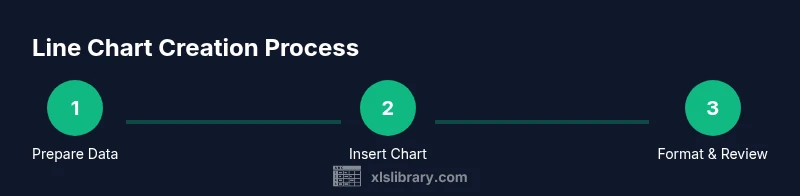
- 1
Prepare the data
Ensure the leftmost column has the x-axis values (dates or categories) and that each adjacent column contains a numeric series with a header. Clean any missing values or label gaps clearly. This step is foundational for accurate charting.
Tip: Use Excel’s Data > Text to Columns or DATEVALUE to convert dates if needed. - 2
Select the data range
Highlight the entire range including headers to let Excel infer what to plot. Include all series you want to compare on the same chart.
Tip: Include the header row to automatically name series in the legend. - 3
Insert the line chart
Go to the Insert tab, choose Line charts, and pick the plain Line option. Excel creates a chart with the first numeric column as the default series.
Tip: If multiple numeric columns exist, Excel will add additional lines automatically. - 4
Adjust x-axis to a date axis
If your x-axis uses dates, ensure the axis is treated as a date axis so spacing reflects time intervals. This improves trend readability.
Tip: Right-click the axis > Format Axis > Axis type > Date axis. - 5
Refine chart elements
Add a descriptive chart title, axis labels, and a concise legend. Remove unnecessary gridlines to reduce clutter.
Tip: Keep the legend on the side, not overlapping the data lines. - 6
Format colors and markers
Choose distinct, accessible colors for each line and optionally add markers at key points. This helps readers differentiate series at a glance.
Tip: Use a color palette with high contrast and consider color-blind friendly options. - 7
Validate and save
Cross-check values against the source data and verify that the axis scale accurately reflects the data range. Save a versioned copy.
Tip: Export a PNG or PDF for reports to preserve formatting.
People Also Ask
Can I create a line chart with multiple data series?
Yes. Excel supports multiple lines in a single chart. Ensure each series uses the same x-axis categories and is clearly distinguished by color or line style.
Yes, you can add multiple lines to show several series in one chart. Keep them distinct with color and legend labels.
How do I change a line chart to a different chart type later?
Click the chart, go to Chart Design, and choose Change Chart Type. You can switch to options like stacked lines or smooth lines if appropriate for your data.
Click the chart, pick Change Chart Type, and select a new line variant or another chart type as needed.
How can I add data labels to a line chart?
Select the chart, then choose Add Chart Element > Data Labels. Place them near data points for emphasis without clutter.
Add data labels from the chart tools so you can call out exact values at key points.
What should I do about missing values on the x-axis?
Decide whether to interpolate gaps, leave them as gaps, or fill with a placeholder. Consistency in the timeline is essential to prevent misreading trends.
If dates are missing, you can interpolate or mark gaps, but don’t ignore missing periods without a stated reason.
Is it okay to use a secondary axis for some series?
A secondary axis can help when one series has a very different scale, but it can also confuse readers. Use only when it clarifies the comparison.
Yes, but only if the difference in scale makes the comparison clearer, not more confusing.
How should I verify that my chart is accurate?
Cross-check the plotted values against the source data and confirm that axis ranges reflect the data. Recreate the chart from scratch if anomalies appear.
Double-check the numbers and axis limits, and redo the chart if something looks off.
Watch Video
The Essentials
- Plan data layout before charting.
- Create a simple chart and iterate with more series.
- Label axes clearly for quick comprehension.
- Maintain consistent time intervals on the x-axis.
- Validate visually and save versions for reproducibility.