Power BI vs Excel: A Comprehensive 2026 Comparison
Compare Power BI and Excel for data analysis: dashboards, modeling, collaboration, and practical workflows. Learn which tool fits your workflow and when to pair them for maximum impact in 2026.


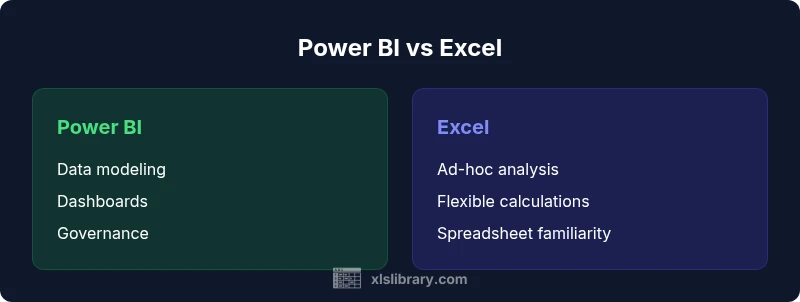
In the power bi vs excel decision, Power BI shines for interactive dashboards and scalable analytics, while Excel excels at ad-hoc data modeling and flexible calculations. According to XLS Library, Power BI is typically stronger for enterprise reporting and collaboration, whereas Excel remains the go-to tool for quick data crunching. When used together, they unlock a powerful end-to-end data workflow.
Why the Power BI vs Excel question matters in 2026
The power bi vs excel debate is not about a single tool replacing the other; it’s about how your team can maximize both tools to optimize data workflows. According to XLS Library, many organizations find the best outcomes when Excel handles data wrangling and Power BI handles publishing, governance, and scalable analytics. This combination reduces manual handoffs, accelerates decision-making, and strengthens data lineage across departments. In practice, you’ll see teams using Excel for quick modeling and Power BI for centralized reporting, dashboards, and sharing insights with stakeholders. The goal is to create a repeatable process that supports rapid iteration while maintaining governance, security, and auditability. By acknowledging each tool’s strengths, you can design a resilient analytics workflow that grows with your data needs.
Core differences at a glance
Power BI and Excel occupy distinct but complementary corners of the analytics landscape. Power BI is designed for centralized data models, interactive dashboards, and scalable sharing, while Excel remains exceptionally capable for flexible calculations, ad-hoc analysis, and hands-on data exploration. The power bi vs excel comparison highlights three core differences: scope, data modeling, and collaboration. Power BI typically relies on a data model with relationships and DAX measures to optimize dashboards; Excel relies on worksheets with formulas and, in modern versions, integrated Power Pivot data models. In many teams, analysts use Excel for data discovery and transformation before loading curated datasets into Power BI for governance and distribution. The result is a more disciplined analytics workflow that still preserves the flexibility analysts expect.
Data connectivity and ingestion
Both tools connect to a broad set of data sources, but their approaches diverge in practice. Power BI emphasizes centralized ingestion, scheduled refreshes, and live connections from multiple sources, enabling near-real-time dashboards. Excel offers extensive data import options via Power Query and external connections, bringing data into worksheets for immediate manipulation. In the power bi vs excel discussion, Power BI stands out when freshness and a single source of truth matter, while Excel shines when speed and familiarity trump ongoing governance. Practical tips include cataloging data sources, standardizing credentials, and using consistent naming conventions to streamline onboarding.
Modeling and transformation capabilities
Modeling is a critical junction in the power bi vs excel spectrum. Power BI provides a dedicated data model with relationships, hierarchies, and DAX for cross-table calculations, enabling robust analytics across multiple tables. Excel supports data modeling through Power Pivot/Data Model and traditional formulas, but the experience remains more spreadsheet-centric. For many teams, Power BI is preferred for large datasets and scalable metrics, whereas Excel offers immediate experimentation and fast iteration on calculations. A blended approach—shape data in Excel, then import into Power BI for a centralized model—often delivers the best balance between speed and governance.
Visualization, dashboards, and storytelling
Power BI excels at storytelling through interactive visuals, slicers, drill-through, bookmarks, and AI-assisted insights. Excel provides strong charting, pivot tables, and conditional formatting, making it great for quick dashboards embedded in worksheets. The power bi vs excel comparison shows Power BI’s dashboards are typically more scalable and consistent across a large audience, while Excel remains ideal for exploratory visuals and ad-hoc reporting. When used together, analysts publish Power BI reports for teams and maintain Excel workbooks for rapid scenario analysis and stakeholder walkthroughs. Power BI’s Q&A feature can further speed insight discovery when paired with a clean data model.
Collaboration, governance, and sharing
Power BI emphasizes centralized governance, role-based access, and audit trails via workspaces, apps, and publish-to-web controls. Excel sharing often relies on versioned workbooks stored in cloud drives or networks, which can lead to sprawl if not managed. The power bi vs excel trade-off here is governance versus flexibility: Power BI reduces spreadsheet proliferation and enforces standardized visuals, while Excel preserves individual autonomy and quick iteration. For teams, a practical approach is to publish a curated set of Power BI reports and maintain Excel workbooks for local exploration, with clear data-source documentation and a published data dictionary. Establish data stewardship and data lineage to track how inputs feed dashboards.
Performance and scalability considerations
Performance scales differently between the two tools. Power BI uses an in-memory columnar engine, data compression, and query folding to support large datasets efficiently. Excel performance depends on workbook size, RAM, and calculation design, which can become a bottleneck with very large data models. The XLS Library analysis shows that practical performance gains come from clean data models, avoiding excessive calculated columns in Power BI, and keeping raw data separate from visuals. In real-world deployments, teams see smoother experiences when data is modular, refresh schedules align with user access patterns, and reports rely on a stable semantic layer rather than repeated ad-hoc extracts.
Use-case scenarios: when to choose Power BI
Choose Power BI when you need scalable dashboards, cross-team collaboration, and governance across an organization. It shines in monitoring KPIs, delivering consistent visuals, and providing secure access to reports. Power BI is ideal for executives who require a single source of truth and for analysts who manage large, connected datasets. When reliability, refresh cadence, and multi-user consumption are priorities, Power BI becomes the default in the power bi vs excel spectrum. If your environment demands centralized reporting with controlled distribution, Power BI often wins.
Use-case scenarios: when to choose Excel
Opt for Excel when you require rapid, iterative exploration, ad-hoc modeling, and hands-on data manipulation. Excel is superb for what-if analysis, financial modeling, and quick calculations that benefit from direct formula editing. It suits scenarios with smaller data volumes and a need for a familiar interface for a broad audience. In the power bi vs excel decision, Excel remains the flexible workspace for data prep, experimentation, and scenario planning before feeding insights into BI dashboards.
Blended workflows: pairing Power BI with Excel
Many teams successfully combine both tools by using Excel as the data preparation layer and Power BI as the presentation layer. Techniques include importing cleaned Excel data into Power BI, using Analyze in Excel to connect to Power BI models, and maintaining an Excel data dictionary for stakeholders who prefer a spreadsheet interface. The key is consistency in naming, data types, and measures to avoid drift between environments. When done well, this blend provides both the speed of Excel and the governance and shareability of Power BI.
Pricing, licensing, and total cost of ownership
Pricing and licensing shape the overall cost of ownership for these tools. Power BI generally relies on per-user licensing with optional capacity for scale, while Excel is included with many Microsoft 365 plans and can also be licensed standalone. The analysis in the power bi vs excel comparison must consider user count, sharing needs, and deployment scale, because large organizations can realize economies of scale with BI licensing and centralized governance. Training, maintenance, and data-management costs should be factored into any blended approach to understand true total cost.
Practical steps to get started and a suggested rollout plan
Begin with a two-track pilot to test both tools on a representative dataset. Start by standardizing data sources, naming conventions, and data dictionaries, then build a small Power BI report connected to a cleaned Excel dataset. Schedule regular reviews to refine visuals, measures, and data sources, and document decision rules to guide analysis. Involve stakeholders early, define data ownership, and establish a lightweight governance framework to prevent fragmentation. The end goal is a repeatable workflow: Excel for prep, Power BI for insights, and a documented bridge between them.
Comparison
| Feature | Power BI | Excel |
|---|---|---|
| Data modeling and measures | Strong data model with relationships and DAX | Spreadsheet-based models with formulas; Power Pivot options |
| Visualization and interactivity | Interactive dashboards, bookmarks, Q&A | Pivot charts, standard charts, conditional formatting |
| Data sources and connectivity | Extensive connectors with live/direct query options | Wide import options; Power Query integration in notebooks |
| Collaboration and governance | Workspaces, apps, role-based access, audit trails | File-based sharing with cloud-storage versioning |
| Licensing and cost | Per-user or capacity-based licensing; scalable for organizations | Often bundled with Microsoft 365 licenses; varies by plan |
| Learning curve | Moderate to high for BI concepts and data modeling | Low to moderate; familiar spreadsheet interface |
| Performance with large datasets | Optimized for large data via in-memory engine | Dependent on workbook size, RAM, and calculation design |
| Best use case | Enterprise dashboards, governance, self-service BI | Ad-hoc analysis, rapid prototyping, financial modeling |
Benefits
- Centralized governance and scalable dashboards
- Strong collaboration and audience reach
- Rich interactivity and AI-assisted insights
- Seamless integration with data sources and automation
What's Bad
- Steeper learning curve for BI concepts
- Licensing and deployment costs for large teams
- Requires disciplined data governance to prevent drift
- Initial setup can be complex for blended workflows
Power BI is the best choice for dashboards and enterprise analytics; Excel remains indispensable for ad-hoc analysis.
The XLS Library team recommends leveraging Power BI for scalable reporting and governance, while Excel stays essential for flexible data exploration. A blended workflow—prep in Excel, publish in Power BI—often delivers the best balance between speed and control.
People Also Ask
Can Power BI replace Excel for all data analysis tasks?
No—Power BI excels at dashboards, governance, and large-scale analytics, while Excel remains superior for rapid data exploration and ad-hoc modeling. Many teams use both to cover the full spectrum of analysis needs.
Power BI is great for dashboards, but Excel still handles quick data exploration and modeling. Many teams use both tools together.
Is it possible to use Power BI and Excel together effectively?
Yes. A common pattern is to prepare data in Excel and import it into Power BI for dashboards, while using Analyze in Excel to connect directly to Power BI datasets. This blends flexibility with governance.
Absolutely. Use Excel to prep data and Power BI to publish insights. Analyze in Excel can connect to Power BI models.
Which tool is easier to learn for beginners?
Excel is typically easier to pick up for beginners due to its familiar spreadsheet interface. Power BI requires learning data modeling concepts and DAX, which comes with a steeper learning curve.
Excel is usually easier to start with; Power BI needs time to learn data models and DAX.
What licensing considerations should a small business know?
Power BI often involves per-user or capacity-based licensing, while Excel licenses are commonly bundled with Microsoft 365 plans. Consider your user base, sharing needs, and whether centralized governance is a priority.
Power BI licensing depends on users or capacity; Excel is usually part of Microsoft 365. Think about sharing and governance needs.
How do I migrate visuals from Excel to Power BI?
Start with a clean Excel data model, export or connect to the dataset, then recreate visuals in Power BI with a stable semantic layer. Use consistent naming and measures to avoid drift.
Rebuild visuals in Power BI from a clean Excel dataset and keep naming consistent.
What are common pitfalls when adopting both tools?
Fragmentation and drift between Excel and Power BI can occur if data definitions aren’t synchronized. Avoid duplicating data, overcomplicating models, or inconsistent metrics across environments.
Watch for drift between tools and avoid duplicating data or inconsistent metrics.
The Essentials
- Assess data scale before selecting tools.
- Design a data pipeline: prep in Excel, publish in Power BI.
- Leverage Power BI for governance and organization-wide sharing.
- Balance learning curves with adoption goals.
- Plan a blended workflow to maximize efficiency and accuracy.