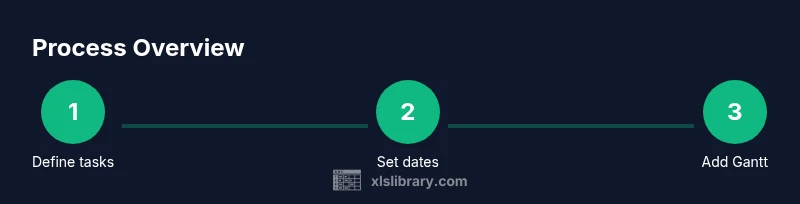
Project Schedule Example in Excel: A Practical Template Guide
Learn how to build a robust project schedule in Excel with a reusable template, including a Gantt view, dependencies, and milestones. This step-by-step guide uses a real-world example to help you plan, track, and adapt your projects in Excel.


You can create a practical project schedule in Excel by building a structured table with Task, Start Date, Duration, End Date, and Dependency columns, then adding a Gantt view with conditional formatting. This guide walks you through a reusable template and real-world examples you can adapt for any project today easily.
Why a project schedule matters in Excel
According to XLS Library, a well-structured project schedule in Excel helps teams stay aligned and deliver on time. In real-world workflows, schedules act as the single source of truth for tasks, responsibilities, and timelines. A practical schedule reduces last-minute surprises, clarifies which tasks depend on others, and communicates priorities to stakeholders. When you start with a clean template—one that captures tasks, dates, durations, dependencies, and milestones—you gain a powerful lens to forecast futures, adjust plans, and track progress. The goal is to translate project intent into a navigable timeline that your team can trust week after week. With the right layout, Excel becomes an adaptive planning tool, not just a static list of dates.
How to choose or design a template: simple vs advanced
Choosing the right template means balancing simplicity with the needs of your project. For small teams or short sprints, a lean sheet with a handful of columns (Task, Start Date, Duration, End Date, Dependency) can be enough. For larger programs, you’ll want additional fields: Resource, Milestone, Status, Slack, and a dedicated field for Dependencies. The XLS Library team recommends starting with a minimal, tested scaffold and gradually adding complexity as you validate requirements. Consider whether you’ll need resource loads, multiple deliverables, or cross-project dependencies. A modular approach makes the template reusable across projects and teams. Remember to keep naming consistent to avoid confusion when you scale.
Core columns and formulas: Task, Start Date, Duration, End Date, Dependencies
A solid core schedule includes Task, Start Date, Duration, End Date, and Dependency columns. Use a simple End Date formula like End Date = Start Date + Duration - 1 to align with calendar days. If you’re excluding weekends or holidays, switch to NETWORKDAYS(Start Date, End Date, Holidays). For dependencies, reference the predecessor task number (e.g., Dep = 2 means this task starts after Task 2). A status column helps track progress, and a Milestone flag can highlight key dates. Keeping uncertainties in a separate Assumptions column helps stakeholders understand risks without cluttering the timeline.
Building a Gantt view with conditional formatting
Visualizing timelines in a Gantt-style bar makes the schedule immediately actionable. Create a helper column that maps each date in the project window to a 1/0 bar indicator, then apply conditional formatting to color-code bars by status or priority. For example, a range that spans from the Task’s Start Date to End Date will show a colored bar across the calendar grid. Use a fixed date axis and lock cells to prevent accidental edits. This visual cue helps teams spot overlaps, identify resource contention, and communicate progress in meetings.
Managing dependencies and critical milestones
Dependencies link tasks and expose potential bottlenecks. Record predecessor relationships clearly and validate them with teammates to avoid unrealistic timelines. Identify the critical path by highlighting tasks with no slack and ensuring milestones punctuate the schedule at meaningful moments. Document assumptions behind duration estimates and review calendars for holidays. Regularly rebase the schedule to reflect actual progress, adjusting start dates and dependencies as needed. This discipline keeps the project on track and maintains trust with stakeholders.
Example: project schedule example excel – step-by-step layout
To illustrate, create a worksheet with columns: Task, Start Date, Duration, End Date, Dependency, Resource, Milestone, Status. Populate with a sample set of tasks: Define scope, Gather requirements, Design, Develop, Test, Deploy. Use formulas for End Date and conditional formatting for the Gantt bars. Add a small data validation list for Status (Not Started, In Progress, Completed) and a simple Milestone flag. This concrete layout serves as a baseline you can copy for future projects, customize for your team, and scale as needed.
Tips, pitfalls, and best practices
- Start with a lightweight template and add complexity gradually as you learn what your team needs. - Use a consistent date format across the sheet to avoid confusion in collaborations. - Document holidays and working days to keep end dates realistic. - Protect key formulas to prevent accidental edits, while keeping the data entry areas unlocked for team input. - Regularly publish a schedule snapshot to stakeholders to prevent drift and miscommunication.
Authority sources and further learning
- https://www.pmi.org
- https://extension.cornell.edu
- https://hbr.org
These sources provide foundational concepts on project management, scheduling best practices, and practical templates you can explore to deepen your understanding.
Quick-start template: skeleton data and starter formulae
| Task | Start Date | Duration | End Date | Dependency | |----------------------|------------|----------|-----------|------------| | Define scope | 2026-03-01 | 5 | 2026-03-05 | | | Gather requirements | 2026-03-06 | 7 | 2026-03-12 | 1 | | Design | 2026-03-13 | 8 | 2026-03-20 | 2 |
End Date formula example: =StartDate + Duration - 1 Gantt visual: apply conditional formatting on a date grid to show bars.
Putting it all together: a quick recap
By combining a clean data backbone, a Gantt view, and clear dependencies, your Excel project schedule becomes a living tool. Start small, validate with your team, and progressively tailor the template to fit your projects. The goal is a repeatable, shareable schedule that helps every stakeholder see what matters and when.
Tools & Materials
- Excel (365 or 2019+)(Latest features recommended for smooth Gantt formatting)
- Sample task list (5–10 tasks)(Baseline content to test the template)
- Holidays calendar(List dates to adjust workdays in formulas)
- Printer-ready calendar sheet (optional)(For printed project planning)
Steps
Estimated time: 60-120 minutes
- 1
Create workbook and define columns
Open a new workbook and create a dedicated sheet for your schedule. Establish core columns: Task, Start Date, Duration, End Date, Dependency, Resource, Milestone, Status. This backbone is essential for reliable calculations and scaling.
Tip: Name headers clearly and format dates consistently across the sheet. - 2
Enter tasks and dependencies
List each task with a realistic duration and note any dependencies that affect start dates. Use a simple numbering system so dependencies reference correct predecessors.
Tip: Keep dependencies as minor integers to minimize confusion across large projects. - 3
Compute End Dates
End Date = Start Date + Duration - 1. If you exclude non-working days, use NETWORKDAYS with a Holidays range to adjust End Date automatically.
Tip: Verify that holidays and weekends are accounted for to avoid overcommitment. - 4
Add a Gantt view
Create a date grid and use a helper column to map active days. Apply conditional formatting to display colored bars from Start Date to End Date for each task.
Tip: Lock the date grid so your team can view without accidentally changing formulas. - 5
Highlight milestones and critical path
Flag milestones with a distinct color and identify the critical path by highlighting tasks with zero slack. Document assumptions to explain why dates are set as they are.
Tip: Color-code by status and ensure stakeholders understand the color legend. - 6
Review and iterate with the team
Share the schedule with the team, confirm dates and dependencies, and adjust for realistic timelines. Schedule regular refreshes to keep the plan current.
Tip: Treat the schedule as a living document; encourage input from all stakeholders.
People Also Ask
What is a project schedule in Excel?
A project schedule in Excel lists tasks, dates, durations, and dependencies to visualize and track project timelines. It often includes a Gantt view to make progress easy to communicate.
A project schedule in Excel lists tasks, dates, durations, and dependencies to visualize the timeline.
Can I create a Gantt chart without macros?
Yes. You can build a Gantt-style bar using conditional formatting on a date grid, without any macros.
Yes, you can create a Gantt bar with conditional formatting without macros.
How should I handle holidays and non-working days?
In formulas, use NETWORKDAYS or a custom calendar to exclude holidays from working days when calculating End Dates.
Use a workday function that excludes holidays.
What is the best practice for maintaining the schedule?
Keep a single source of truth in the Excel file, update dates as progress occurs, and review the plan regularly with the team.
Keep the schedule updated and review with the team.
How can I reuse the template for future projects?
Make the template modular: separate data entry from calculations, and save as a template file (.xltx) for future use.
Save as a template so you can reuse it for other projects.
Watch Video
The Essentials
- Plan with a clean Excel template and small tasks
- Use a visual Gantt view to interpret timelines quickly
- Keep the schedule flexible with regular updates