Fixing Excel Formula Not Calculating: A Troubleshooting Guide
Urgent guide to fix Excel formulas not calculating. Learn quick checks, key causes, and step-by-step fixes to restore automatic recalculation and accurate results across your spreadsheets.


The most common reason Excel formulas don’t recalculate is the workbook’s calculation mode. If set to manual, formulas won’t update automatically. Quick fix: switch to Automatic calculation (Formulas > Calculation Options > Automatic) and press F9 to recalculate. Also confirm cells aren’t formatted as text and that your formula references are valid.
Why Excel Formulas Not Calculating: Key Causes
When you encounter the issue of an Excel formula not calculating, the root causes are often simpler than you think. The most frequent culprit is the calculation mode. If your workbook is set to manual, Excel waits for you to trigger recalculation—so a change you expect to propagate through dependent cells may not appear. Other common factors include data type mismatches (numbers stored as text), formula references that point to closed workbooks or external links, and circular references that trigger iterative calculation issues. Locale settings can also affect separators (commas vs semicolons) and function syntax, especially across different regional installations. Finally, large data ranges or volatile functions (such as NOW or RAND) can make recalculation slower, leading to the perception that formulas are not calculating at all. By recognizing these patterns, you can narrow down the cause and act fast to restore accurate results in your sheets.
Quick Checks You Can Do Right Now
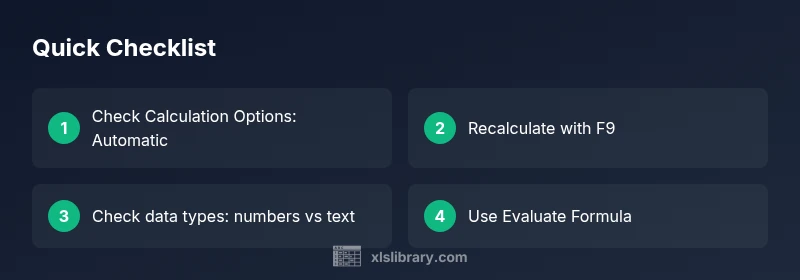
If you’re seeing a stubborn formula, start with fast wins that don’t require deep investigation. First, verify the calculation mode: Formulas > Calculation Options > Automatic. If it was set to Manual, recalculate with F9 and observe whether dependent cells update. Next, confirm that the cell format isn’t Text; change to General or Number, then re-enter the formula. Check that your references point to the intended cells and that no circular references exist. Save and reopen the workbook if Excel seems stuck in a recalculation loop. Finally, ensure your workbook isn’t running external links to closed books, which can halt local calculations.
How to Diagnose with a Diagnostic Flow
To systematically diagnose why a formula isn’t calculating, map the symptom to likely causes and test fixes in order from easiest to most involved. Start with Calculation Options, then verify data types, references, and external links. If the issue persists, consider circular references or iterative calculation settings. Use Evaluate Formula to step through the calculation and inspect intermediate results. This methodical approach reduces guesswork and speeds up problem resolution.
Step-by-Step Fix for the Most Common Cause
The most common cause of the problem is manual calculation mode. Follow these steps: 1) Go to Formulas > Calculation Options and select Automatic. 2) Press F9 to recalculate the workbook. 3) Save, close, and reopen Excel to reset the recalculation engine. 4) Check each affected formula for correct syntax and relative/absolute references. 5) Confirm the cells aren’t formatted as Text; re-enter if necessary. 6) If the issue persists, isolate the problem by creating a small test sheet with the same formula and a few data points.
Handling Data Types: Numbers vs Text
A surprisingly common reason for formulas not calculating is data type mismatch. Numbers stored as text won’t participate in arithmetic, leading to unexpected results or a formula that appears to be “not calculating.” Convert text numbers using VALUE or Multiply by 1, or use the error-checking tools to identify cells stored as Text. Also check for non-breaking spaces or hidden characters that can break parsing. Consistent data types across all referenced cells improve reliability and speed of calculation.
Best Practices to Keep Formulas Reliable
To prevent recalculation problems, adopt a few reliable habits: keep Calculation Options set to Automatic unless you’re doing a manual audit, use Evaluate Formula to troubleshoot complex expressions, and trace precedents to understand dependencies. Document intricate formulas with comments or a separate sheet, and test changes on a copy before applying them to production data. Regularly audit workbooks with lots of links or large data ranges to catch performance bottlenecks before they become issues.
Steps
Estimated time: 25-35 minutes
- 1
Open Calculation Options
Navigate to Formulas > Calculation Options and set to Automatic. This ensures Excel recalculates every time you change a cell that affects other cells.
Tip: If you don’t see Automatic, check that you’re not in a protected workbook. - 2
Refresh and Recalculate
Press F9 to recalculate the entire workbook, then inspect results in affected cells to confirm changes propagate.
Tip: Use Shift+F9 to recalculate the active worksheet only. - 3
Validate Data Types
Select cells involved in the formula and confirm numeric format. Change Text to General or Number if needed and re-enter formulas.
Tip: Multiply by 1 or use VALUE to convert text numbers. - 4
Inspect References
Use Trace Precedents to see which cells feed into your formula. Ensure all references point to the intended ranges.
Tip: Beware of indirect or named ranges that may shift with edits. - 5
Check for Circular References
If Excel flags a circular reference, resolve it or enable iterative calculation from File > Options > Formulas.
Tip: Start with the smallest loop to minimize unintended results. - 6
Use Evaluate Formula
Select the cell and open Formulas > Evaluate Formula to step through each operation and watch intermediate values.
Tip: This is especially helpful for nested IFs or array formulas.
Diagnosis: Excel formula not calculating
Possible Causes
- highCalculation mode set to manual
- mediumFormula references cells formatted as text
- mediumExternal links or closed workbooks referenced in the formula
- lowCircular references or iterative calculation disabled
- lowLocale or syntax issues (separator, function name)
Fixes
- easySet calculation to Automatic and recalc with F9
- easyConvert cells to numeric and ensure correct data types
- easyCheck for external links and close or update references
- mediumReview circular references; enable iterative calculation if needed
- easyEvaluate formula to step through calculation
People Also Ask
Why is my Excel formula not calculating after I changed the data?
If data changes but results don’t, verify that calculation is set to Automatic, ensure the changed cells are in the formula’s dependency chain, and check for data type mismatches. Recalculate with F9 to confirm.
Check calculation mode and dependencies, then recalculate to see if results update.
How do I recalculate all formulas in Excel quickly?
Go to Formulas > Calculation Options and select Automatic, then press F9 to force a full workbook recalculation. For a single sheet, Shift+F9 recalculates that sheet.
Set to Automatic and use F9 to recalculate across the workbook.
What if my formulas show #VALUE! or #REF! errors only after recalculation?
Check the referenced cells for correct data types and existence. #REF! usually means a moved or deleted reference; #VALUE! often signals a type mismatch or an array operation with incompatible data.
Review references and data types to fix common error codes.
How can I fix a circular reference safely?
Identify the circular path with Excel’s error warning, then restructure the formula to remove the loop or enable iterative calculation under Formulas > Options.
Eliminate the loop or allow limited iteration if required.
When should I use Evaluate Formula?
Use Evaluate Formula for complex, nested, or array formulas to see intermediate results step by step and locate where the calculation goes wrong.
Try Evaluate Formula to pinpoint the issue.
Watch Video
The Essentials
- Set calculation to automatic to restore recalculation.
- Check data types and formatting for numeric accuracy.
- Audit formulas with Evaluate Formula and Trace Precedents.
- Document complex formulas to prevent future issues.