Why Excel Won't Calculate a Formula and How to Fix It
Discover practical fixes when Excel won't calculate a formula. This step-by-step guide from XLS Library covers common causes, diagnostic flow, and prevention tips.


Most Excel formula calculation failures start with a circular reference, a calculation mode set to manual, or a data type mismatch. Start by enabling automatic calculation, checking for circular references, and confirming cell formats. If the issue persists, inspect the formula syntax and calculate options across the workbook. This quick check often resolves many cases without editing complex formulas.
Common reasons Excel won't calculate a formula
Common calculation failures usually come from a few predictable culprits. According to XLS Library, the most frequent causes are manual calculation mode, a hidden circular reference, or data-type mismatches that prevent proper evaluation. When you see a blank cell or a stale result, stop and check these basics first. Ensure Calculation Options is set to Automatic, and that you aren’t in "manual" mode inadvertently via a workbook or worksheet setting. Then examine the references your formula relies on: missing cells, renamed sheets, or closed external workbooks can block calculation. Finally, look at the actual formula for syntax errors such as mismatched parentheses or stray operators. By anchoring the check to these core areas, you’ll restore reliable recalculation without rewriting entire formulas.
Quick checks you can do in 5 minutes
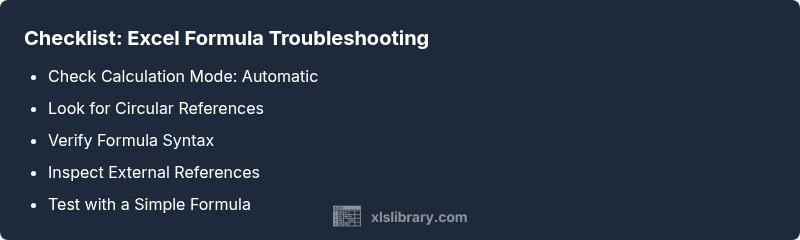
Take five minutes to run through this rapid checklist. First, press F9 to recalculate the active sheet and Ctrl+Alt+F9 to recalc the entire workbook. If you still don’t see updates, switch Calculation Options to Automatic from the Formulas tab. Next, search for potential circular references via Formulas > Error Checking. Finally, confirm that the cells referenced in your formula contain numbers or dates, not text that looks like numbers. A minor format mismatch often explains why excel won't calculate formula results. If you spot a named range, verify it resolves to a valid reference. These quick checks catch most traps before you dive into deeper diagnostics.
Diagnostic flow: symptom to solution
Symptom: You enter a formula and get the wrong result or see a stale value that doesn't update. Diagnosis: The likely root causes are manual calculation mode, a circular reference, or a data-type mismatch. Solutions: start with switching to Automatic calculation, use Error Checking to locate and break circular references, and verify data types. If the symptom persists after these checks, broaden the scope to external links, named ranges, and workbook-level settings. This flow keeps you moving from obvious fixes to less common, but still plausible, issues. Document each change so you can revert if necessary. In practice, a disciplined flow reduces back-and-forth and speeds up resolution.
Fix #1: Recalculate mode and circular references
Fix #1: Ensure automatic calculation and eliminate circular references. Go to Formulas > Calculation Options and select Automatic, then re-enter or evaluate the formula to trigger a full recalculation. If you see a circular reference alert, click the Error Checking dropdown and follow the prompts to locate the source. Break the loop by removing or reworking the offending cell references, or by using helper cells to split the calculation into smaller parts. After addressing the cycle, press F9 or Ctrl+Alt+Shift+F9 to recalc the workbook. This fix addresses the top two causes with a single workflow. Tip: keep a visible log of any circular references you fix so they don’t reappear later.
Fix #2: Verify cell formats and data types
Fix #2: Data type mismatches can silently derail calculations. Make sure referenced cells contain numbers, dates, or logical values as intended. If a number is stored as text, Excel will treat it as string and the calculation may fail or give unexpected results. Convert via Data > Text to Columns or use VALUE/DATEVALUE to coerce types. Also check that you aren’t mixing locales (decimal separators differ by region) which can shift results unexpectedly. After normalizing formats, recalc to confirm.
Fix #3: External references and workbook links
Fix #3: Formulas that refer to closed workbooks or missing links can show #REF! or stale results. Open all workbooks your formula references, or replace external links with internal equivalents. If the data source is unavailable, consider importing a snapshot or creating a static copy for calculation, then reconnect when possible. Check defined names that point to external sources and adjust as needed. Recalculate after adjusting links to verify that the formula now returns the expected value.
Special cases: regional settings, date formats, and text numbers
Special cases often trip up formulas. Regional settings control decimal and thousand separators, date formats, and even text-to-number conversion behavior. If your workbook uses different regional settings than the system, Excel may misinterpret numbers in formulas. Align the locale, or explicitly convert strings to numbers with VALUE, -- (double unary), or multiplication by 1. Verify dates are stored as proper date serials, not text, and handle time components consistently. After standardizing, recalc to confirm results.
Step-by-step: Work through a real example
Take a concrete example: a formula that sums a column where some cells contain text values that look like numbers. Step 1: Turn on Automatic calculation. Step 2: Use Evaluate Formula to step through the calculation. Step 3: If you identify a non-numeric value, convert it using VALUE or multiply by 1. Step 4: Recalculate and compare results with a simple static sum. Step 5: Document changes and test with sample data. After following these steps, you’ll likely see correct totals and a repeatable process for future checks.
Prevention and best practices
Prevent future issues with these habits: keep formulas simple where possible, break complex formulas into helper cells, enable workbook-level calculation only when actively debugging, and regularly check for circular references. Create a consistent data-entry protocol to prevent text-as-number issues. Use named ranges to avoid broken references when sheets are renamed. Finally, maintain a versioned backup strategy so you can revert if needed.
Steps
Estimated time: 15-25 minutes
- 1
Check calculation mode
Open Formulas > Calculation Options and ensure Automatic is selected. This forces Excel to recalculate formulas as you edit cells.
Tip: Set a calendar reminder to recheck calculation mode after workbook changes. - 2
Scan for circular references
Use Formulas > Error Checking to locate circular references. If found, determine which cells create the loop and restructure the formula. Break the cycle by using intermediate cells if needed.
Tip: Keep a running list of circular references you resolve to prevent reopening the issue. - 3
Test with a simple reference
Create a small test formula on a new sheet that mirrors the original logic but only uses a few cells. See if the simple version calculates correctly to rule out systemic issues.
Tip: If the simple version fails, the problem is likely foundational (calculation mode or data type). - 4
Validate data types
Check that numeric cells are truly numbers (not text). Use VALUE for text numbers and DATEVALUE for dates stored as text. Normalize regional decimal separators if needed.
Tip: Temporarily convert a few cells to numbers to verify if calculations update. - 5
Check external references
Review any formulas referencing other workbooks. Open those files or replace with internal data sources to confirm whether linkage blocks calculation.
Tip: If you must keep external links, ensure the source files are accessible and properly linked. - 6
Use Evaluate Formula
Select the formula and use Formulas > Evaluate Formula to step through evaluation. This helps identify exactly where the calculation stops progressing.
Tip: Take notes while stepping through to pinpoint the first non-numeric decision. - 7
Recalculate the workbook
Use F9 for the active sheet or Ctrl+Alt+Shift+F9 to force a full workbook recalculation after fixes.
Tip: Always save a backup before broad recalculation. - 8
Validate results with a control
Compare the computed total against a known valid result or a manually calculated subtotal to ensure accuracy.
Tip: If discrepancies persist, revert to a previous version and reapply changes more gradually. - 9
Seek help if unresolved
If issues persist after these steps, escalate to a colleague or a professional with a reproducible example to share.
Tip: Document steps you’ve taken and attach sample data when requesting help.
Diagnosis: Workbook shows formula results that are blank, incorrect, or stale and do not update after edits.
Possible Causes
- highManual calculation mode is enabled
- highCircular references exist within the formula
- mediumData type mismatch or text values used in numeric calculations
- lowExternal references to closed workbooks or broken links
Fixes
- easySwitch calculation mode to Automatic via Formulas > Calculation Options and recalculate
- easyUse Error Checking to locate and resolve circular references and break loops
- easyValidate data types and normalize formats (numbers, dates, locale settings)
- easyInspect external references and replace with internal data or open source workbooks
- mediumUse Evaluate Formula for complex formulas to isolate problematic parts
People Also Ask
Why won't Excel calculate my formula after I edited it?
The most common reasons are manual calculation mode, circular references, or syntax errors. Verify calculation settings, locate any loops, and check the formula syntax. If issues persist, test a simple version to isolate the problem.
Most issues come from manual calculation, a circular reference, or syntax errors. Start by checking calculation mode and looking for circular references.
What does #REF! mean and how do I fix it?
#REF! indicates a broken reference to a cell, range, or sheet that no longer exists. Update the reference to a valid cell, rename or restore the missing sheet, or adjust the formula to refer to a correct range.
#REF! means a reference is broken, so fix the target cell or adjust the formula to a valid range.
My workbook uses external links; formulas aren’t updating. What should I do?
Open all source workbooks or replace external references with internal data where possible. Ensure links are valid and accessible. If you must keep links, consider importing a static snapshot for calculations.
External links can block updates if the source files aren’t open or accessible.
How can I force Excel to recalculate everything?
Use Ctrl+Alt+Shift+F9 to recalculate all formulas in all open workbooks. This is more thorough than a simple F9, especially with cross-workbook references.
You can force a full recalculation with a keyboard shortcut to refresh every formula.
Why are numbers sometimes treated as text in formulas?
Numbers stored as text won’t participate in numeric calculations. Convert using VALUE, text-to-columns, or multiply by 1. Normalize regional formats for decimals and thousands separators.
If numbers are stored as text, Excel won’t compute them correctly.
Is there a quick way to detect circular references?
Yes. Use Formulas > Error Checking to locate circular references. You can also turn on iterative calculation to see the impact of loops, but use it with caution.
You can find circular references with the Error Checking tool.
Watch Video
The Essentials
- Switch to automatic calculation when troubleshooting
- Fix circular references before reworking formulas
- Normalize data types and regional settings to ensure numeric accuracy
- Inspect external links and defined names for reliability
- Use Evaluate Formula to diagnose and fix steps efficiently