Buy Excel in 2026: Licensing, Pricing, and Plan Options
Learn how to buy Excel in 2026, comparing Microsoft 365 vs standalone options, pricing ranges, and practical steps from XLS Library to help you choose the right plan.


To buy Excel, you generally choose between a Microsoft 365 subscription that includes Excel or a standalone Excel license as part of a business plan. Most buyers start with personal or business tiers, which unlock Excel alongside Word, PowerPoint, and more. Prices vary by region and plan, with both monthly and annual options.
Why the right Excel purchase path matters
Choosing how to buy Excel affects your total cost, access across devices, and how updates are delivered. According to XLS Library, the majority of buyers lean toward subscription models because they offer ongoing updates, cloud features, and seamless cross‑device access. For individuals, Personal and Family plans often provide the best balance of cost and convenience, whereas teams and organizations typically opt for Business or Enterprise tiers that include admin controls and centralized license management. Your path should reflect how many people need access, whether you require offline desktop apps, and how often you collaborate in real time. The goal is to minimize friction—both in up-front cost and in ongoing management—while ensuring you never miss critical features like data analysis tools and compatibility with your existing workflows.
Key takeaway: align your purchase path with actual usage patterns to avoid paying for unused seats or features.
Understanding Microsoft 365 pricing and what it includes
Microsoft 365 pricing is organized around plans that bundle Excel with other productivity apps. For individuals, plans typically cover a desktop and mobile experience, plus cloud storage, with updates included. For businesses, pricing scales with the number of seats, admin capabilities, and additional services such as Teams and Exchange. Prices vary by region and promo periods, so it’s important to compare the exact inclusions—desktop apps, online features, storage limits, and device licensing—before committing. From a practical standpoint, many buyers find that the value of having regular updates and cross‑device access justifies a subscription over a one‑time purchase, especially for teams that collaborate across locations.
Tip: use the official Microsoft pricing page to map features to your needs and to verify regional differences in availability and cost.
Standalone Excel vs. Excel as part of a suite
Historically, Excel could be acquired as a standalone license, but the modern market heavily favors subscriptions that bundle Excel with the rest of the Microsoft 365 suite. The desktop app remains a core component for offline work, while the web version supports quick edits and sharing. The decision often boils down to your workflow: if you rely on cloud collaboration, real‑time co‑authoring, and automatic updates, a Microsoft 365 plan is typically the better fit. If your environment requires strict offline access and you already own compatible licenses, you might prefer a desktop‑only approach—but be aware that ongoing security updates and compatibility improvements are predominantly delivered through the subscription model.
Actionable note: assess how often you work offline and whether your team needs centralized management tools that come with business plans.
Step-by-step buying guide: how to buy Excel
- Define needs and usage: determine the number of users, required features, and whether you need cloud storage or admin controls. 2) Choose the right plan: compare Personal, Family, and Business tiers to see which best fits your user count and collaboration needs. 3) Check regional availability: pricing and licenses can vary by country, so confirm what’s offered in your region. 4) Compare inclusions: decide if you want desktop, web, or both, plus storage and advanced features like data analytics add‑ins. 5) Purchase via official channels: buy through the Microsoft official site or trusted resellers to ensure legitimate licenses. 6) Activate and assign licenses: assign seats and verify access on all required devices. 7) Review renewal terms: understand automatic renewal rules and any price changes over time. 8) Plan for growth: if you expect team expansion, consider plans that scale with seat licensing and admin needs.
Pro‑tip: use trial periods when offered to validate that the chosen plan meets your team’s daily tasks before committing long‑term.
Common pitfalls when buying Excel and how to avoid them
- Assuming a perpetual license is still widely available: today, subscriptions dominate, so verify license type before purchase. - Overpaying for unused seats: closely estimate headcount and consider flexible plans with add‑on seats. - Ignoring platform preferences: ensure the plan supports your primary devices (Windows, macOS, mobile) and preferred interfaces (web vs desktop). - Neglecting data storage and governance needs: many business plans include cloud storage quotas and admin controls essential for teams. - Falling for promotions without due diligence: promotions can be enticing, but ensure continued value after discount ends.
Enhancing value: bundles, education discounts, and alternatives
Bundles and education discounts can meaningfully reduce the cost of buying Excel, especially for students, teachers, or small businesses. Education offers and nonprofit pricing may provide substantial savings, but eligibility criteria vary by region. If you operate in a mixed environment with non‑Microsoft tools, consider whether cohesive workflows justify adopting Microsoft 365 for its integrated ecosystem, or if targeted Excel add‑ons and cloud storage suffice. If the goal is a strict, offline spreadsheet tool, alternatives like Google Sheets or LibreOffice can cover most daily tasks, but they may lack deep compatibility with Excel file formats and advanced data analysis features. The key is to map your core tasks—budgeting, forecasting, data cleaning, and dashboards—to the features included in each plan and to test interoperability where needed.
Bottom line: for most teams, Microsoft 365 subscriptions deliver the best blend of access, updates, and collaboration, but always verify region-specific options and discounts to maximize value.
Overview table of Excel buying options
| Aspect | Excel Buying Option | Notes |
|---|---|---|
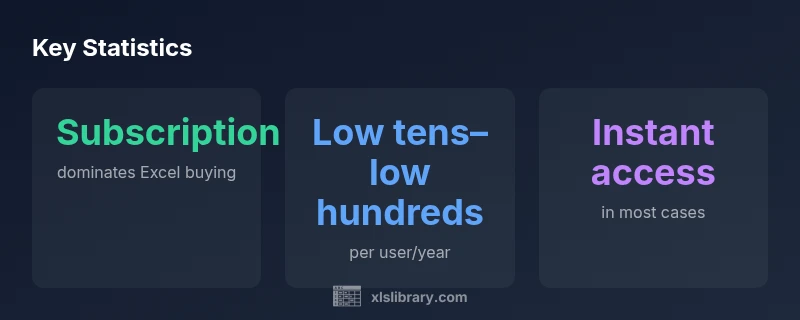
| Purchase Model | Subscription (Microsoft 365) dominates | Instant access across devices |
| Typical Cost Range | Low tens to low hundreds per user/year | Region-dependent |
| Activation Time | Instant to 24 hours | License provisioning after purchase |
People Also Ask
What is the easiest way to buy Excel?
The easiest way is to buy Excel through a Microsoft 365 plan that includes Excel or a compatible Business plan. You’ll typically gain instant access across devices and seamless updates. Verify regional availability and the exact inclusions at checkout.
Buy Excel through a Microsoft 365 plan on the official site for quick access and updates.
Is there a perpetual license for Excel anymore?
Microsoft has shifted toward subscription licensing for Excel as part of Microsoft 365. Perpetual licenses are not commonly offered; if available, they are regionally specific or bundled with older educational programs. Always check the current offerings at checkout.
Perpetual licenses are rare; most buyers use a Microsoft 365 subscription.
Can I buy Excel for home use without internet?
Yes, the desktop Excel app can be used offline after activation, but ongoing updates and some features require periodic online verification. Consider a plan that supports desktop installation if offline work is essential.
You can use Excel offline after activation, but you may need online checks for updates.
Are student discounts available for Excel?
Educational discounts may be available in some regions through Microsoft Education programs or authorized resellers. Eligibility varies by country, so check the official education offers page for your location.
Check if you qualify for student pricing via Microsoft Education.
How should I compare Excel plans for a small business?
Compare plans by the number of seats, included apps, cloud storage, admin controls, and support. Use the official pricing pages to build a side‑by‑side comparison tailored to your team size and collaboration needs.
Compare plans by seats, apps included, and admin features.
What payment methods are accepted when buying Excel?
Microsoft typically accepts major credit/debit cards and regional payment options. Check the checkout page for your region’s available methods and any required corporate billing setup.
Most regions accept cards, with regional options at checkout.
“Licensing Excel isn’t just about price—it's about aligning access, updates, and collaboration with your team’s workflow. The right plan scales from solo use to large organizations.”
The Essentials
- Define your needs before buying Excel
- Prefer subscription for updates and cloud features
- Compare plans by seats, apps, and admin tools
- Consider education or business discounts where eligible
- Choose web vs desktop based on your workflow