How to See When an Excel File Was Modified
Discover practical steps to determine when an Excel workbook was last modified. Learn to check dates in Windows, macOS, and cloud storage, plus Excel File Info and version history for accurate auditing.


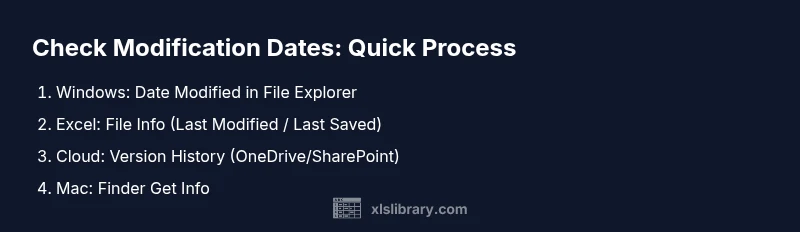
Step 1: Check Windows File Explorer Date Modified for the file. Step 2: Open Excel and go to File > Info to view Last Modified or Last Saved. Step 3: If the file lives in OneDrive or SharePoint, review Version History. Step 4: On a Mac, use Finder Get Info or the Excel info pane to verify.
Understanding the Modification Timestamp in Excel
In everyday Excel workflows, you may need to verify exactly when a workbook was last changed. The critical dates are the file's Date Modified in the operating system and what Excel reports inside the file's metadata. According to XLS Library, these timestamps help you establish a change trail for audits, collaboration, or version control. In many cases the times come from the file system (Windows or macOS), but Excel can also record an internal Last Modified timestamp when you save a workbook in File > Save, or when AutoSave is active with a cloud copy. It’s important to recognize that there can be a discrepancy between the file system's clock and Excel's internal record, particularly if the file has been moved between devices, synchronized with cloud storage, or restored from backups. This section will dissect what each timestamp means and when to trust it for your data workflows.
What the Different Dates Mean
Understanding the terminology around Excel modification timestamps helps prevent confusion. Date Modified (the file system timestamp) shows when the file’s bytes were last changed at the OS level. Last Modified or Last Saved (seen in Excel File Info) relates to an in-application record of the most recent save operation. When you work with cloud storage, Version History adds a reliable, user-attributed log of edits. Created dates can also appear, but they capture when the file was first created and do not reflect subsequent edits. The key is to align these dates with your workflow: if you’re auditing changes, prioritize Version History and Last Modified from the OS as primary references.
Windows: Date Modified in File Explorer
On Windows, the Date Modified column in File Explorer is your first stop. Navigate to the folder containing the workbook, switch to Details view, and ensure Date Modified is visible. Right-click the column header to add or remove columns. Hover or right-click the file to view its Properties for a more granular timestamp history, including the time zone in which the timestamp was recorded. If the file has been copied or moved, Date Modified can reflect the move rather than the moment when content changed inside the workbook. This distinction matters for compliance and record-keeping.
Excel File Info: Last Modified vs Last Saved
Excel’s File > Info pane often shows Last Modified or Last Saved timestamps, which are updated as you edit and save within Excel. This can be more precise for workbook-level changes than the OS timestamp in some cases, especially when the file is closed and reopened across different sessions or devices. If you are using Excel with AutoSave, the Last AutoSave time may appear as well, providing a granular trace of recent edits. Remember that Last Modified in Excel may lag slightly behind the OS if the file hasn’t been saved recently, so corroborating with OS timestamps is prudent.
OneDrive/SharePoint Version History
When your workbook is stored in OneDrive or SharePoint, Version History becomes a powerful tool. It records each save with the editor’s name, timestamp, and a snapshot of the workbook. This is particularly important for collaborative work or regulated environments because it shows who changed what and when. You can access Version History via the web interface or through the Office apps, and you can restore or compare previous versions if needed. Always cross-reference with the local Date Modified when working offline.
macOS: Finder Get Info and Modified Dates
On macOS, Finder provides reliable modification timestamps through Get Info. Select the workbook, press Command-I to open the Info window, and review the Modified date. You can cross-check this with the Excel File Info panel for consistency. Be mindful that macOS may display different times in different time zones if the file has been moved across network shares or cloud syncs. When macOS and Windows are both in use in a team, aligning their timestamps helps maintain a coherent edit history.
Track Changes, Shared Workbooks, and Compliance
If your file is part of a shared workbook or uses Track Changes, the traditional timestamps may be complemented by change-tracking records. In modern Excel, Track Changes is less commonly used, but when enabled, it can reveal who edited which section and when. For compliance needs, rely on cloud version history and explicit save timestamps rather than relying solely on file-level dates. Documenting which method you used to verify modifications improves auditability and reduces disputes.
Practical Scenarios: Local Files vs. Cloud-Synced Workbooks
Local files stored on a desktop may show dates that reflect the machine’s clock and file system events. In contrast, cloud-synced files bring Version History that captures edits across devices. A file moved from a local drive to OneDrive may show different times depending on the source and destination clocks, so always triangulate OS dates with Excel metadata and cloud history. When sharing, set expectations about how timestamps are captured and reported, and maintain a simple log to record the method used in each audit.
Best Practices for Verifying Modifications
Create a standard operating procedure (SOP) for modification checks. Always start with the file’s path and exact name, confirm the Date Modified in the OS, verify Last Modified in Excel, and consult Version History for cloud-based files. Maintain a short evidence record: file path, timestamps, editor(s), and the verification method. Regularly review this process to accommodate changes in your storage or Office version. As you adopt this practice, your ability to verify edits will improve and become more reliable.
How to Record and Share Verification Results
When you verify modification dates, store the results in a centralized log or audit sheet. Include the file name, location, timestamps from each source (OS, Excel, cloud), who verified it, and the date of verification. Include a screenshot if possible to accompany the timestamps. This discipline helps teams stay aligned on edits and supports regulatory or governance requirements.
Conclusion: Integrating Modification Checks into Your Workflow
Across Windows, macOS, and cloud environments, multiple sources can report when an Excel workbook was modified. The most trustworthy sources are Version History for cloud files and Excel’s File Info for in-workbook changes, supplemented by the OS date. By consistently cross-referencing these timestamps and logging your results, you can build a reliable record of changes that supports collaboration and compliance. The XLS Library Team encourages practitioners to adopt these practices as part of standard Excel workflows.
Tools & Materials
- Computer with Windows or macOS(Ensure you can access File Explorer or Finder and the Excel app.)
- Microsoft Excel (Windows or macOS)(Version 2016+; 365 supports AutoSave and cloud history.)
- Internet connection(Needed to access OneDrive/SharePoint version history.)
- OneDrive/SharePoint access(Optional for cloud version history checks.)
- Mac Finder or Windows File Explorer(Used to view Date Modified at the OS level.)
- Log sheet or note-taking app(Record timestamps and verification steps for audits.)
Steps
Estimated time: 15-25 minutes
- 1
Identify the file location
Locate the target workbook on your computer or cloud drive. Confirm the exact file name and path to avoid mixing up duplicates. This step sets the scope for your timestamp checks and ensures you’re examining the correct file.
Tip: Double-check the file extension (.xlsx, .xlsm) to avoid opening a template or a different workbook. - 2
Check Windows Date Modified
Open File Explorer, switch to Details view, and enable Date Modified. Read the timestamp next to your workbook. If you’ve copied or moved the file, this date can reflect the move rather than edits inside the workbook.
Tip: Compare the Modified date with the time you last opened or edited the file to spot inconsistencies. - 3
Open Excel File Info
Launch the workbook in Excel. Go to File > Info and inspect Last Modified or Last Saved. If AutoSave is on for cloud files, you may also see a Last AutoSave timestamp. This is the edit trail inside the application.
Tip: Open the file from its exact location to ensure the File Info reflects the correct file instance. - 4
Check cloud Version History
If the file is stored in OneDrive or SharePoint, navigate to the online portal and open Version History. Review timestamps and editors for the most accurate modification record, especially after collaborative edits.
Tip: Use the 'Compare versions' feature if you need to see what changed between two points in time. - 5
Mac users: Get Info
On macOS, select the file and press Command-I to open Get Info. Read the Modified date and cross-check with Finder timestamps and Excel File Info for consistency.
Tip: Ensure the file isn’t a duplicate in another location that might show a different Modified date. - 6
Consider Track Changes or Shared Workbooks
If your workbook is shared, verify whether Track Changes is enabled or if a shared workbook log exists. These records can reveal who edited what and when, supplementally.
Tip: Note that modern Excel shifted away from some legacy Track Changes workflows; rely primarily on cloud version history for edits. - 7
Cross-check across sources
Compare Date Modified (OS), Last Modified (Excel), and Version History (cloud). When discrepancies arise, document the method and time zone to avoid misinterpretation.
Tip: Record the time zone used for each timestamp to prevent confusion in multi-region teams. - 8
Document the results
Create a short evidence log detailing the file name, path, sources checked, timestamps, editors, and verification method. Save screenshots if possible.
Tip: Store the log in a central audit file to simplify future reviews.
People Also Ask
Where can I see the last modified date in Excel 365?
In Excel 365, open the workbook, go to File > Info, and look for Last Modified or Last Saved. If AutoSave is enabled, you may also see a Last AutoSave timestamp. Cross-check with the OS date when needed.
Open File, then Info to find Last Modified, and compare with your system clock.
Does Excel always reflect the true modification date?
Not always. The OS-level Date Modified can reflect file moves or copies, while Excel's Last Modified reflects in-file saves. When using cloud storage, Version History often provides the most accurate record of edits.
The dates can differ; use Version History for cloud edits and Excel metadata for in-app changes.
How do I view who edited a file in OneDrive or SharePoint?
Version History in OneDrive or SharePoint shows who edited the file and when. You can compare versions or restore a prior version if needed.
Version History lists editors and timestamps for each version.
What if the file is opened in read-only mode?
If a file is opened read-only, you may not be able to see the latest in-editor modifications. Check the OS timestamp and, if possible, obtain editing access or a version history from the cloud.
Read-only access can hide real-time edits; use cloud history when possible.
Is there a risk of mismatched times across devices?
Yes. Different devices or time zones can show slight differences. Always confirm by cross-checking multiple sources and noting the time zone you used.
Different devices can show different times; verify with multiple sources.
Can I rely on File Properties on a network drive?
Date Modified on a network drive can reflect server-side time and synchronization cycles. For accuracy, corroborate with Excel metadata and cloud histories when available.
Network drive dates can be influenced by server time; corroborate with other sources.
Watch Video
The Essentials
- Check OS Date Modified and Excel Last Modified to verify edits.
- Rely on cloud Version History for collaborative work.
- Cross-check dates across Windows, macOS, and cloud sources.
- Log evidence of modification checks for audits.