Column Compare Excel: A Practical Guide to Comparing Columns in Excel
Explore practical methods to compare Excel columns, from built-in functions to Power Query. Get step-by-step guidance, real-world examples, and best-practice tips for accurate, scalable column comparisons.


TL;DR: For column compare excel, start with built-in checks using XLOOKUP or INDEX/MATCH for quick, ad-hoc comparisons. If you work with large datasets or need repeatable workflows, migrate to Power Query with merge and join. The optimal approach depends on dataset size, update frequency, and how you want to automate results.
Why column compare excel matters
In data work, column compare excel is a fundamental skill for accuracy, reconciliation, and error detection. Whether you’re validating customer IDs against transactions or matching product SKUs across datasets, aligning columns is the first guard against mismatched records. The XLS Library team notes that column comparison is not just about finding equal values; it’s about validating formats, handling duplicates, and preserving data integrity as you merge sources. When you compare columns, you also establish a reproducible audit trail: you can show exactly which rows matched, which ones failed, and why. This matters in finance, operations, and analytics where decisions hinge on data quality. In practical terms, you’ll want to ensure consistent data types, trimmed whitespace, consistent casing, and appropriate handling of blanks. By starting with a clear plan for column comparison, you set up downstream analyses, reports, and dashboards that rely on accurate joins and reconciled lists. The goal is to reduce manual touchpoints and minimize error-prone manual checks, enabling you to scale your workflows over time.
Core concepts: alignment, data types, and normalization
Before you dive into formulas or queries, align your data foundations. Column compare excel begins with normalization: trim spaces, standardize case, and convert numbers stored as text to true numbers. Differences in data type often create false mismatches that appear as errors when you run comparisons. Decide whether you’ll treat blanks as zeros, or as missing values, and document your rules. Consider the size and update frequency of your datasets: small, static lists can be checked with quick formulas; live feeds or monthly reconciliations benefit from automated pipelines. In this section, we’ll outline the criteria used in most comparisons: exact value matches, tolerances for floating-point numbers, and the handling of look-alike identifiers. Understanding these concepts helps you choose the right tool—formulas for fast checks, or Power Query for scalable joins and repeatable processes.
Built-in Excel methods: formula-based comparisons
Excel provides a toolbox of built-in methods that are ideal for ad-hoc or small-scale column comparisons. The simplest approach is to use a direct equality test, e.g., a B column cell equals C column cell, returning TRUE or FALSE. For more robust matching, functions like XLOOKUP, VLOOKUP, INDEX, and MATCH let you locate corresponding values across columns and identify missing matches. IFERROR is essential to suppress error messages and present clean results. Conditional formatting can highlight mismatches for quick visual inspection. This approach is fast to implement, requires no data import steps, and works well when columns are aligned row-for-row or when you only need a few cross-checks. However, it can become unwieldy with large datasets or when you need to create repeatable reconciliation processes across multiple files.
Column compare excel with XLOOKUP and IFERROR: a practical recipe
XLOOKUP is the modern workhorse for column comparison. To check whether items in column A appear in column B, you can place a simple formula in a helper column: =IFNA(XLOOKUP(A2, B:B, 1, 0), "Missing"). This returns the found value or a missing indicator when there’s no match. Wrap results with IF to tag matches or mismatches, and use IFERROR to gracefully handle errors. If you’re comparing two columns for exact row alignment, you can combine XLOOKUP with a boolean test: =XLOOKUP(A2, B:B, A2, "")=A2. This section walks through edge cases, such as leading/trailing spaces, mixed data types, and blank cells, and shows how to extend the logic to return helpful summaries. These patterns scale well into real-world spreadsheets with dozens or hundreds of rows and are a reliable starting point for column comparison in everyday Excel work.
INDEX-MATCH: a flexible alternative for complex lookups
INDEX-MATCH offers more flexibility when XLOOKUP isn’t available or when you need multi-dimensional lookups. Use INDEX to return a value from a matched row and MATCH to locate the row in the lookup column. A typical pattern to check presence is: =ISNUMBER(MATCH(A2, B:B, 0)). For more detailed reconciliation, combine INDEX with MATCH to pull the matched value, then compare against the original. While more verbose, INDEX-MATCH can handle older Excel versions and complex criteria that single-column lookups struggle with. I’ll discuss practical tweaks, like handling duplicates and ensuring stable results when the lookup column contains blanks or non-text numbers.
VLOOKUP and alternatives: pros, cons, and caveats
VLOOKUP remains common in many workbooks, especially legacy files. It searches left-to-right, so your lookup column must be on the left, and it only returns a single column. This can be limiting for column comparison tasks that require returning several fields or performing multi-column checks. The advantage is simplicity and broad compatibility. Alternatives like XLOOKUP (for newer Excel) and INDEX-MATCH (for flexibility) overcome many VLOOKUP limitations. In this section, you’ll see side-by-side examples showing when to prefer VLOOKUP versus XLOOKUP or INDEX-MATCH for column comparison tasks.
Power Query: scalable, repeatable column comparisons
Power Query (Get & Transform) provides a different paradigm for column compare excel. It allows you to import multiple datasets, normalize columns, and perform merges to create a reconciled table. The key strengths are repeatability, error handling, and automatic refresh when the source data updates. We'll walk through a practical flow: load two tables, ensure column alignment, trim/format data during the query, merge on the key columns, and extract mismatch indicators. You can create a clean, shareable reconciliation table that you can refresh with a single click, reducing manual steps dramatically.
Automation, formatting, and dashboards: turning checks into insights
Beyond detecting differences, you can automate checks and present results in dashboards. Use conditional formatting to highlight gaps, create summary measures (e.g., counts of mismatches), and build pivot tables to explore the dimension of differences. You can also use data validation to prevent incorrect data entry that would distort comparisons. In practice, you’ll want to separate raw data, reconciliation logic, and presentation layers, so your workbook remains maintainable. This section provides concrete patterns to turn column comparisons into repeatable, auditable processes that stakeholders can trust.
Real-world case study: weekly product catalog reconciliation
Consider a retailer who maintains two product catalogs: one from the ERP system and another from the e-commerce platform. Each catalog has a column of SKUs or product IDs that should align. The team uses XLOOKUP in a helper column to flag missing items, then runs a Power Query merge to build a reconciliation table. The weekly process also includes a quick check for duplicates and stray whitespace. After implementing the approach, the team reports faster turnarounds and fewer manual errors. The XLS Library data-driven approach emphasizes documenting rules, validating data types, and using repeatable steps to ensure the columns line up across sources.
Best practices checklist for column comparison in Excel
Create a standardized workflow: clean data first, decide on a matching criterion, select the method, verify results, and document the process. Maintain versioned workbooks, use named ranges, and add a changelog for audits. Regularly test edge cases: blanks, duplicates, and mixed data types. Finally, consider audience needs: whether your stakeholders want a quick visual check or a shareable, automated reconciliation table.
Comparison
| Feature | Built-in Excel methods | Power Query-based column comparison |
|---|---|---|
| Setup complexity | Low; quick setup | Medium; requires Power Query steps |
| Scalability | Good for small/medium datasets | Excellent for large datasets and repeatable workflows |
| Automation options | Manual checks; easy to reproduce | Refreshable with data connections and merges |
| Best use case | Ad-hoc checks in familiar workbooks | Ongoing reconciliations across sources |
| Error handling | IFERROR and visual cues | Robust merges with explicit mismatch indicators |
Benefits
- Low upfront setup for quick checks
- No need for external tools in existing workbooks
- Works well for small datasets and spot checks
- Creates an audit trail when using formulas
What's Bad
- Not easily scalable to very large datasets without performance issues
- Manual steps can introduce human error
- Limited automation without additional tooling or queries
- Requires knowledge of Excel functions (XLOOKUP/INDEX-MATCH)
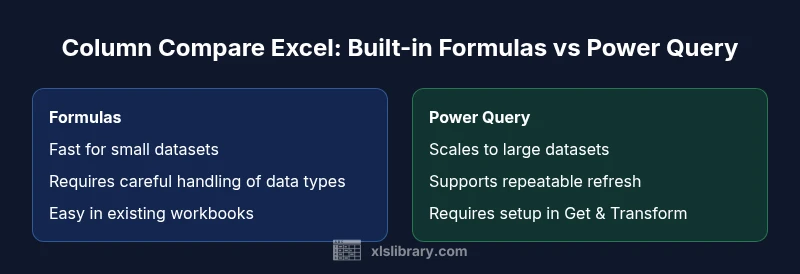
Power Query-based column comparison is the best long-term choice for scalable workflows; use built-in formulas for quick checks on small datasets.
If you anticipate frequent updates or multiple data sources, Power Query offers repeatability and robust automation. For one-off checks or small lists, formulas like XLOOKUP deliver speed with less setup. The optimal strategy often combines both approaches as your data scales.
People Also Ask
What does column compare excel mean in practice?
Column compare in Excel means checking two columns to ensure they contain matching values, identifying mismatches, and producing a clear reconciliation. It often involves cleaning data, applying lookup formulas, and optionally merging datasets to produce a unified view.
Column comparison means checking two columns to see if the values line up, and marking any differences for review.
Which method should I choose for column comparison?
Start with built-in formulas for quick checks and small datasets. If you need repeatable processes across many files or large data volumes, use Power Query to merge and reconcile data. The choice depends on data size and automation needs.
Use formulas for quick checks, and Power Query when you need scalable, repeatable reconciliations.
How do I handle spaces or data type differences in Excel column comparisons?
Standardize data by trimming spaces, normalizing case, and converting numbers stored as text to true numbers. Use functions like TRIM, LOWER, VALUE, or TEXT in combination with LOOKUP functions to minimize false mismatches.
Trim spaces, standardize case, and convert numbers stored as text so your comparisons are accurate.
Can I automate column comparisons in Excel without third-party tools?
Yes. Use Power Query for automated refresh of comparisons across multiple files, or write structured formulas with IFERROR and dynamic ranges to maintain updatable checks within a single workbook.
Yes, with Power Query or well-structured formulas you can automate checks in Excel.
What are common pitfalls in column comparisons?
Common issues include misaligned rows, mixed data types, blanks treated inconsistently, and not handling duplicates. Always normalize data first and verify edge cases with a small test set before scaling up.
Watch for alignment, data type mismatches, and duplicates; normalize data first.
The Essentials
- Normalize data before comparing columns
- Choose method based on dataset size and automation needs
- Prefer XLOOKUP/INDEX-MATCH for quick checks
- Leverage Power Query for large-scale, repeatable reconciliations
- Document workflow for audits and stakeholder review