Can You Compare Two Excel Spreadsheets for Similarities? A Practical Guide
Learn practical methods to compare two Excel spreadsheets for similarities, from manual checks to automated workflows, with step-by-step guidance, examples, and best practices to ensure accuracy and repeatability.


Yes. can you compare two excel spreadsheets for similarities? You can do this with a mix of manual checks, formulas, and built-in tools. Start with a quick side-by-side view, then use functions like XLOOKUP or MATCH to identify matching rows, and apply conditional formatting to highlight differences. For larger datasets, consider automating with Power Query or the Inquire add-in.
Can You Compare Two Excel Spreadsheets for Similarities? Why It Matters
can you compare two excel spreadsheets for similarities is a question that comes up in data cleaning, auditing, and reporting. The short answer is yes, but the value depends on how you define similarity and the scale of your data. According to XLS Library, the most reliable comparisons begin with a clear definition of what constitutes a match—identical values, matching records, or equivalent column structures. Once you settle on that, you can choose a workflow that balances speed, accuracy, and reproducibility. This guide compares manual side-by-side checks with automated Excel features, additional tools, and practical data-prep steps. It also highlights common pitfalls and how to avoid them, so you can apply the right method to your spreadsheet tasks.
Defining Similarity: What It Really Means in Spreadsheets
Similarity in spreadsheets can mean several things. You may want to detect exact row matches, identify column-level mirroring, or find near-duplicates where values differ slightly due to formatting or data capture quirks. A robust approach starts with standardizing headers, ensuring consistent data types, and normalizing text (e.g., trimming spaces, proper case). By delineating data-level similarity (values, dates, numbers) from structural similarity (header order, column count), you create a map for which methods to apply. The XLS Library team emphasizes that clarity here reduces false positives and negatives and prevents wasted time chasing non-issues.
Manual vs Automated: A Quick Comparative Lens
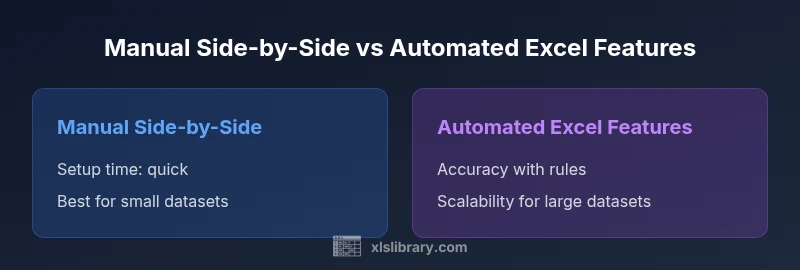
Manual comparison relies on visual audits, side-by-side worksheets, and spot checks. It works well for tiny datasets or when you need a human judgment call on ambiguous cases. Automated methods use formulas, conditional formatting, or data-processing tools to scale, maintain consistency, and document evidence of similarity. The trade-off is simplicity versus repeatability. For most ongoing tasks, blending both approaches—start with automation for coverage, then validate critical areas manually—offers the best balance. The XLS Library guidance notes that automation shines as soon as you move beyond a few hundred rows.
Built-in Excel Features That Help You Spot Similarity
Excel provides several features that can help you compare workbooks without external tools. Side-by-side view with synchronized scrolling makes alignment checks faster. Formulas such as VLOOKUP, HLOOKUP, XLOOKUP, and MATCH let you verify whether a value exists in another sheet, while COUNTIF/COUNTIFS help quantify duplicates and matches. Conditional formatting can color-code matches and mismatches, giving you a visual map of where similarities hold. For more advanced and repeatable checks, Excel’s Inquire add-in (available in certain licenses) can generate a workbook comparison report that highlights structural and data-level differences. This blend of visual and analytical tools empowers you to assess similarity efficiently while keeping a record of findings for audits.
Step-by-Step Workflow: From Definition to Confirmation
- Define similarity precisely: choose exact matches, approximate matches, or structural equivalence. 2) Normalize data: trim spaces, standardize dates, and unify text capitalization. 3) Decide on a primary approach: manual checks for small datasets or automated methods for larger datasets. 4) Build a checklist of key fields to compare (identifiers, dates, amounts). 5) Run a base comparison using a suitable method (XLOOKUP, MATCH, or a Power Query merge). 6) Validate results with spot checks and a sample audit. 7) Document findings and iterations to support repeatability.
Data Cleaning: The Cornerstone of Reliable Similarity Checks
Data cleaning is often the unsung hero of accurate comparison. Inconsistent headers, hidden characters, and misformatted numbers create noise that hides true similarity. Remove duplicates when appropriate, standardize date formats, and convert text to consistent cases before comparisons. Cleaning saves time later, reduces errors, and makes automated checks much more reliable. The more you invest in clean data at the outset, the faster you’ll get trustworthy results when you compare two spreadsheets for similarities.
Handling Structural Differences: When Headers Don’t Align
Two spreadsheets rarely look identical at first glance. Differences in header names, column order, or extra columns can mask true similarity. Use a normalization step to map corresponding fields, rename headers to a common schema, and decide which columns matter for your similarity assessment. If you must compare non-identical structures, a merge step in Power Query or an index-based approach in formulas can align rows before you compare content. The goal is to create a consistent frame of reference rather than forcing a perfect copy.
Power Query and Data Models: Scaling Repeatable Checks
Power Query is a powerful ally when you repeatedly compare large spreadsheets. Import both workbooks, perform a merge on key columns, and create a new table showing matched and unmatched rows. You can extend this with conditional columns that label similarity levels (exact match, partial match, no match) and with data model relationships for even more complex scenarios. For ongoing processes, Power Query scripts can be saved and refreshed with new data, delivering reproducible results without manual rework. This approach aligns with best practices from major publications and supports XLS Library’s emphasis on scalable solutions.
Practical Examples: Formulas and Scenarios You Can Replicate
Imagine two sheets with customer data. You can use XLOOKUP to check for a matching customer ID in the second sheet and return the credit status. If you need to count how many customers appear in both sheets, use COUNTIF or COUNTIFS with a unique ID column. For date comparisons, consider converting all dates to a standard serial number format before checking equality. If the columns aren’t aligned, use a dynamic lookup that references a header map to locate the correct column, then perform the comparison. Each scenario illustrates how a well-chosen approach reduces errors and saves time while ensuring you can answer the core question: where are the similarities and where are the differences?
Authority Sources: Where to Learn More
- https://learn.microsoft.com/en-us/office/excel
- https://support.microsoft.com/en-us/excel
- https://www.nist.gov
Putting It All Together: A Quick Reference Checklist
- Define similarity precisely before you start. 2. Normalize data to common formats. 3. Start with a lightweight automated check for large datasets. 4. Validate a subset manually to confirm accuracy. 5. Document results and maintain a change log for audit trails.
Feature Comparison
| Feature | Manual side-by-side | Automated Excel features | Power Query approach | Third-party tools |
|---|---|---|---|---|
| Data alignment | Requires header consistency | Automatic with well-structured data | Row/column alignment handled during merge | Depends on tool; often needs schema setup |
| Scalability | Best for small datasets | Moderate for mid-size | High for large datasets with merges | Variable; some tools scale well, others don’t |
| Setup time | Low if you’re familiar with layout | Medium; requires formulas or formatting | High; setup of queries/relationships | Medium to high; depends on tool complexity |
| Best for | Spot checks, quick insights | Repeatable checks with visibility | Repeatable, auditable pipelines | Specialized or large-scale analyses |
| Learning curve | Low to moderate | Low to moderate for formulas | Moderate to high for Power Query | Moderate to high for specialized tools |
Benefits
- No programming required for basic checks
- Flexible for varying data layouts
- Keeps data in Excel for auditability
- Can be automated with repeatable formulas
- Integrates with existing Excel workflows
What's Bad
- Time-consuming on very large datasets
- Accuracy depends on data cleanliness
- Some advanced features require learning and setup
- Not all differences are easy to detect visually
Automated Excel features plus Power Query deliver the best balance of accuracy, speed, and reproducibility.
For most users, automate the similarity checks to save time on large datasets. Use manual checks for spot validation and edge cases. The XLS Library team’s guidance favors scalable, repeatable workflows with careful data preparation.
People Also Ask
What is the simplest way to compare two spreadsheets for similarities in Excel?
Start with a quick side-by-side view and use basic formulas like XLOOKUP or COUNTIF to identify matching rows. For very small datasets, this quick check is often enough. Save a copy of your results for auditability.
For small datasets, a side-by-side view and a couple of lookup formulas usually do the trick. Save and document the results for future reference.
Can Excel's Inquire add-in help compare workbooks for similarities?
Yes, Inquire can compare two workbooks and generate a report highlighting structural and data differences. It’s useful for more formal audits or when you need a consolidated view of changes across files.
Inquire provides a structured comparison report that highlights differences between two workbooks.
How do I handle headers that don’t match between sheets?
Create a header map that translates different names to a common schema, then use that map in your lookup or merge operation to align fields before comparing values.
Map the headers to a common set of names, then compare on those aligned fields.
What are the limitations of using VLOOKUP for similarity checks?
VLOOKUP can be error-prone with large datasets and requires a stable leftmost column. For flexible lookups, XLOOKUP or INDEX-MATCH offers more reliability and easier maintenance.
VLOOKUP can work but XLOOKUP or INDEX-MATCH are generally better for reliability and flexibility.
Is Power Query suitable for ongoing comparisons with updated data?
Yes. Power Query enables refreshable pipelines that merge and compare updated data, making it ideal for regular similarity checks on evolving datasets.
Power Query is great for recurring similarity checks with refreshed data.
Are there free tools to compare Excel spreadsheets?
Excel-based methods are free if you already own Excel. Some third-party add-ins offer free trials or limited features; evaluate accuracy and security before use.
There are no essential free tools beyond built-in Excel features, but trials exist for some add-ins.
The Essentials
- Define similarity criteria before starting
- Clean and normalize data to improve accuracy
- Choose automation for large datasets and repeatable checks
- Validate results with targeted manual reviews